> ## Documentation Index
> Fetch the complete documentation index at: https://docs.scanova.io/llms.txt
> Use this file to discover all available pages before exploring further.
# Creating & managing API keys
> Where to generate and revoke Management API keys in the Scanova dashboard — the UI counterpart to the technical token endpoints.
This page covers the dashboard UI for Management API keys. For the underlying wire format, see the technical reference pages: [Create an API token](/api-reference/management-api/tokens/create), [Remove an API token](/api-reference/management-api/tokens/remove), and the [usage endpoints](/api-reference/management-api/tokens/usage-stats).
## Where to find it
API keys live at `/api/keys`, under **Developer → API** in the sidebar. This is the same page whether you have zero keys or several — an empty account sees an explainer instead of a bare table:
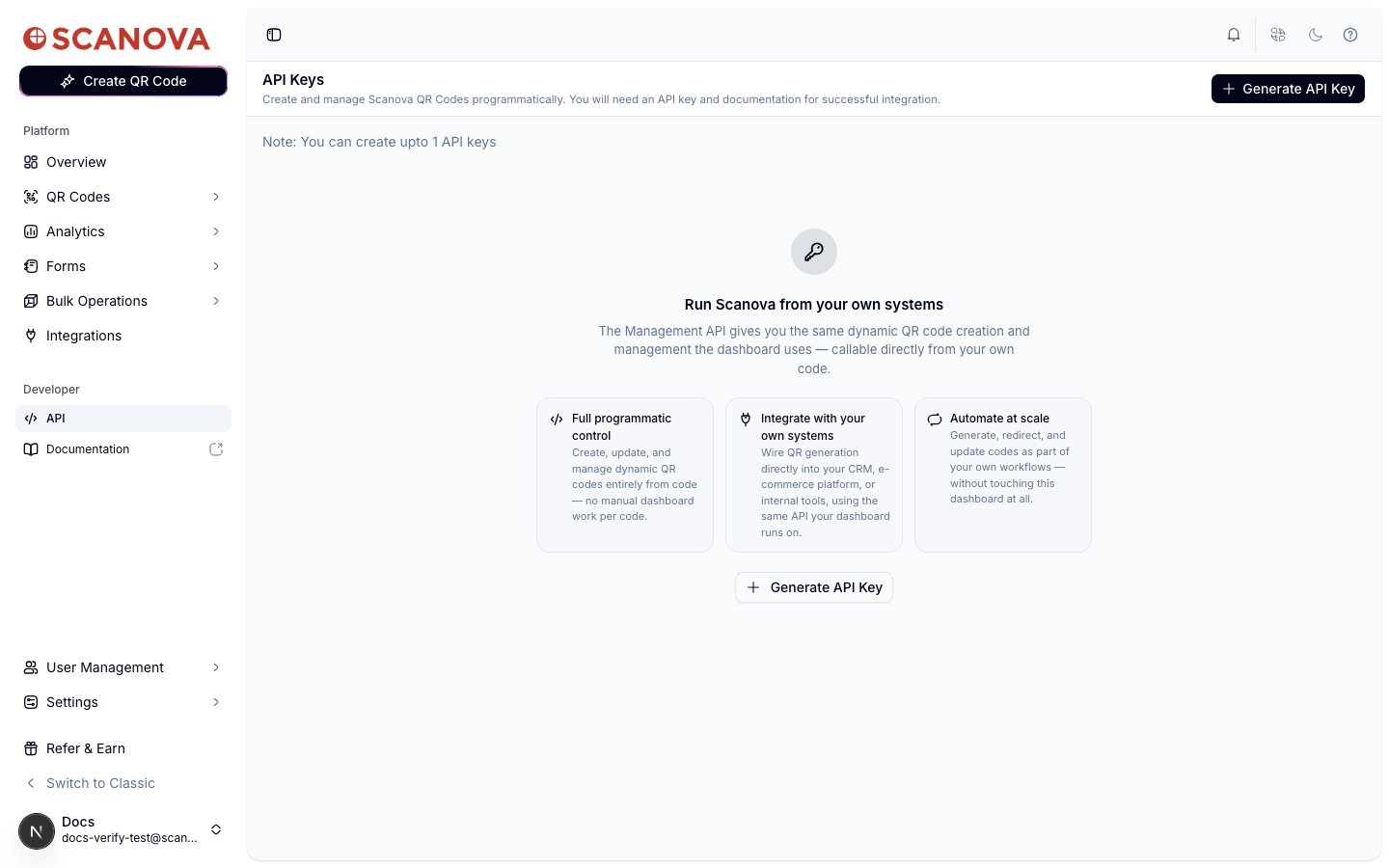 Access to this page is gated by two things: a permission (view or manage) and a plan quota (`MANAGEMENT_API`). If your plan doesn't grant that quota, you won't see this page at all — contact support if you expect Management API access on your plan.
## Generating a key
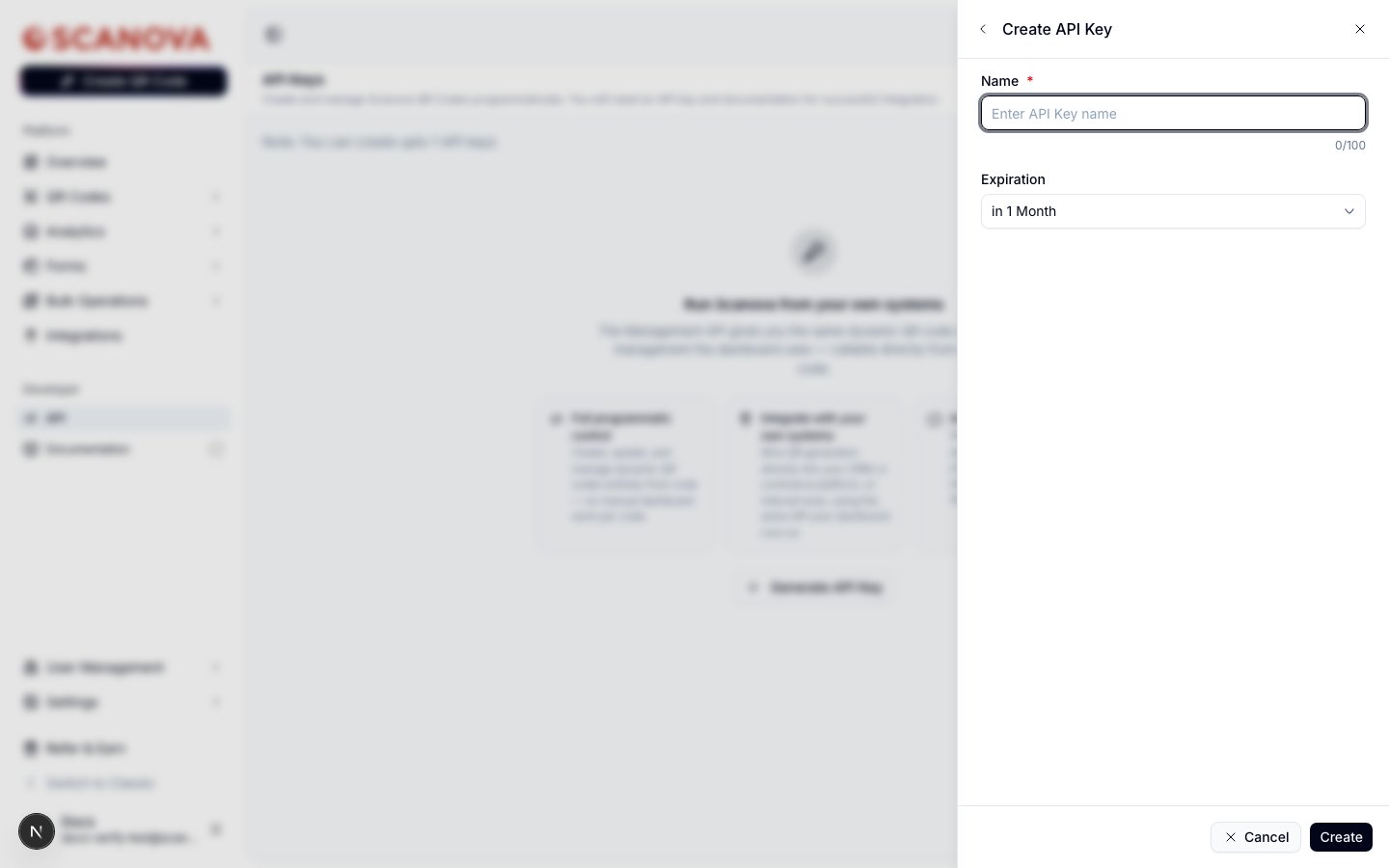
Select **Generate API Key** (in the header, or the empty-state's own button) to open the creation drawer:
Access to this page is gated by two things: a permission (view or manage) and a plan quota (`MANAGEMENT_API`). If your plan doesn't grant that quota, you won't see this page at all — contact support if you expect Management API access on your plan.
## Generating a key
Select **Generate API Key** (in the header, or the empty-state's own button) to open the creation drawer:
 | Field | Notes |
| -------------- | ------------------------------------------------------------------------------------------------------------------------------------------------------------------------------------------------------------------------------------------------------------------------------------- |
| **Name** | Required, up to 100 characters. Shown in the key list so you can tell keys apart later — pick something that identifies the integration, e.g. "Zapier — production". |
| **Expiration** | One of **in 1 Month**, **in 3 Months**, **in 1 Year**, or **Never**. This maps directly to the `expiry` field on the [create endpoint](/api-reference/management-api/tokens/create) (30 / 90 / 365 / -1 days) — there's no way to change it after creation; create a new key instead. |
Selecting **Create** immediately shows the raw key value in a one-time dialog:
The created-key dialog reads *"Copy your API key now. You won't be able to see it again."* Copy it immediately — this documentation project did not publish a screenshot of that dialog, since it necessarily displays a real, live, copyable secret.
If you choose **Never** for expiration, the dialog shows an additional amber warning that a key set to never expire should be treated with extra care, since it won't rotate on its own.
## Managing existing keys
The table lists every key on the account: **Name**, a masked **API Key** value with a copy-to-clipboard icon, **Created On**, **Created By**, and **Expires On** (or "Never"). An expired key's date is shown in red.
This account's plan only allows **1** API key at a time — the note directly under the page header ("You can create upto \{limit} API keys") reflects your specific plan's quota, not a platform-wide limit. If you're on an unlimited plan, that note doesn't appear at all.
## Revoking a key
Select the trash icon at the end of a key's row to open a confirmation drawer showing the key's name, its masked value, its Active/Expired badge, and creation date. Confirming revokes it immediately and permanently — matching the [remove endpoint](/api-reference/management-api/tokens/remove)'s behavior exactly: there's no "pause" state, and any request already in flight with that key starts failing right away.
## Related
* [Create an API token](/api-reference/management-api/tokens/create) — the technical request/response shape behind the **Generate API Key** drawer above.
* [Remove an API token](/api-reference/management-api/tokens/remove) — the technical shape behind the revoke action above.
* [API usage dashboard](/api-keys/usage-dashboard) — where (and currently, where not) you can see how much a key has been used.
| Field | Notes |
| -------------- | ------------------------------------------------------------------------------------------------------------------------------------------------------------------------------------------------------------------------------------------------------------------------------------- |
| **Name** | Required, up to 100 characters. Shown in the key list so you can tell keys apart later — pick something that identifies the integration, e.g. "Zapier — production". |
| **Expiration** | One of **in 1 Month**, **in 3 Months**, **in 1 Year**, or **Never**. This maps directly to the `expiry` field on the [create endpoint](/api-reference/management-api/tokens/create) (30 / 90 / 365 / -1 days) — there's no way to change it after creation; create a new key instead. |
Selecting **Create** immediately shows the raw key value in a one-time dialog:
The created-key dialog reads *"Copy your API key now. You won't be able to see it again."* Copy it immediately — this documentation project did not publish a screenshot of that dialog, since it necessarily displays a real, live, copyable secret.
If you choose **Never** for expiration, the dialog shows an additional amber warning that a key set to never expire should be treated with extra care, since it won't rotate on its own.
## Managing existing keys
The table lists every key on the account: **Name**, a masked **API Key** value with a copy-to-clipboard icon, **Created On**, **Created By**, and **Expires On** (or "Never"). An expired key's date is shown in red.
This account's plan only allows **1** API key at a time — the note directly under the page header ("You can create upto \{limit} API keys") reflects your specific plan's quota, not a platform-wide limit. If you're on an unlimited plan, that note doesn't appear at all.
## Revoking a key
Select the trash icon at the end of a key's row to open a confirmation drawer showing the key's name, its masked value, its Active/Expired badge, and creation date. Confirming revokes it immediately and permanently — matching the [remove endpoint](/api-reference/management-api/tokens/remove)'s behavior exactly: there's no "pause" state, and any request already in flight with that key starts failing right away.
## Related
* [Create an API token](/api-reference/management-api/tokens/create) — the technical request/response shape behind the **Generate API Key** drawer above.
* [Remove an API token](/api-reference/management-api/tokens/remove) — the technical shape behind the revoke action above.
* [API usage dashboard](/api-keys/usage-dashboard) — where (and currently, where not) you can see how much a key has been used.