> ## Documentation Index
> Fetch the complete documentation index at: https://docs.scanova.io/llms.txt
> Use this file to discover all available pages before exploring further.
# Google login
> Sign in with Google.
Scanova lets you sign in or create an account using your Google account instead of a password. Google shows up in two places: as a **sign-in/registration option**, and as a way to **re-confirm your identity** for sensitive changes on accounts that don't have a password set.
## Signing in or registering with Google
**Continue with Google** appears at the top of both the login page (`/auth/login`) and the registration page (`/auth/register`), above the email/password fields.
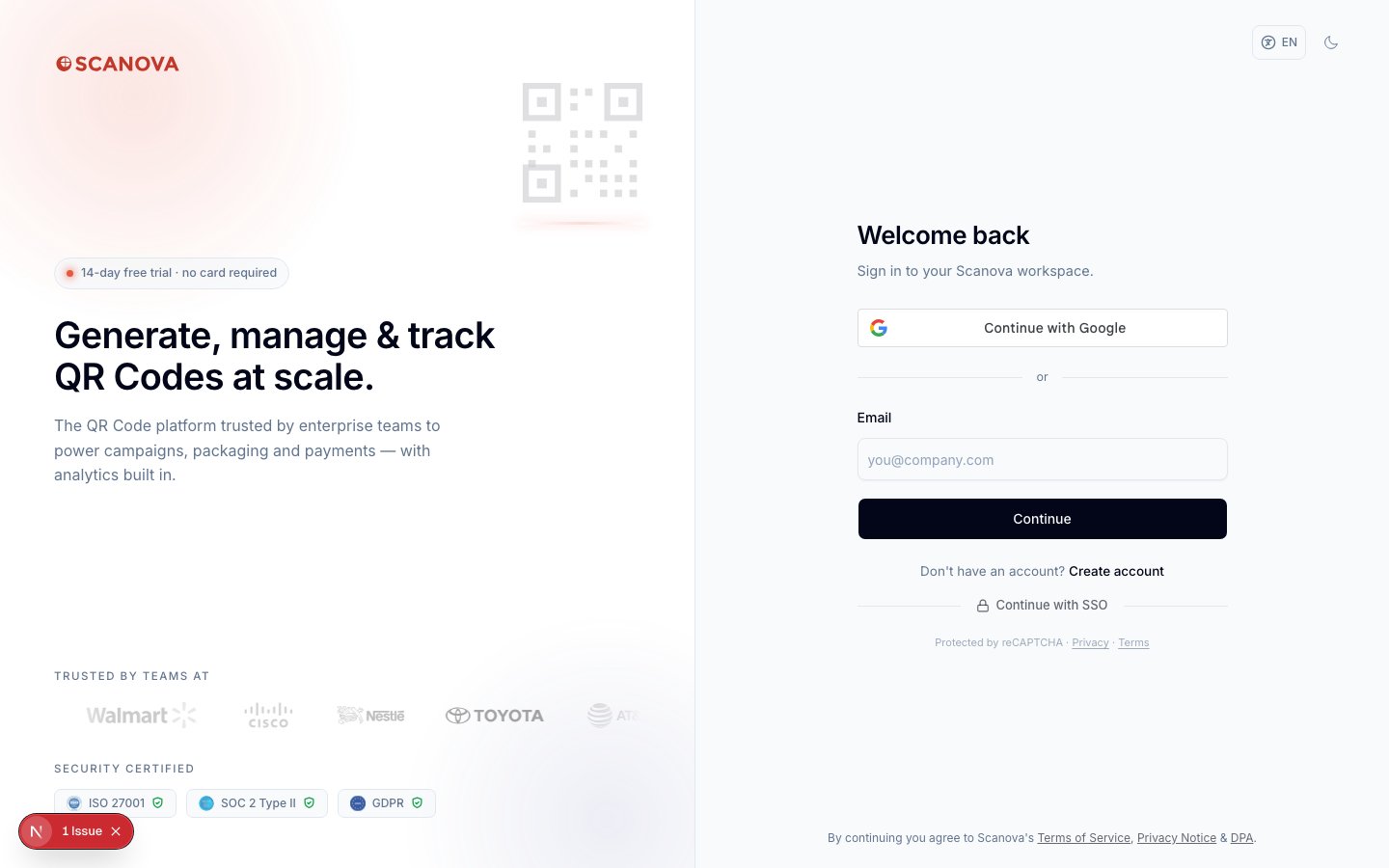
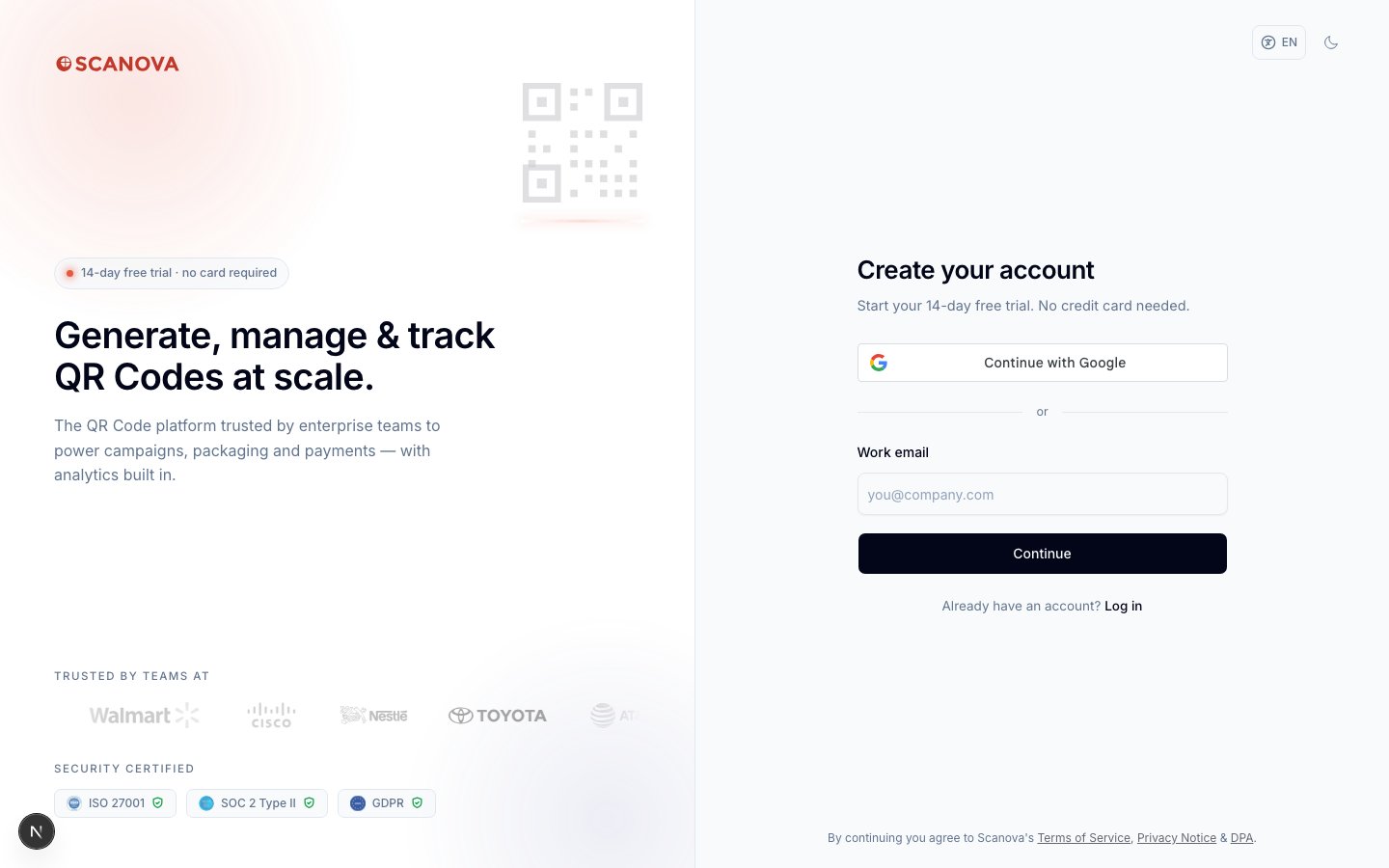 Selecting **Continue with Google** opens Google's standard account picker/consent flow. If you don't already have a Scanova account, one is created automatically using your Google account's email address; if you do, you're signed straight in.
There's no separate "connect your Google account" toggle in Account settings — Google sign-in isn't something you link to an existing password-based account after the fact. It's either how you originally signed up or logged in, or it's used for the re-authentication described below.
## Re-authenticating with Google
Certain sensitive actions — changing your MFA methods, changing your email, or deleting your account — ask you to confirm your identity first. If your account has a password, that confirmation is a password field. If your account has **no password** (because you signed up or have only ever signed in with Google), Scanova shows a **Continue with Google** button in its place, so you can confirm via Google instead of a password you never set.
This applies in:
* The [Manage MFA drawer](/authentication/multi-factor-authentication) — before adding, changing the default, or removing a method.
* The change-email flow in Account settings.
* The delete-account flow in Account settings.
This re-authentication button was verified by reading the source (`GoogleReauthButton`) rather than screenshotted live — reproducing it requires a password-less, Google-only test account, and the disposable account used to verify this documentation set has a password. Functionally it's the same Google account picker as the login/register flow above, just used to confirm identity mid-action instead of to start a session.
## Related
* [Multi-factor authentication](/authentication/multi-factor-authentication) — where Google re-authentication appears for password-less accounts.
* [Single Sign-On](/authentication/sso) — a separate, organization-wide sign-in option distinct from an individual Google account.
Selecting **Continue with Google** opens Google's standard account picker/consent flow. If you don't already have a Scanova account, one is created automatically using your Google account's email address; if you do, you're signed straight in.
There's no separate "connect your Google account" toggle in Account settings — Google sign-in isn't something you link to an existing password-based account after the fact. It's either how you originally signed up or logged in, or it's used for the re-authentication described below.
## Re-authenticating with Google
Certain sensitive actions — changing your MFA methods, changing your email, or deleting your account — ask you to confirm your identity first. If your account has a password, that confirmation is a password field. If your account has **no password** (because you signed up or have only ever signed in with Google), Scanova shows a **Continue with Google** button in its place, so you can confirm via Google instead of a password you never set.
This applies in:
* The [Manage MFA drawer](/authentication/multi-factor-authentication) — before adding, changing the default, or removing a method.
* The change-email flow in Account settings.
* The delete-account flow in Account settings.
This re-authentication button was verified by reading the source (`GoogleReauthButton`) rather than screenshotted live — reproducing it requires a password-less, Google-only test account, and the disposable account used to verify this documentation set has a password. Functionally it's the same Google account picker as the login/register flow above, just used to confirm identity mid-action instead of to start a session.
## Related
* [Multi-factor authentication](/authentication/multi-factor-authentication) — where Google re-authentication appears for password-less accounts.
* [Single Sign-On](/authentication/sso) — a separate, organization-wide sign-in option distinct from an individual Google account.