> ## Documentation Index
> Fetch the complete documentation index at: https://docs.scanova.io/llms.txt
> Use this file to discover all available pages before exploring further.
# Multi-factor authentication
> Set up email, authenticator app, or passkey-based MFA.
Multi-factor authentication (MFA) adds a second verification step to sign-in, on top of your password. Scanova supports three methods — **email one-time codes**, an **authenticator app** (TOTP), and **passkeys** — and all three live inside a single **Manage MFA** drawer. You can enable more than one method, pick a default, and generate backup codes in case you lose access to your usual method.
MFA is only available for accounts that sign in with a password. If your organization signs in through [SSO](/authentication/sso), your identity provider handles authentication instead, and the MFA option doesn't appear in your account settings.
## Opening Manage MFA
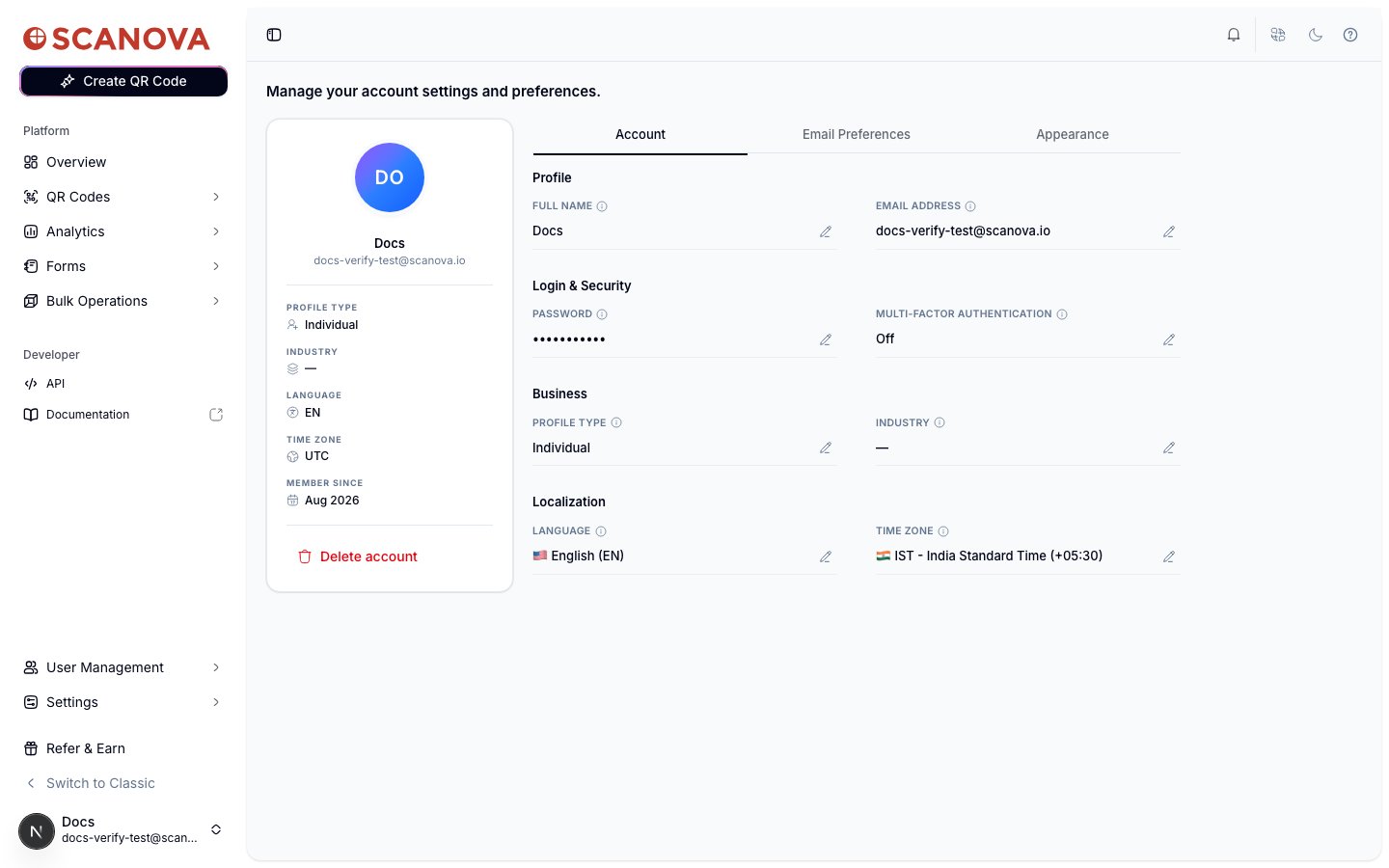
Go to **Account** (your avatar menu, or `/account`) and find the **Login & Security** section on the **Account** tab. The **Multi-Factor Authentication** field shows your current status (**Off**, or **On · \{method}**) with an edit icon that opens the drawer.
 ## Choosing a method
The first time you open the drawer, you're asked how you'd like to get your verification code:
## Choosing a method
The first time you open the drawer, you're asked how you'd like to get your verification code:
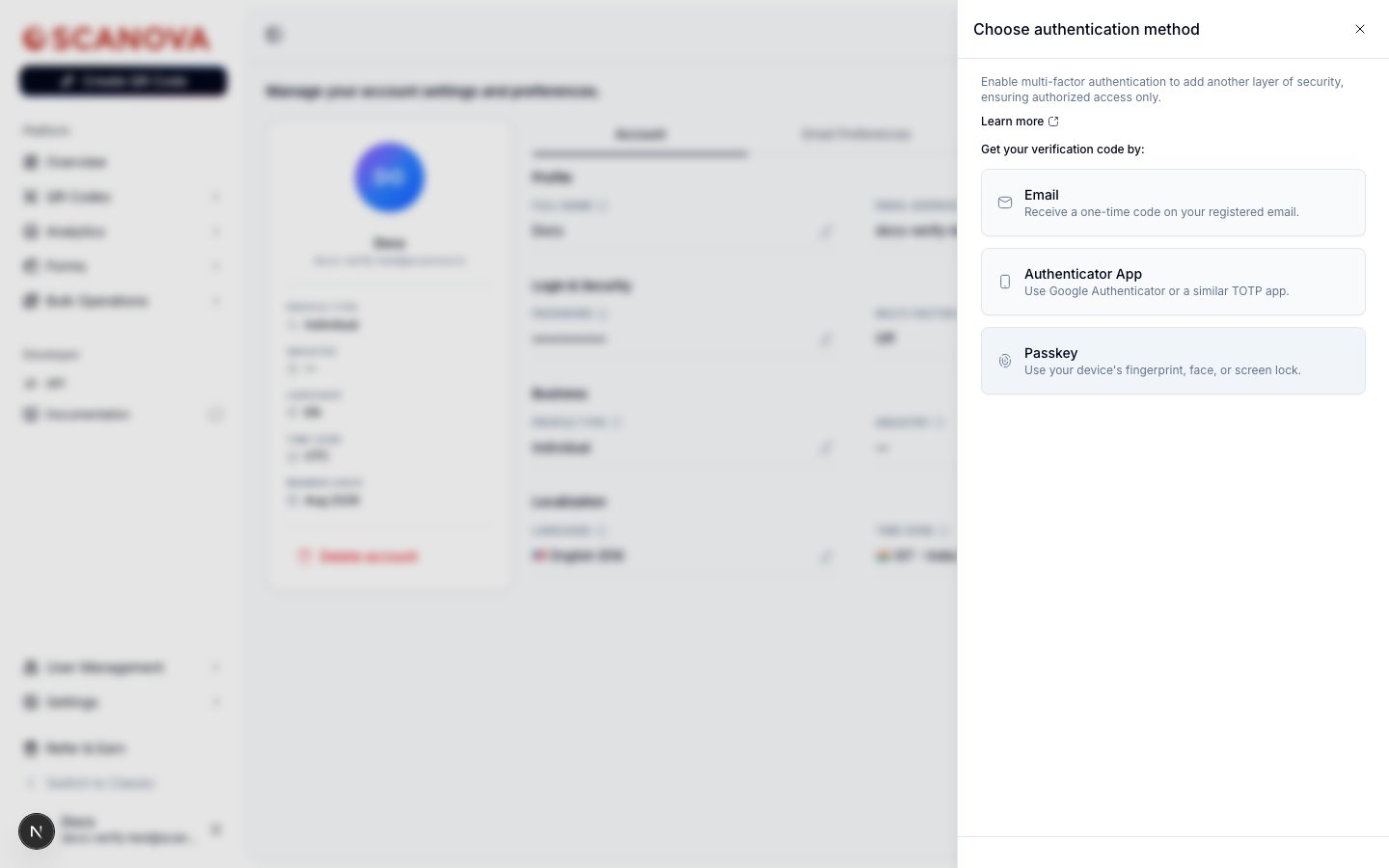 * **Email** — a one-time code is sent to your registered email address at sign-in.
* **Authenticator App** — codes are generated by an app like Google Authenticator (any TOTP-compatible app works).
* **Passkey** — your device's fingerprint, face unlock, or screen lock. See [Passkeys](/authentication/passkeys) for a dedicated walkthrough of this method.
If your browser reports that your device supports a built-in (platform) authenticator, Passkey is listed first and flagged **Recommended for this device**.
Whichever method you pick, you're first asked to re-enter your password to confirm it's you:
* **Email** — a one-time code is sent to your registered email address at sign-in.
* **Authenticator App** — codes are generated by an app like Google Authenticator (any TOTP-compatible app works).
* **Passkey** — your device's fingerprint, face unlock, or screen lock. See [Passkeys](/authentication/passkeys) for a dedicated walkthrough of this method.
If your browser reports that your device supports a built-in (platform) authenticator, Passkey is listed first and flagged **Recommended for this device**.
Whichever method you pick, you're first asked to re-enter your password to confirm it's you:
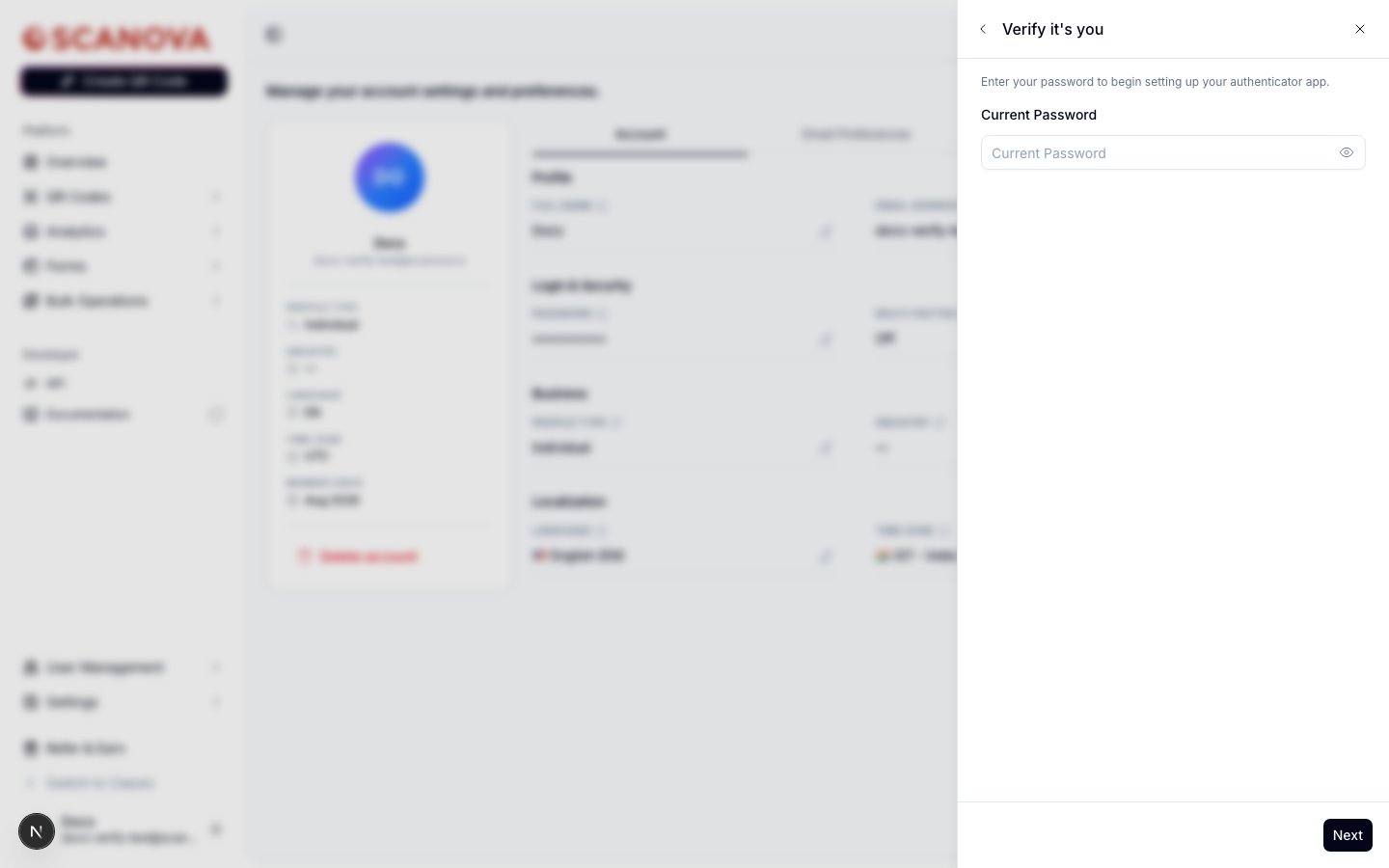 If your account has no password (for example, you only ever signed in with Google), this step shows a **Continue with Google** button instead, so you can confirm your identity that way.
## Setting up an authenticator app
Enter your current password and select **Next**.
Scan the QR code with an app like Google Authenticator, or select the manual-entry key if you can't scan.
If your account has no password (for example, you only ever signed in with Google), this step shows a **Continue with Google** button instead, so you can confirm your identity that way.
## Setting up an authenticator app
Enter your current password and select **Next**.
Scan the QR code with an app like Google Authenticator, or select the manual-entry key if you can't scan.
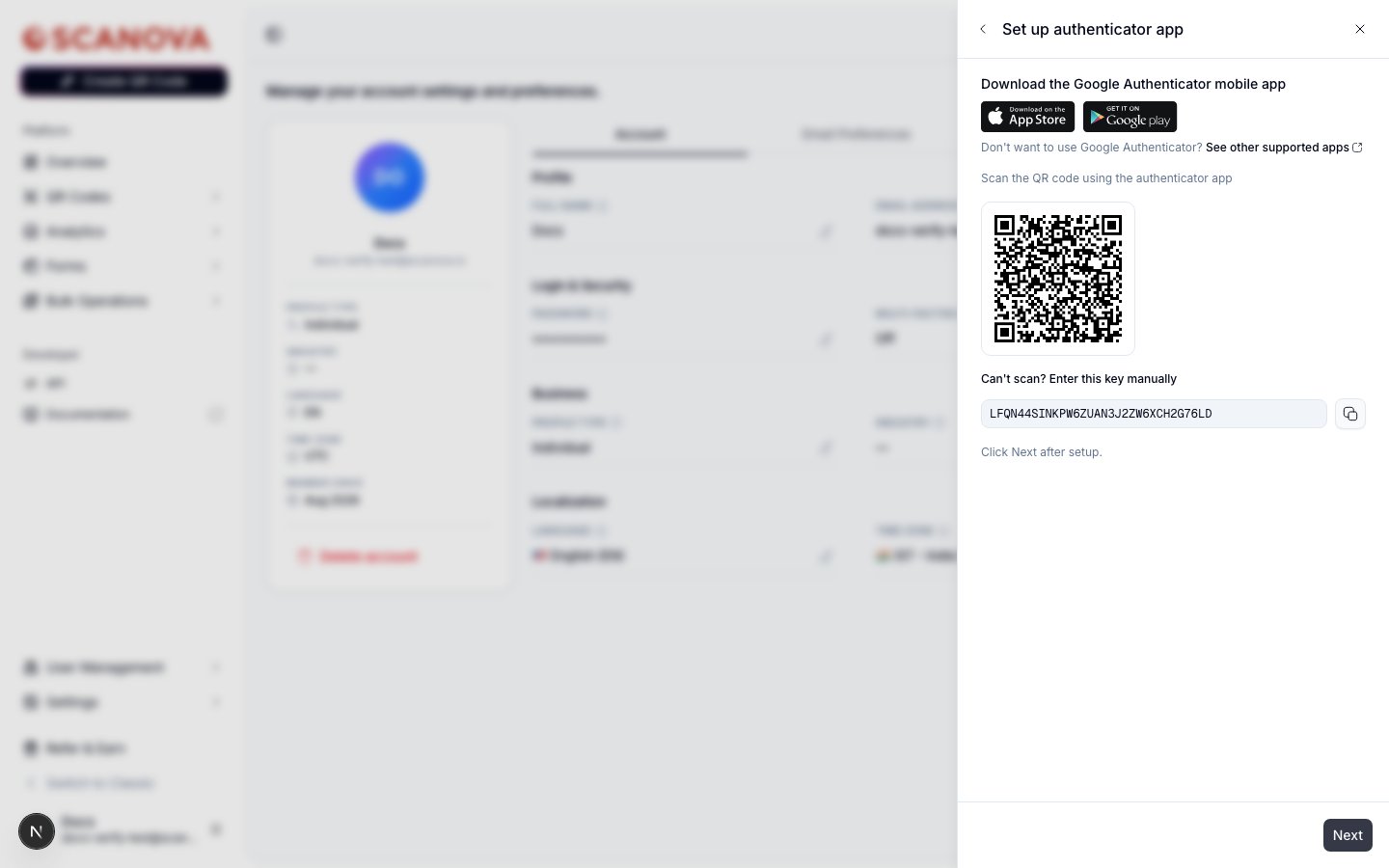 Select **Next** once the account appears in your app.
Your authenticator app now shows a 6-digit code that refreshes periodically. Enter it and select **Verify**.
Select **Next** once the account appears in your app.
Your authenticator app now shows a 6-digit code that refreshes periodically. Enter it and select **Verify**.
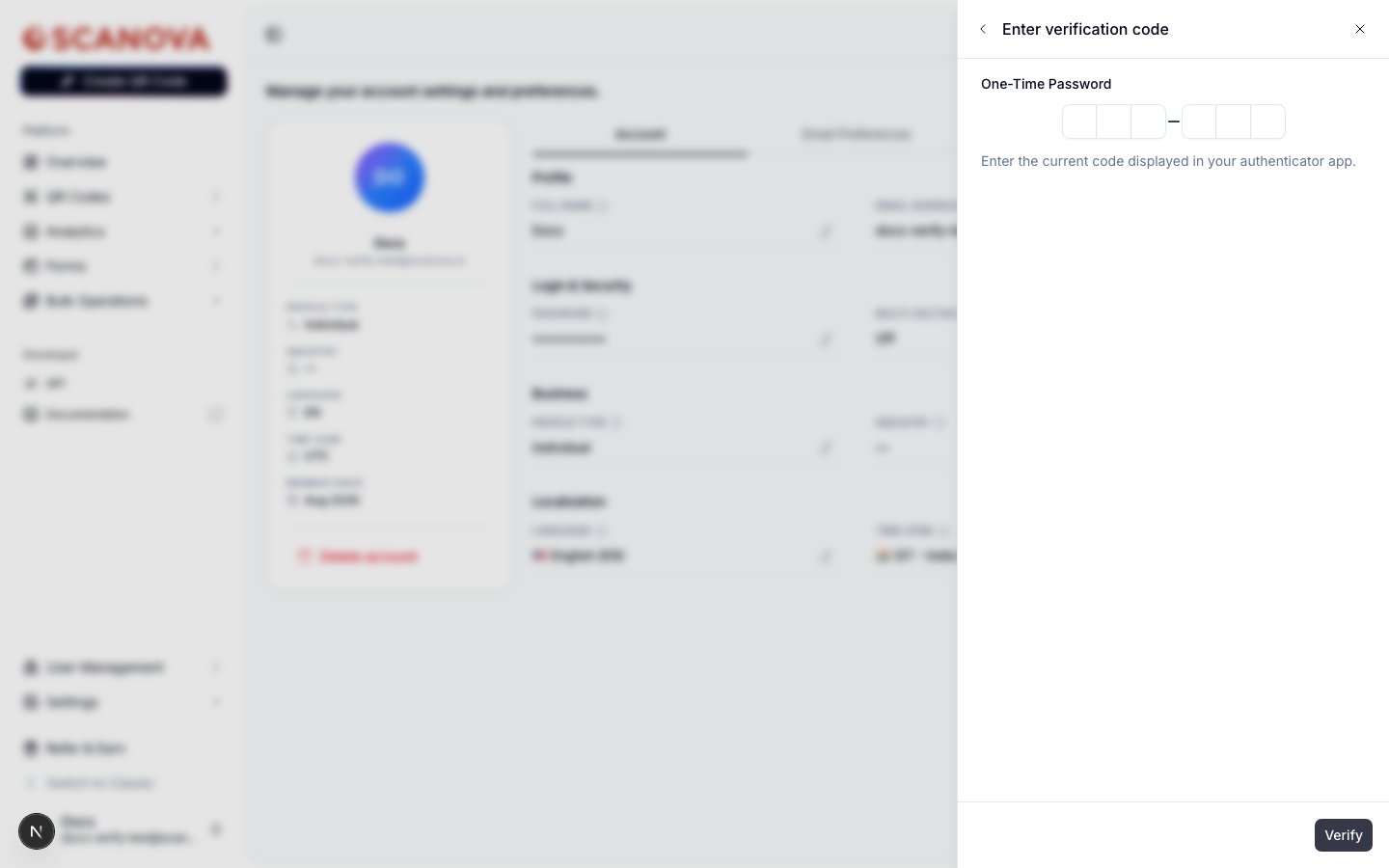 On success you're shown your [backup codes](#saving-backup-codes) — the app is now an active MFA method on your account.
## Email one-time codes
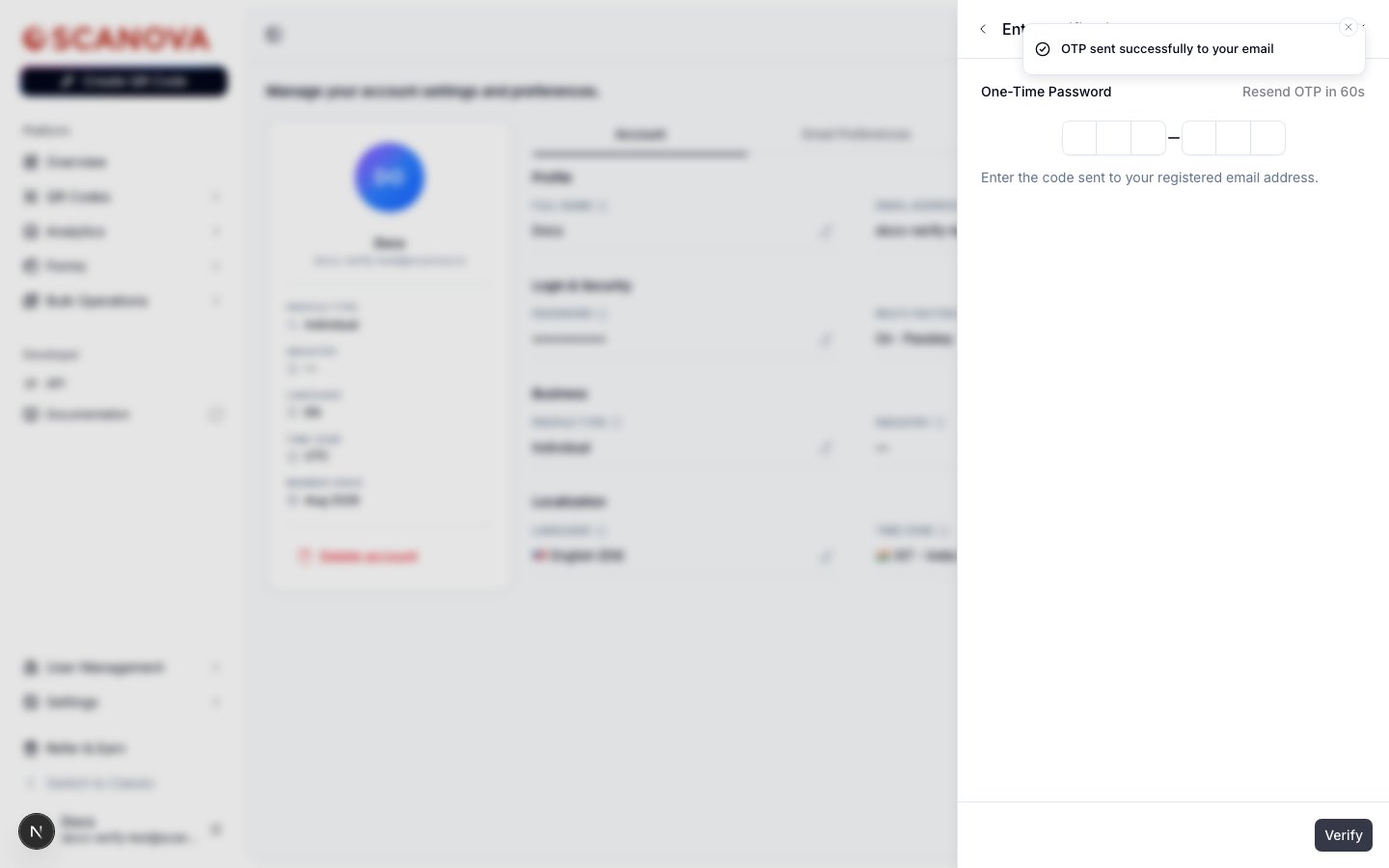
Choosing **Email** skips the app-setup step: after the password check, Scanova sends a 6-digit code to your registered email address and shows the same OTP-entry screen, with a countdown before you can request another code.
On success you're shown your [backup codes](#saving-backup-codes) — the app is now an active MFA method on your account.
## Email one-time codes
Choosing **Email** skips the app-setup step: after the password check, Scanova sends a 6-digit code to your registered email address and shows the same OTP-entry screen, with a countdown before you can request another code.
 ## Passkeys
Passkeys use your device's built-in biometrics or screen lock instead of a code. Setup and sign-in both work a little differently from the code-based methods above — see [Passkeys](/authentication/passkeys) for the full walkthrough.
## Adding another method
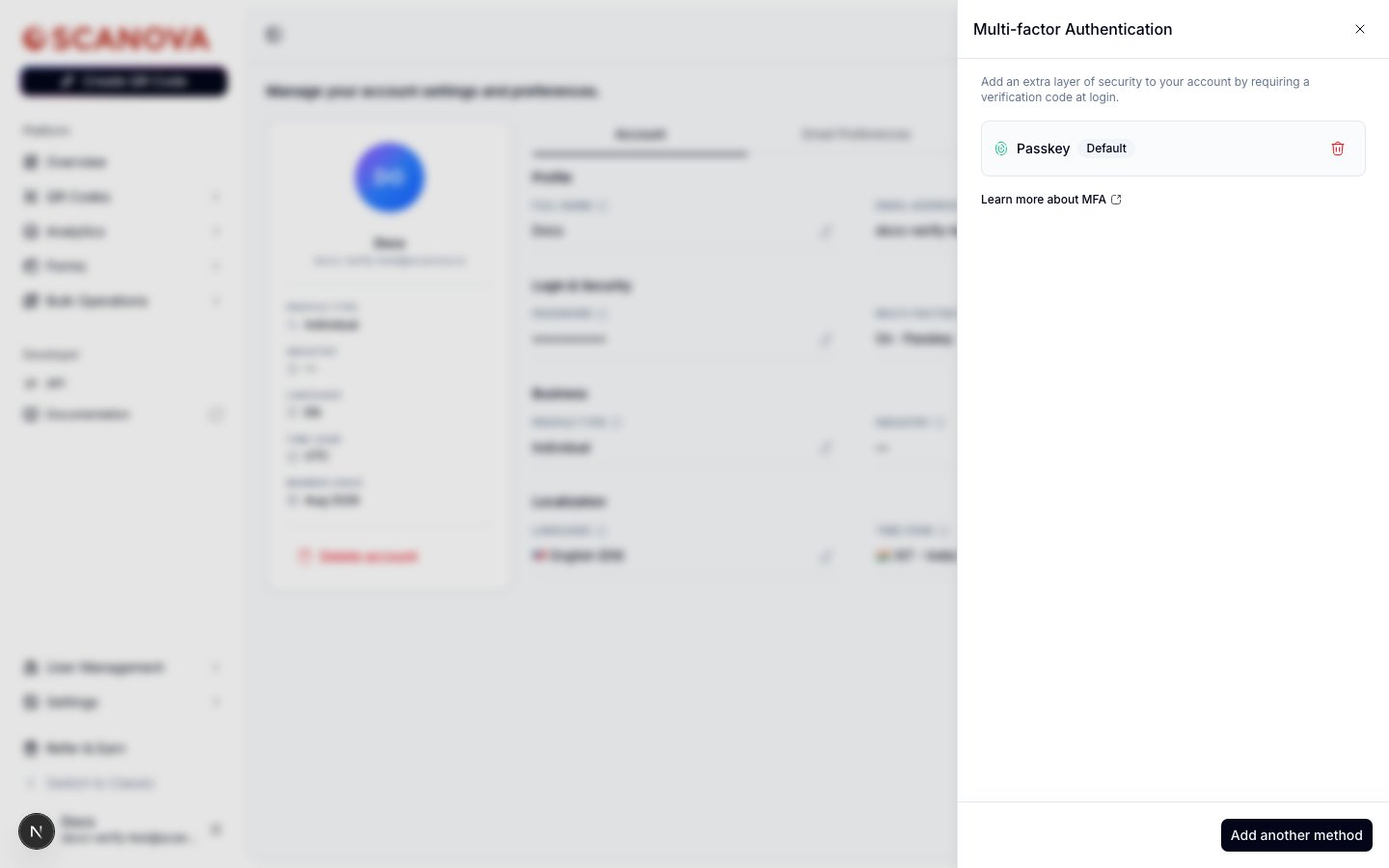
Once you have at least one method enrolled, the drawer's main view lists it with a **Default** badge and a delete (trash) icon, and the footer button changes to **Add another method**:
## Passkeys
Passkeys use your device's built-in biometrics or screen lock instead of a code. Setup and sign-in both work a little differently from the code-based methods above — see [Passkeys](/authentication/passkeys) for the full walkthrough.
## Adding another method
Once you have at least one method enrolled, the drawer's main view lists it with a **Default** badge and a delete (trash) icon, and the footer button changes to **Add another method**:
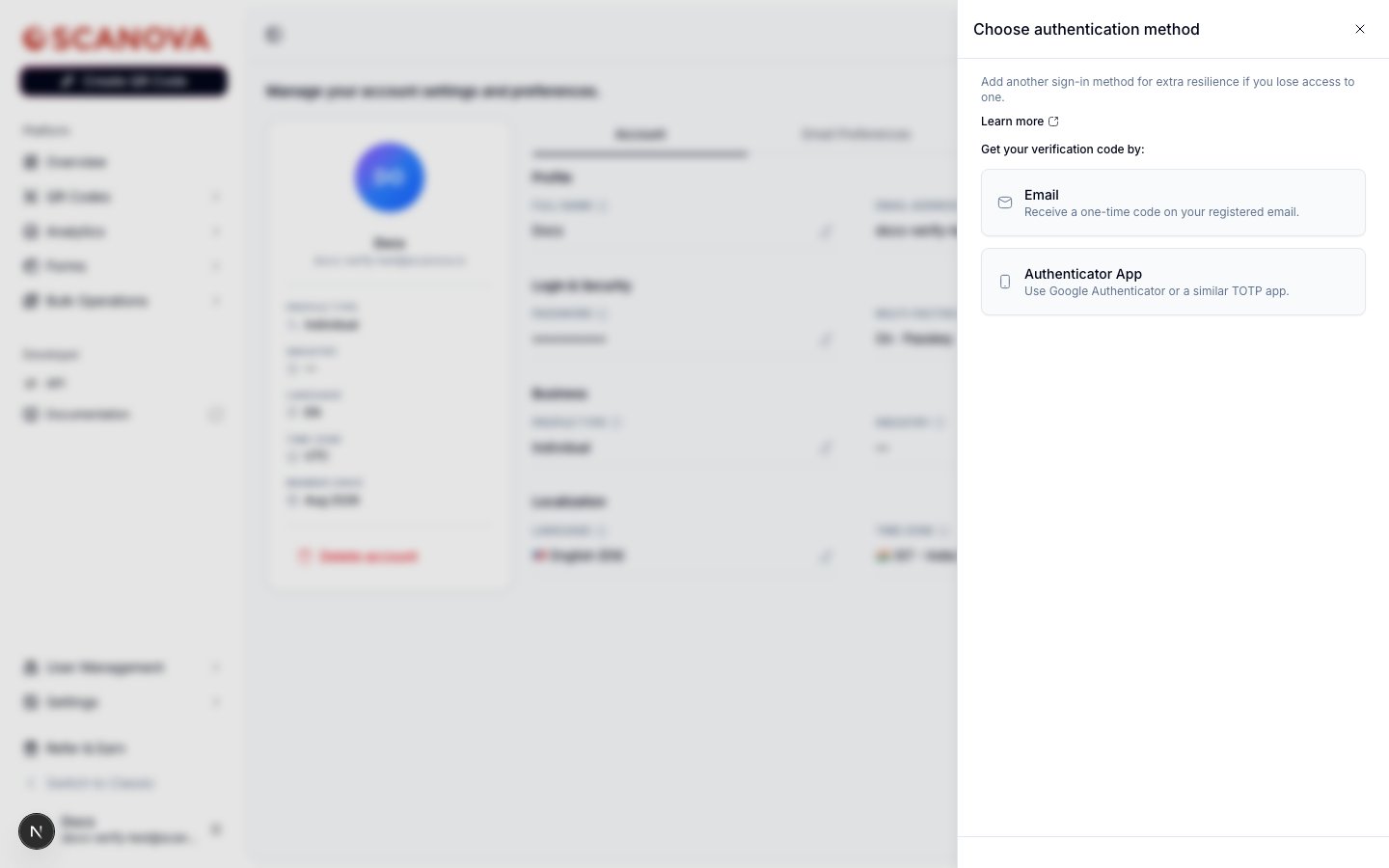
 Selecting **Add another method** re-opens the method picker — now only showing methods you haven't already enrolled, with copy adjusted to reflect that you already have MFA set up:
 If you enroll more than one method, each row gets a **Make default** button (unless it's already the default). Your default method is the one Scanova prompts for first at sign-in — you can still fall back to any other enrolled method or a backup code.
To remove a method, select its trash icon, confirm your password (or re-authenticate with Google), and it's removed immediately.
## Saving backup codes
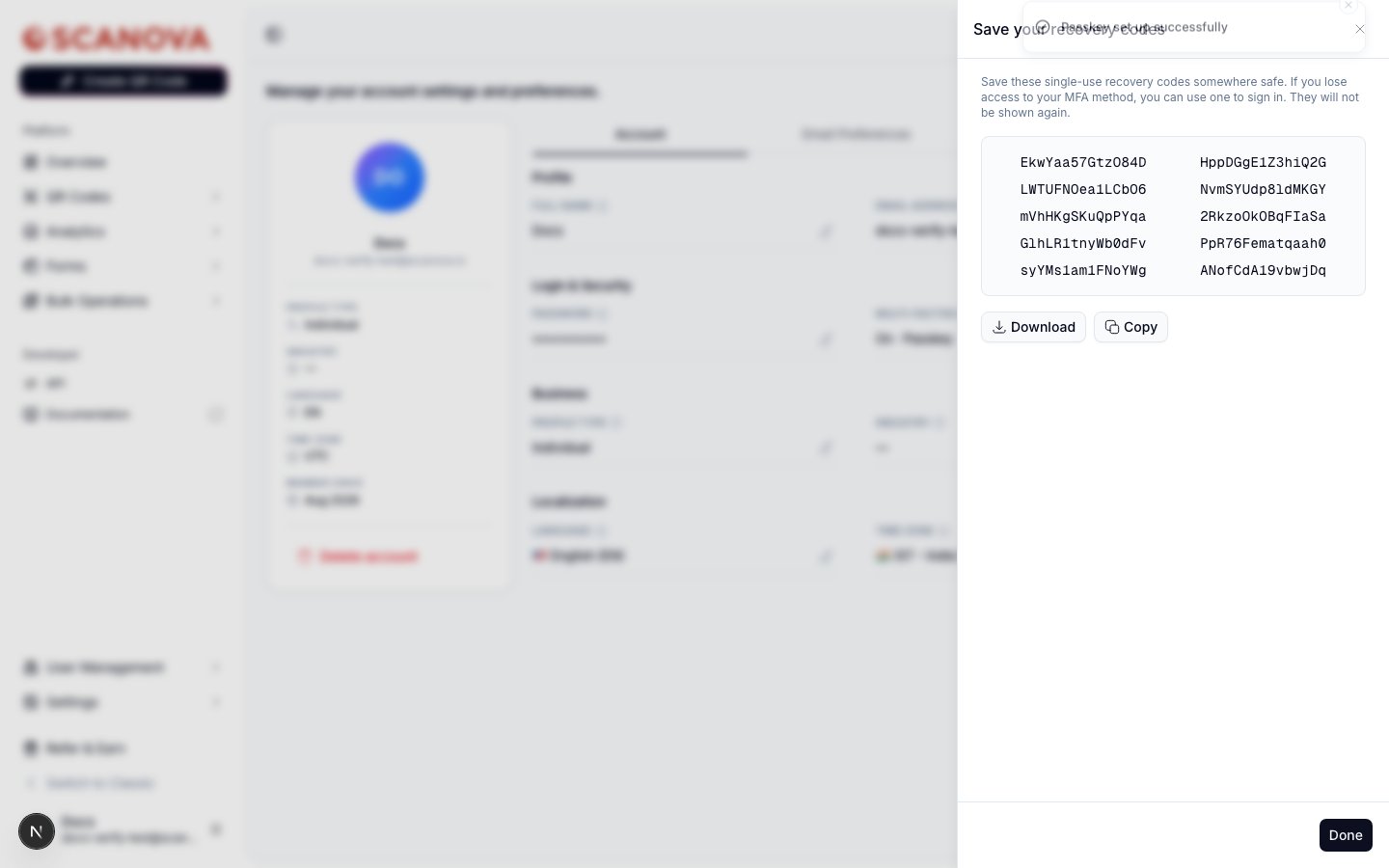
After enrolling your first MFA method, Scanova generates a set of single-use recovery codes. Save them somewhere safe — each can be used once to sign in if you lose access to your regular MFA method, and they're never shown again after this step.
If you enroll more than one method, each row gets a **Make default** button (unless it's already the default). Your default method is the one Scanova prompts for first at sign-in — you can still fall back to any other enrolled method or a backup code.
To remove a method, select its trash icon, confirm your password (or re-authenticate with Google), and it's removed immediately.
## Saving backup codes
After enrolling your first MFA method, Scanova generates a set of single-use recovery codes. Save them somewhere safe — each can be used once to sign in if you lose access to your regular MFA method, and they're never shown again after this step.
 ## Signing in with MFA
Once MFA is enabled, signing in with your password takes you to a security-check screen for your default method instead of straight into your account. For example, with a passkey as the default:
## Signing in with MFA
Once MFA is enabled, signing in with your password takes you to a security-check screen for your default method instead of straight into your account. For example, with a passkey as the default:
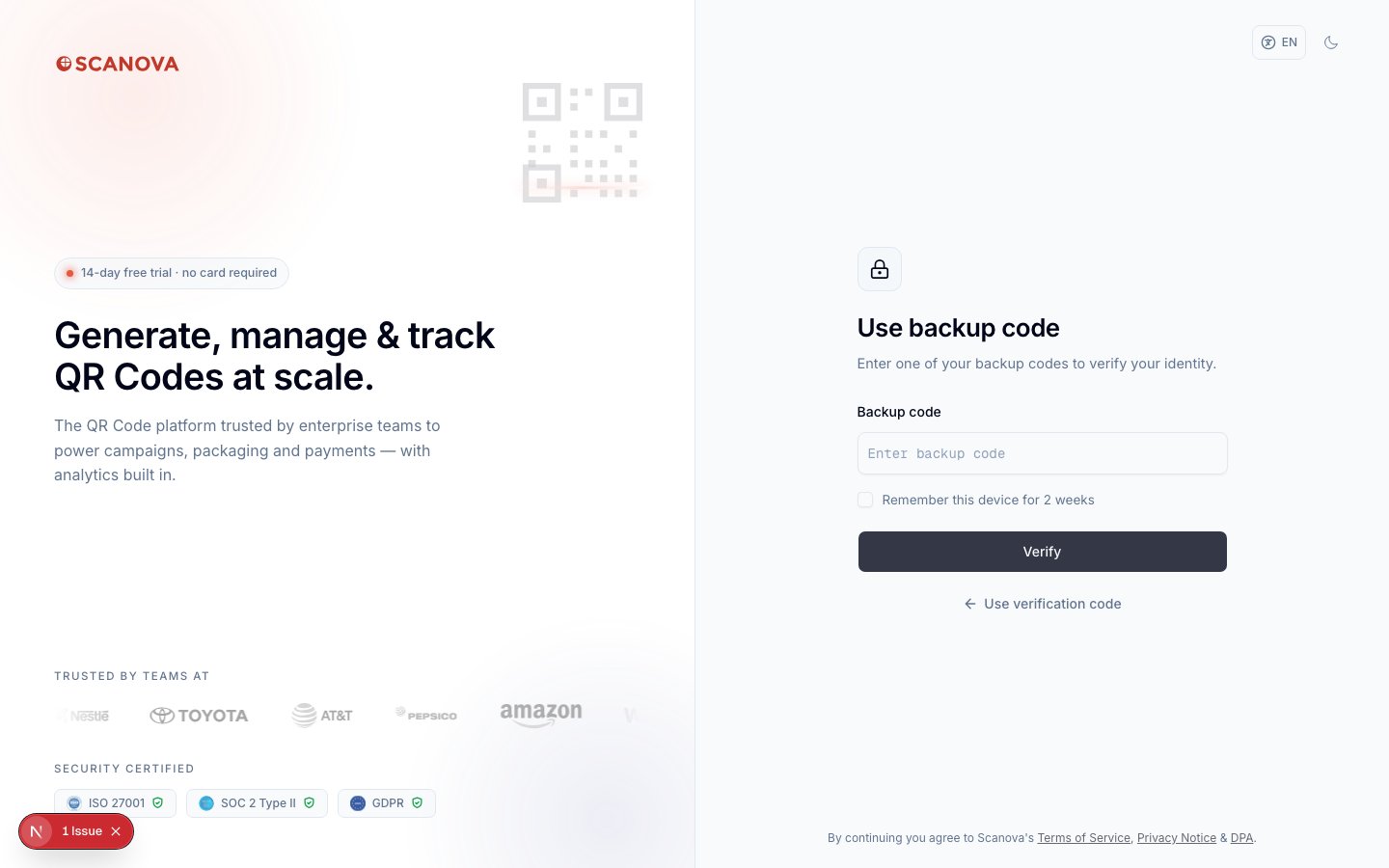
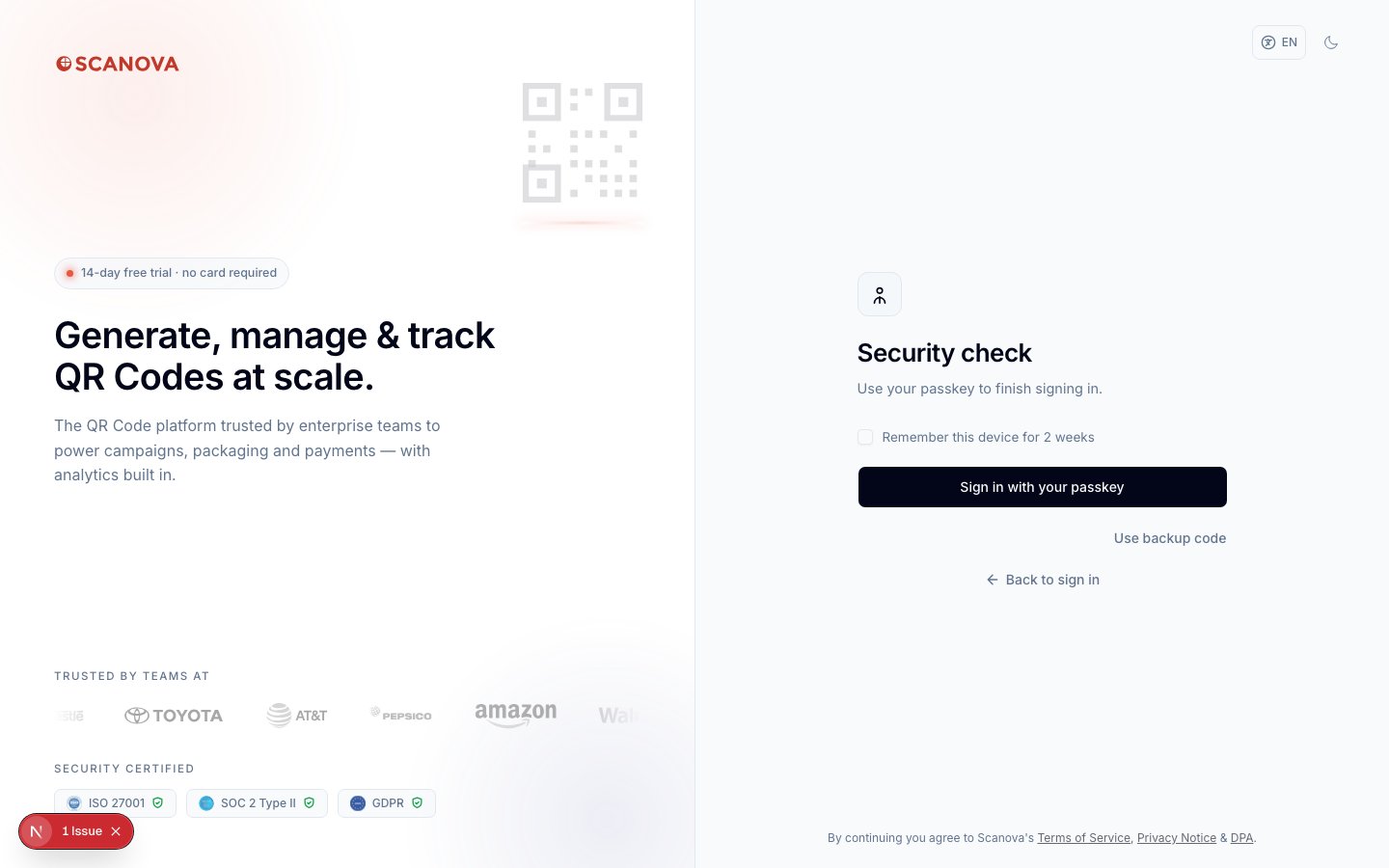 Check **Remember this device for 2 weeks** to skip the MFA challenge on that browser for the next two weeks. If you can't use your default method, select **Use backup code** to enter one of the recovery codes you saved earlier:
 ## Related
* [Passkeys](/authentication/passkeys) — a closer look at the passkey method.
* [Google login](/authentication/google-login) — how Google sign-in is used both for login and for re-confirming your identity on password-less accounts.
* [Password reset](/authentication/password-reset) — recovering access if you've forgotten your password (separate from MFA recovery codes).
## Related
* [Passkeys](/authentication/passkeys) — a closer look at the passkey method.
* [Google login](/authentication/google-login) — how Google sign-in is used both for login and for re-confirming your identity on password-less accounts.
* [Password reset](/authentication/password-reset) — recovering access if you've forgotten your password (separate from MFA recovery codes).