> ## Documentation Index
> Fetch the complete documentation index at: https://docs.scanova.io/llms.txt
> Use this file to discover all available pages before exploring further.
# Single Sign-On (SSO)
> Sign in through your organization's identity provider.
Single Sign-On (SSO) lets your team sign in to Scanova through your organization's own identity provider (Okta, Azure AD, Google Workspace, and others via SAML or OIDC) instead of a Scanova-specific password.
Setting up SSO for an organization is done by Scanova's team, not by customers themselves — there's no self-service SSO configuration screen in the app today. If you'd like SSO enabled for your organization, [contact support](https://support.scanova.io) with your identity provider details. This page covers the sign-in experience once that setup is complete.
## Signing in with SSO
From the login page, select **Continue with SSO** (below the email/password form) to go to the SSO sign-in screen at `/auth/sso`.
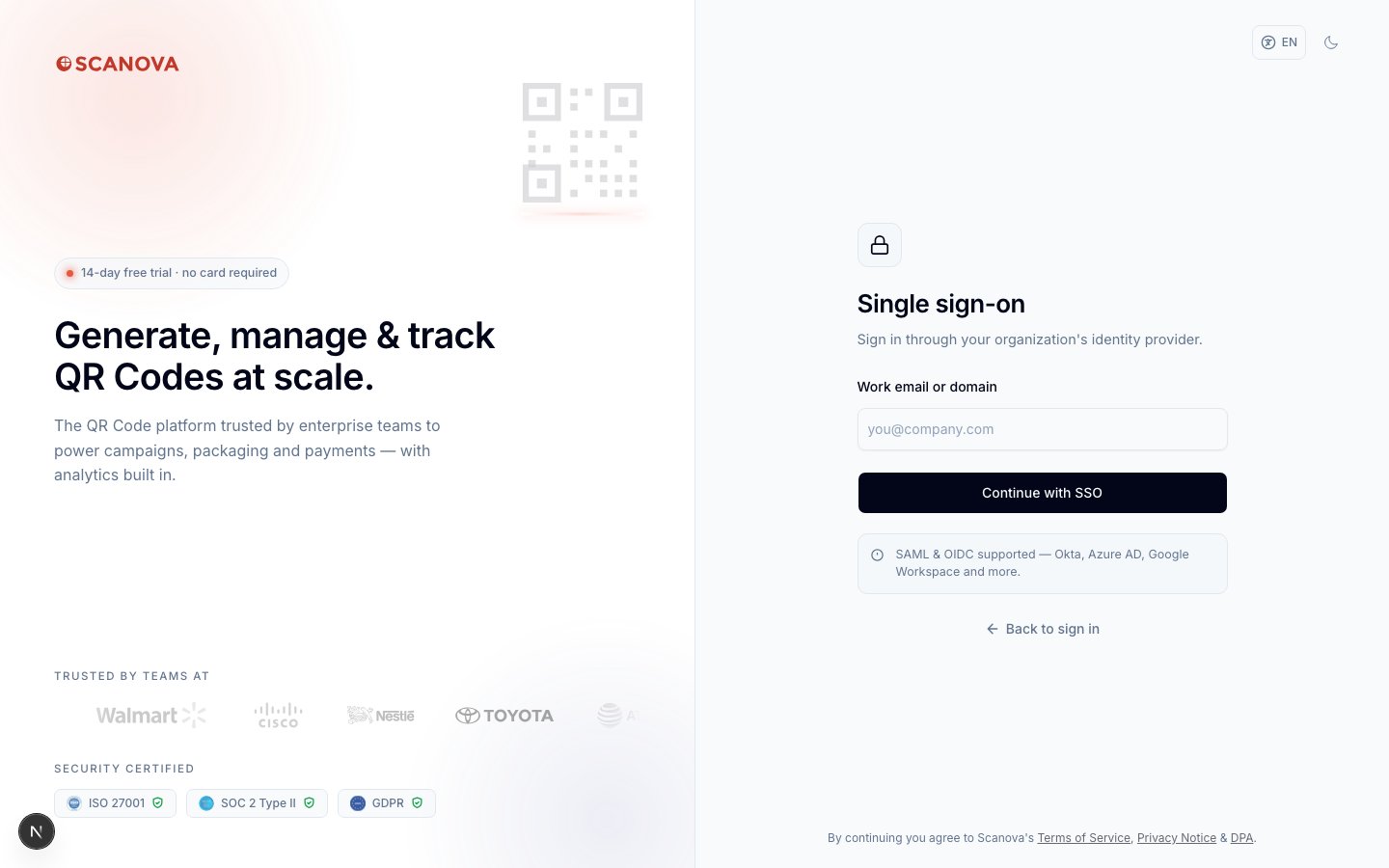 Type the email address or domain your organization uses with Scanova (for example, `you@company.com`).
Select **Continue with SSO**. Scanova redirects you to your organization's identity provider to complete authentication there.
Once your identity provider confirms your identity, you're redirected back to Scanova and signed in.
This screen and the email/domain step were verified against the live app. Completing the identity-provider redirect itself requires an organization with SSO already configured, which the disposable test account used for this verification didn't have — so the provider hand-off and callback screen aren't pictured here.
## Accounts using SSO
If your account signs in via SSO, a few things work differently elsewhere in Scanova:
* **No password** — there's nothing to change under Account → Login & Security, since your identity provider handles authentication.
* **No MFA settings** — the [multi-factor authentication](/authentication/multi-factor-authentication) option is hidden entirely, since your identity provider is responsible for any additional verification it requires.
## Related
* [Multi-factor authentication](/authentication/multi-factor-authentication) — MFA setup for password-based accounts (not applicable to SSO accounts).
* [Google login](/authentication/google-login) — a separate sign-in option, distinct from organization-wide SSO.
Type the email address or domain your organization uses with Scanova (for example, `you@company.com`).
Select **Continue with SSO**. Scanova redirects you to your organization's identity provider to complete authentication there.
Once your identity provider confirms your identity, you're redirected back to Scanova and signed in.
This screen and the email/domain step were verified against the live app. Completing the identity-provider redirect itself requires an organization with SSO already configured, which the disposable test account used for this verification didn't have — so the provider hand-off and callback screen aren't pictured here.
## Accounts using SSO
If your account signs in via SSO, a few things work differently elsewhere in Scanova:
* **No password** — there's nothing to change under Account → Login & Security, since your identity provider handles authentication.
* **No MFA settings** — the [multi-factor authentication](/authentication/multi-factor-authentication) option is hidden entirely, since your identity provider is responsible for any additional verification it requires.
## Related
* [Multi-factor authentication](/authentication/multi-factor-authentication) — MFA setup for password-based accounts (not applicable to SSO accounts).
* [Google login](/authentication/google-login) — a separate sign-in option, distinct from organization-wide SSO.