> ## Documentation Index
> Fetch the complete documentation index at: https://docs.scanova.io/llms.txt
> Use this file to discover all available pages before exploring further.
# Subscription & billing
> Managing your subscription and payment details.
The **Subscription** page (`/subscription`) is where you manage your plan, renewal, payment method, and usage. It's reachable from the sidebar and has five tabs: **Overview**, **Plans**, **Billing**, **AI Credits**, and **Payment History**. This page covers the **Overview** tab and **Payment History**; for upgrading or downgrading your plan, see [Upgrading your plan](/billing/upgrading).
 ## Current Plan
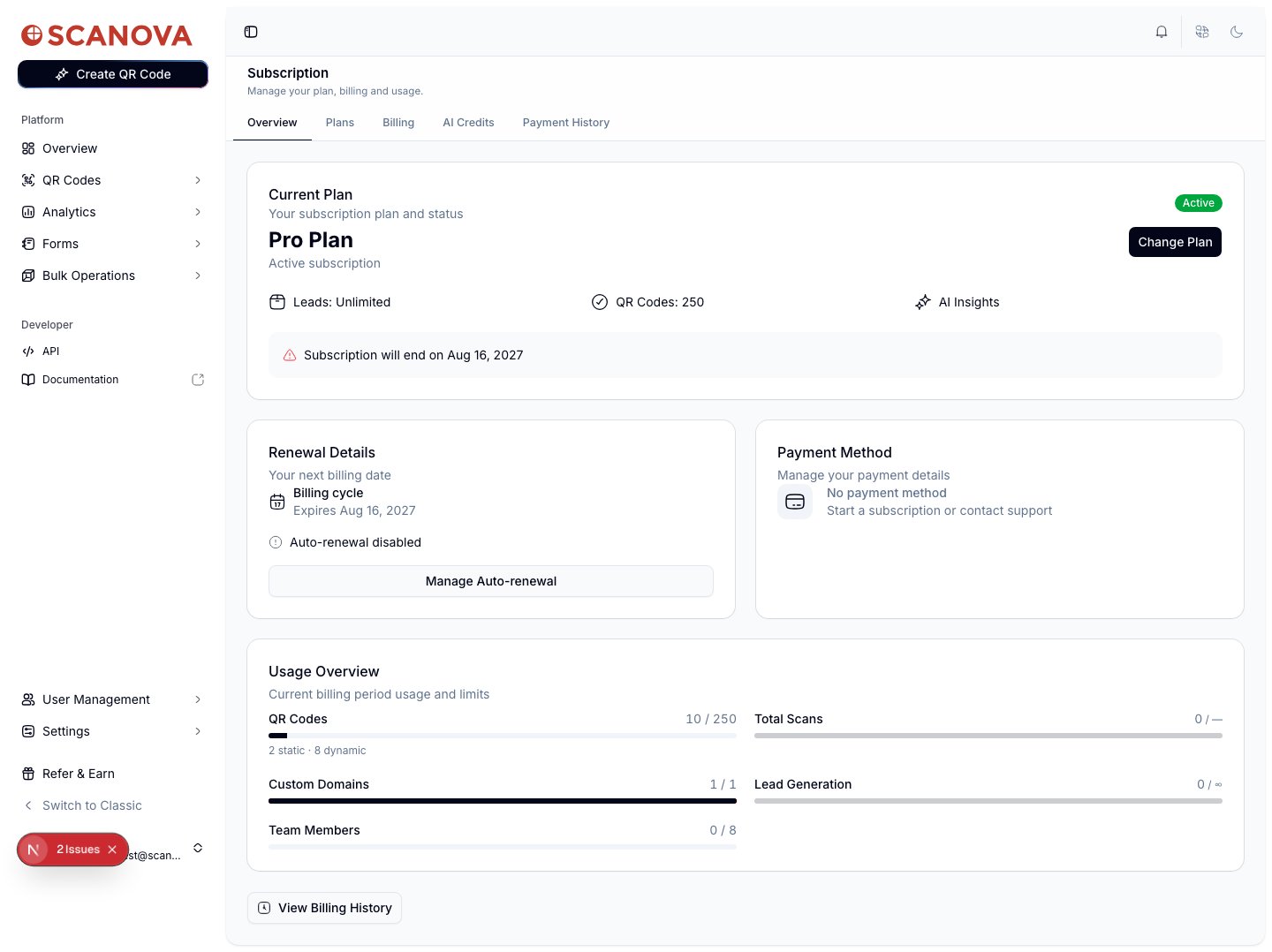
The **Current Plan** card shows your plan name (e.g. **Pro Plan**), an **Active** status badge, and headline limits for that plan (leads, QR codes, AI Insights). If your subscription has an end date, a banner below states it (e.g. "Subscription will end on \{date}"). **Change Plan** takes you to the plan picker described in [Upgrading your plan](/billing/upgrading).
## Renewal Details
This card shows your billing cycle and expiry date, plus whether **Auto-renewal** is enabled or disabled. Click **Manage Auto-renewal** to open the auto-renewal dialog.
## Current Plan
The **Current Plan** card shows your plan name (e.g. **Pro Plan**), an **Active** status badge, and headline limits for that plan (leads, QR codes, AI Insights). If your subscription has an end date, a banner below states it (e.g. "Subscription will end on \{date}"). **Change Plan** takes you to the plan picker described in [Upgrading your plan](/billing/upgrading).
## Renewal Details
This card shows your billing cycle and expiry date, plus whether **Auto-renewal** is enabled or disabled. Click **Manage Auto-renewal** to open the auto-renewal dialog.
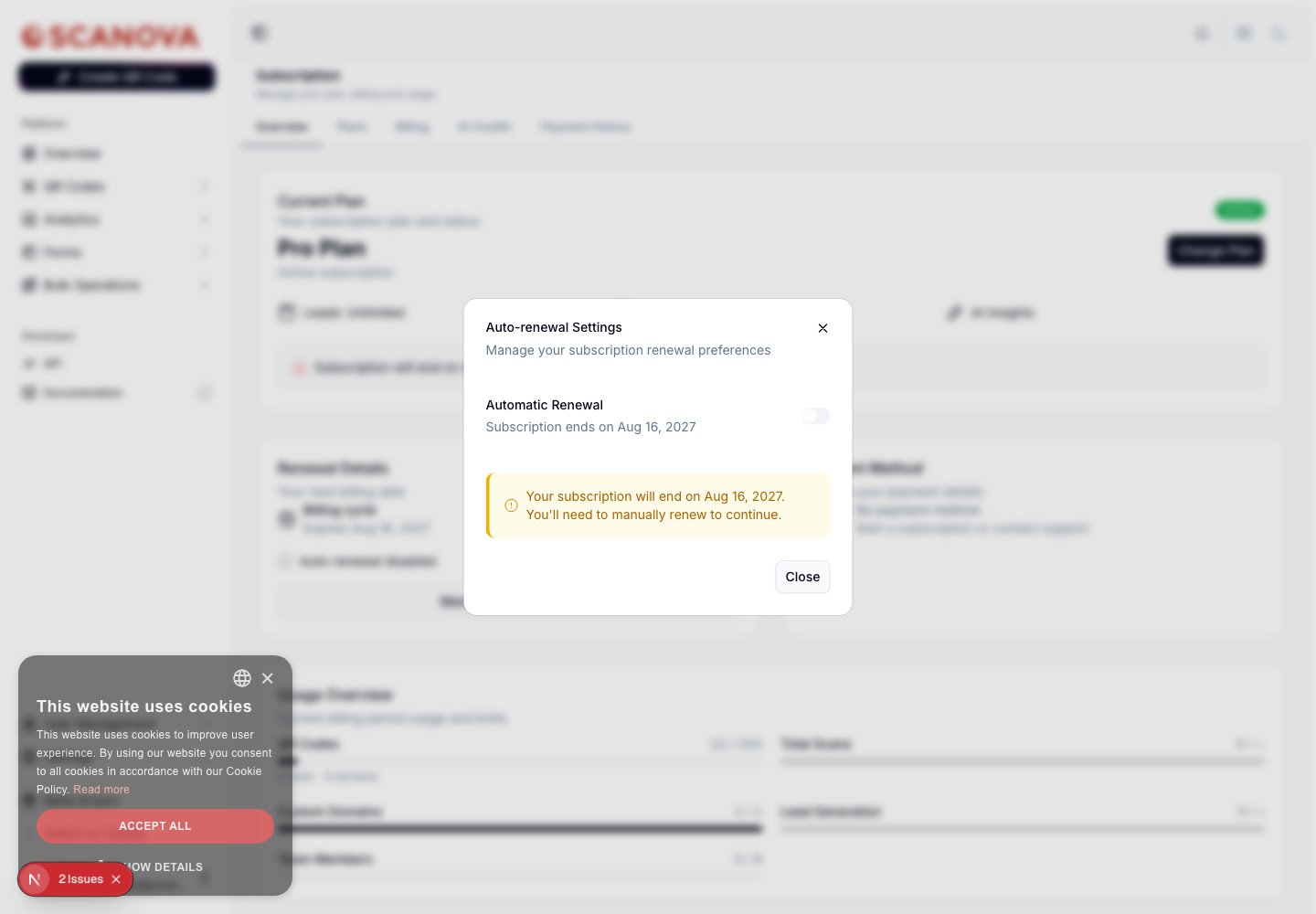 The toggle in this dialog only turns auto-renewal **off** — once it's off, the switch is disabled here, so re-enabling auto-renewal isn't done from this dialog (renew or resubscribe from the **Plans** tab instead).
Turning auto-renewal off walks you through a short cancellation flow: a reason for leaving, an optional comment, and a password (or Google) confirmation step, before it takes effect. Your plan otherwise stays active until the current period's expiry date.
## Payment Method
This card shows the payment method on file — a card (masked digits and expiry), UPI ID, wallet, or bank mandate — or **No payment method** if you haven't added one yet (for example, if your plan was granted without going through checkout).
Do not enter real payment details while exploring this page unless you intend to complete a purchase. If a payment method exists, the card shows an **Update Payment Method** or **Manage Payment Method** button; with none on file, the card is informational only, as shown in the screenshot below.
## Usage Overview
This card tracks your current billing period's consumption against your plan's limits with a progress bar per resource:
* **QR Codes** — total used out of your plan limit, broken down into static and dynamic counts underneath.
* **Total Scans** — scans recorded this period (unlimited on plans without a scan cap).
* **Custom Domains** — domains connected out of your plan's allowance.
* **Team Members** — seats used out of your plan's allowance.
* **Lead Generation** — leads captured this period (unlimited on plans without a cap).
If you're approaching or over a limit on any of these, [Upgrading your plan](/billing/upgrading) covers how to move to a higher tier.
## Billing History
Click **View Billing History** at the bottom of the Overview tab (or the **Payment History** tab directly) to see your transaction log at `/subscription/history`.
The toggle in this dialog only turns auto-renewal **off** — once it's off, the switch is disabled here, so re-enabling auto-renewal isn't done from this dialog (renew or resubscribe from the **Plans** tab instead).
Turning auto-renewal off walks you through a short cancellation flow: a reason for leaving, an optional comment, and a password (or Google) confirmation step, before it takes effect. Your plan otherwise stays active until the current period's expiry date.
## Payment Method
This card shows the payment method on file — a card (masked digits and expiry), UPI ID, wallet, or bank mandate — or **No payment method** if you haven't added one yet (for example, if your plan was granted without going through checkout).
Do not enter real payment details while exploring this page unless you intend to complete a purchase. If a payment method exists, the card shows an **Update Payment Method** or **Manage Payment Method** button; with none on file, the card is informational only, as shown in the screenshot below.
## Usage Overview
This card tracks your current billing period's consumption against your plan's limits with a progress bar per resource:
* **QR Codes** — total used out of your plan limit, broken down into static and dynamic counts underneath.
* **Total Scans** — scans recorded this period (unlimited on plans without a scan cap).
* **Custom Domains** — domains connected out of your plan's allowance.
* **Team Members** — seats used out of your plan's allowance.
* **Lead Generation** — leads captured this period (unlimited on plans without a cap).
If you're approaching or over a limit on any of these, [Upgrading your plan](/billing/upgrading) covers how to move to a higher tier.
## Billing History
Click **View Billing History** at the bottom of the Overview tab (or the **Payment History** tab directly) to see your transaction log at `/subscription/history`.
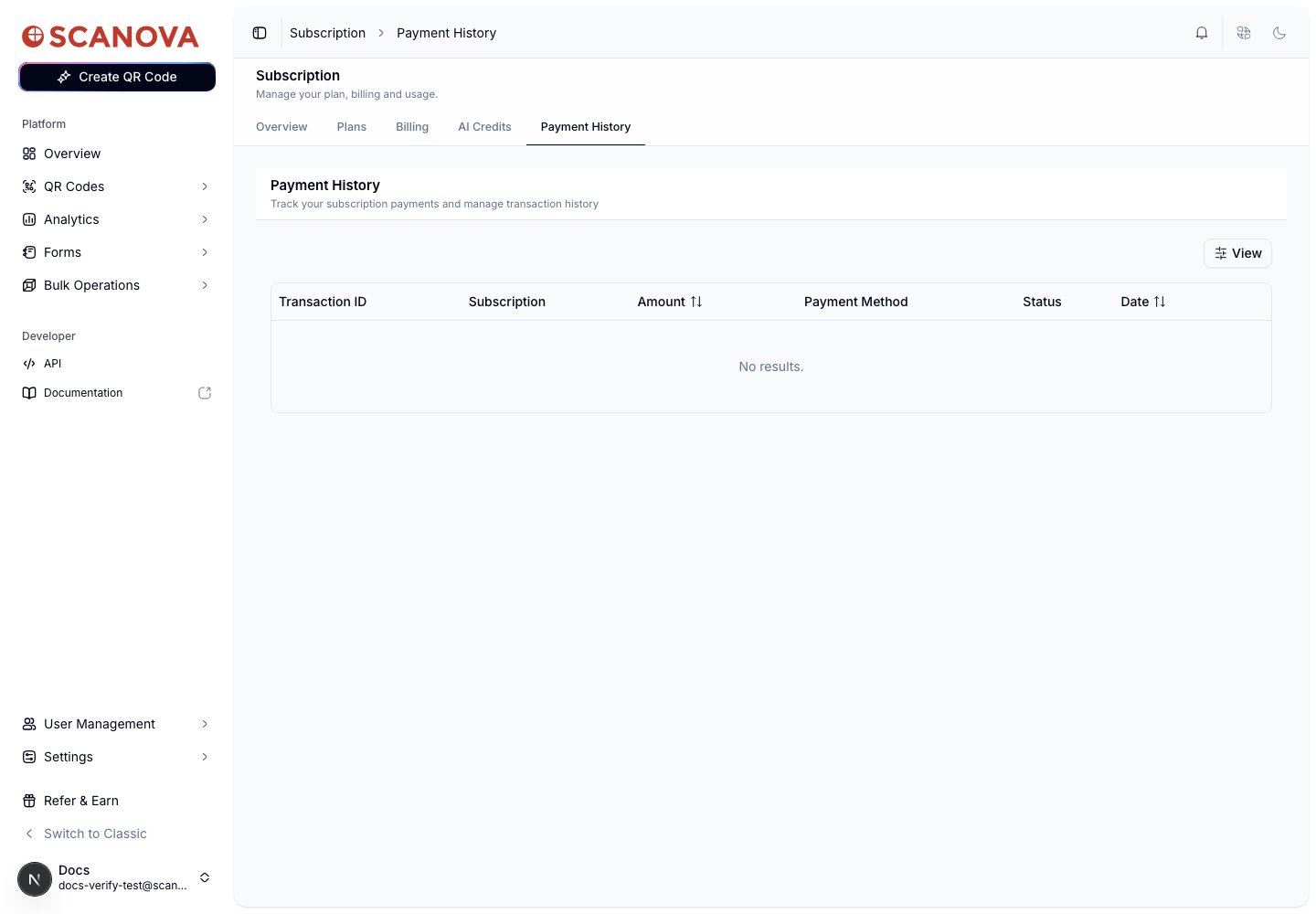 Each row lists the transaction ID, subscription, amount, payment method used, status, and date; use **View** to filter the table. A new account with no billing history yet shows **No results**.
## Other tabs on this page
Two additional tabs live alongside Overview and Payment History:
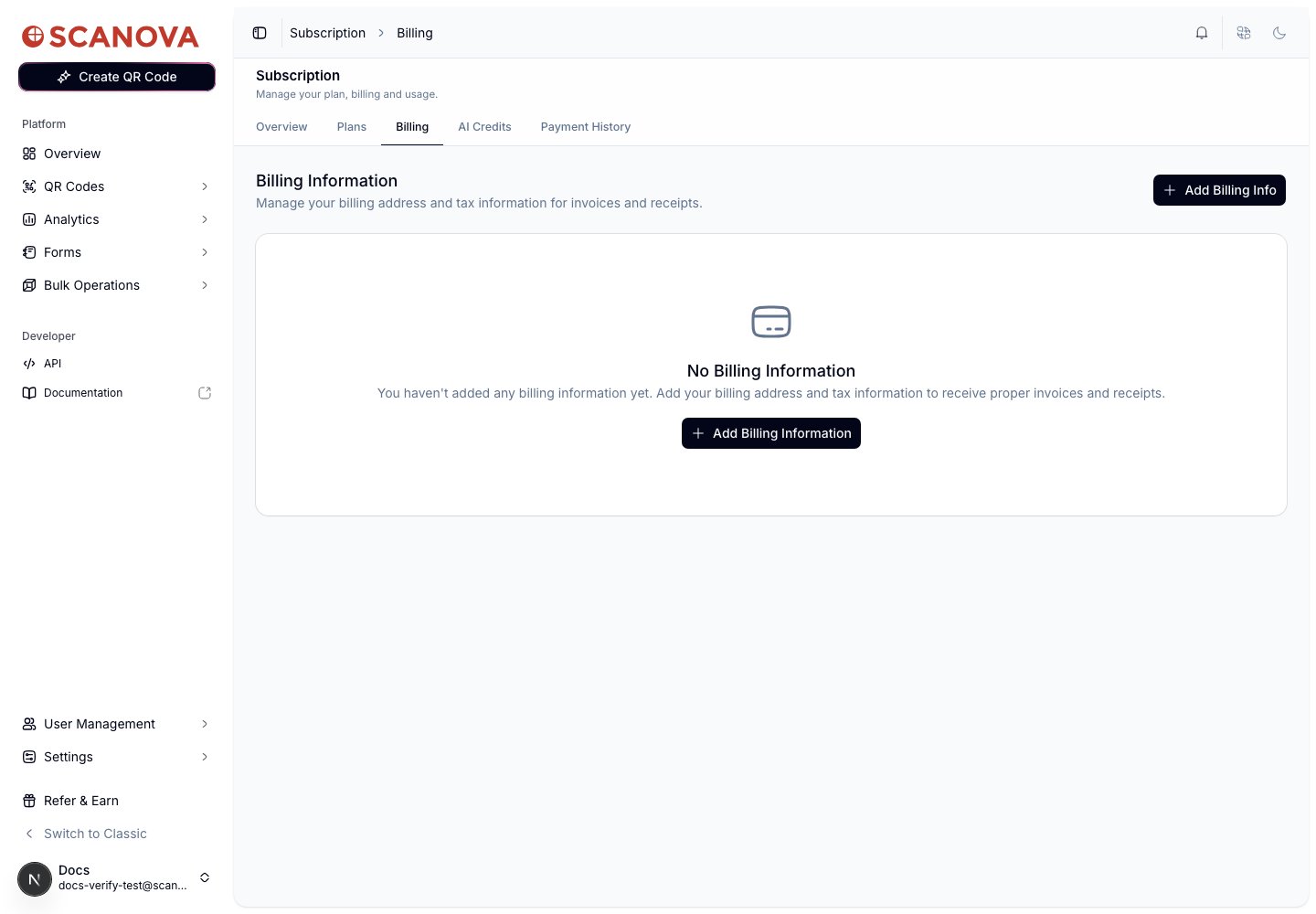
* **Billing** (`/subscription/billing`) — your billing address and tax details (for example, a GST number in India) used on invoices and receipts, separate from your payment method.
Each row lists the transaction ID, subscription, amount, payment method used, status, and date; use **View** to filter the table. A new account with no billing history yet shows **No results**.
## Other tabs on this page
Two additional tabs live alongside Overview and Payment History:
* **Billing** (`/subscription/billing`) — your billing address and tax details (for example, a GST number in India) used on invoices and receipts, separate from your payment method.
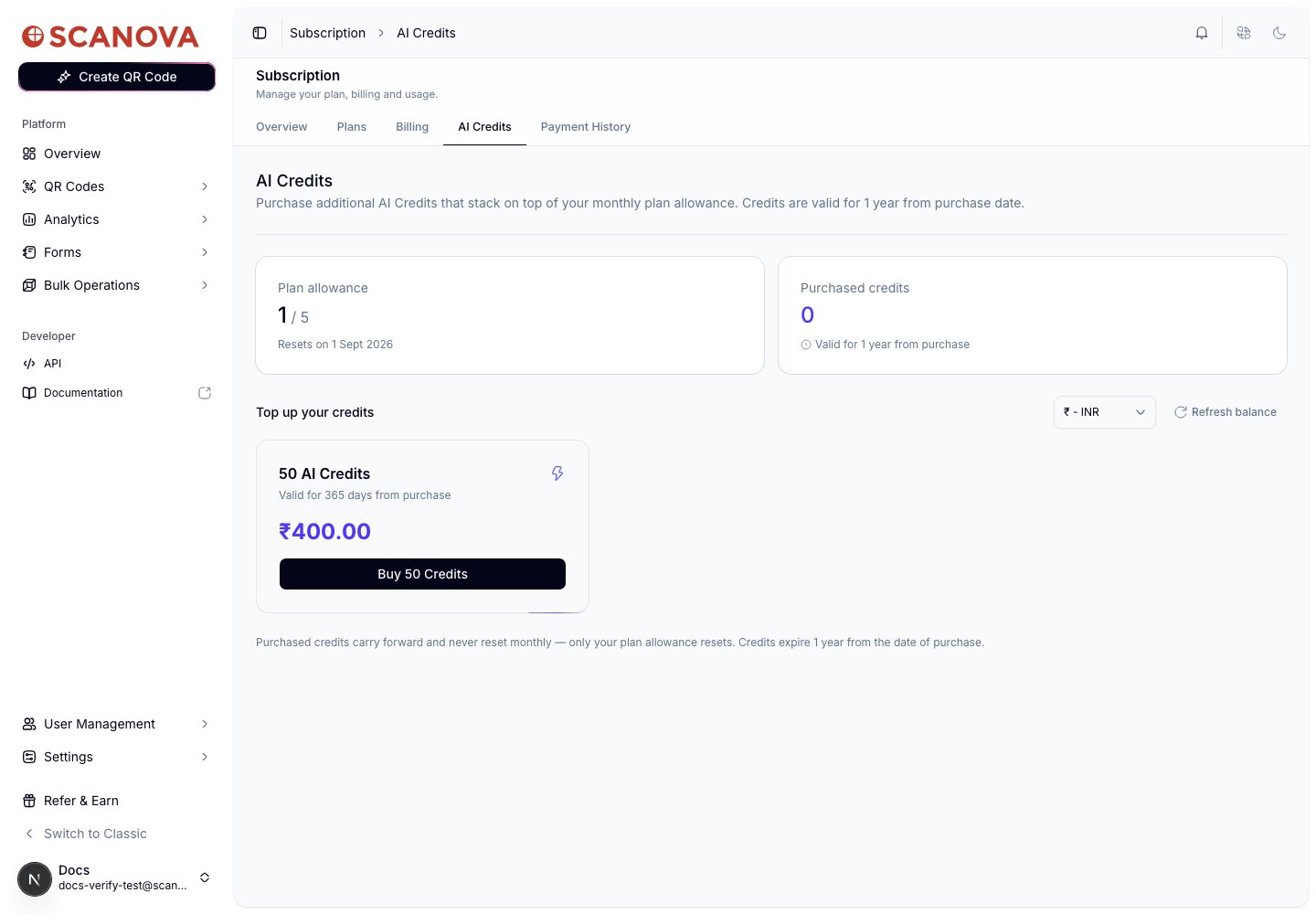
 * **AI Credits** (`/subscription/credits`) — your monthly AI credit allowance plus any purchased top-up credits, and packs available to buy more.
 ## Related
* [Upgrading your plan](/billing/upgrading) — comparing plans, add-ons, and how downgrades are blocked when usage exceeds a lower tier's limits.
* [Shared users](/team/shared-users) — managing the team members counted against the Team Members usage bar above.
* [Email preferences](/account/email-preferences) — controls whether you receive the Billing and Payments and Subscription Reminders emails referenced elsewhere in Scanova.
## Related
* [Upgrading your plan](/billing/upgrading) — comparing plans, add-ons, and how downgrades are blocked when usage exceeds a lower tier's limits.
* [Shared users](/team/shared-users) — managing the team members counted against the Team Members usage bar above.
* [Email preferences](/account/email-preferences) — controls whether you receive the Billing and Payments and Subscription Reminders emails referenced elsewhere in Scanova.