> ## Documentation Index
> Fetch the complete documentation index at: https://docs.scanova.io/llms.txt
> Use this file to discover all available pages before exploring further.
# Upgrading your plan
> How to upgrade to a higher plan.
The **Plans** tab (`/subscription/upgrade`) is where you compare and switch plans. Reach it from the **Change Plan** button on the [Subscription overview](/billing/subscription-and-billing), or the **Plans** tab directly.
Selecting a plan here starts a real checkout. If you're exploring the page, open dialogs to see what they contain, then cancel or close them rather than confirming — don't complete a purchase or submit payment details unless you actually intend to change your plan.
## The plan and pricing selector
A **Monthly** / **Yearly** toggle switches the billing period for every plan card at once; **Yearly** is the default and shows a "Save up to 40%" badge, with the discounted price and the original price struck through.
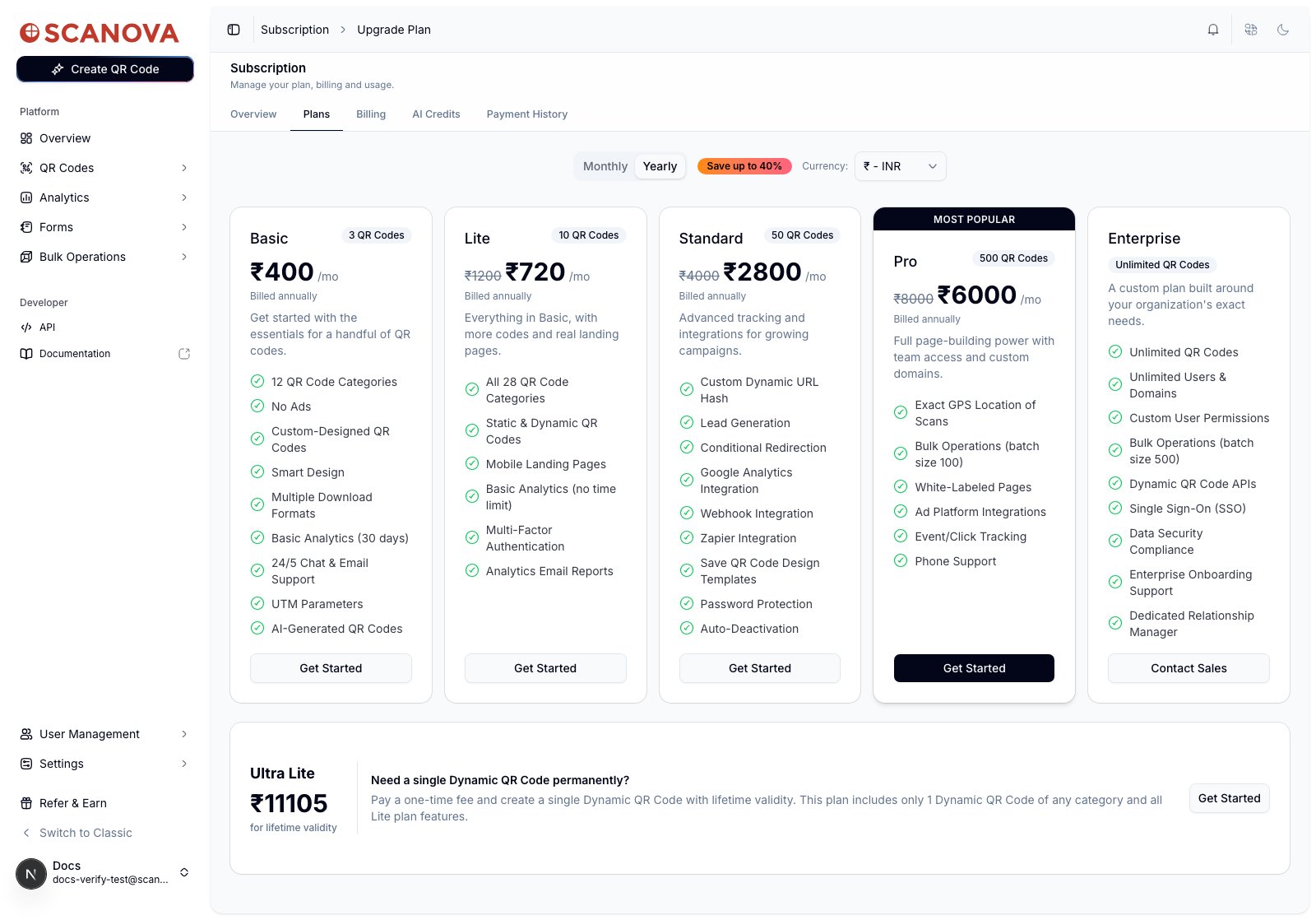 A currency selector next to the toggle lets you price plans in a different currency (for example ₹ INR or \$ USD).
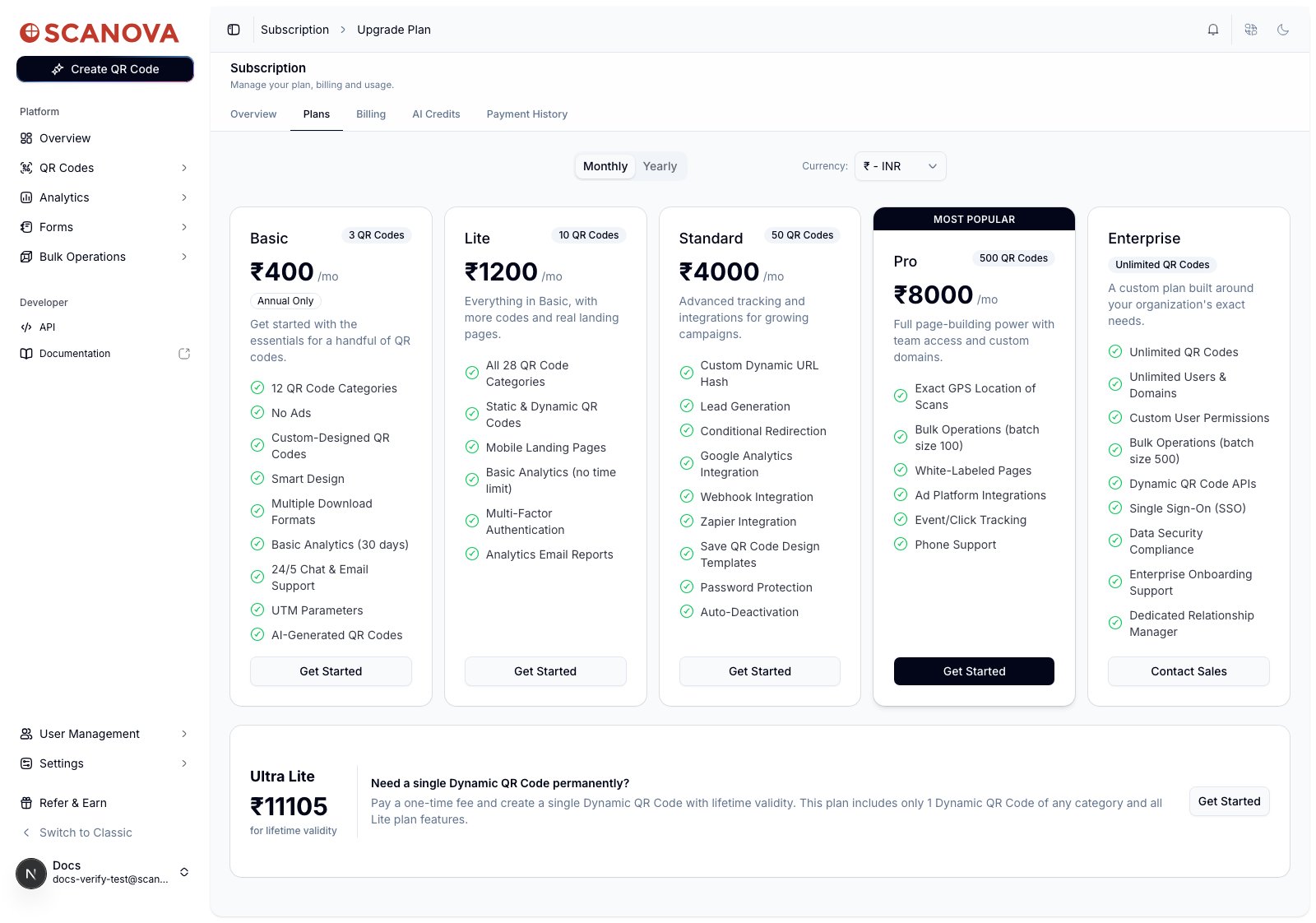 The **Basic** plan is annual-only — switching to Monthly replaces its price with an **Annual Only** badge rather than showing a monthly rate.
Each card (**Basic**, **Lite**, **Standard**, **Pro**, **Enterprise**) lists its QR code limit as a badge and its included features underneath. **Pro** is marked **Most Popular**. **Enterprise** hides pricing entirely and shows **Contact Sales** instead of **Get Started** — see [Enterprise quotes](#enterprise-quotes) below.
Below the main grid, a separate **Ultra Lite** card offers a single Dynamic QR code with lifetime validity for a one-time fee — this is unaffected by the Monthly/Yearly toggle, since it's always a one-time purchase.
## Pro-plan add-ons
Plans that support add-ons (including Pro) show a **"Customize your \{plan} plan"** dialog before checkout, with quantity steppers for extra **Users** and **Custom Domains** beyond the plan's base allowance. Each increment shows its added cost for the billing period you selected. Confirm to carry those quantities into checkout, or cancel to proceed with the plan's default allowance.
## Enterprise quotes
Click **Contact Sales** on the Enterprise card to open a short lead form.
The **Basic** plan is annual-only — switching to Monthly replaces its price with an **Annual Only** badge rather than showing a monthly rate.
Each card (**Basic**, **Lite**, **Standard**, **Pro**, **Enterprise**) lists its QR code limit as a badge and its included features underneath. **Pro** is marked **Most Popular**. **Enterprise** hides pricing entirely and shows **Contact Sales** instead of **Get Started** — see [Enterprise quotes](#enterprise-quotes) below.
Below the main grid, a separate **Ultra Lite** card offers a single Dynamic QR code with lifetime validity for a one-time fee — this is unaffected by the Monthly/Yearly toggle, since it's always a one-time purchase.
## Pro-plan add-ons
Plans that support add-ons (including Pro) show a **"Customize your \{plan} plan"** dialog before checkout, with quantity steppers for extra **Users** and **Custom Domains** beyond the plan's base allowance. Each increment shows its added cost for the billing period you selected. Confirm to carry those quantities into checkout, or cancel to proceed with the plan's default allowance.
## Enterprise quotes
Click **Contact Sales** on the Enterprise card to open a short lead form.
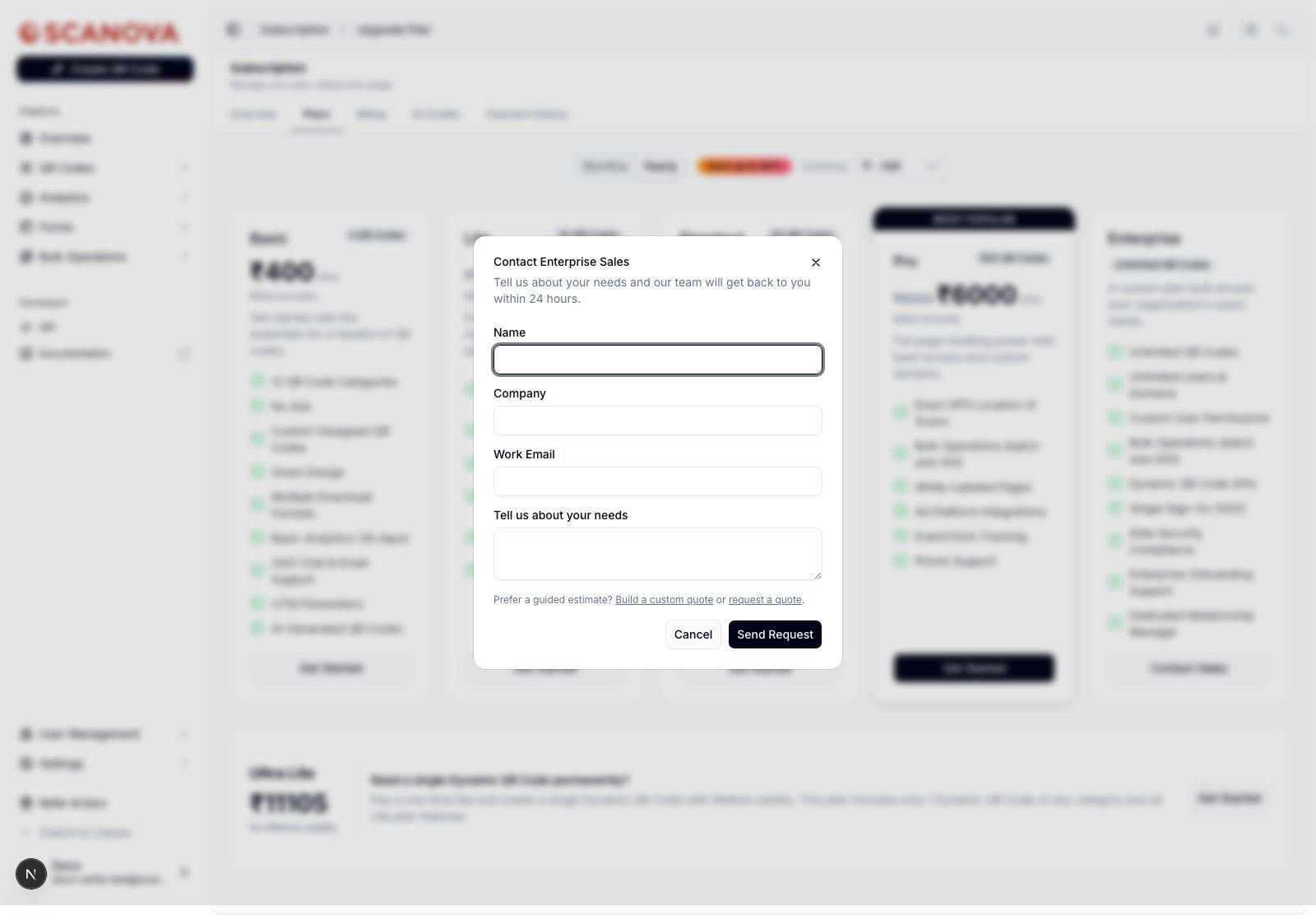 Fill in your name, company, work email, and needs, then **Send Request** — Scanova's team responds within 24 hours, per the dialog. If you'd rather get a number immediately, the **Build a custom quote** and **request a quote** links switch this same dialog to a self-serve calculator and a more detailed estimation form, respectively, instead of the quick contact form.
## Downgrading
Choosing a lower-tier plan than your current one runs a pre-check against your actual usage before anything changes. If your usage fits within the lower plan's limits, you'll see a downgrade confirmation step summarizing your current plan's remaining access, the new plan's start date, and a checklist of what changes — you must check an acknowledgement box before **Confirm Downgrade** is enabled.
If your usage exceeds what the target plan allows, the downgrade is blocked instead:
Fill in your name, company, work email, and needs, then **Send Request** — Scanova's team responds within 24 hours, per the dialog. If you'd rather get a number immediately, the **Build a custom quote** and **request a quote** links switch this same dialog to a self-serve calculator and a more detailed estimation form, respectively, instead of the quick contact form.
## Downgrading
Choosing a lower-tier plan than your current one runs a pre-check against your actual usage before anything changes. If your usage fits within the lower plan's limits, you'll see a downgrade confirmation step summarizing your current plan's remaining access, the new plan's start date, and a checklist of what changes — you must check an acknowledgement box before **Confirm Downgrade** is enabled.
If your usage exceeds what the target plan allows, the downgrade is blocked instead:
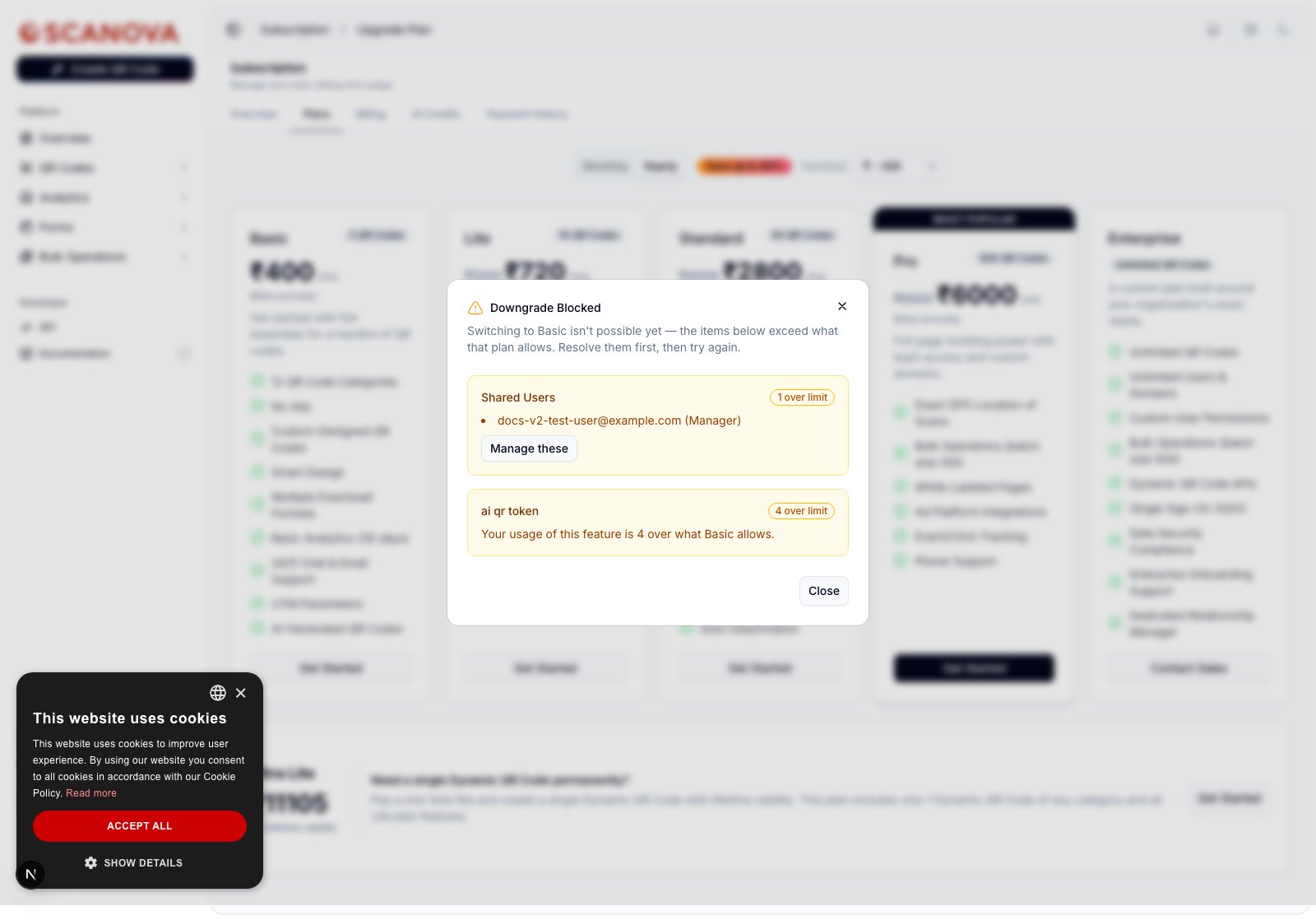 Each violated resource is listed with how far over the limit you are (e.g. "1 over limit") and, where applicable, the specific items involved (like a named team member) and a **Manage these** button that takes you to the relevant management page (QR Codes, Domains, or Users) to bring your usage down first. There's no "downgrade anyway" option — you resolve the violations, then try again.
Since a downgrade check reflects your live usage, freeing up resources (removing a shared user, deleting unused QR codes) before retrying is the fastest way past a blocked downgrade.
## Related
* [Subscription & billing](/billing/subscription-and-billing) — your current plan, renewal, payment method, and usage overview.
* [Shared users](/team/shared-users) — managing the team members that count toward the Users add-on and downgrade checks above.
Each violated resource is listed with how far over the limit you are (e.g. "1 over limit") and, where applicable, the specific items involved (like a named team member) and a **Manage these** button that takes you to the relevant management page (QR Codes, Domains, or Users) to bring your usage down first. There's no "downgrade anyway" option — you resolve the violations, then try again.
Since a downgrade check reflects your live usage, freeing up resources (removing a shared user, deleting unused QR codes) before retrying is the fastest way past a blocked downgrade.
## Related
* [Subscription & billing](/billing/subscription-and-billing) — your current plan, renewal, payment method, and usage overview.
* [Shared users](/team/shared-users) — managing the team members that count toward the Users add-on and downgrade checks above.