> ## Documentation Index
> Fetch the complete documentation index at: https://docs.scanova.io/llms.txt
> Use this file to discover all available pages before exploring further.
# Viewing & exporting responses
> View, export, and manage form responses.
An earlier version of this page said the response viewer was "coming soon." That's no longer accurate — the response viewer is fully built and shipped, with an analytics overview, a filterable response table, and export. This page describes the shipped feature.
## Opening a form's responses
From the forms list, click a form's name (or its response count) to open the form's detail view. It has three tabs: **Overview**, **Responses**, and **Linked QR Codes**.
## Overview tab
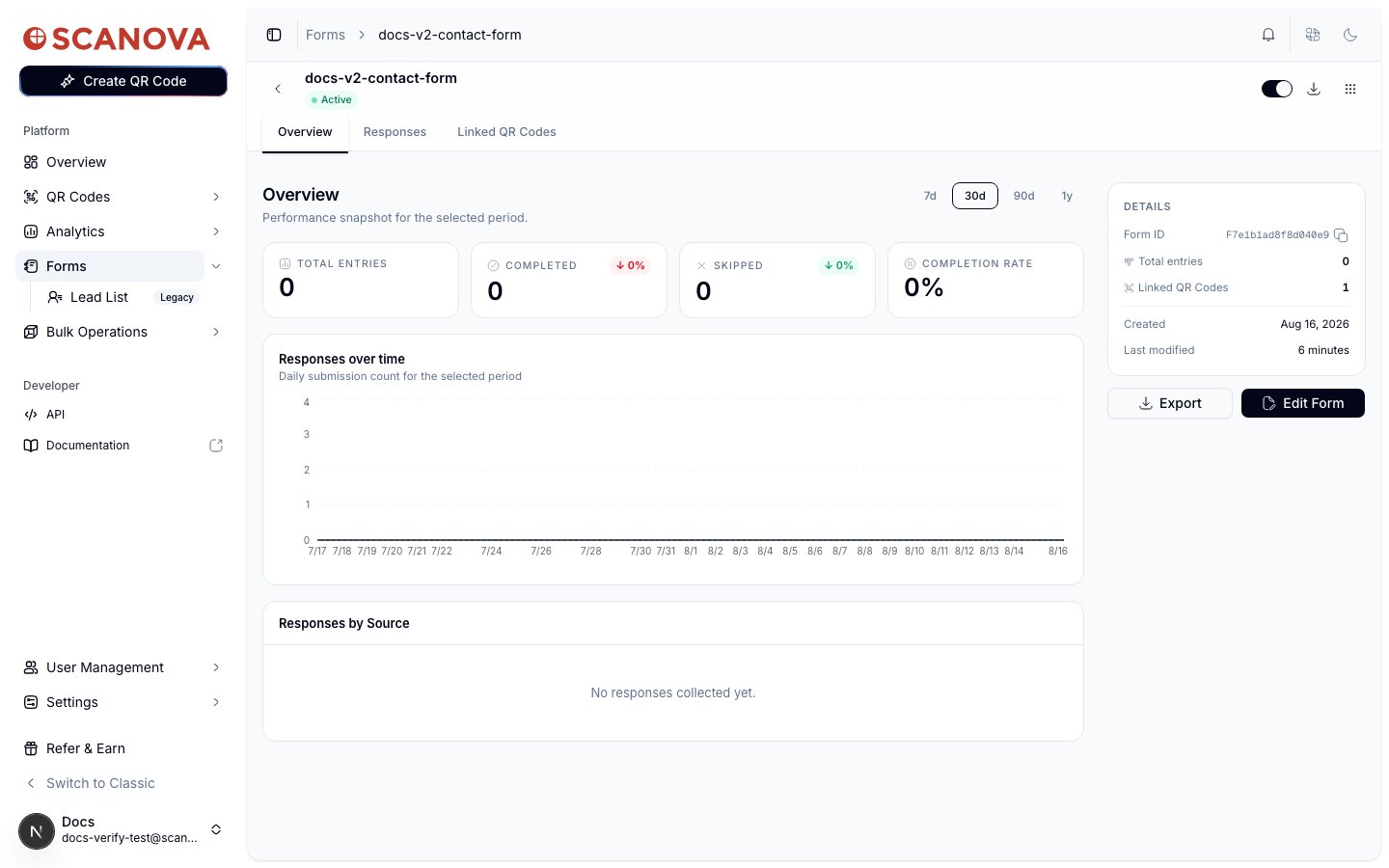
The Overview tab is an analytics dashboard for the form, scoped to a selectable date range (**7d** / **30d** / **90d** / **1y**):
* **Total Entries**, **Completed**, **Skipped**, and **Completion Rate** stat cards, each with a period-over-period trend indicator
* A **Responses over time** chart — daily submission count for the selected period
* A **Responses by Source** breakdown
The side panel also shows the form's ID, total entries, number of linked QR codes, and creation/modification dates, plus **Export** and **Edit Form** buttons.
 ## Responses tab
The Responses tab lists every submission for the form in a data table, with columns for:
* **Submitted** — the response's submission date/time
* **QR Code** — which linked QR code the response came in through (or "Direct" if the form was filled without a QR code in between)
* **Response** — a truncated preview of the answers, or a **Skipped** badge if the respondent used the Skip button instead of submitting
* Row actions — a button to view the full response in a detail sheet, and a dropdown to delete the response
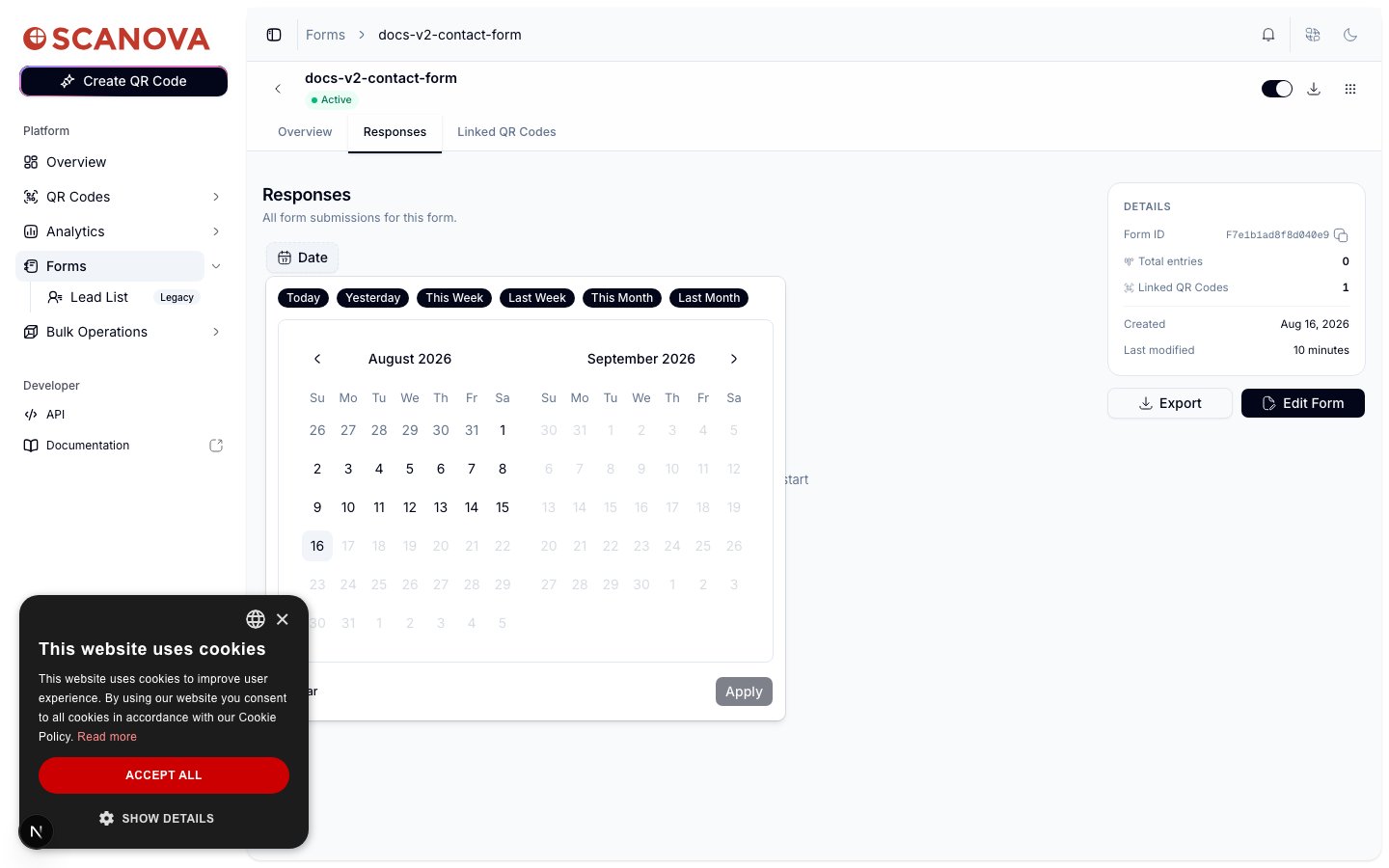
A **Date** filter above the table opens a range calendar with quick presets (**Today**, **Yesterday**, **This Week**, **Last Week**, **This Month**, **Last Month**) plus a two-month calendar view and an **Apply** button, for narrowing the table to a specific window.
## Responses tab
The Responses tab lists every submission for the form in a data table, with columns for:
* **Submitted** — the response's submission date/time
* **QR Code** — which linked QR code the response came in through (or "Direct" if the form was filled without a QR code in between)
* **Response** — a truncated preview of the answers, or a **Skipped** badge if the respondent used the Skip button instead of submitting
* Row actions — a button to view the full response in a detail sheet, and a dropdown to delete the response
A **Date** filter above the table opens a range calendar with quick presets (**Today**, **Yesterday**, **This Week**, **Last Week**, **This Month**, **Last Month**) plus a two-month calendar view and an **Apply** button, for narrowing the table to a specific window.
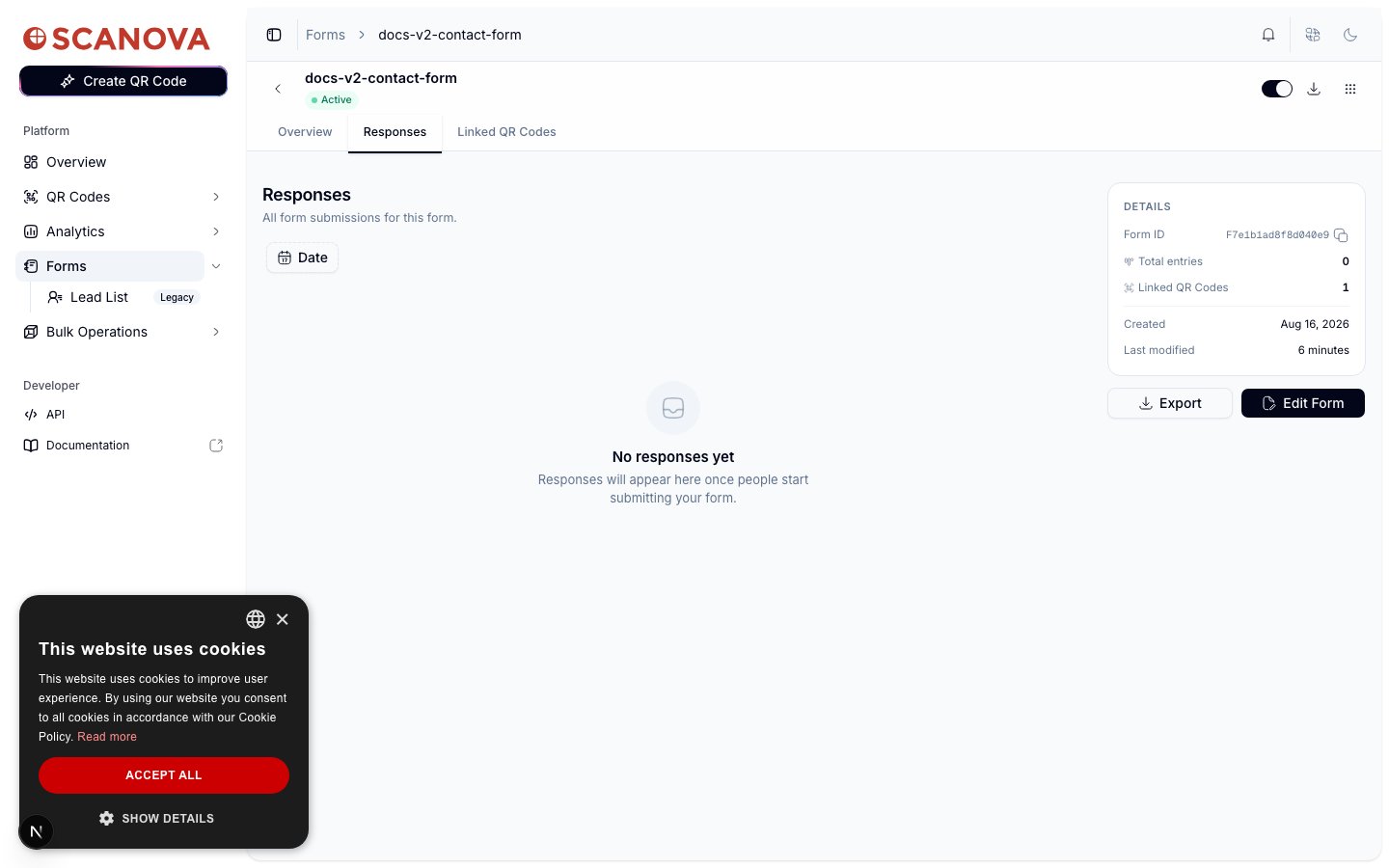
 Before any responses have been collected, the table shows an empty state instead of column headers:
 Deleting a response asks for confirmation first ("This cannot be undone. The submission data will be permanently removed.") and immediately refreshes the table and the Overview tab's stat cards.
## Linked QR Codes tab
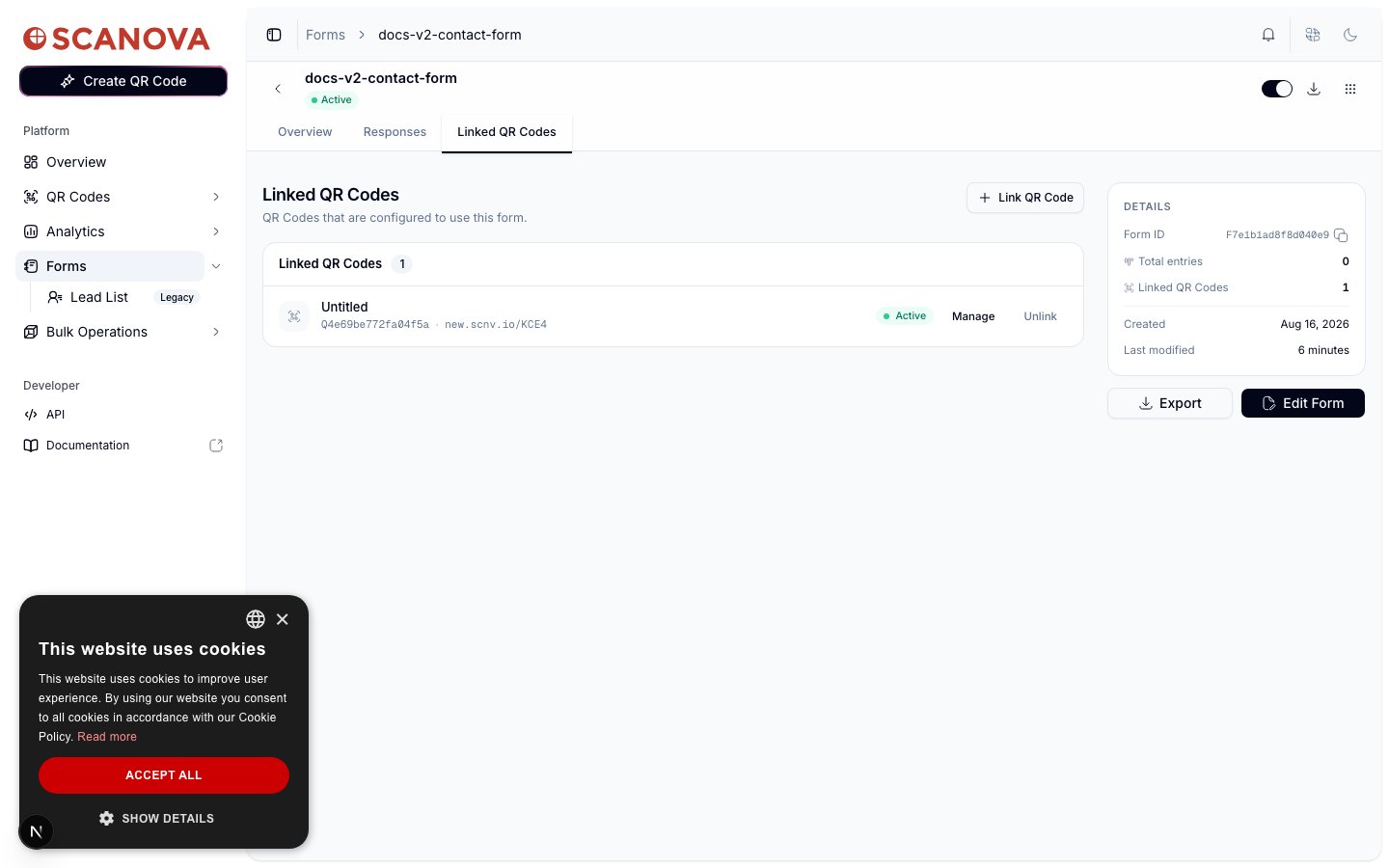
This tab lists every QR code currently configured to use the form, with each row showing the QR code's name, ID, short URL, active/inactive status, and **Manage** / **Unlink** actions. A **Link QR Code** button lets you attach the form to another QR code without leaving the responses view.
Deleting a response asks for confirmation first ("This cannot be undone. The submission data will be permanently removed.") and immediately refreshes the table and the Overview tab's stat cards.
## Linked QR Codes tab
This tab lists every QR code currently configured to use the form, with each row showing the QR code's name, ID, short URL, active/inactive status, and **Manage** / **Unlink** actions. A **Link QR Code** button lets you attach the form to another QR code without leaving the responses view.
 See [Skip button & form gates](/forms/skip-button-and-gates) for how a form actually gets linked to a QR code, including display style and timing.
## Exporting responses
Click **Export** (available from any tab, in the side panel) to trigger an export of the form's responses. The button shows an **Exporting…** state while the request is in flight.
## Where to go next
* [Building a form](/forms/building-a-form) — templates, question types, and form settings.
* [Skip button & form gates](/forms/skip-button-and-gates) — linking a form to a QR code and configuring how it's gated.
## Related
* [Building a form](/forms/building-a-form) — templates, question types, and form settings.
* [Skip button & form gates](/forms/skip-button-and-gates) — linking a form to a QR code and configuring how it's gated.
* [Analytics dashboard](/analytics/dashboard) — scan-level analytics alongside this form-level Overview tab.
See [Skip button & form gates](/forms/skip-button-and-gates) for how a form actually gets linked to a QR code, including display style and timing.
## Exporting responses
Click **Export** (available from any tab, in the side panel) to trigger an export of the form's responses. The button shows an **Exporting…** state while the request is in flight.
## Where to go next
* [Building a form](/forms/building-a-form) — templates, question types, and form settings.
* [Skip button & form gates](/forms/skip-button-and-gates) — linking a form to a QR code and configuring how it's gated.
## Related
* [Building a form](/forms/building-a-form) — templates, question types, and form settings.
* [Skip button & form gates](/forms/skip-button-and-gates) — linking a form to a QR code and configuring how it's gated.
* [Analytics dashboard](/analytics/dashboard) — scan-level analytics alongside this form-level Overview tab.