> ## Documentation Index
> Fetch the complete documentation index at: https://docs.scanova.io/llms.txt
> Use this file to discover all available pages before exploring further.
# Dashboard overview
> A tour of the Scanova dashboard and where to find everything.
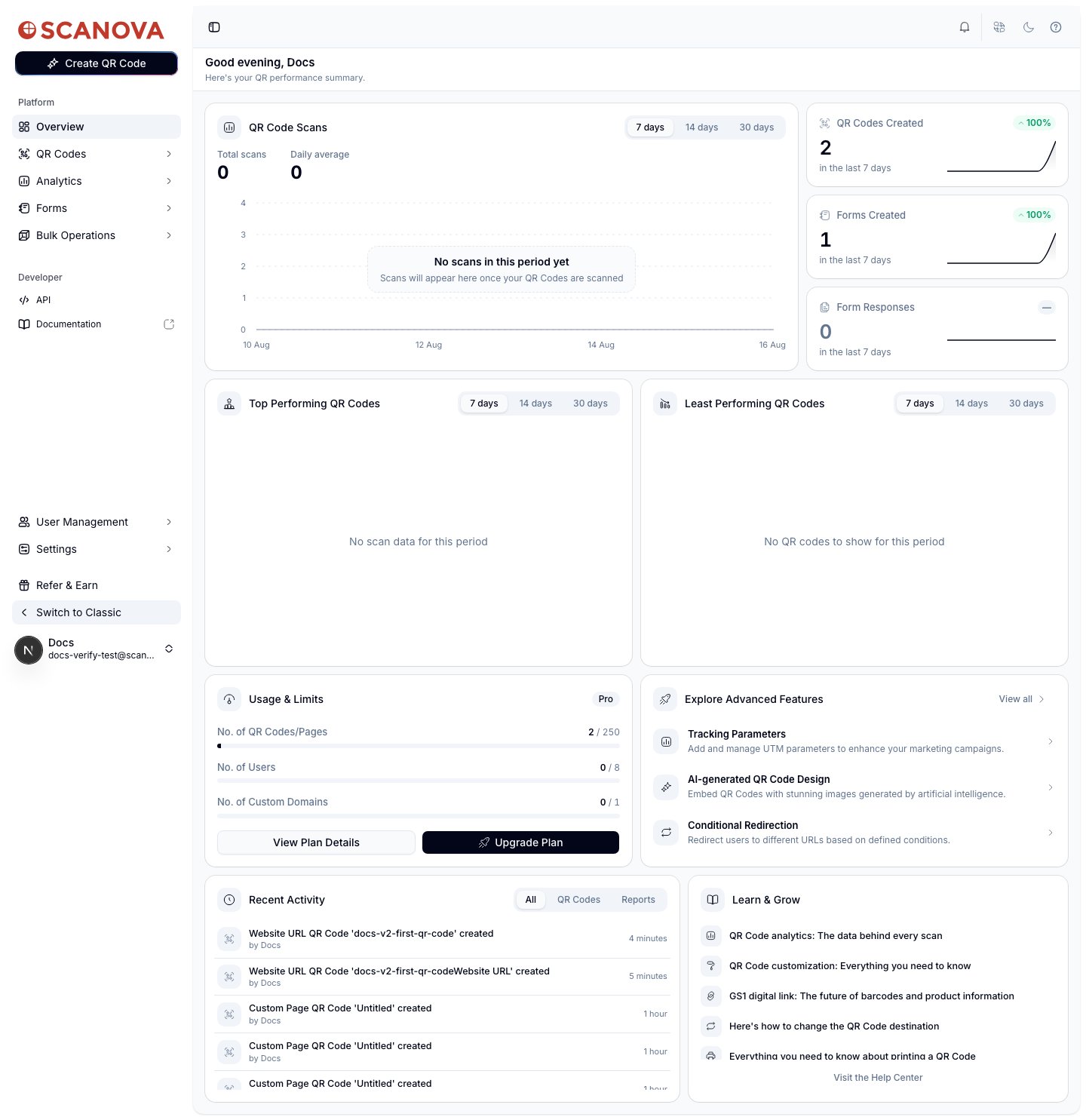
After logging in, you land on **Overview** (`/overview`) — a summary of your account's QR code activity plus quick links into the rest of the app.
 ## What's on the dashboard
The page greets you by name ("Good evening, \{name}") and is built from several panels:
* **QR Code Scans** — a scan-trend chart with 7/14/30-day toggles, plus total scans and daily average.
* **QR Codes Created**, **Forms Created**, **Form Responses** — stat cards for the same date range, each with a trend indicator (e.g. "▲ 100% in the last 7 days").
* **Top Performing QR Codes** / **Least Performing QR Codes** — your best- and worst-scanning codes for the selected period.
* **Usage & Limits** — your plan tier (e.g. "Pro") and consumption against its limits: number of QR codes/pages, users, and custom domains — with **View Plan Details** and **Upgrade Plan** buttons.
* **Explore Advanced Features** — short pointers to features you may not have used yet (Tracking Parameters, AI-generated QR Code Design, Conditional Redirection), each linking out via **View all**.
* **Recent Activity** — a running log of what's changed (e.g. "Website URL QR Code 'my-qr' created — by \{user}"), filterable by **All** / **QR Codes** / **Reports**.
* **Learn & Grow** — links into the Help Center on topics like QR code analytics, customization, and printing.
## The sidebar
The left sidebar is where you navigate the rest of the app. It's split into two groups:
**Platform**
* **Overview** — this dashboard.
* **QR Codes** — every QR code you've created, with a **Trash** for recently deleted ones.
* **Analytics** — scan-level reporting.
* **Forms** — standalone forms, plus a legacy **Lead List** view.
* **Bulk Operations** — batch workflows.
**Developer**
* **API** — API keys and usage.
* **Documentation** — this documentation site, marked with an external-link icon.
A prominent **Create QR Code** button sits above both groups and is always visible — it's the fastest way into the QR-creation hub described in [Creating your first QR code](/getting-started/first-qr-code).
Below the main navigation are account-level links: **User Management**, **Settings**, **Refer & Earn**, and **Switch to Classic** (which returns you to the legacy Angular app). Your account name and email are shown at the very bottom, with a menu to switch accounts or log out.
## The top bar
Above the page content, the top bar has a sidebar-toggle button on the left, and on the right: a notification bell, a grid-style icon, a dark/light theme toggle, and a help icon.
## Where to go next
* [Creating your first QR code](/getting-started/first-qr-code) — a full walkthrough of publishing your first QR code.
* [Quick Code vs. full Page](/qr-codes/create/quick-code-vs-page) — how to choose between a direct-action code and a landing page.
If you're building against the API instead of clicking through the dashboard, start with [Create QR Code](/v1/api-reference/endpoint/qr_manager/create).
## Related
* [What is Scanova?](/getting-started/what-is-scanova) — a platform-level overview of the sections summarized here.
* [Website URL QR Code](/qr-codes/create/website-url) — the simplest Quick Code type, a good next step from Overview.
* [Folders, tags & bulk operations](/qr-codes/manage/folders-tags-bulk-operations) — organizing the QR codes that show up in Recent Activity and the QR Codes list.
## What's on the dashboard
The page greets you by name ("Good evening, \{name}") and is built from several panels:
* **QR Code Scans** — a scan-trend chart with 7/14/30-day toggles, plus total scans and daily average.
* **QR Codes Created**, **Forms Created**, **Form Responses** — stat cards for the same date range, each with a trend indicator (e.g. "▲ 100% in the last 7 days").
* **Top Performing QR Codes** / **Least Performing QR Codes** — your best- and worst-scanning codes for the selected period.
* **Usage & Limits** — your plan tier (e.g. "Pro") and consumption against its limits: number of QR codes/pages, users, and custom domains — with **View Plan Details** and **Upgrade Plan** buttons.
* **Explore Advanced Features** — short pointers to features you may not have used yet (Tracking Parameters, AI-generated QR Code Design, Conditional Redirection), each linking out via **View all**.
* **Recent Activity** — a running log of what's changed (e.g. "Website URL QR Code 'my-qr' created — by \{user}"), filterable by **All** / **QR Codes** / **Reports**.
* **Learn & Grow** — links into the Help Center on topics like QR code analytics, customization, and printing.
## The sidebar
The left sidebar is where you navigate the rest of the app. It's split into two groups:
**Platform**
* **Overview** — this dashboard.
* **QR Codes** — every QR code you've created, with a **Trash** for recently deleted ones.
* **Analytics** — scan-level reporting.
* **Forms** — standalone forms, plus a legacy **Lead List** view.
* **Bulk Operations** — batch workflows.
**Developer**
* **API** — API keys and usage.
* **Documentation** — this documentation site, marked with an external-link icon.
A prominent **Create QR Code** button sits above both groups and is always visible — it's the fastest way into the QR-creation hub described in [Creating your first QR code](/getting-started/first-qr-code).
Below the main navigation are account-level links: **User Management**, **Settings**, **Refer & Earn**, and **Switch to Classic** (which returns you to the legacy Angular app). Your account name and email are shown at the very bottom, with a menu to switch accounts or log out.
## The top bar
Above the page content, the top bar has a sidebar-toggle button on the left, and on the right: a notification bell, a grid-style icon, a dark/light theme toggle, and a help icon.
## Where to go next
* [Creating your first QR code](/getting-started/first-qr-code) — a full walkthrough of publishing your first QR code.
* [Quick Code vs. full Page](/qr-codes/create/quick-code-vs-page) — how to choose between a direct-action code and a landing page.
If you're building against the API instead of clicking through the dashboard, start with [Create QR Code](/v1/api-reference/endpoint/qr_manager/create).
## Related
* [What is Scanova?](/getting-started/what-is-scanova) — a platform-level overview of the sections summarized here.
* [Website URL QR Code](/qr-codes/create/website-url) — the simplest Quick Code type, a good next step from Overview.
* [Folders, tags & bulk operations](/qr-codes/manage/folders-tags-bulk-operations) — organizing the QR codes that show up in Recent Activity and the QR Codes list.