> ## Documentation Index
> Fetch the complete documentation index at: https://docs.scanova.io/llms.txt
> Use this file to discover all available pages before exploring further.
# Adobe
> Generate and customize Scanova QR Codes inside Photoshop, InDesign, and Premiere Pro.
The Adobe integration is a set of Scanova plugins for Adobe Creative Cloud apps, distributed through Adobe Exchange — not an OAuth connection. Nothing syncs back into Scanova; it lets you generate a QR Code without leaving your Adobe workflow.
This is a **Design** category integration. It has no "Active connection" state and doesn't count against your integration connection quota — clicking through it in Scanova just opens the Adobe Exchange listing.
## Prerequisites
* A Scanova account (any plan).
* The Adobe Creative Cloud desktop app, with Photoshop, InDesign, or Premiere Pro installed.
## Installing the plugin
In the Scanova dashboard, go to **Integrations** in the left sidebar, click **Browse all integrations**, then filter to the **Design** category. Click **Setup** on the **Adobe Creative Cloud** card to open its setup panel.
Click **Open in marketplace**. This opens a Scanova search on [Adobe Exchange](https://exchange.adobe.com/apps/browse/cc?listingType=plugins\&page=1\&product=All\&q=scanova\&sort=RELEVANCE) in a new tab.
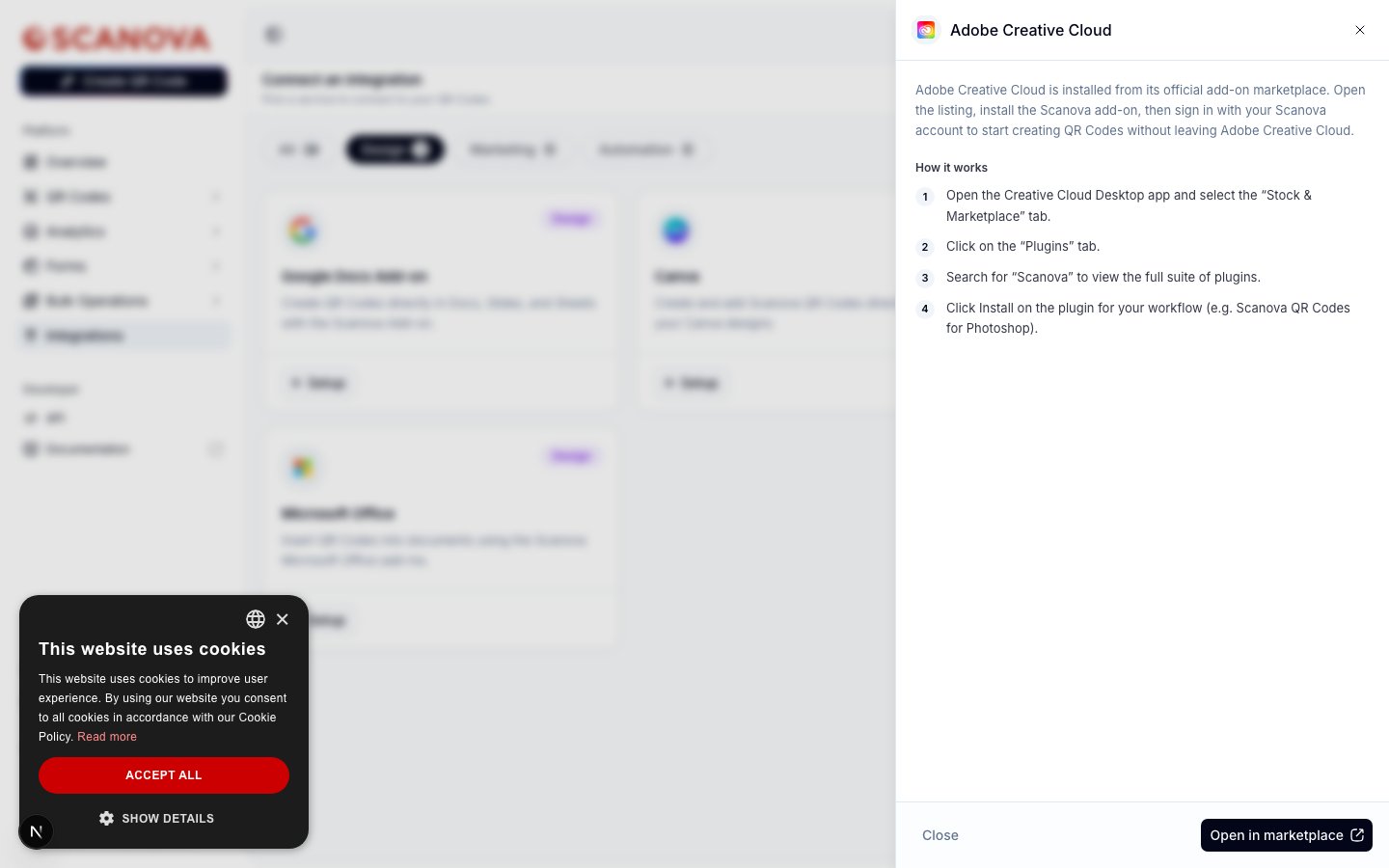 Alternatively, install directly from the desktop app:
1. Open the **Creative Cloud Desktop** app and select the **Stock & Marketplace** tab.
2. Click the **Plugins** tab.
3. Search for **Scanova** to view the full suite of plugins.
4. Click **Install** on the plugin for your workflow (for example, Scanova QR Codes for Photoshop).
Open the installed plugin's panel from within Photoshop, InDesign, or Premiere Pro and sign in with your Scanova account to start generating QR Codes on the canvas or timeline.
## What it's for
Use this when your design work happens in Adobe's apps — packaging layouts in InDesign, ad creative in Photoshop, video overlays in Premiere Pro — and you want a Scanova QR Code placed directly into that file rather than exported and re-imported as a static image.
## Related
* [Canva](/integrations/canva) — the same design-time convenience, as a Canva app.
* [Google Docs](/integrations/google-docs) — the same design-time convenience, as an add-on for Docs, Slides, and Sheets.
* [Microsoft Office](/integrations/microsoft-office) — the same design-time convenience, as an add-in for Word, Excel, and PowerPoint.
Alternatively, install directly from the desktop app:
1. Open the **Creative Cloud Desktop** app and select the **Stock & Marketplace** tab.
2. Click the **Plugins** tab.
3. Search for **Scanova** to view the full suite of plugins.
4. Click **Install** on the plugin for your workflow (for example, Scanova QR Codes for Photoshop).
Open the installed plugin's panel from within Photoshop, InDesign, or Premiere Pro and sign in with your Scanova account to start generating QR Codes on the canvas or timeline.
## What it's for
Use this when your design work happens in Adobe's apps — packaging layouts in InDesign, ad creative in Photoshop, video overlays in Premiere Pro — and you want a Scanova QR Code placed directly into that file rather than exported and re-imported as a static image.
## Related
* [Canva](/integrations/canva) — the same design-time convenience, as a Canva app.
* [Google Docs](/integrations/google-docs) — the same design-time convenience, as an add-on for Docs, Slides, and Sheets.
* [Microsoft Office](/integrations/microsoft-office) — the same design-time convenience, as an add-in for Word, Excel, and PowerPoint.