> ## Documentation Index
> Fetch the complete documentation index at: https://docs.scanova.io/llms.txt
> Use this file to discover all available pages before exploring further.
# Google Docs
> Create Scanova QR Codes directly in Google Docs, Slides, and Sheets.
The Google Docs integration is the **Scanova QR Codes** add-on, distributed through Google Workspace Marketplace — not an OAuth connection. Nothing syncs back into Scanova; it lets you generate a QR Code without leaving Docs, Slides, or Sheets.
This is a **Design** category integration, labeled "Google Docs Add-on" in the catalog since the same add-on works across Docs, Slides, and Sheets. It has no "Active connection" state and doesn't count against your integration connection quota — clicking through it in Scanova just opens the Workspace Marketplace listing.
## Prerequisites
* A Scanova account (any plan).
* A Google account with permission to install Workspace add-ons (in a managed workspace, an admin may need to approve it first).
## Installing the add-on
In the Scanova dashboard, go to **Integrations** in the left sidebar, click **Browse all integrations**, then filter to the **Design** category. Click **Setup** on the **Google Docs Add-on** card to open its setup panel.
Click **Open in marketplace**. This opens the add-on's [Google Workspace Marketplace listing](https://workspace.google.com/marketplace/app/scanova_qr_codes/831759720554) in a new tab.
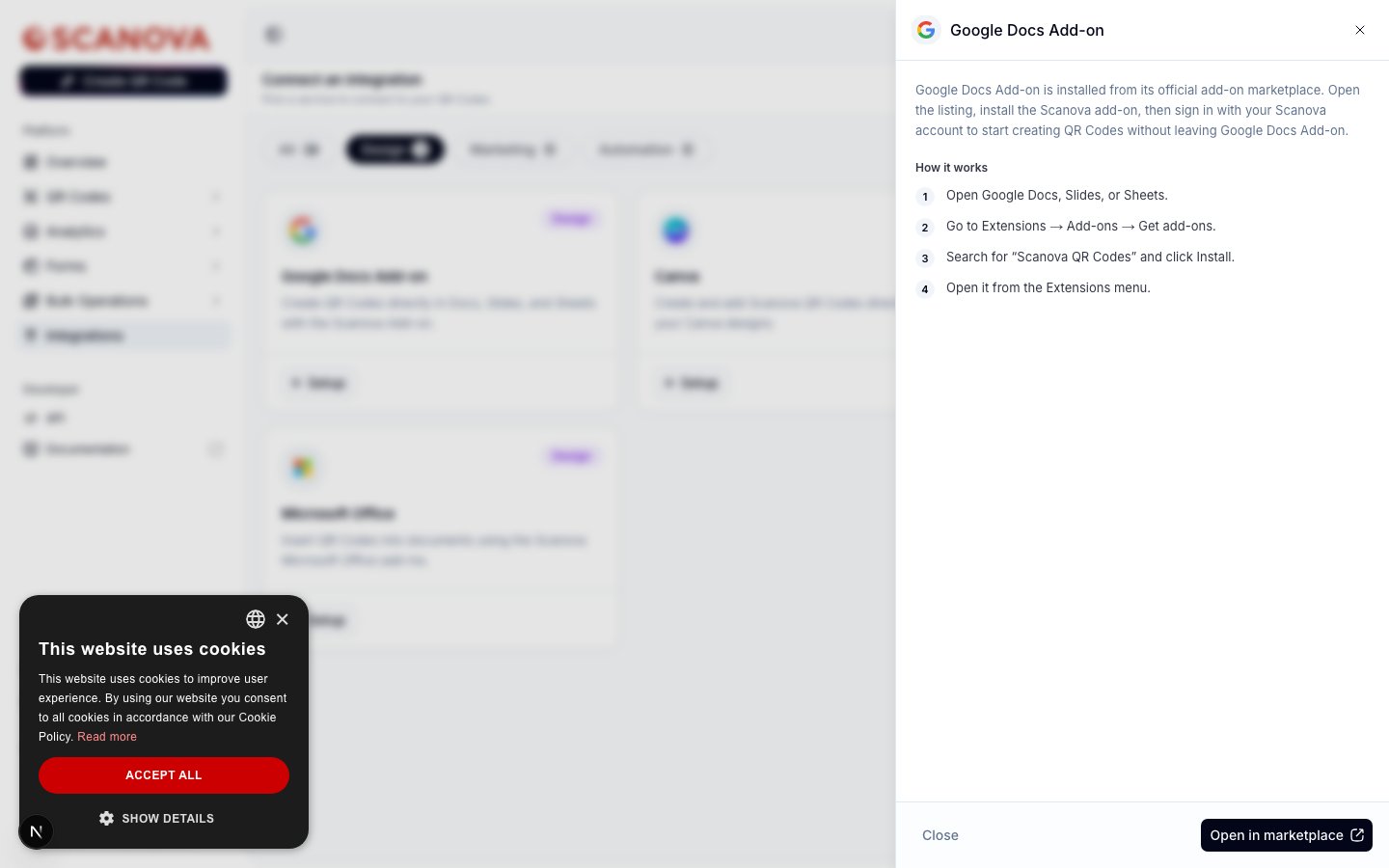 Alternatively, install it from inside any of the three apps:
1. Open Google Docs, Slides, or Sheets.
2. Go to **Extensions → Add-ons → Get add-ons**.
3. Search for **Scanova QR Codes** and click **Install**.
4. Open it from the **Extensions** menu.
With the add-on open in the sidebar, sign in with your Scanova account, then create or insert a QR Code straight into the document, slide, or spreadsheet you're working on.
## What it's for
Use this when a document, presentation, or spreadsheet is where the work already happens — a proposal, a slide deck, an inventory sheet — and you want a live Scanova QR Code embedded in it instead of pasting in a static image generated elsewhere.
## Related
* [Canva](/integrations/canva) — the same design-time convenience, as a Canva app.
* [Adobe](/integrations/adobe) — the same design-time convenience, as a plugin suite for Photoshop, InDesign, and Premiere Pro.
* [Microsoft Office](/integrations/microsoft-office) — the same design-time convenience, as an add-in for Word, Excel, and PowerPoint.
Alternatively, install it from inside any of the three apps:
1. Open Google Docs, Slides, or Sheets.
2. Go to **Extensions → Add-ons → Get add-ons**.
3. Search for **Scanova QR Codes** and click **Install**.
4. Open it from the **Extensions** menu.
With the add-on open in the sidebar, sign in with your Scanova account, then create or insert a QR Code straight into the document, slide, or spreadsheet you're working on.
## What it's for
Use this when a document, presentation, or spreadsheet is where the work already happens — a proposal, a slide deck, an inventory sheet — and you want a live Scanova QR Code embedded in it instead of pasting in a static image generated elsewhere.
## Related
* [Canva](/integrations/canva) — the same design-time convenience, as a Canva app.
* [Adobe](/integrations/adobe) — the same design-time convenience, as a plugin suite for Photoshop, InDesign, and Premiere Pro.
* [Microsoft Office](/integrations/microsoft-office) — the same design-time convenience, as an add-in for Word, Excel, and PowerPoint.