> ## Documentation Index
> Fetch the complete documentation index at: https://docs.scanova.io/llms.txt
> Use this file to discover all available pages before exploring further.
# Blocks reference
> Every content block available in the page builder, organized by the categories the Add Block picker actually uses.
## What blocks are
Blocks are the individual sections that make up a landing page — a heading, a paragraph, a gallery, a form. You add them from the left sidebar, drag to reorder, and edit each one's content and appearance in the right-hand inspector.
Every block has a **Content** tab for its data (text, images, links). Most blocks also have a **Design** tab for per-block style overrides, and an **Event Tracking** tab for click/conversion tracking.
Most card-based blocks share the same four Design-tab controls — **Appearance** (Card / Full width), **Card Background**, **Card Surface**, and **Shadow** — plus a **Transparent background** switch. Rather than repeating this on every block below, see [Design Options](/page-builder/design-options) for what each control does. If a block has no Design tab at all (for example Footer or Menu), it has no style overrides to set.
## Adding a block
1. Click **+ Add** at the top of the **Blocks** list in the left sidebar.
2. The **Add a block** picker opens, showing every block available for the current page type — filter by category tab, or search by name.
3. Click a block's card to add it to the bottom of the page.
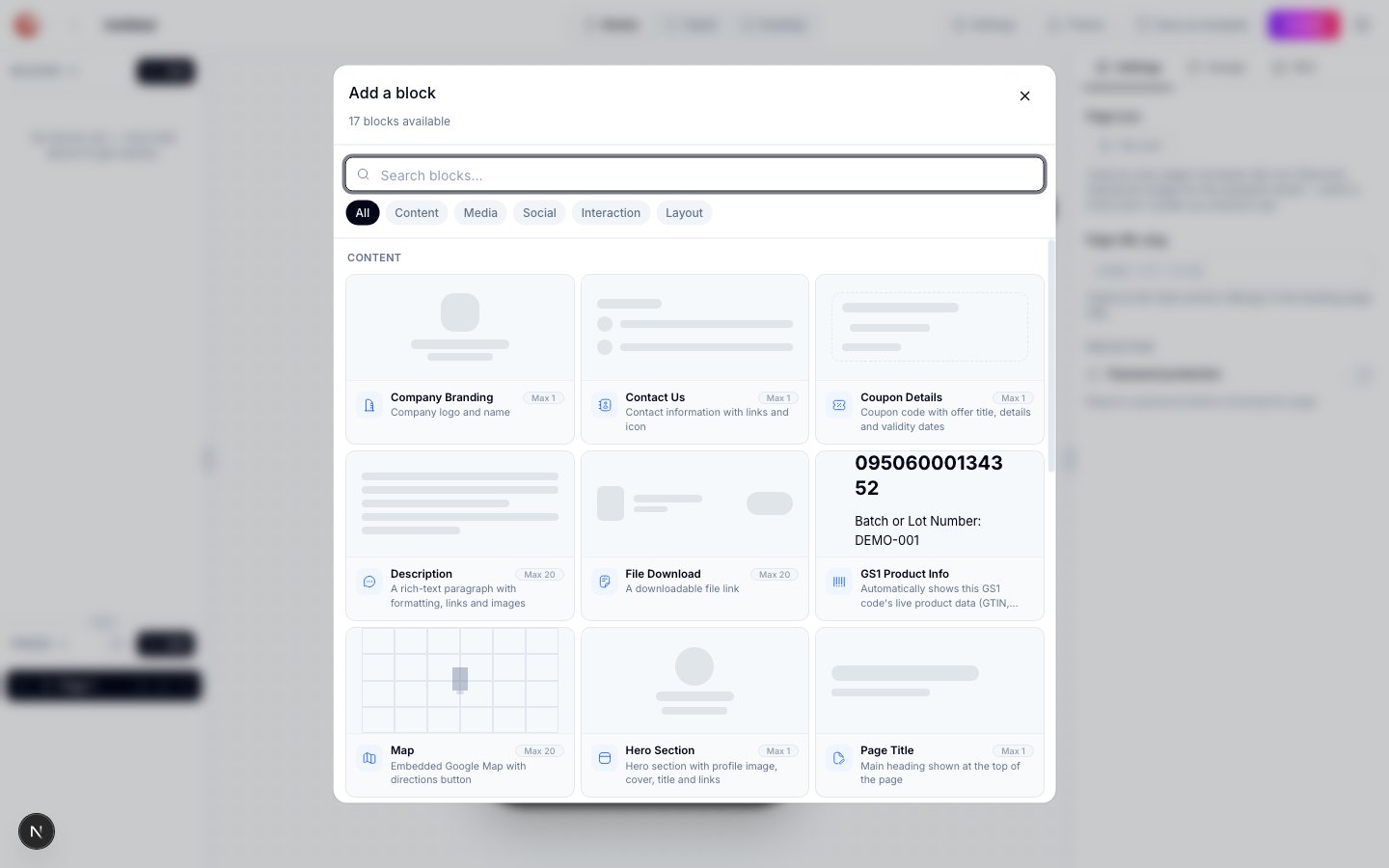 The picker's tabs — **All, Content, Media, Social, Interaction, Layout** — are the categories used below. A blank/general page offers 17 blocks; picking a category-specific template (Restaurant, Wedding, Real Estate, Business Card, Feedback, Audio, Document, Image) unlocks additional blocks scoped to that category, noted individually below.
***
## Content blocks
Text, branding, and profile blocks that make up the core information on a page.
| Block | Description |
| ----------------- | ------------------------------------------------------------------------------------------------------------------------------------------ |
| Page Title | Main heading shown at the top of the page |
| Hero Section | Hero section with profile image, cover, title and links |
| Description | A rich-text paragraph with formatting, links and images |
| Company Branding | Company logo and name |
| Contact Us | Contact information with links and icon |
| Contact Details | Phone numbers, emails, websites and addresses — Business Card, Real Estate, vCard, and Dynamic vCard pages only |
| Coupon Details | Coupon code with offer title, details and validity dates |
| File Download | A downloadable file link |
| Map | Embedded Google Map with a directions button |
| GS1 Product Info | Automatically shows this GS1 code's live product data (GTIN, batch/lot, etc.) when the page is linked to a GS1 code — nothing to configure |
| About Us | About section with text and images — Restaurant pages only |
| Brand Info | Restaurant banner, logo, name and tagline — Restaurant pages only |
| Footer | Footer text shown at the bottom of the page — Restaurant pages only |
| Menu | Restaurant menu — single PDF or multiple sections with items and prices — Restaurant pages only |
| Couple Names | Display the couple's names with an optional decorative separator — Wedding pages only |
| Event Schedule | Date, time and recurring settings for the event, with an Add to Calendar button — Wedding and Event pages only |
| Event Venue | Venue address or online meeting link — Wedding and Event pages only |
| Logo Section | Branded logo shown at the top of the feedback page — Feedback pages only |
| Profile Info | Personal profile — name, photo, designation and company — Business Card, vCard, and Dynamic vCard pages only |
| Agent Profile | Real estate agent — name, photo, license number and company logo — Real Estate pages only |
| Property Listings | List of properties with images, specs and pricing — Real Estate pages only |
**Hero Section** was previously called "Page Header" in older documentation. The block type slug (`page_header`) is unchanged, but the on-screen label is now **Hero Section**.
## Media blocks
Images, video, audio, and downloadable files.
| Block | Description |
| ------------- | -------------------------------------------------------------------------------------------------------------------- |
| Image Gallery | Up to 8 images shown as a banner or gallery — carousel, grid, list, or slider with captions |
| Video | Embedded video from a URL (YouTube, Vimeo, or a direct link) |
| Audio Player | Audio playlist with optional track titles and cover art — Audio pages only; added automatically and can't be removed |
| Documents | File downloads with titles and download links — Document pages only |
| Gallery Page | Photo gallery with a grid or list layout — Image pages only |
## Social blocks
Ways for visitors to follow or share your page.
| Block | Description |
| --------------- | ---------------------------------------------------- |
| Social Profiles | Links to social media profiles — list or grid layout |
| Share Buttons | Social share buttons so visitors can share your page |
## Interaction blocks
Blocks that let visitors take action — fill in a form, redeem a coupon, or leave a review.
| Block | Description |
| ------------- | ----------------------------------------------------------------------------------------- |
| Button | A call-to-action button with a link (URL, email, phone, SMS, or another QR code) |
| Custom Form | A custom form to collect visitor responses |
| Feedback Form | Star-rating feedback form with configurable parameters and fields — Restaurant pages only |
| Review Us | Links to review platforms like Google, TripAdvisor, and Yelp — Restaurant pages only |
| RSVP | RSVP form for guests to respond to an invitation — Wedding and Event pages only |
The Button block's link type options are **URL, Email, Phone, SMS**, and **QR code**. The "QR code" option links to a *different* QR code's own landing page — it doesn't create in-page navigation between pages of the same multi-page site.
## Layout blocks
Structural elements that control page flow, spacing, and advanced behavior.
| Block | Description |
| ------------- | --------------------------------------------------------------------------------------------- |
| Separator | A visual divider between blocks (9 decoration styles) |
| Custom Script | Inject custom HTML or JavaScript into the page — requires a plan with the Custom Script quota |
| Auto Redirect | Countdown timer with a Skip/Continue button that redirects visitors — Intro pages only |
***
## Reordering blocks
Drag the grip handle on any block card in the left sidebar to move it to a new position. The canvas updates in real time.
## Deleting a block
Select a block on the canvas or in the left sidebar, then click the trash icon in the block card header. Most blocks can be deleted freely — including Page Title and Coupon Details, despite older documentation claiming otherwise. A small number of blocks that anchor a specific page type still can't be deleted: **Audio Player** (on Audio pages), **Logo Section** (on Feedback pages), **Menu** (on Restaurant pages), and **Agent Profile** (on Real Estate pages).
## Copying and pasting a block
Select a block and press Cmd/Ctrl+C to copy it. Press Cmd/Ctrl+V to paste a copy below the current selection. Pasted blocks keep the same content and design settings as the original.
## Related
* [Design options](/page-builder/design-options) — the per-block Design tab controls referenced throughout this page.
* [Animated effects](/page-builder/animated-effects) — the Card Effect and Button Effect options available on card and button blocks.
* [Page types](/page-builder/page-types) — which page type unlocks which category-specific blocks.
* [Building a form](/forms/building-a-form) — configuring the Custom Form block's questions in the dedicated form builder.
The picker's tabs — **All, Content, Media, Social, Interaction, Layout** — are the categories used below. A blank/general page offers 17 blocks; picking a category-specific template (Restaurant, Wedding, Real Estate, Business Card, Feedback, Audio, Document, Image) unlocks additional blocks scoped to that category, noted individually below.
***
## Content blocks
Text, branding, and profile blocks that make up the core information on a page.
| Block | Description |
| ----------------- | ------------------------------------------------------------------------------------------------------------------------------------------ |
| Page Title | Main heading shown at the top of the page |
| Hero Section | Hero section with profile image, cover, title and links |
| Description | A rich-text paragraph with formatting, links and images |
| Company Branding | Company logo and name |
| Contact Us | Contact information with links and icon |
| Contact Details | Phone numbers, emails, websites and addresses — Business Card, Real Estate, vCard, and Dynamic vCard pages only |
| Coupon Details | Coupon code with offer title, details and validity dates |
| File Download | A downloadable file link |
| Map | Embedded Google Map with a directions button |
| GS1 Product Info | Automatically shows this GS1 code's live product data (GTIN, batch/lot, etc.) when the page is linked to a GS1 code — nothing to configure |
| About Us | About section with text and images — Restaurant pages only |
| Brand Info | Restaurant banner, logo, name and tagline — Restaurant pages only |
| Footer | Footer text shown at the bottom of the page — Restaurant pages only |
| Menu | Restaurant menu — single PDF or multiple sections with items and prices — Restaurant pages only |
| Couple Names | Display the couple's names with an optional decorative separator — Wedding pages only |
| Event Schedule | Date, time and recurring settings for the event, with an Add to Calendar button — Wedding and Event pages only |
| Event Venue | Venue address or online meeting link — Wedding and Event pages only |
| Logo Section | Branded logo shown at the top of the feedback page — Feedback pages only |
| Profile Info | Personal profile — name, photo, designation and company — Business Card, vCard, and Dynamic vCard pages only |
| Agent Profile | Real estate agent — name, photo, license number and company logo — Real Estate pages only |
| Property Listings | List of properties with images, specs and pricing — Real Estate pages only |
**Hero Section** was previously called "Page Header" in older documentation. The block type slug (`page_header`) is unchanged, but the on-screen label is now **Hero Section**.
## Media blocks
Images, video, audio, and downloadable files.
| Block | Description |
| ------------- | -------------------------------------------------------------------------------------------------------------------- |
| Image Gallery | Up to 8 images shown as a banner or gallery — carousel, grid, list, or slider with captions |
| Video | Embedded video from a URL (YouTube, Vimeo, or a direct link) |
| Audio Player | Audio playlist with optional track titles and cover art — Audio pages only; added automatically and can't be removed |
| Documents | File downloads with titles and download links — Document pages only |
| Gallery Page | Photo gallery with a grid or list layout — Image pages only |
## Social blocks
Ways for visitors to follow or share your page.
| Block | Description |
| --------------- | ---------------------------------------------------- |
| Social Profiles | Links to social media profiles — list or grid layout |
| Share Buttons | Social share buttons so visitors can share your page |
## Interaction blocks
Blocks that let visitors take action — fill in a form, redeem a coupon, or leave a review.
| Block | Description |
| ------------- | ----------------------------------------------------------------------------------------- |
| Button | A call-to-action button with a link (URL, email, phone, SMS, or another QR code) |
| Custom Form | A custom form to collect visitor responses |
| Feedback Form | Star-rating feedback form with configurable parameters and fields — Restaurant pages only |
| Review Us | Links to review platforms like Google, TripAdvisor, and Yelp — Restaurant pages only |
| RSVP | RSVP form for guests to respond to an invitation — Wedding and Event pages only |
The Button block's link type options are **URL, Email, Phone, SMS**, and **QR code**. The "QR code" option links to a *different* QR code's own landing page — it doesn't create in-page navigation between pages of the same multi-page site.
## Layout blocks
Structural elements that control page flow, spacing, and advanced behavior.
| Block | Description |
| ------------- | --------------------------------------------------------------------------------------------- |
| Separator | A visual divider between blocks (9 decoration styles) |
| Custom Script | Inject custom HTML or JavaScript into the page — requires a plan with the Custom Script quota |
| Auto Redirect | Countdown timer with a Skip/Continue button that redirects visitors — Intro pages only |
***
## Reordering blocks
Drag the grip handle on any block card in the left sidebar to move it to a new position. The canvas updates in real time.
## Deleting a block
Select a block on the canvas or in the left sidebar, then click the trash icon in the block card header. Most blocks can be deleted freely — including Page Title and Coupon Details, despite older documentation claiming otherwise. A small number of blocks that anchor a specific page type still can't be deleted: **Audio Player** (on Audio pages), **Logo Section** (on Feedback pages), **Menu** (on Restaurant pages), and **Agent Profile** (on Real Estate pages).
## Copying and pasting a block
Select a block and press Cmd/Ctrl+C to copy it. Press Cmd/Ctrl+V to paste a copy below the current selection. Pasted blocks keep the same content and design settings as the original.
## Related
* [Design options](/page-builder/design-options) — the per-block Design tab controls referenced throughout this page.
* [Animated effects](/page-builder/animated-effects) — the Card Effect and Button Effect options available on card and button blocks.
* [Page types](/page-builder/page-types) — which page type unlocks which category-specific blocks.
* [Building a form](/forms/building-a-form) — configuring the Custom Form block's questions in the dedicated form builder.