> ## Documentation Index
> Fetch the complete documentation index at: https://docs.scanova.io/llms.txt
> Use this file to discover all available pages before exploring further.
# Multi-page navigation
> Navigation styles for multi-page QR codes.
## How it works
When a QR code has more than one page, visitors need a way to move between them. Each page has a name and can have an icon; these show up in the navigation controls. Navigation appears automatically as soon as a QR code has a second page — there's nothing separate to turn on.
Navigation style is a single, QR-wide setting — not a per-page choice. Every page on the QR code uses the same style.
## Navigation styles
The Page Settings dialog offers exactly three styles: **Bottom**, **Top**, and **None**.
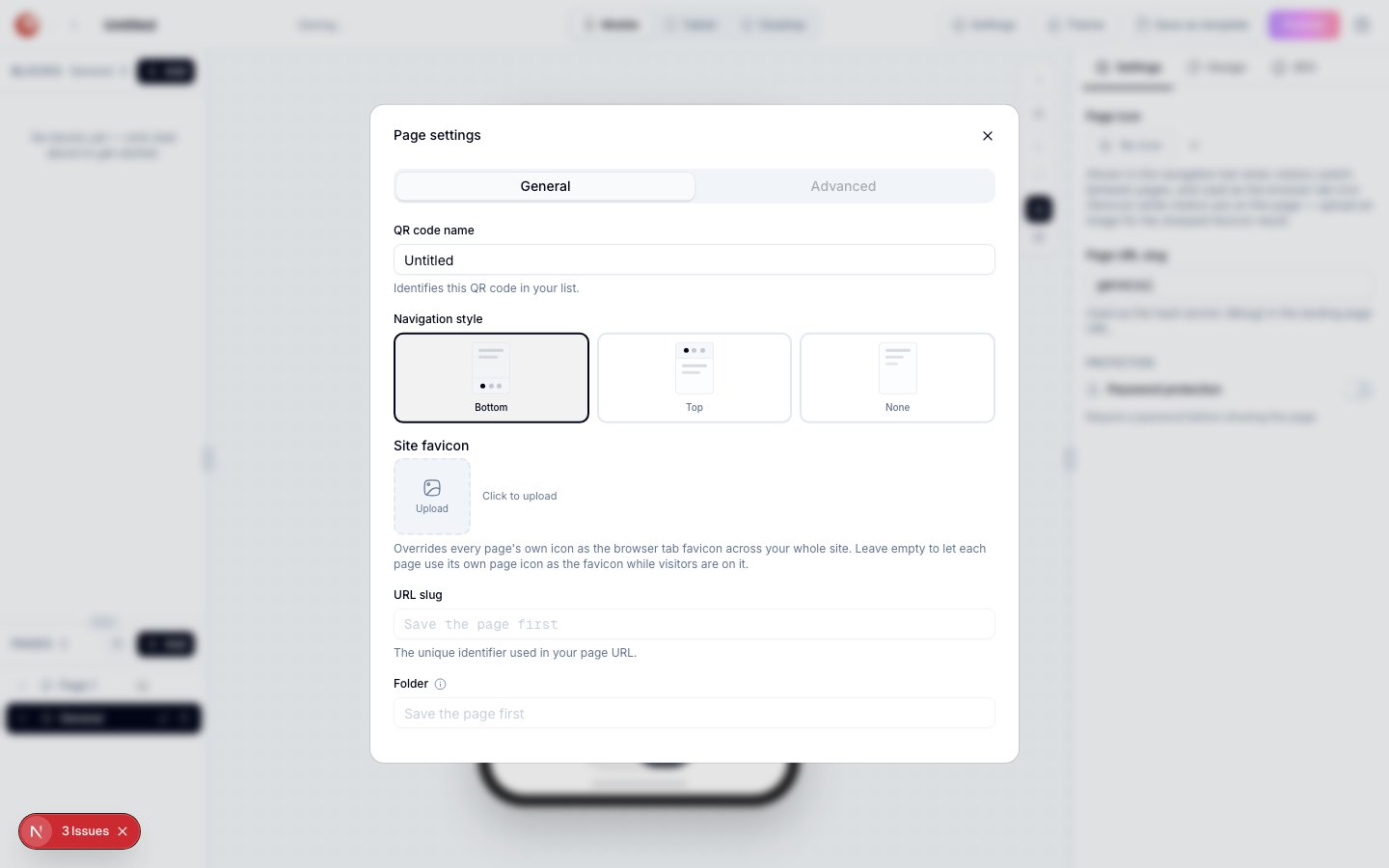 ### Bottom
A row of tabs anchored to the bottom of the screen — the default and most familiar pattern for mobile visitors, similar to the tab bar in most mobile apps.
### Top
A horizontal tab bar at the top of the page content. Works well when the page has a prominent header block and you want navigation to read as a section switcher.
### None
No navigation controls are shown. Visitors only move between pages through whatever links or buttons you build into the content itself.
There is no "Sidebar" navigation style. If you're working from older documentation or notes that mention a slide-out sidebar drawer for page navigation, that feature doesn't exist in the current page builder — only Bottom, Top, and None are available.
## Configuring navigation
Click the gear icon next to the **Pages** list in the left sidebar, or click **Settings** in the header.
Under **Navigation style**, pick **Bottom**, **Top**, or **None**.
Click a page in the **Pages** list to give it an icon; this shows in the Bottom and Top navigation styles.
Drag pages in the list — the order here matches the order visitors see in the navigation.
For the full list of page types you can add and how each one behaves, see [Page types](/page-builder/page-types).
## Related
* [Page types](/page-builder/page-types) — the page types you can add to a multi-page site.
* [Page Builder overview](/page-builder/overview) — where Page Settings and the Pages list live in the editor.
* [Page security](/page-builder/page-security) — password-protecting an individual page that still appears in navigation.
### Bottom
A row of tabs anchored to the bottom of the screen — the default and most familiar pattern for mobile visitors, similar to the tab bar in most mobile apps.
### Top
A horizontal tab bar at the top of the page content. Works well when the page has a prominent header block and you want navigation to read as a section switcher.
### None
No navigation controls are shown. Visitors only move between pages through whatever links or buttons you build into the content itself.
There is no "Sidebar" navigation style. If you're working from older documentation or notes that mention a slide-out sidebar drawer for page navigation, that feature doesn't exist in the current page builder — only Bottom, Top, and None are available.
## Configuring navigation
Click the gear icon next to the **Pages** list in the left sidebar, or click **Settings** in the header.
Under **Navigation style**, pick **Bottom**, **Top**, or **None**.
Click a page in the **Pages** list to give it an icon; this shows in the Bottom and Top navigation styles.
Drag pages in the list — the order here matches the order visitors see in the navigation.
For the full list of page types you can add and how each one behaves, see [Page types](/page-builder/page-types).
## Related
* [Page types](/page-builder/page-types) — the page types you can add to a multi-page site.
* [Page Builder overview](/page-builder/overview) — where Page Settings and the Pages list live in the editor.
* [Page security](/page-builder/page-security) — password-protecting an individual page that still appears in navigation.