> ## Documentation Index
> Fetch the complete documentation index at: https://docs.scanova.io/llms.txt
> Use this file to discover all available pages before exploring further.
# Publishing
> Draft vs. published pages, and how autosave works.
## Draft and published states
Your landing page has two states: **draft** and **published**. You can make as many changes as you like to the draft without affecting what visitors see. When you're ready, you publish it.
| State | Description |
| --------- | --------------------------------------------------------------------------------------- |
| Draft | Your current work in progress. Saved automatically. Only visible to you in the builder. |
| Published | The version visitors see when they scan the QR code. Updated only when you publish. |
## Autosave is real, server-backed saving
Changes save automatically as you work — but this is not just a local browser draft. Within a few seconds of your very first edit, the header status cycles **"Unsaved" → "Saving…" → "Saved"**, and a real `POST /qr/` request creates and persists the QR record on the server — before you've clicked Publish at all. Every edit after that keeps the draft saved server-side the same way.
Because autosave is server-backed, you don't need to worry about losing work if you close the tab or your browser crashes — your draft is already saved to your account, not just to local storage.
## Recovering an unsaved draft
If you have unpublished changes and reopen the editor for that QR code (including via `Edit Page`), the builder detects that the draft is newer than the last published version and asks what you'd like to do.
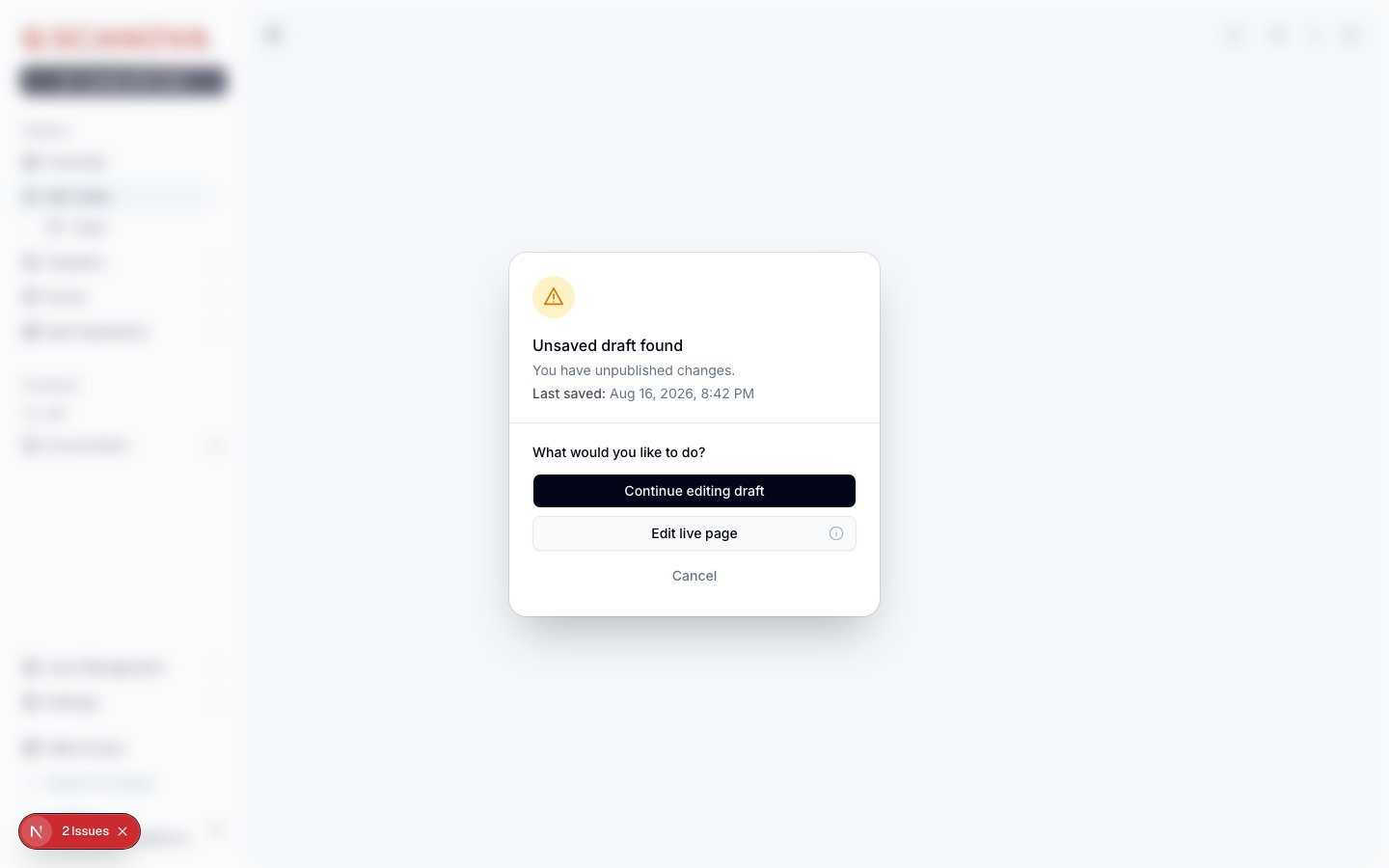 Choose **Continue editing draft** to pick up where you left off, or **Edit live page** to start from the last published version instead.
## Previewing before publishing
* **Device switcher** — click **Mobile**, **Tablet**, or **Desktop** in the header to see how the page adapts.
* **Preview mode** — press Cmd/Ctrl+\ to toggle a preview-style canvas view. See [Keyboard shortcuts](/page-builder/keyboard-shortcuts) for exactly what this does and doesn't change.
## The publish flow
Click **Publish** in the top-right of the header. This opens a **Publish QR code** panel — not a simple confirmation dialog — with **Basics**, **Advanced**, and **QR Design** tabs, a live QR code preview, an editable name and Short URL/slug, a folder picker, and tags.
Choose **Continue editing draft** to pick up where you left off, or **Edit live page** to start from the last published version instead.
## Previewing before publishing
* **Device switcher** — click **Mobile**, **Tablet**, or **Desktop** in the header to see how the page adapts.
* **Preview mode** — press Cmd/Ctrl+\ to toggle a preview-style canvas view. See [Keyboard shortcuts](/page-builder/keyboard-shortcuts) for exactly what this does and doesn't change.
## The publish flow
Click **Publish** in the top-right of the header. This opens a **Publish QR code** panel — not a simple confirmation dialog — with **Basics**, **Advanced**, and **QR Design** tabs, a live QR code preview, an editable name and Short URL/slug, a folder picker, and tags.
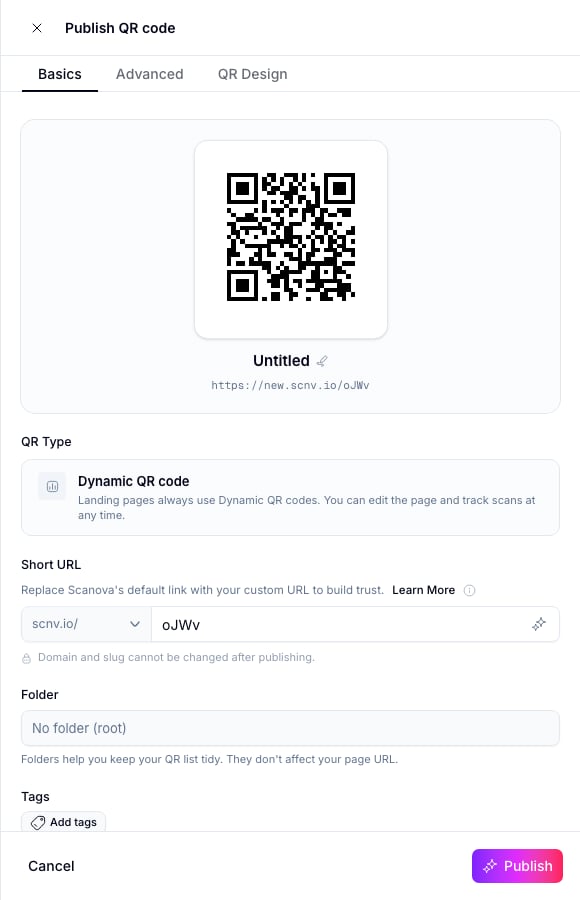 Adjust the name, slug, folder, or tags if needed, then click **Publish** at the bottom of the panel.
The header shows **Publishing…** for a few seconds, then **Published ✓**. A success panel appears with a **Live** badge, the QR code, its live URL, and quick actions (**View live page**, **View details**, **Edit Design**, **Download**, **Copy URL**, **Share**).
Adjust the name, slug, folder, or tags if needed, then click **Publish** at the bottom of the panel.
The header shows **Publishing…** for a few seconds, then **Published ✓**. A success panel appears with a **Live** badge, the QR code, its live URL, and quick actions (**View live page**, **View details**, **Edit Design**, **Download**, **Copy URL**, **Share**).
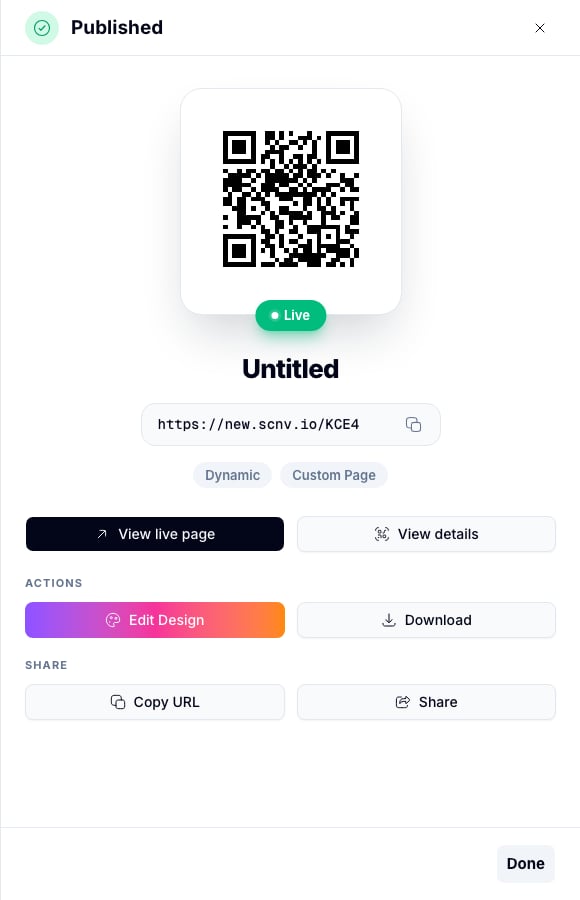 Publishing takes only a few seconds. Once it completes, anyone who scans the QR code sees the new version immediately.
## After publishing
* The QR code's live URL serves the updated page; the QR code image itself never changes.
* You can keep editing in the builder without affecting the live page — your next changes become a new draft.
* Republishing works the same way each time: make changes, click **Publish** (the button reads **Update live page** once a page has unpublished changes since its last publish), and confirm.
## Checking the live page
After publishing, view the live page by scanning the QR code, or by clicking **View live page** from the success panel or the QR code's detail page.
Always verify the live page on a real mobile device after major layout changes — the canvas preview is accurate, but a real device test is the most reliable check.
Page-builder QR codes are created the same way as other landing-page categories through the API — see [Create QR Code](/v1/api-reference/endpoint/qr_manager/create) for the request schema.
## Related
* [Keyboard shortcuts](/page-builder/keyboard-shortcuts) — the preview-mode shortcut referenced above.
* [Page security](/page-builder/page-security) — password protection, which takes effect once you publish.
* [Templates](/page-builder/templates) — saving your published page's layout as a reusable template.
Publishing takes only a few seconds. Once it completes, anyone who scans the QR code sees the new version immediately.
## After publishing
* The QR code's live URL serves the updated page; the QR code image itself never changes.
* You can keep editing in the builder without affecting the live page — your next changes become a new draft.
* Republishing works the same way each time: make changes, click **Publish** (the button reads **Update live page** once a page has unpublished changes since its last publish), and confirm.
## Checking the live page
After publishing, view the live page by scanning the QR code, or by clicking **View live page** from the success panel or the QR code's detail page.
Always verify the live page on a real mobile device after major layout changes — the canvas preview is accurate, but a real device test is the most reliable check.
Page-builder QR codes are created the same way as other landing-page categories through the API — see [Create QR Code](/v1/api-reference/endpoint/qr_manager/create) for the request schema.
## Related
* [Keyboard shortcuts](/page-builder/keyboard-shortcuts) — the preview-mode shortcut referenced above.
* [Page security](/page-builder/page-security) — password protection, which takes effect once you publish.
* [Templates](/page-builder/templates) — saving your published page's layout as a reusable template.