> ## Documentation Index
> Fetch the complete documentation index at: https://docs.scanova.io/llms.txt
> Use this file to discover all available pages before exploring further.
# Templates
> Picking a template or saving your own.
Every landing page starts from either a pre-built template or a blank canvas. Templates give you a starting set of blocks and a matching theme, which you can freely edit once you're inside the builder — nothing about a template locks you in.
## Reaching the template gallery
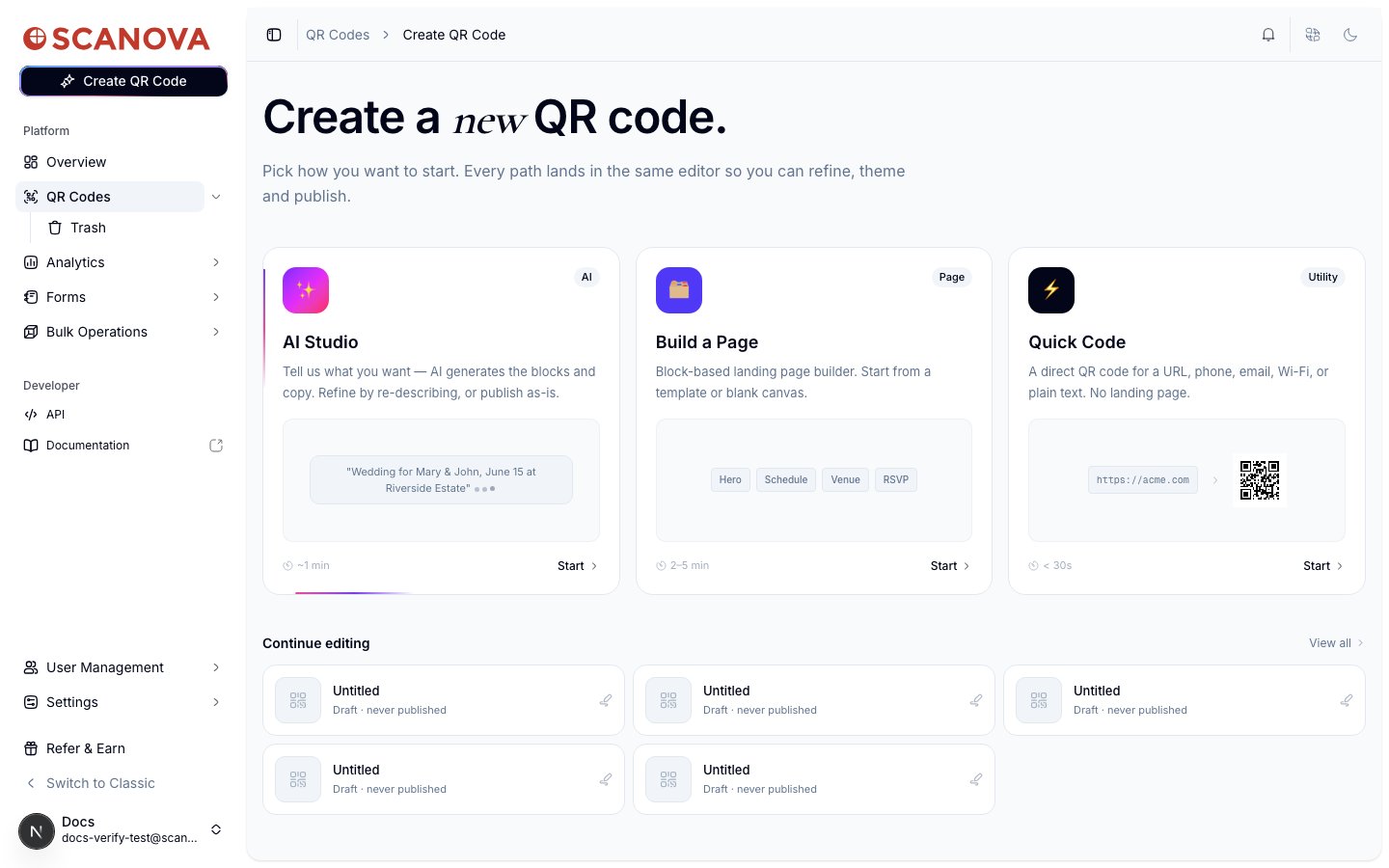
From **QR Codes**, click **Create QR Code**. This opens the **Create a new QR code** screen with three starting paths.
Click **Start** on the **Build a Page** card — the block-based landing page builder.
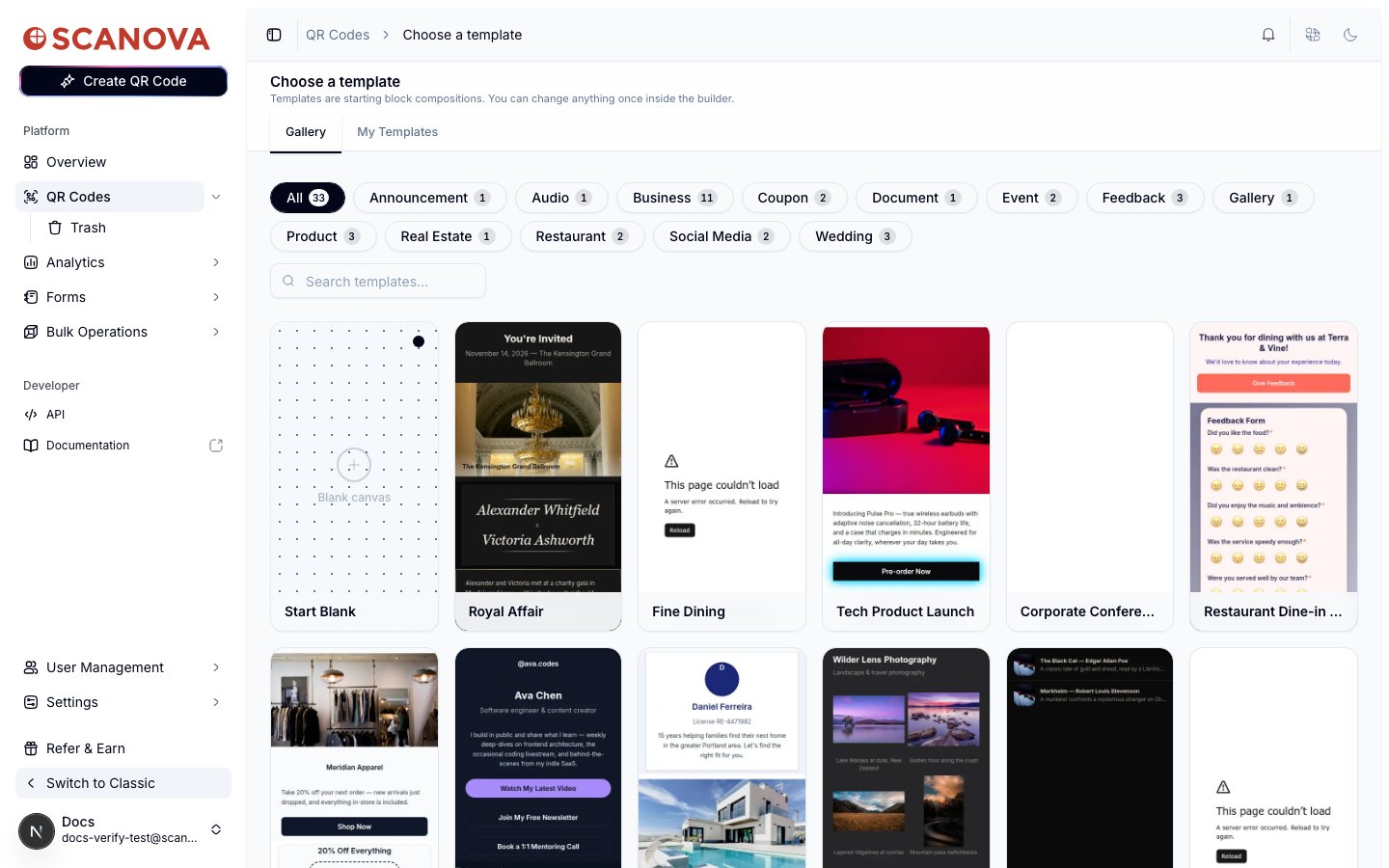
 This takes you to **Choose a template** (`/qr/new`), a searchable, filterable gallery of starting points.
## Browsing and filtering the gallery
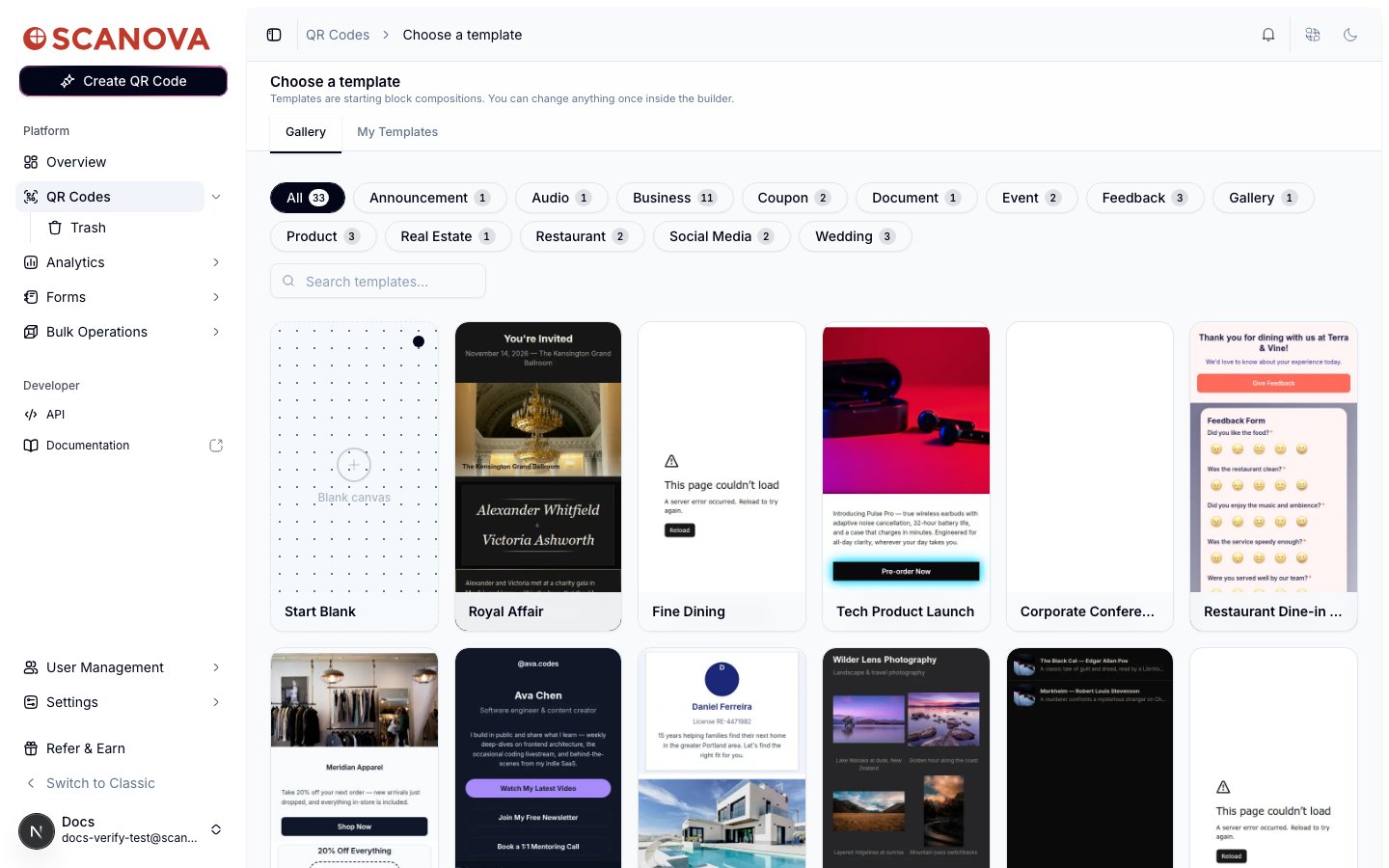
The **Gallery** tab shows every available template as a card with a live-style preview, grouped under category tags along the top — **All**, **Announcement**, **Audio**, **Business**, **Coupon**, **Document**, **Event**, **Feedback**, **Gallery**, **Product**, **Real Estate**, **Restaurant**, **Social Media**, and **Wedding** — each with a count of templates in that category.
This takes you to **Choose a template** (`/qr/new`), a searchable, filterable gallery of starting points.
## Browsing and filtering the gallery
The **Gallery** tab shows every available template as a card with a live-style preview, grouped under category tags along the top — **All**, **Announcement**, **Audio**, **Business**, **Coupon**, **Document**, **Event**, **Feedback**, **Gallery**, **Product**, **Real Estate**, **Restaurant**, **Social Media**, and **Wedding** — each with a count of templates in that category.
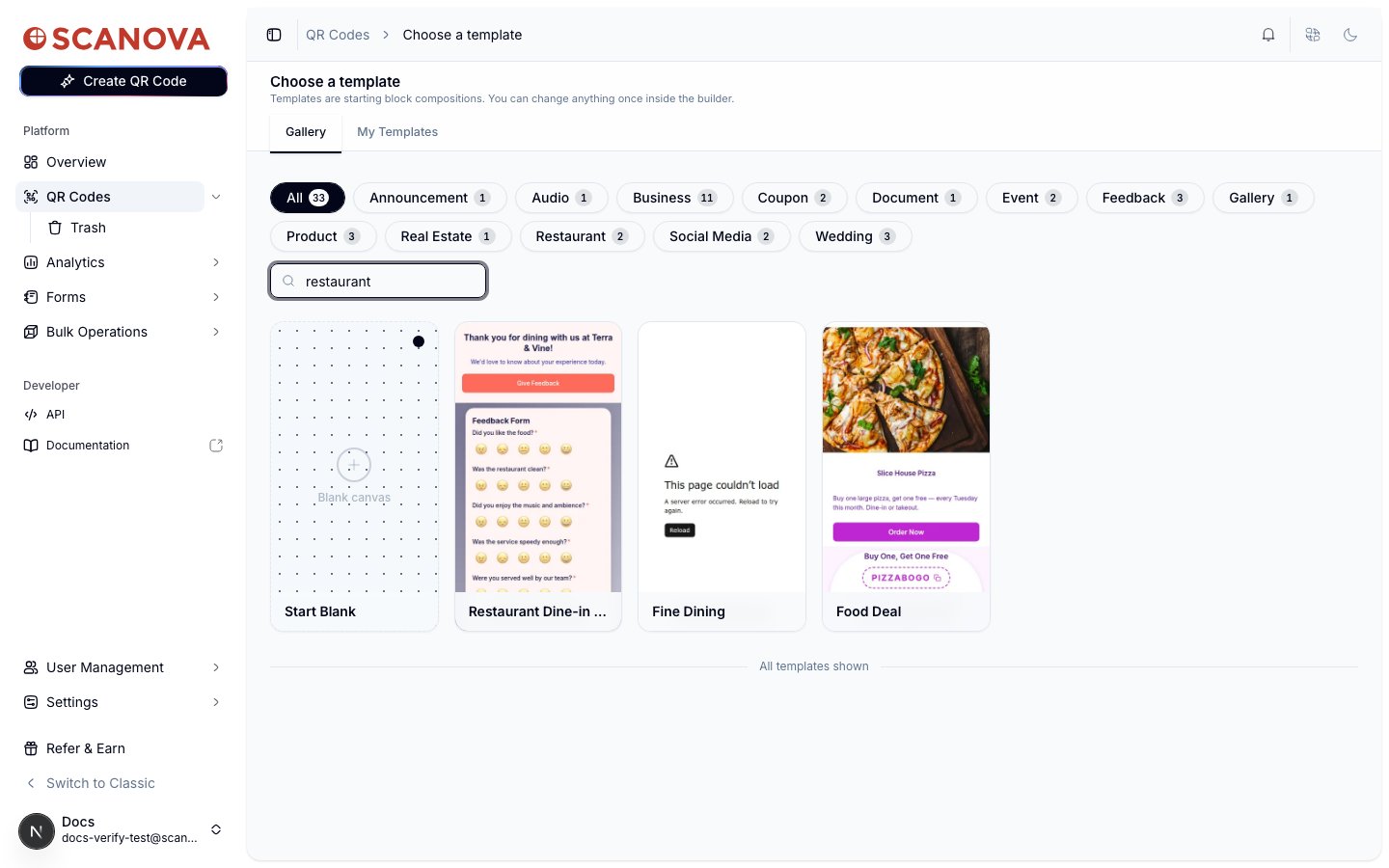
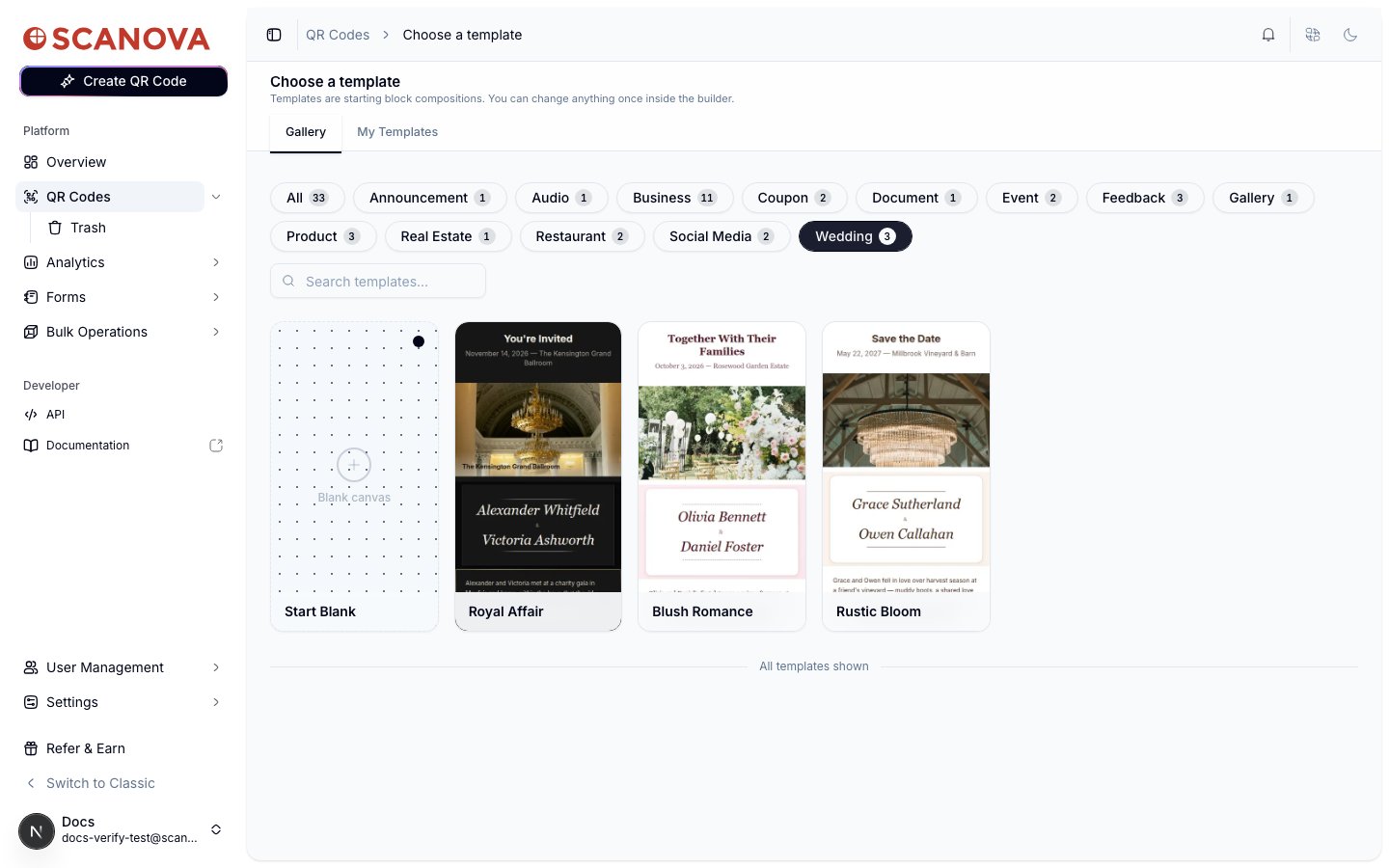
 Click a category tag to narrow the grid to just that category, or use the **Search templates** box to filter by name — search and category filtering can be used together.
 Hover over a template's preview to scroll through its full mobile layout before picking it. Clicking a card opens the builder with that template's blocks and theme already applied.
## Starting blank
The first card in every view of the gallery is **Start Blank** — it skips template selection entirely and opens the builder with an empty canvas (no blocks, default theme), letting you build a page from scratch.
Hover over a template's preview to scroll through its full mobile layout before picking it. Clicking a card opens the builder with that template's blocks and theme already applied.
## Starting blank
The first card in every view of the gallery is **Start Blank** — it skips template selection entirely and opens the builder with an empty canvas (no blocks, default theme), letting you build a page from scratch.
 ## My Templates
The **My Templates** tab shows templates you've saved yourself (see below) — it's separate from the shared **Gallery** and is empty until you save your first one.
## My Templates
The **My Templates** tab shows templates you've saved yourself (see below) — it's separate from the shared **Gallery** and is empty until you save your first one.
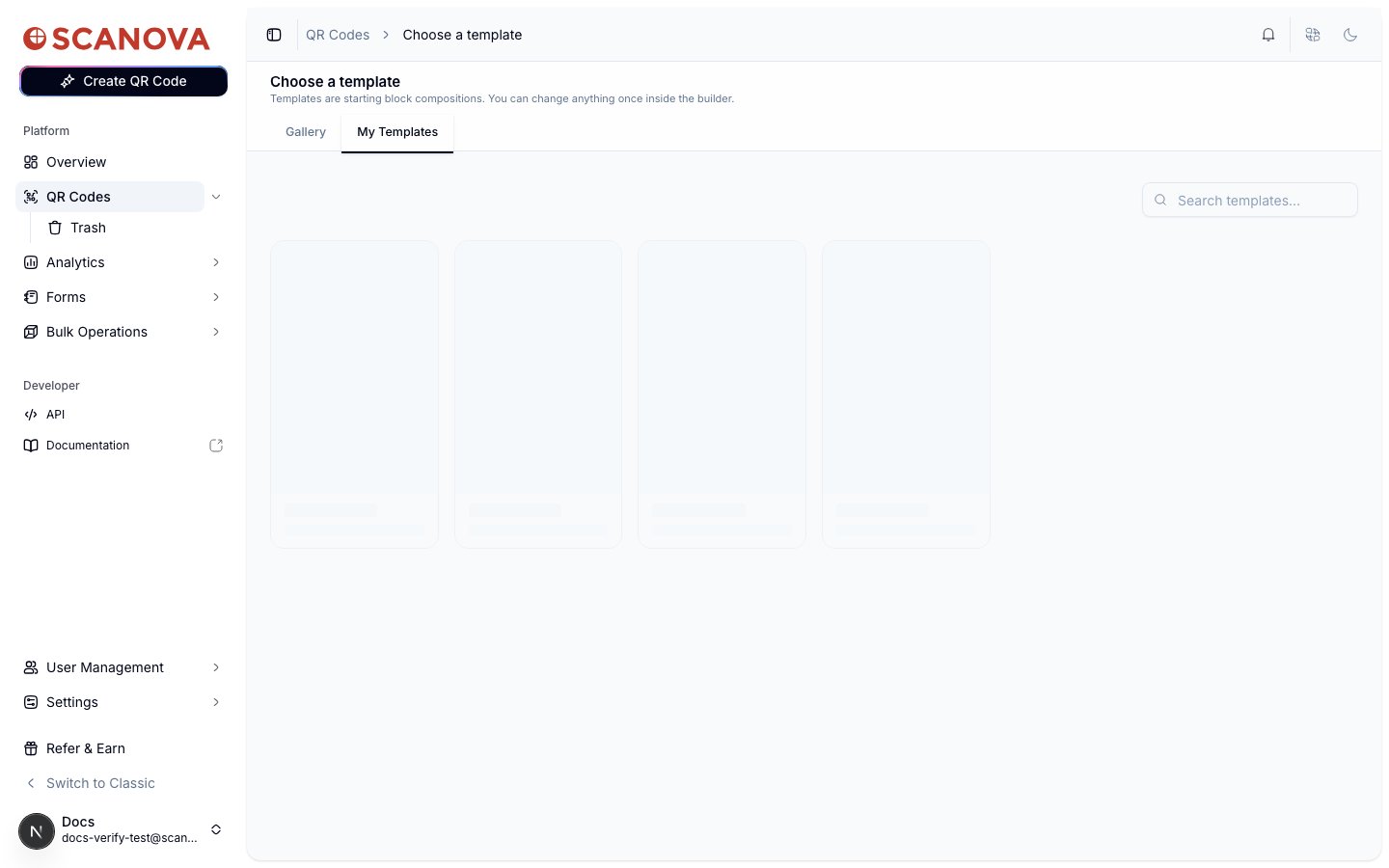 On a new account, **My Templates** shows this empty state with a **Go to the builder →** shortcut back to a blank canvas. It fills in with your saved templates as soon as you use **Save as template** (below).
## Saving your own template
Yes — the builder has a **Save as template** action that captures your current page (blocks, theme, and any per-block design overrides) as a reusable template under **My Templates**.
Open a page in the builder (from a template or from **Start Blank**) and add or edit blocks as usual.
In the builder header, click **Save as template**.
This button only appears for standard landing pages. It's hidden for AI Studio pages, since those are single raw-HTML pages without the multi-page/theme structure a template needs.
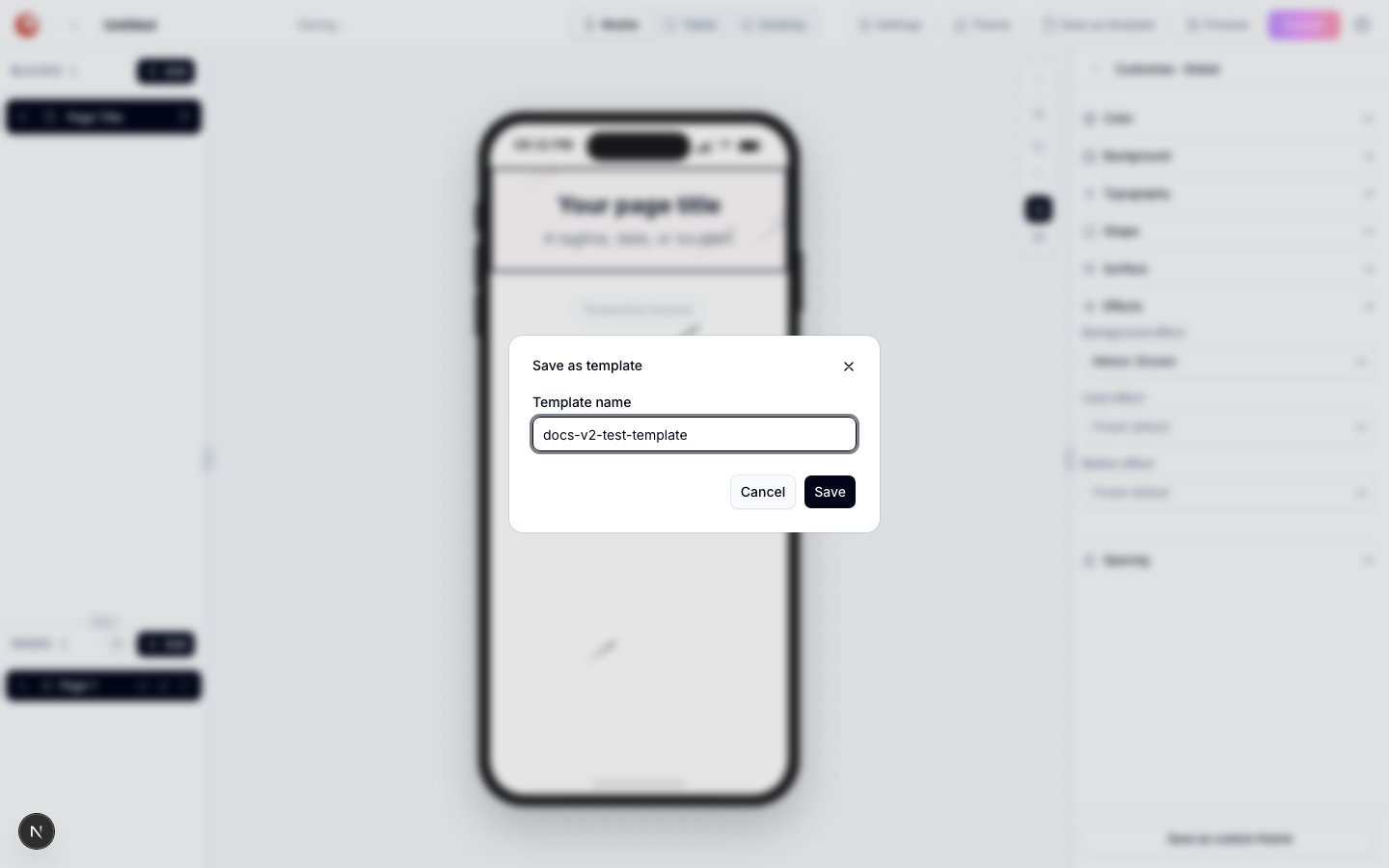
A dialog opens with a **Template name** field, pre-filled with your page's current name. Edit it if you want a different name, then click **Save**.
On a new account, **My Templates** shows this empty state with a **Go to the builder →** shortcut back to a blank canvas. It fills in with your saved templates as soon as you use **Save as template** (below).
## Saving your own template
Yes — the builder has a **Save as template** action that captures your current page (blocks, theme, and any per-block design overrides) as a reusable template under **My Templates**.
Open a page in the builder (from a template or from **Start Blank**) and add or edit blocks as usual.
In the builder header, click **Save as template**.
This button only appears for standard landing pages. It's hidden for AI Studio pages, since those are single raw-HTML pages without the multi-page/theme structure a template needs.
A dialog opens with a **Template name** field, pre-filled with your page's current name. Edit it if you want a different name, then click **Save**.
 A confirmation toast appears, and the template is immediately available from the **My Templates** tab the next time you create a QR code.
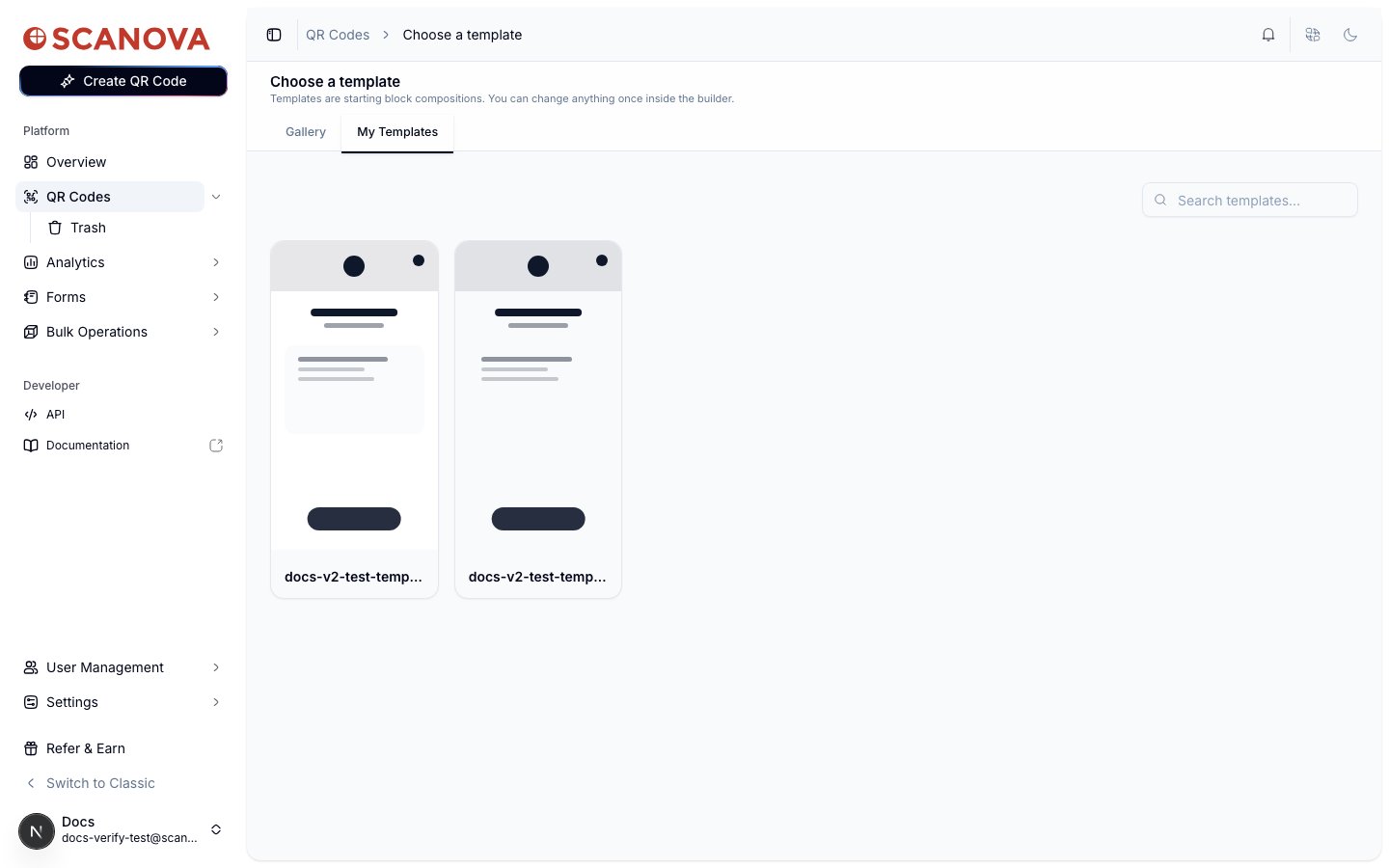 Saved templates capture the full page — including multi-page structure and theme overrides — so applying one later reproduces the exact design you saved, not just a default look.
## Related
* [Page Builder overview](/page-builder/overview) — the editor a template or blank canvas opens into.
* [Quick Code vs. full Page](/qr-codes/create/quick-code-vs-page) — deciding whether you need a full page (and therefore a template) at all.
* [Page types](/page-builder/page-types) — page types available once you're inside the builder.
Saved templates capture the full page — including multi-page structure and theme overrides — so applying one later reproduces the exact design you saved, not just a default look.
## Related
* [Page Builder overview](/page-builder/overview) — the editor a template or blank canvas opens into.
* [Quick Code vs. full Page](/qr-codes/create/quick-code-vs-page) — deciding whether you need a full page (and therefore a template) at all.
* [Page types](/page-builder/page-types) — page types available once you're inside the builder.