> ## Documentation Index
> Fetch the complete documentation index at: https://docs.scanova.io/llms.txt
> Use this file to discover all available pages before exploring further.
# Custom Page QR Code
> Create a fully custom landing page QR code.
## What it's for
"Custom Page" is the platform's generic, catch-all page category — internally named `dynamicText` and labeled **Custom Page** in the QR category list (ID `9`). It's what you get when a page doesn't fit one of the more specific template categories (Restaurant, Product, Feedback, and so on): any combination of blocks, built from scratch or from a loosely-themed starting point.
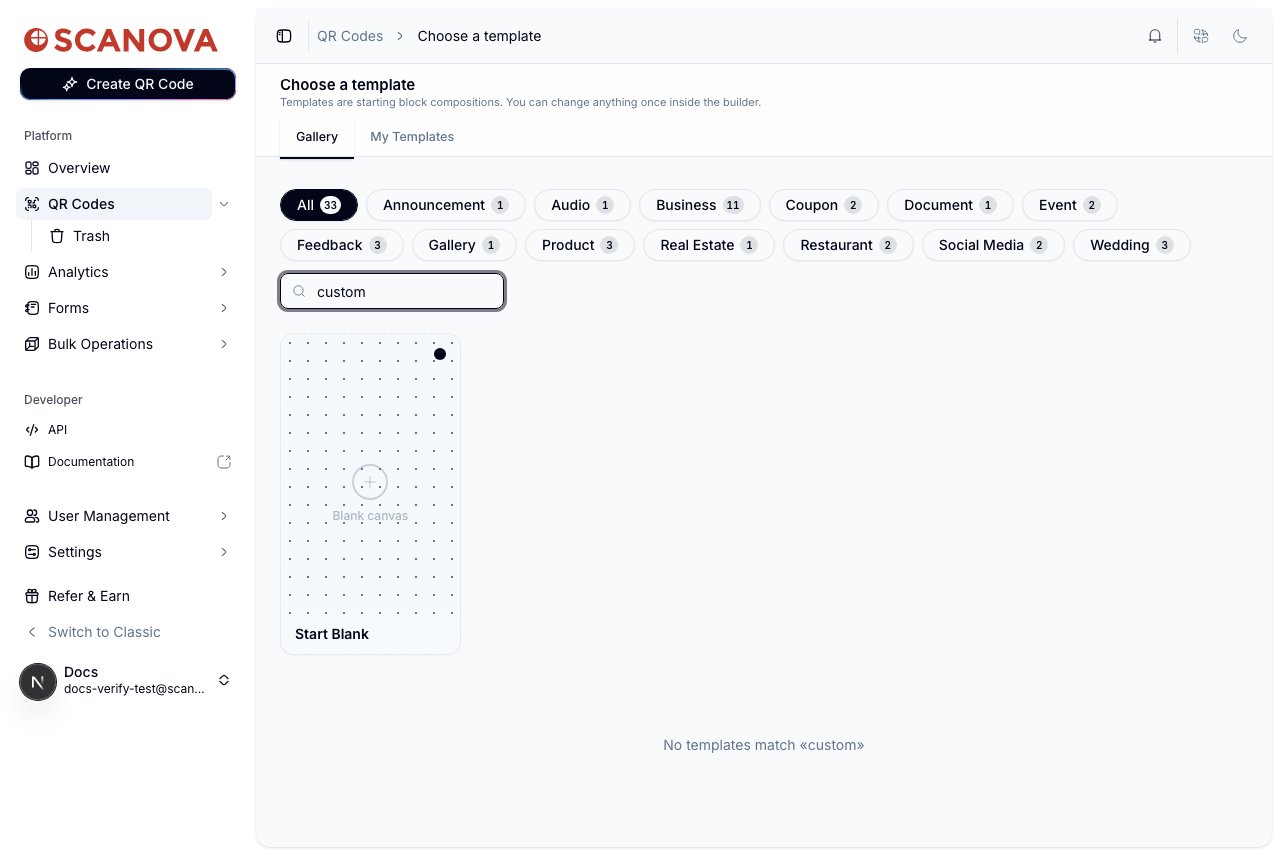
**Naming mismatch, verified live:** there is no "Custom Page" button, tag, or label anywhere in the app's UI. The template gallery's tag filter bar does **not** include a "Custom Page" tag — searching the gallery for "custom" returns **"No templates match «custom»"**. The only user-facing route to this category is the **Start Blank** option on the template gallery, which the interface never calls "Custom Page."
 ## Two ways to reach this category
This is the direct, always-available route to the `dynamicText` / Custom Page category — confirmed by inspecting the actual create request the app sends.
From **QR Codes → Create QR Code** (`/qr/create`), click the **Build a Page** card.
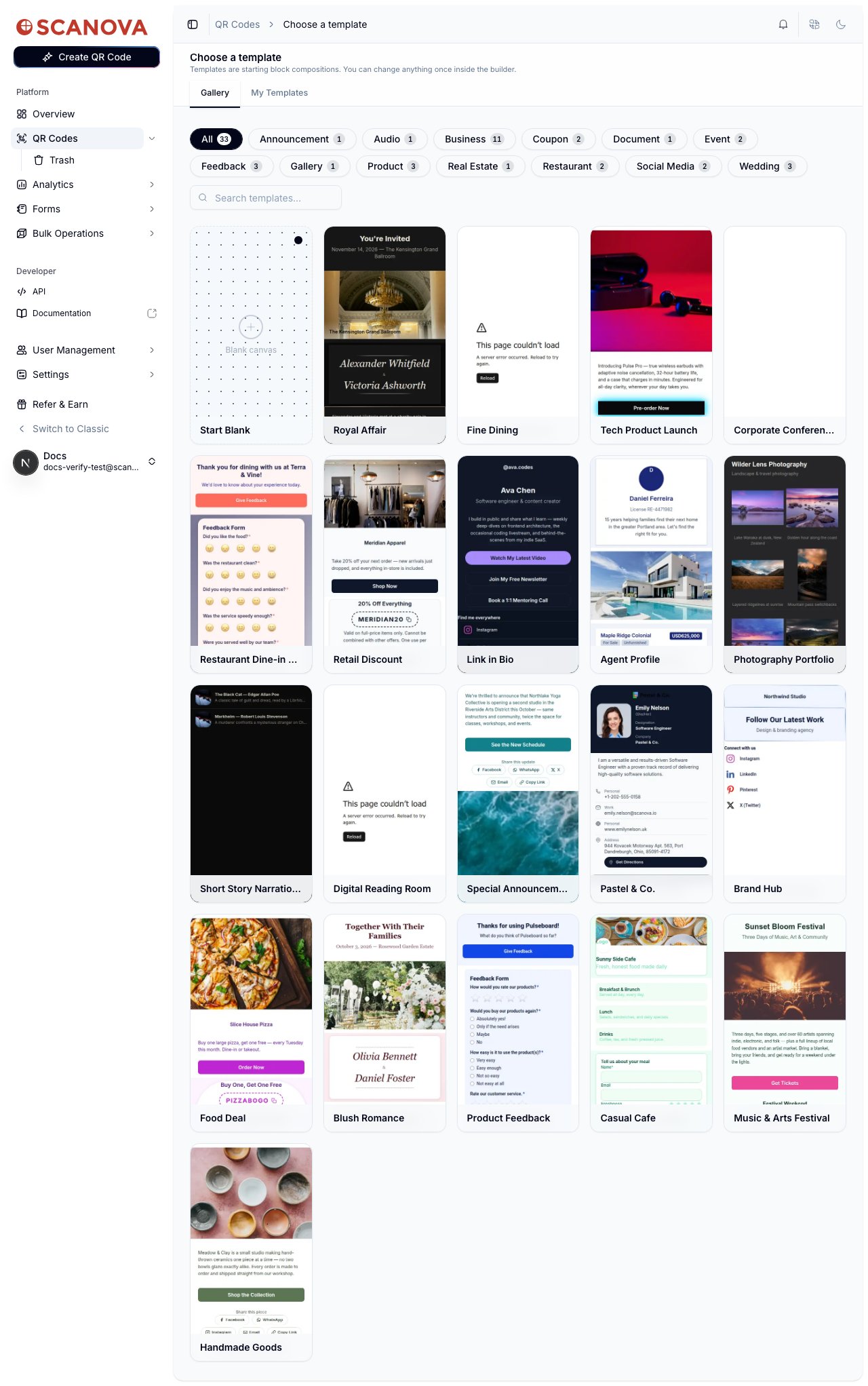
On **Choose a template** (`/qr/new`), the **Start Blank** card sits first in the gallery grid, before any tag filtering — it's not tucked under a category tag.
## Two ways to reach this category
This is the direct, always-available route to the `dynamicText` / Custom Page category — confirmed by inspecting the actual create request the app sends.
From **QR Codes → Create QR Code** (`/qr/create`), click the **Build a Page** card.
On **Choose a template** (`/qr/new`), the **Start Blank** card sits first in the gallery grid, before any tag filtering — it's not tucked under a category tag.
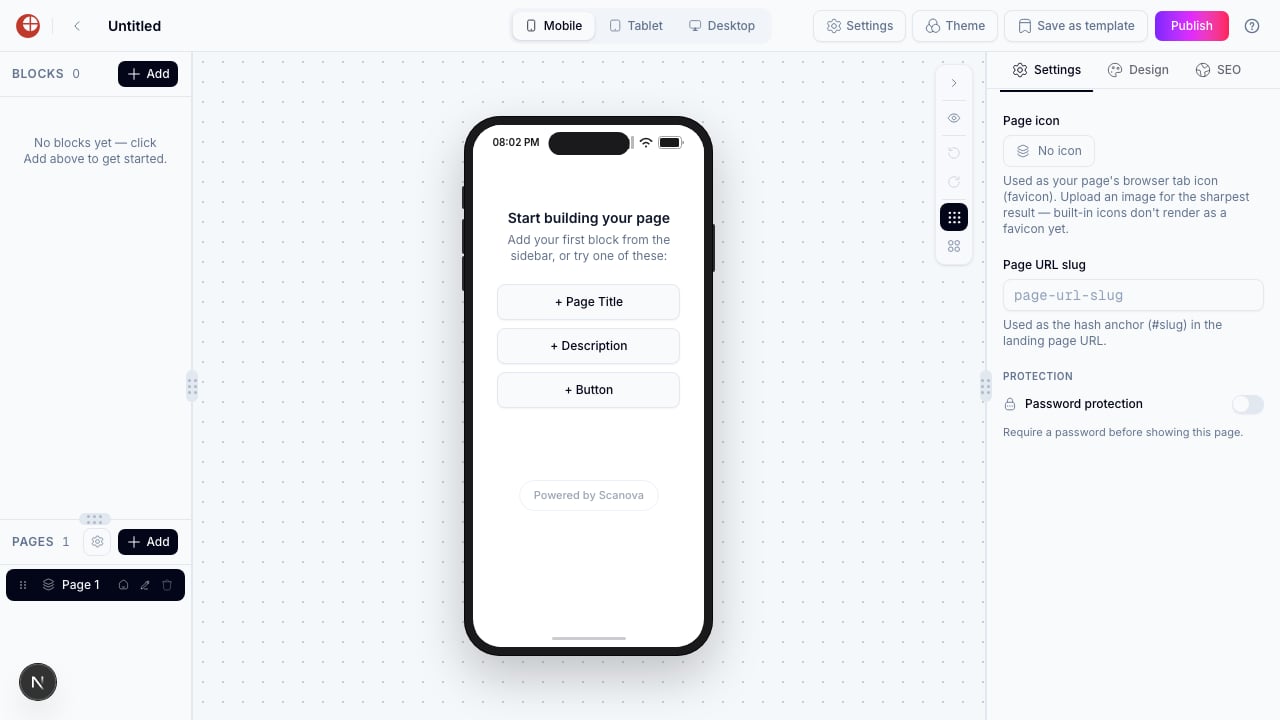
 Clicking it navigates straight to `/qr/new/landing` (no `?template=` query string) and opens an empty canvas: **0 blocks**, with prompts to add a **Page Title**, **Description**, or **Button** to get started.
 Verified via the network request the builder sends on the first block add: `POST /qr/` with `"category":9` in the body — `9` is the `dynamicText` / Custom Page category ID. Start Blank reliably creates a Custom Page-category QR regardless of which blocks you add afterward.
The gallery does have one pre-built template that actually carries the `dynamicText` / Custom Page category under the hood — it's just filed under the **Announcement** tag, not a "Custom Page" tag.
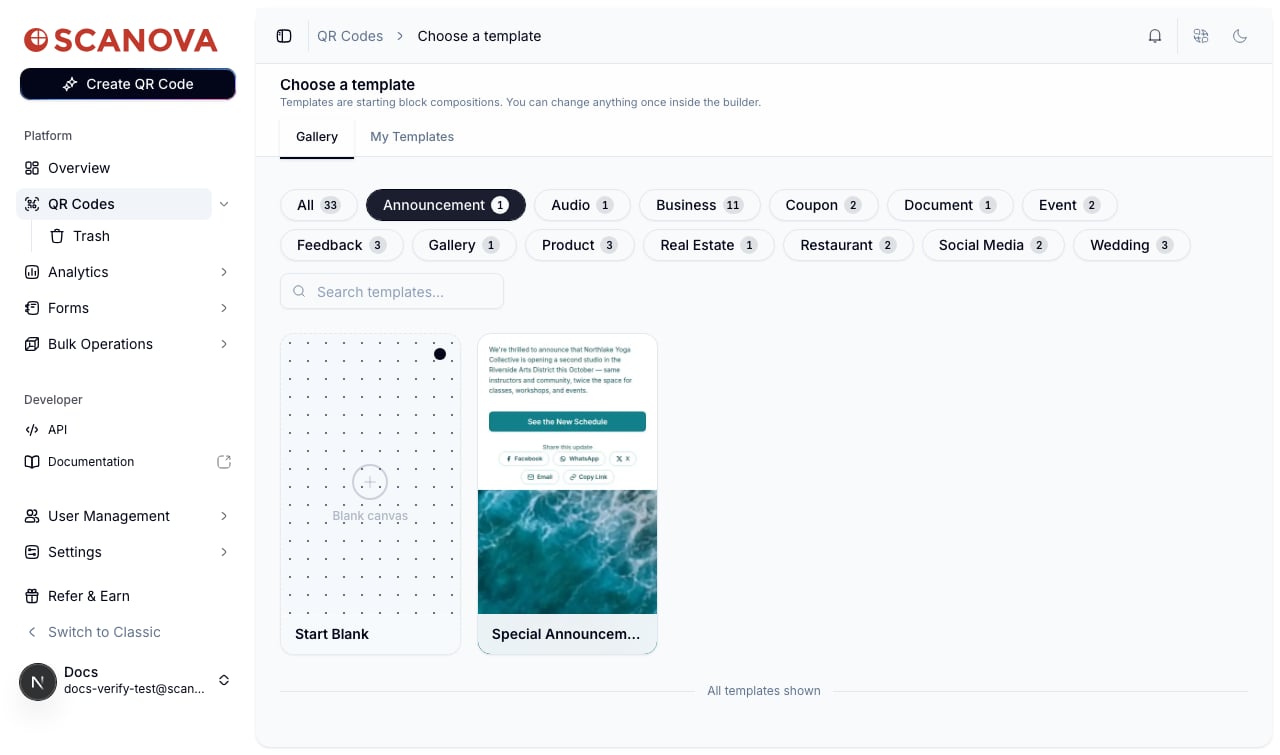
Click the **Announcement** tag (count 1). The only match is **Special Announcement** — a teal, decorative page for a business update.
Verified via the network request the builder sends on the first block add: `POST /qr/` with `"category":9` in the body — `9` is the `dynamicText` / Custom Page category ID. Start Blank reliably creates a Custom Page-category QR regardless of which blocks you add afterward.
The gallery does have one pre-built template that actually carries the `dynamicText` / Custom Page category under the hood — it's just filed under the **Announcement** tag, not a "Custom Page" tag.
Click the **Announcement** tag (count 1). The only match is **Special Announcement** — a teal, decorative page for a business update.
 Selecting it and clicking **Use this template** opens `/qr/new/landing?template=dynamictext-announcement`, with 3 blocks: **Description**, **Button**, **Share Buttons**.
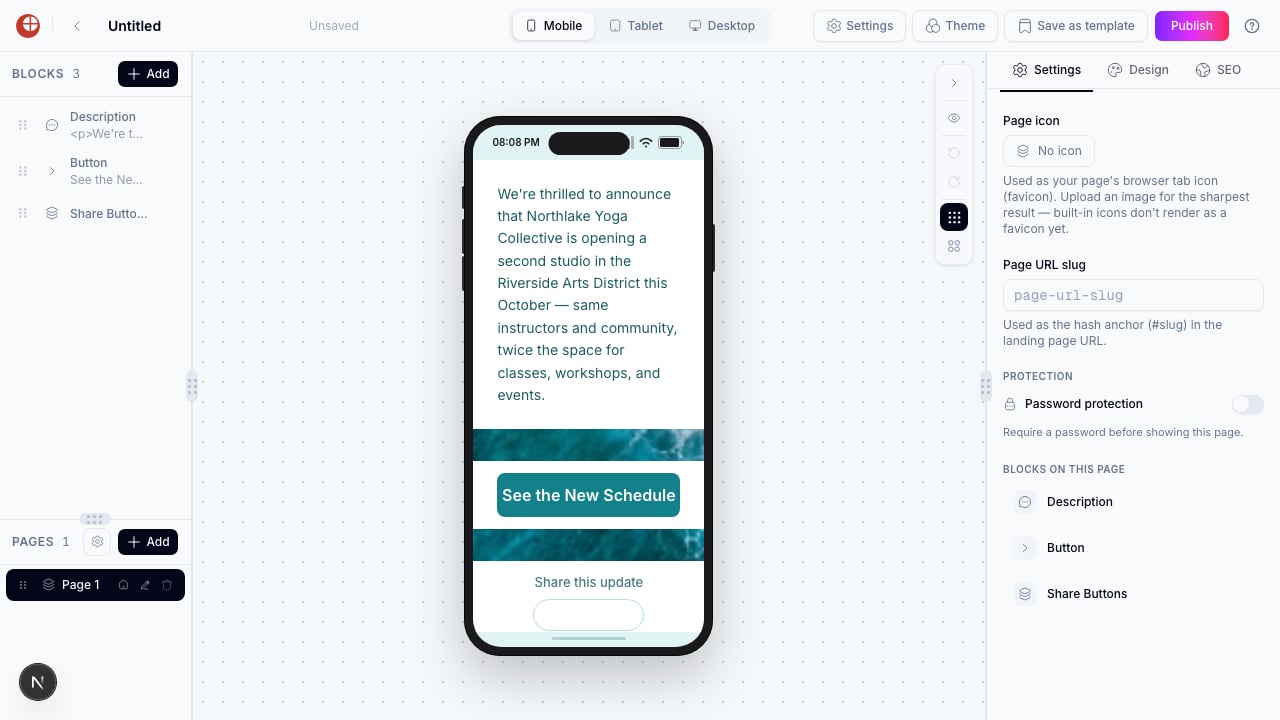 This was confirmed directly against the templates API: `dynamictext-announcement` returns `"category": {"id": 9, "slug": "dynamicText", "name": "Custom Page"}` and `"filter_tags": ["Announcement"]` — the template is Custom Page-categorized, but discoverable only through the Announcement tag.
## Creating one via the API
To create a Custom Page QR code through the API rather than the UI, use category ID `9` (slug `dynamicText`, labeled **Custom Page**) — see [Create QR Code](/v1/api-reference/endpoint/qr_manager/create) for the full request schema and [Category List](/v1/api-reference/references/category-list) for the complete ID-to-label mapping.
## Related
* [Page Builder overview](/page-builder/overview) — the block-based editor Start Blank opens into.
* [Templates](/page-builder/templates) — the Start Blank card and category-tagged templates described above, in full.
* [Creating your first QR code](/getting-started/first-qr-code) — the general Create QR Code flow this category is reached from.
* [Folders, tags & bulk operations](/qr-codes/manage/folders-tags-bulk-operations) — organize the QR code after publishing it.
This was confirmed directly against the templates API: `dynamictext-announcement` returns `"category": {"id": 9, "slug": "dynamicText", "name": "Custom Page"}` and `"filter_tags": ["Announcement"]` — the template is Custom Page-categorized, but discoverable only through the Announcement tag.
## Creating one via the API
To create a Custom Page QR code through the API rather than the UI, use category ID `9` (slug `dynamicText`, labeled **Custom Page**) — see [Create QR Code](/v1/api-reference/endpoint/qr_manager/create) for the full request schema and [Category List](/v1/api-reference/references/category-list) for the complete ID-to-label mapping.
## Related
* [Page Builder overview](/page-builder/overview) — the block-based editor Start Blank opens into.
* [Templates](/page-builder/templates) — the Start Blank card and category-tagged templates described above, in full.
* [Creating your first QR code](/getting-started/first-qr-code) — the general Create QR Code flow this category is reached from.
* [Folders, tags & bulk operations](/qr-codes/manage/folders-tags-bulk-operations) — organize the QR code after publishing it.