> ## Documentation Index
> Fetch the complete documentation index at: https://docs.scanova.io/llms.txt
> Use this file to discover all available pages before exploring further.
# GS1 QR Code
> Create a GS1-compliant QR code for retail and supply chain.
## What it's for
A GS1 QR code encodes a [GS1 Digital Link](https://ref.gs1.org/standards/digital-link/) — a URI built from GS1 Application Identifiers (AIs) that identifies a product, location, shipment, or other supply-chain object. In the app, the category is described as "GS1 Application Identifier codes for products, locations & logistics."
Unlike the other Quick Code types on this page, GS1 isn't a single-screen form: it's a dedicated 5-step wizard at `/qr/quick/gs1`, separate from the generic Quick Code shell, because a GS1 code's data is structured (a primary identifier plus optional qualifiers, extra attributes, and resolution targets) rather than a handful of flat fields.
GS1 is the one Quick Code category that can be either **Dynamic** or **Static** — which one depends entirely on the resolver you pick in step 1, not on a separate type toggle. See **Step 1: Resolver** below.
## The 5 steps
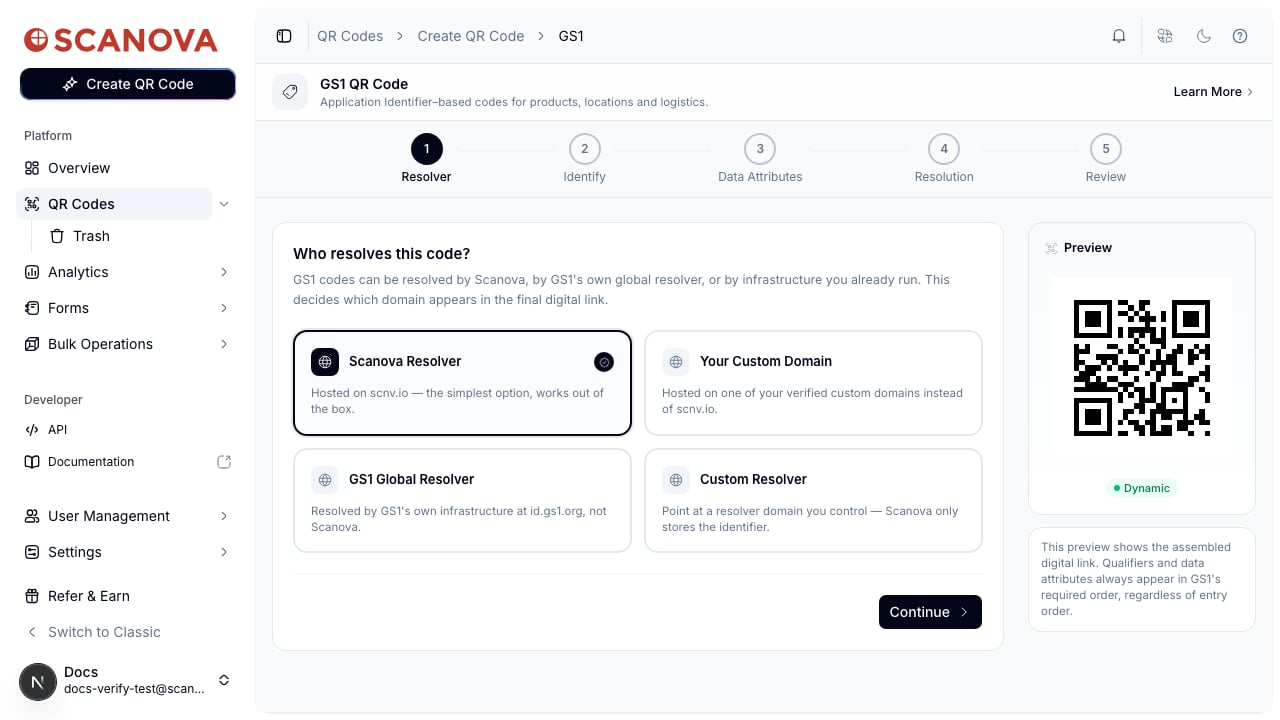
The wizard's step indicator shows **Resolver → Identify → Data Attributes → Resolution → Review**. The **Resolution** step only appears when you choose a Scanova-hosted resolver (**Scanova Resolver** or **Your Custom Domain**) in step 1 — pick **GS1 Global Resolver** or **Custom Resolver** instead, and step 4 is skipped entirely, since Scanova has no destination to configure for a code it doesn't resolve.
### 1. Resolver — who resolves this code?
This decides which domain appears in the final digital link, and whether the resulting QR code is Dynamic or Static:
| Option | Domain | QR type | Notes |
| :------------------ | :---------------------------------- | :------ | :------------------------------------------------------------------------------ |
| Scanova Resolver | `scnv.io` | Dynamic | Default. Hosted by Scanova — works out of the box. |
| Your Custom Domain | One of your verified custom domains | Dynamic | Requires a custom-domain plan quota; locked (with an upgrade prompt) otherwise. |
| GS1 Global Resolver | `id.gs1.org` | Static | Resolved by GS1's own infrastructure, not Scanova. |
| Custom Resolver | A resolver domain you type in | Static | You control the resolver; Scanova only stores the identifier data. |
 ### 2. Identify — what does this code identify?
Pick the **Application Identifier** that matches what you're labeling (for example `(01) Global Trade Item Number (GTIN)`, the default), then enter its **Value**. The value field enforces the AI's real GS1 rules live — required length, digit-only vs. alphanumeric format, and, for AIs `00` and `01`, a valid GS1 check digit.
Each Application Identifier can also expose **Qualifiers** — for GTIN these are Serial Number (AI 21), Consumer Product Variant (AI 22), and Batch or Lot Number (AI 10), all optional. Next to Serial Number there's a "Need more than one? Bulk generate" link into [Bulk Operations](/qr-codes/manage/folders-tags-bulk-operations) for generating a range of serialized codes at once.
### 3. Data Attributes
An optional step for attaching extra GS1 AI-keyed values to the same code — dates, measurements, and similar. Most GS1 codes don't need this; the step starts collapsed with an "Add data attributes" toggle rather than empty fields.
### 4. Resolution (Scanova-hosted resolvers only)
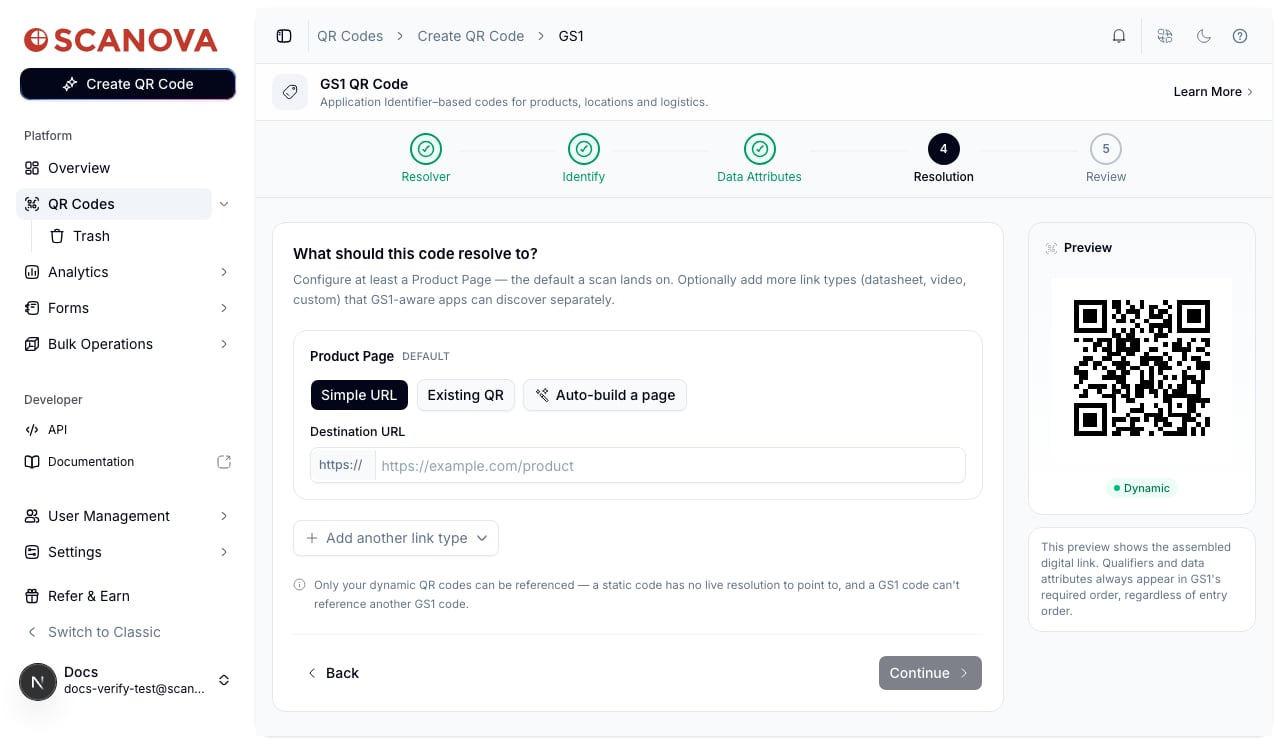
Configure what the code actually resolves to when scanned. A **Product Page** entry is always present and effectively required — it's the destination a bare scan lands on. You can add further link types (**Datasheet**, **Video**, **Custom**) that GS1-aware apps can discover separately.
For each entry, choose:
* **Simple URL** — a bare destination URL, or
* **Existing QR** — reference one of your other dynamic, non-GS1 QR codes (a Website URL, a page-builder QR, a Document, or an App Store QR, depending on the intent you pick).
The Product Page entry also offers **Auto-build a page** — this creates a real landing-page QR from the AI values you've already entered (after you pick a theme in a preview dialog), then wires it in as that entry's "Existing QR" reference, so it stays a normal page-builder QR you can keep editing afterward.
### 2. Identify — what does this code identify?
Pick the **Application Identifier** that matches what you're labeling (for example `(01) Global Trade Item Number (GTIN)`, the default), then enter its **Value**. The value field enforces the AI's real GS1 rules live — required length, digit-only vs. alphanumeric format, and, for AIs `00` and `01`, a valid GS1 check digit.
Each Application Identifier can also expose **Qualifiers** — for GTIN these are Serial Number (AI 21), Consumer Product Variant (AI 22), and Batch or Lot Number (AI 10), all optional. Next to Serial Number there's a "Need more than one? Bulk generate" link into [Bulk Operations](/qr-codes/manage/folders-tags-bulk-operations) for generating a range of serialized codes at once.
### 3. Data Attributes
An optional step for attaching extra GS1 AI-keyed values to the same code — dates, measurements, and similar. Most GS1 codes don't need this; the step starts collapsed with an "Add data attributes" toggle rather than empty fields.
### 4. Resolution (Scanova-hosted resolvers only)
Configure what the code actually resolves to when scanned. A **Product Page** entry is always present and effectively required — it's the destination a bare scan lands on. You can add further link types (**Datasheet**, **Video**, **Custom**) that GS1-aware apps can discover separately.
For each entry, choose:
* **Simple URL** — a bare destination URL, or
* **Existing QR** — reference one of your other dynamic, non-GS1 QR codes (a Website URL, a page-builder QR, a Document, or an App Store QR, depending on the intent you pick).
The Product Page entry also offers **Auto-build a page** — this creates a real landing-page QR from the AI values you've already entered (after you pick a theme in a preview dialog), then wires it in as that entry's "Existing QR" reference, so it stays a normal page-builder QR you can keep editing afterward.
 A GS1 code can never reference another GS1 code as a resolution target — this option is filtered out of the picker entirely, not just discouraged.
### 5. Review & publish
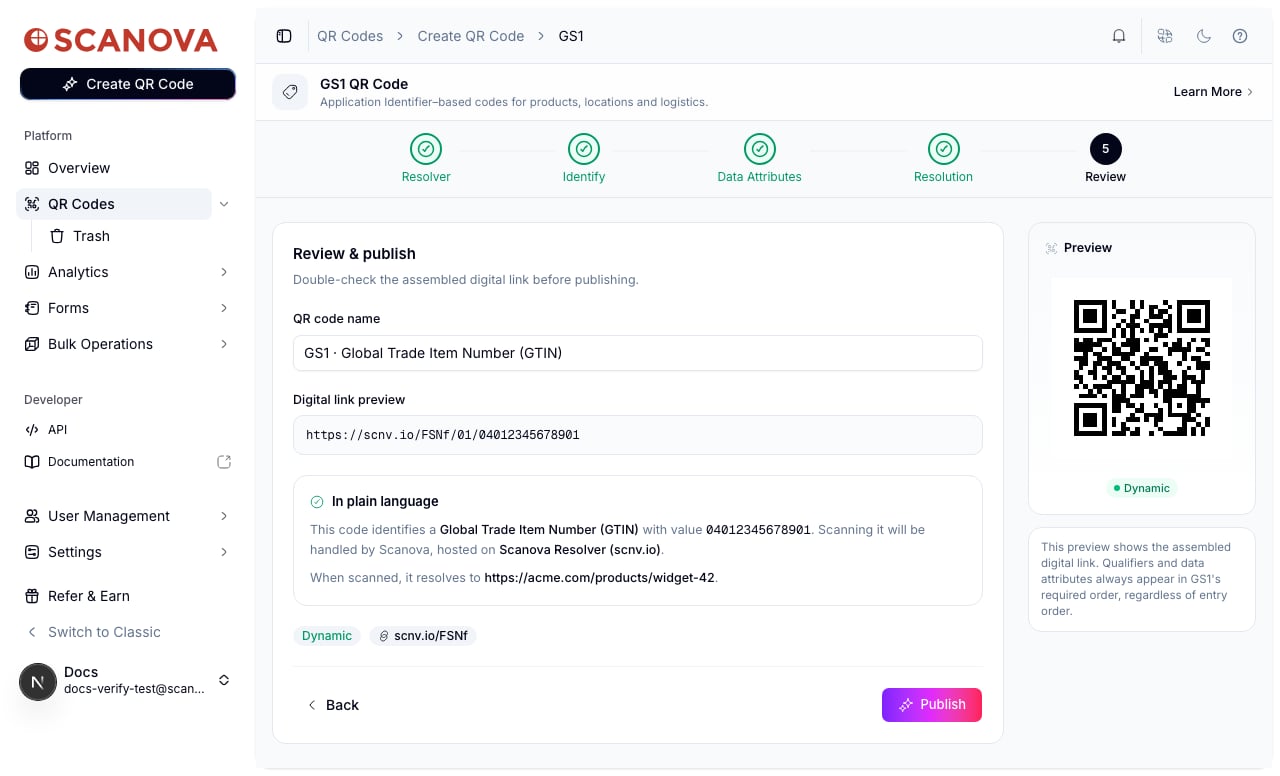
Shows the assembled **Digital link preview** (e.g. `https://scnv.io/LpqE/01/04012345678901`) and a plain-language summary of what the code identifies, who resolves it, and where a scan lands. You can also rename the QR code here before publishing.
A GS1 code can never reference another GS1 code as a resolution target — this option is filtered out of the picker entirely, not just discouraged.
### 5. Review & publish
Shows the assembled **Digital link preview** (e.g. `https://scnv.io/LpqE/01/04012345678901`) and a plain-language summary of what the code identifies, who resolves it, and where a scan lands. You can also rename the QR code here before publishing.
 ## Create a GS1 QR code
From the sidebar, go to **QR Codes**, then click **Create QR Code** (or navigate to `/qr/create`). Click the **Quick Code** card.
On the **Quick Code** type grid, click **Configure** under **GS1**, in the **Dynamic** section at the top. This opens the wizard at `/qr/quick/gs1`.
On the **Resolver** step, pick who resolves the code. **Scanova Resolver** is selected by default and requires no further setup — click **Continue**.
On the **Identify** step, pick an Application Identifier and enter its value (for example, a 14-digit GTIN). Add any qualifiers you need, then **Continue**.
Skip this step unless you need to attach extra GS1 attributes, then **Continue**.
If you chose a Scanova-hosted resolver, set at least a **Product Page** destination — either a Simple URL, an existing QR code, or an auto-built page — then **Continue**.
Check the assembled digital link and summary, adjust the QR code's name if needed, then click **Publish**. A panel opens to confirm the QR code's folder and tags, and adjust QR design, before confirming.
## Creating one via the API
To create a GS1 QR code through the API rather than the UI, use category ID `31` (labeled **GS1** in the [Create QR Code](/v1/api-reference/endpoint/qr_manager/create) **Category dropdown reference** table, `allowed_qr_types: "bt"` — both `"dy"` and `"st"` are valid for `qr_type`, matching whichever resolver you choose). The `info` payload is a **bare array** of typed blocks, one per wizard step that has data:
```json theme={null}
[
{
"type": "resolver",
"data": { "name": "scanova_resolver", "domain": "scnv.io" }
},
{
"type": "primaryKey",
"data": { "id": "01", "value": "04012345678901" }
},
{
"type": "qualifier",
"data": [{ "id": 21, "value": "SER456" }]
},
{
"type": "dataAttributes",
"data": [{ "id": "3103", "value": "000195" }]
},
{
"type": "resolution",
"data": {
"linkType": "pip",
"name": "simple_url",
"target": { "url": "https://acme.com/products/widget-42" }
}
}
]
```
`qualifier`, `dataAttributes`, and `resolution` blocks are each optional and repeatable (one `resolution` block per configured link type); `resolver` and `primaryKey` are required. A `resolution` block's `target` is either `{ "url": "..." }` (when `name` is `"simple_url"`) or `{ "qrid": "..." }` (when `name` is `"qr_reference"`) — `resolution` blocks are omitted entirely for `gs1`/`custom_resolver` resolvers, which have no Scanova-hosted destination to store.
See [Create QR Code](/v1/api-reference/endpoint/qr_manager/create) for the full request schema.
## Related
* [Product QR Code](/qr-codes/create/product) — a marketing landing page for a product, versus GS1's structured supply-chain identifier.
* [Folders, tags & bulk operations](/qr-codes/manage/folders-tags-bulk-operations) — bulk-generate a range of serialized GS1 codes, and organize codes after publishing.
* [Quick Code vs. full Page](/qr-codes/create/quick-code-vs-page) — how GS1 fits among the other Quick Code types.
## Create a GS1 QR code
From the sidebar, go to **QR Codes**, then click **Create QR Code** (or navigate to `/qr/create`). Click the **Quick Code** card.
On the **Quick Code** type grid, click **Configure** under **GS1**, in the **Dynamic** section at the top. This opens the wizard at `/qr/quick/gs1`.
On the **Resolver** step, pick who resolves the code. **Scanova Resolver** is selected by default and requires no further setup — click **Continue**.
On the **Identify** step, pick an Application Identifier and enter its value (for example, a 14-digit GTIN). Add any qualifiers you need, then **Continue**.
Skip this step unless you need to attach extra GS1 attributes, then **Continue**.
If you chose a Scanova-hosted resolver, set at least a **Product Page** destination — either a Simple URL, an existing QR code, or an auto-built page — then **Continue**.
Check the assembled digital link and summary, adjust the QR code's name if needed, then click **Publish**. A panel opens to confirm the QR code's folder and tags, and adjust QR design, before confirming.
## Creating one via the API
To create a GS1 QR code through the API rather than the UI, use category ID `31` (labeled **GS1** in the [Create QR Code](/v1/api-reference/endpoint/qr_manager/create) **Category dropdown reference** table, `allowed_qr_types: "bt"` — both `"dy"` and `"st"` are valid for `qr_type`, matching whichever resolver you choose). The `info` payload is a **bare array** of typed blocks, one per wizard step that has data:
```json theme={null}
[
{
"type": "resolver",
"data": { "name": "scanova_resolver", "domain": "scnv.io" }
},
{
"type": "primaryKey",
"data": { "id": "01", "value": "04012345678901" }
},
{
"type": "qualifier",
"data": [{ "id": 21, "value": "SER456" }]
},
{
"type": "dataAttributes",
"data": [{ "id": "3103", "value": "000195" }]
},
{
"type": "resolution",
"data": {
"linkType": "pip",
"name": "simple_url",
"target": { "url": "https://acme.com/products/widget-42" }
}
}
]
```
`qualifier`, `dataAttributes`, and `resolution` blocks are each optional and repeatable (one `resolution` block per configured link type); `resolver` and `primaryKey` are required. A `resolution` block's `target` is either `{ "url": "..." }` (when `name` is `"simple_url"`) or `{ "qrid": "..." }` (when `name` is `"qr_reference"`) — `resolution` blocks are omitted entirely for `gs1`/`custom_resolver` resolvers, which have no Scanova-hosted destination to store.
See [Create QR Code](/v1/api-reference/endpoint/qr_manager/create) for the full request schema.
## Related
* [Product QR Code](/qr-codes/create/product) — a marketing landing page for a product, versus GS1's structured supply-chain identifier.
* [Folders, tags & bulk operations](/qr-codes/manage/folders-tags-bulk-operations) — bulk-generate a range of serialized GS1 codes, and organize codes after publishing.
* [Quick Code vs. full Page](/qr-codes/create/quick-code-vs-page) — how GS1 fits among the other Quick Code types.