> ## Documentation Index
> Fetch the complete documentation index at: https://docs.scanova.io/llms.txt
> Use this file to discover all available pages before exploring further.
# Product QR Code
> Create a QR code for product information.
## What it's for
A product page showcases a single item — packaging, an artisan good, a tech launch — with an image gallery, a description, a call-to-action button (e.g. "Shop the Collection"), share buttons, and optionally a map for pickup locations. Shoppers scan it from packaging, a shelf-talker, or a print ad to land on a page with more detail than a barcode or a Website URL redirect can carry.
Like every category on this page, "Product QR code" isn't a separate creation route — it's the **Build a Page** flow filtered to product-tagged templates.
## Find a product template and reach the builder
From **QR Codes → Create QR Code** (`/qr/create`), click the **Build a Page** card to open the block-based page builder's template gallery.
On **Choose a template** (`/qr/new`), click the **Product** tag. At verification time there were 3 templates: **Tech Product Launch**, **Handmade Goods**, and **Flash Drop**.
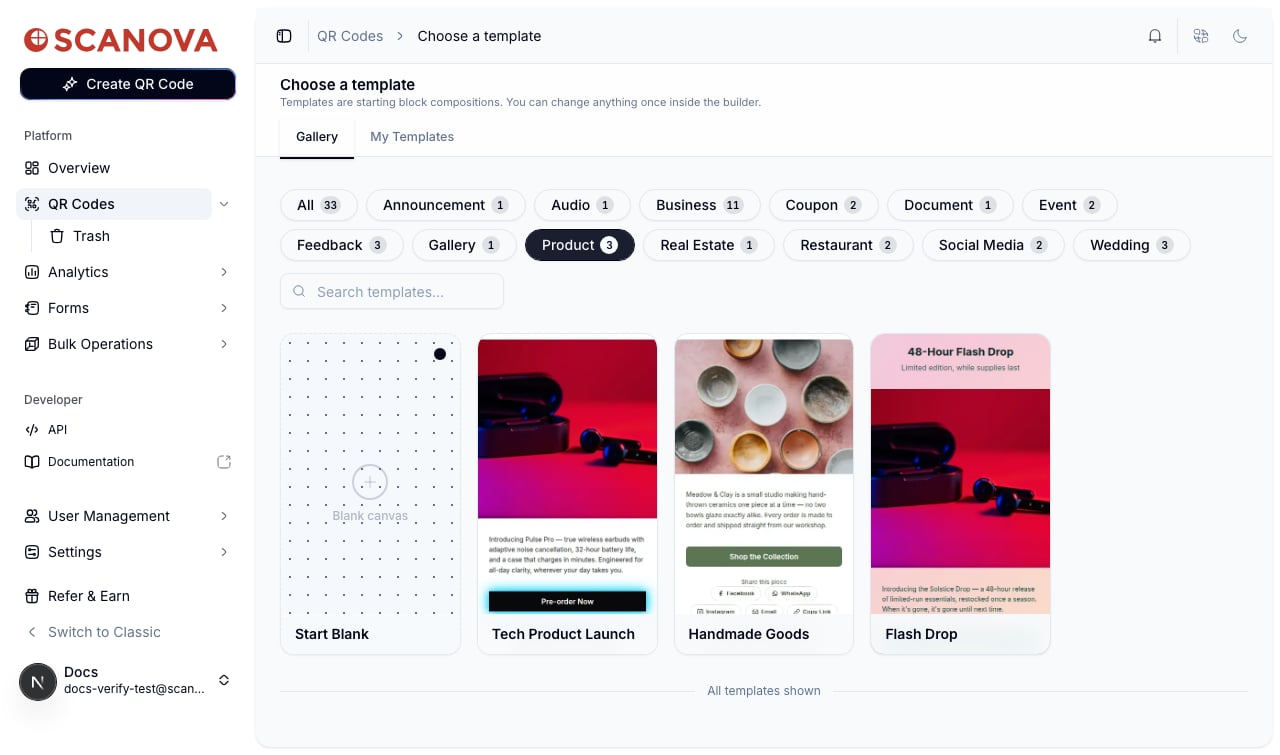 Clicking a card opens a preview panel with the template's name, description, category tag, and a **Use this template** button. The **Handmade Goods** template was used for verification here — it's tagged **Product** and described as fitting an artisan or small-batch goods brand.
Selecting it opens the builder at `/qr/new/landing?template=product-artisan-goods`. This template ships with 5 blocks: **Image Gallery**, **Description**, **Button**, **Share Buttons**, and **Map** — all editable from the left-hand blocks panel, with page settings (URL slug, password protection) on the right.
Clicking a card opens a preview panel with the template's name, description, category tag, and a **Use this template** button. The **Handmade Goods** template was used for verification here — it's tagged **Product** and described as fitting an artisan or small-batch goods brand.
Selecting it opens the builder at `/qr/new/landing?template=product-artisan-goods`. This template ships with 5 blocks: **Image Gallery**, **Description**, **Button**, **Share Buttons**, and **Map** — all editable from the left-hand blocks panel, with page settings (URL slug, password protection) on the right.
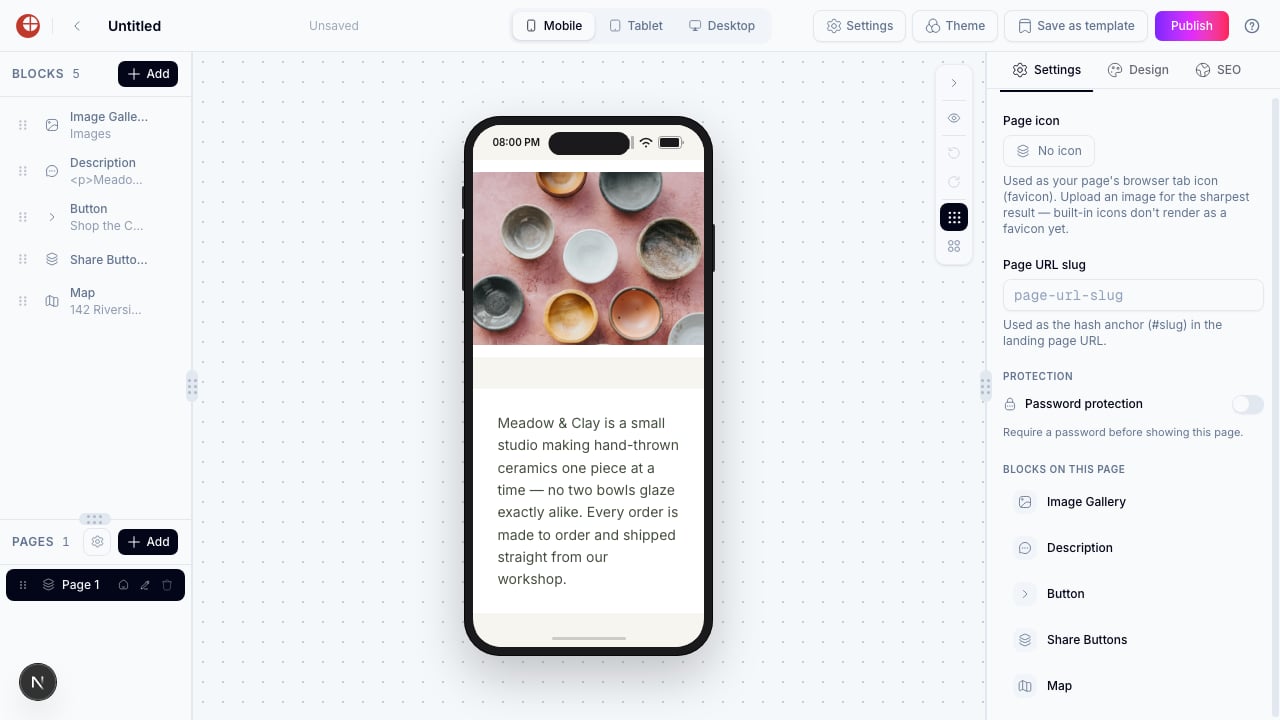 Reaching this canvas confirms the flow — you don't need to publish to verify it works. Edit the gallery images, description copy, and button link, then use **Publish** from the top bar when the page is ready.
## Creating one via the API
To create a product-style QR code through the API rather than the UI, use category ID `18` (labeled **Product**) — see [Create QR Code](/v1/api-reference/endpoint/qr_manager/create) for the full request schema and [Category List](/v1/api-reference/references/category-list) for the complete ID-to-label mapping.
## Related
* [GS1 QR Code](/qr-codes/create/gs1) — a structured supply-chain identifier for a product, rather than a marketing landing page.
* [Page Builder overview](/page-builder/overview) — the block-based editor this template opens into.
* [Templates](/page-builder/templates) — browsing, filtering, and saving your own templates in the gallery.
* [Folders, tags & bulk operations](/qr-codes/manage/folders-tags-bulk-operations) — organize the QR code after publishing it.
Reaching this canvas confirms the flow — you don't need to publish to verify it works. Edit the gallery images, description copy, and button link, then use **Publish** from the top bar when the page is ready.
## Creating one via the API
To create a product-style QR code through the API rather than the UI, use category ID `18` (labeled **Product**) — see [Create QR Code](/v1/api-reference/endpoint/qr_manager/create) for the full request schema and [Category List](/v1/api-reference/references/category-list) for the complete ID-to-label mapping.
## Related
* [GS1 QR Code](/qr-codes/create/gs1) — a structured supply-chain identifier for a product, rather than a marketing landing page.
* [Page Builder overview](/page-builder/overview) — the block-based editor this template opens into.
* [Templates](/page-builder/templates) — browsing, filtering, and saving your own templates in the gallery.
* [Folders, tags & bulk operations](/qr-codes/manage/folders-tags-bulk-operations) — organize the QR code after publishing it.