> ## Documentation Index
> Fetch the complete documentation index at: https://docs.scanova.io/llms.txt
> Use this file to discover all available pages before exploring further.
# Restaurant QR Code
> Create a QR code for a restaurant menu.
## What it's for
A restaurant page is a landing page built for dine-in, takeout, or delivery businesses. Instead of a single menu image, you build a full page from blocks — brand info, a structured menu, a feedback form, an "About Us" section, review links, and social profiles — that guests reach by scanning a table tent, door sticker, or receipt.
There's no separate "Restaurant QR code" creation route. It's reached through the same **Build a Page** flow used for every page-builder QR: pick a restaurant-tagged template from the gallery (or start from a blank canvas and add the same blocks yourself), then customize it in the page builder.
## Find a restaurant template and reach the builder
From the sidebar, go to **QR Codes**, then click **Create QR Code** (or navigate to `/qr/create`).
On the create hub, click the **Build a Page** card. This is the block-based landing page builder — it's distinct from **Quick Code** (a direct QR with no landing page) and **AI Studio** (AI-generated blocks from a text prompt).
You land on **Choose a template** (`/qr/new`), a searchable, tag-filterable gallery. Click the **Restaurant** tag to filter to restaurant-tagged templates. At verification time there were 2: **Fine Dining** and **Casual Cafe**.
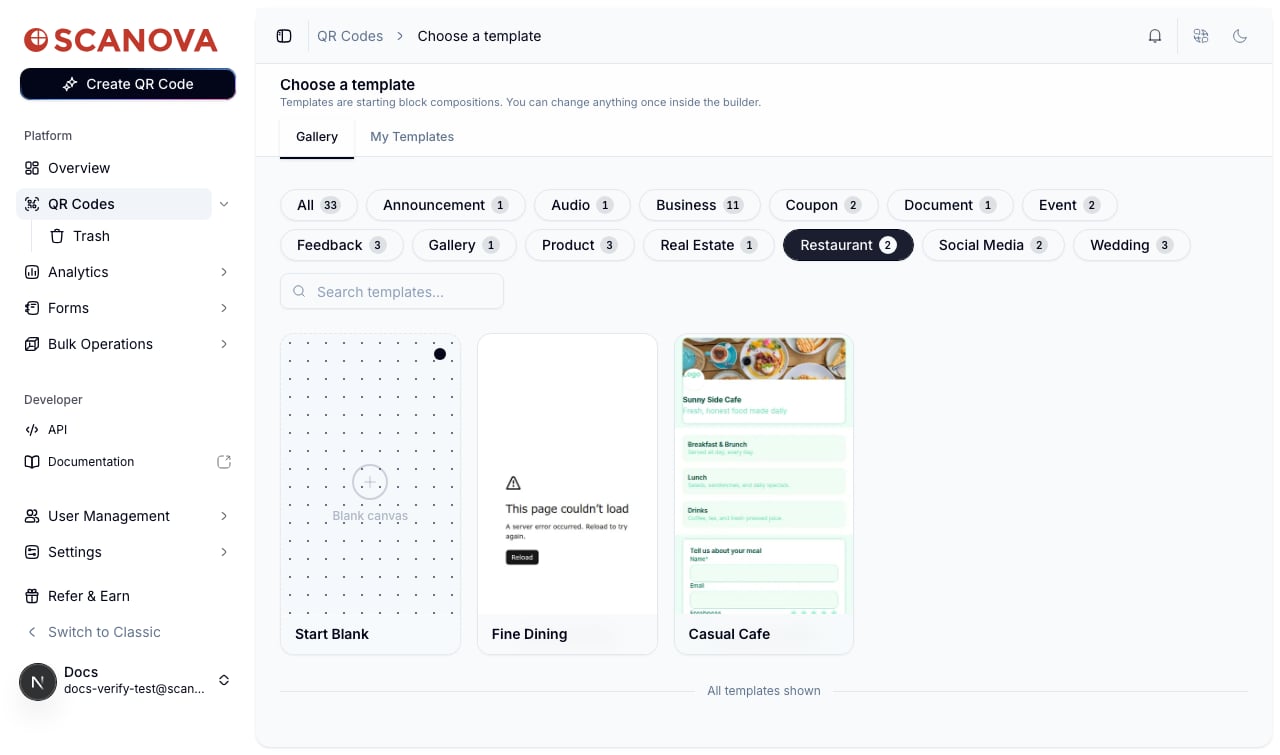 The **Fine Dining** template's preview thumbnail failed to render live ("This page couldn't load — A server error occurred") during verification. **Casual Cafe** loaded and opened normally. If you hit the same error, try **Casual Cafe** or reload the gallery.
Click a template card to open its preview panel, which shows the template name, a one-line description, its category tag, and a **Use this template** button. Click **Use this template** to continue.
You're dropped into the builder at `/qr/new/landing?template=restaurant-casual-cafe` (the query string encodes the template you picked). The **Casual Cafe** template ships with 7 blocks: **Brand Info**, **Menu**, **Feedback Form**, **About Us**, **Review Us**, **Social Profiles**, and **Footer** — all editable from the left-hand blocks panel.
The **Fine Dining** template's preview thumbnail failed to render live ("This page couldn't load — A server error occurred") during verification. **Casual Cafe** loaded and opened normally. If you hit the same error, try **Casual Cafe** or reload the gallery.
Click a template card to open its preview panel, which shows the template name, a one-line description, its category tag, and a **Use this template** button. Click **Use this template** to continue.
You're dropped into the builder at `/qr/new/landing?template=restaurant-casual-cafe` (the query string encodes the template you picked). The **Casual Cafe** template ships with 7 blocks: **Brand Info**, **Menu**, **Feedback Form**, **About Us**, **Review Us**, **Social Profiles**, and **Footer** — all editable from the left-hand blocks panel.
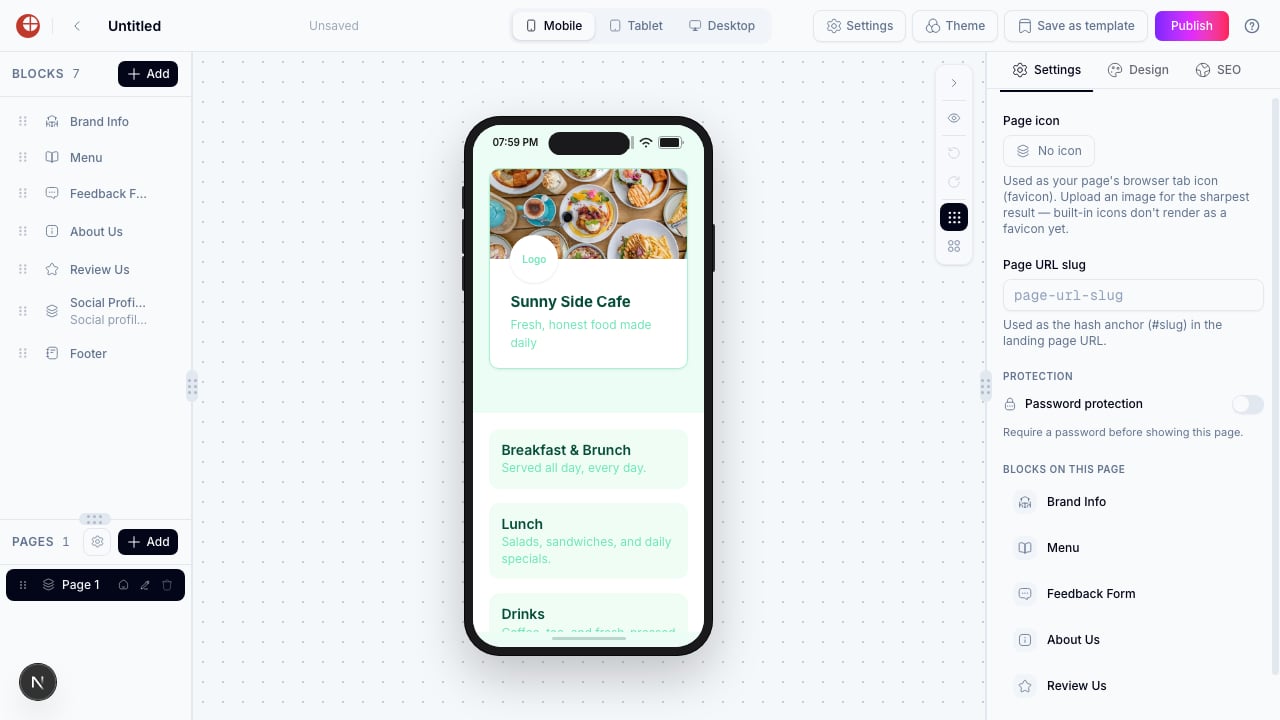 You don't need to fully publish to have a working page — the builder auto-manages a draft. Reaching this canvas is enough to confirm the flow works; edit content, theme, and SEO settings from the right-hand panel and click **Publish** when ready.
## Creating one via the API
Page-builder pages are still QR codes with a category. When creating a restaurant-style QR through the API (rather than the UI), use category ID `25` (or `44` — the reference table lists two IDs both labeled **Restaurant**). See [Create QR Code](/v1/api-reference/endpoint/qr_manager/create) for the full request schema, and [Category List](/v1/api-reference/references/category-list) for how category IDs map to labels.
## Related
* [Feedback QR Code](/qr-codes/create/feedback) — a dedicated feedback-form page, including a template built specifically for dine-in feedback.
* [Page Builder overview](/page-builder/overview) — the block-based editor this template opens into.
* [Templates](/page-builder/templates) — browsing, filtering, and saving your own templates in the gallery.
* [Folders, tags & bulk operations](/qr-codes/manage/folders-tags-bulk-operations) — organize the QR code after publishing it.
You don't need to fully publish to have a working page — the builder auto-manages a draft. Reaching this canvas is enough to confirm the flow works; edit content, theme, and SEO settings from the right-hand panel and click **Publish** when ready.
## Creating one via the API
Page-builder pages are still QR codes with a category. When creating a restaurant-style QR through the API (rather than the UI), use category ID `25` (or `44` — the reference table lists two IDs both labeled **Restaurant**). See [Create QR Code](/v1/api-reference/endpoint/qr_manager/create) for the full request schema, and [Category List](/v1/api-reference/references/category-list) for how category IDs map to labels.
## Related
* [Feedback QR Code](/qr-codes/create/feedback) — a dedicated feedback-form page, including a template built specifically for dine-in feedback.
* [Page Builder overview](/page-builder/overview) — the block-based editor this template opens into.
* [Templates](/page-builder/templates) — browsing, filtering, and saving your own templates in the gallery.
* [Folders, tags & bulk operations](/qr-codes/manage/folders-tags-bulk-operations) — organize the QR code after publishing it.