> ## Documentation Index
> Fetch the complete documentation index at: https://docs.scanova.io/llms.txt
> Use this file to discover all available pages before exploring further.
# Website URL QR Code
> Create a QR code that redirects to any website URL.
## What it's for
A Website URL QR code redirects anyone who scans it straight to a web address — a landing page, a product listing, a menu hosted elsewhere, anything with a URL. It's the simplest Quick Code: no landing page is built, the QR just encodes (or, for a Dynamic code, redirects to) the link you provide.
This is a **Quick Code** — a direct-action QR with no landing page, distinct from **Build a Page** (the block-based landing page builder). See [Quick Code vs. full Page](/qr-codes/create/quick-code-vs-page) for when to use which.
## Create a Website URL QR code
From the sidebar, go to **QR Codes**, then click **Create QR Code** (or navigate to `/qr/create`). Click the **Quick Code** card — labeled "A direct QR code for a URL, phone, email, Wi-Fi, or plain text. No landing page."
On the **Quick Code** type grid, click **Configure** under **Website URL**, in the **Dynamic** section at the top. This opens the form at `/qr/quick/url`.
Type the destination address into the **URL** field. The input has a fixed `https://` prefix, so you only need to enter the rest (e.g. `example.com`) — the placeholder shows `https://example.com`. An invalid or empty URL blocks publishing.
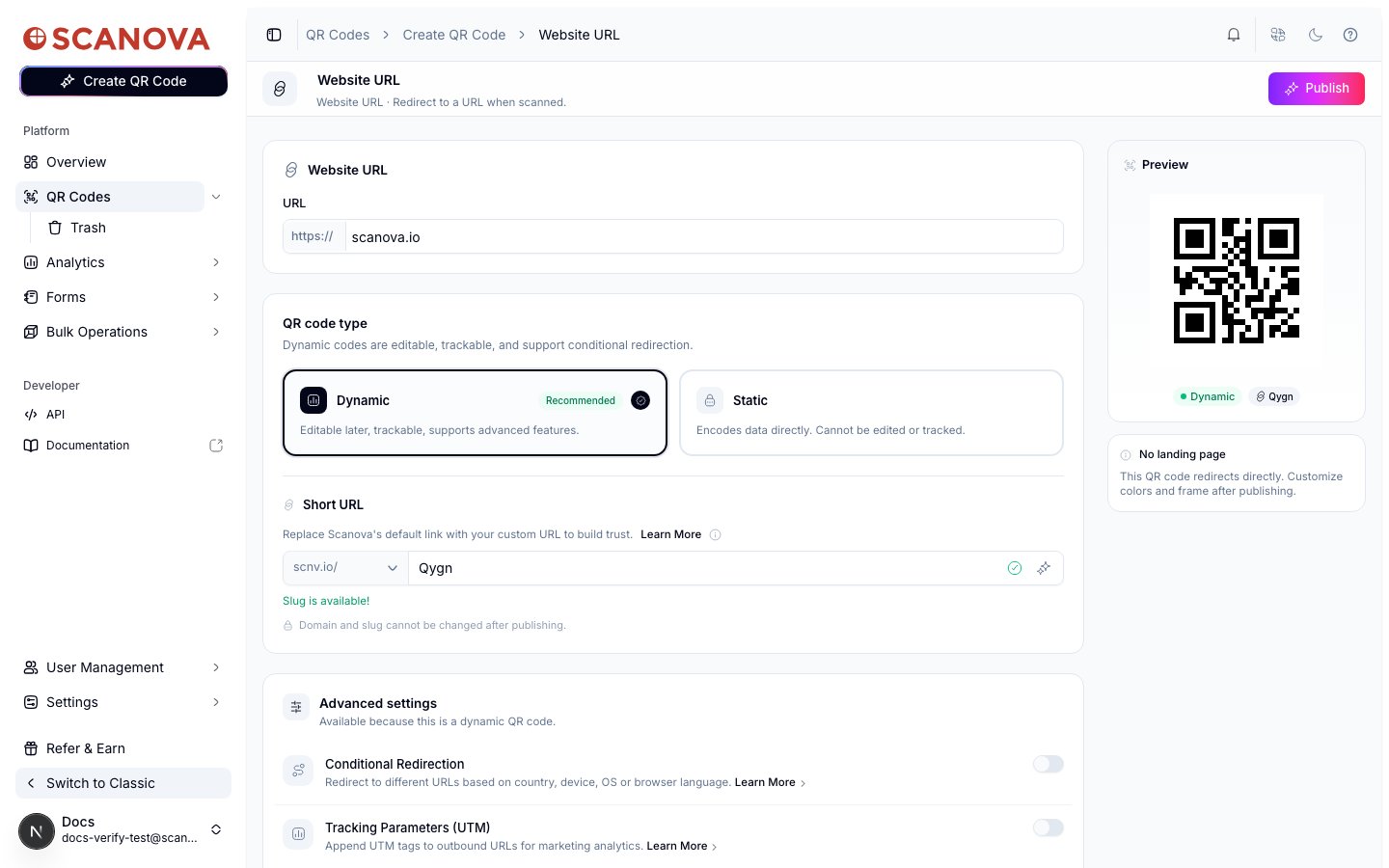 Website URL is the one Quick Code type that supports both **Dynamic** (editable later, trackable, supports [Conditional Redirection](/qr-codes/manage/conditional-redirection) and UTM tracking) and **Static** (encodes the URL directly; can't be edited or tracked after publishing) — every other Quick Code type on this page is Static only. Dynamic is selected and recommended by default.
If you keep Dynamic, a **Short URL** section appears where you can set a slug (or a [custom domain](/qr-codes/manage/custom-domains), if configured) — a slug is required before a Dynamic code can be published.
Click **Publish** in the top-right. A panel opens where you can confirm or rename the QR code (it defaults to the URL's hostname, e.g. "scanova.io"), assign a folder or tags, and adjust QR design before confirming.
## Creating one via the API
To create a Website URL QR code through the API rather than the UI, use category ID `1` (labeled **Website URL**, `allowed_qr_types: "bt"` — it accepts both `"dy"` and `"st"` for `qr_type`), with an `info` payload shaped like:
```json theme={null}
{
"type": "url",
"data": {
"url": "https://example.com"
}
}
```
See [Create QR Code](/v1/api-reference/endpoint/qr_manager/create) for the full request schema and [Category List](/v1/api-reference/references/category-list) for the complete ID-to-label mapping.
## Related
* [Creating your first QR code](/getting-started/first-qr-code) — this exact QR type walked through end-to-end from a fresh login.
* [Quick Code vs. full Page](/qr-codes/create/quick-code-vs-page) — how Website URL compares to a full landing page.
* [Folders, tags & bulk operations](/qr-codes/manage/folders-tags-bulk-operations) — organize the QR code after publishing it.
* [Conditional redirection](/qr-codes/manage/conditional-redirection) — route scans by device, location, or time once the code is Dynamic.
Website URL is the one Quick Code type that supports both **Dynamic** (editable later, trackable, supports [Conditional Redirection](/qr-codes/manage/conditional-redirection) and UTM tracking) and **Static** (encodes the URL directly; can't be edited or tracked after publishing) — every other Quick Code type on this page is Static only. Dynamic is selected and recommended by default.
If you keep Dynamic, a **Short URL** section appears where you can set a slug (or a [custom domain](/qr-codes/manage/custom-domains), if configured) — a slug is required before a Dynamic code can be published.
Click **Publish** in the top-right. A panel opens where you can confirm or rename the QR code (it defaults to the URL's hostname, e.g. "scanova.io"), assign a folder or tags, and adjust QR design before confirming.
## Creating one via the API
To create a Website URL QR code through the API rather than the UI, use category ID `1` (labeled **Website URL**, `allowed_qr_types: "bt"` — it accepts both `"dy"` and `"st"` for `qr_type`), with an `info` payload shaped like:
```json theme={null}
{
"type": "url",
"data": {
"url": "https://example.com"
}
}
```
See [Create QR Code](/v1/api-reference/endpoint/qr_manager/create) for the full request schema and [Category List](/v1/api-reference/references/category-list) for the complete ID-to-label mapping.
## Related
* [Creating your first QR code](/getting-started/first-qr-code) — this exact QR type walked through end-to-end from a fresh login.
* [Quick Code vs. full Page](/qr-codes/create/quick-code-vs-page) — how Website URL compares to a full landing page.
* [Folders, tags & bulk operations](/qr-codes/manage/folders-tags-bulk-operations) — organize the QR code after publishing it.
* [Conditional redirection](/qr-codes/manage/conditional-redirection) — route scans by device, location, or time once the code is Dynamic.