> ## Documentation Index
> Fetch the complete documentation index at: https://docs.scanova.io/llms.txt
> Use this file to discover all available pages before exploring further.
# WiFi QR Code
> Create a QR code that connects visitors to a WiFi network.
## What it's for
A Wi-Fi QR code lets a phone camera join a wireless network automatically — no typing the SSID or password by hand. It's a **Quick Code**: a direct-action QR with no landing page, built from a small form rather than the page builder. The tile for it in the app reads "Connect visitors to your Wi-Fi network instantly."
Wi-Fi is **Static only** — there's no Dynamic option for this type. Once published, the encoded network credentials can't be edited or tracked; to change them, create a new QR code.
## Create a Wi-Fi QR code
From the sidebar, go to **QR Codes**, then click **Create QR Code** (or navigate to `/qr/create`). Click the **Quick Code** card.
On the **Quick Code** type grid, click **Configure** under **Wi-Fi**, in the **Static Only** section. This opens the form at `/qr/quick/wifi`.
Type the network's SSID into **Network name (SSID)** — this is the only required field. The placeholder shows "My Network".
The **Security type** dropdown defaults to **WPA2** and also offers **WPA**, **WEP**, and **None (open network)**. Selecting **None** hides the **Password** field entirely, since an open network has no password to encode.
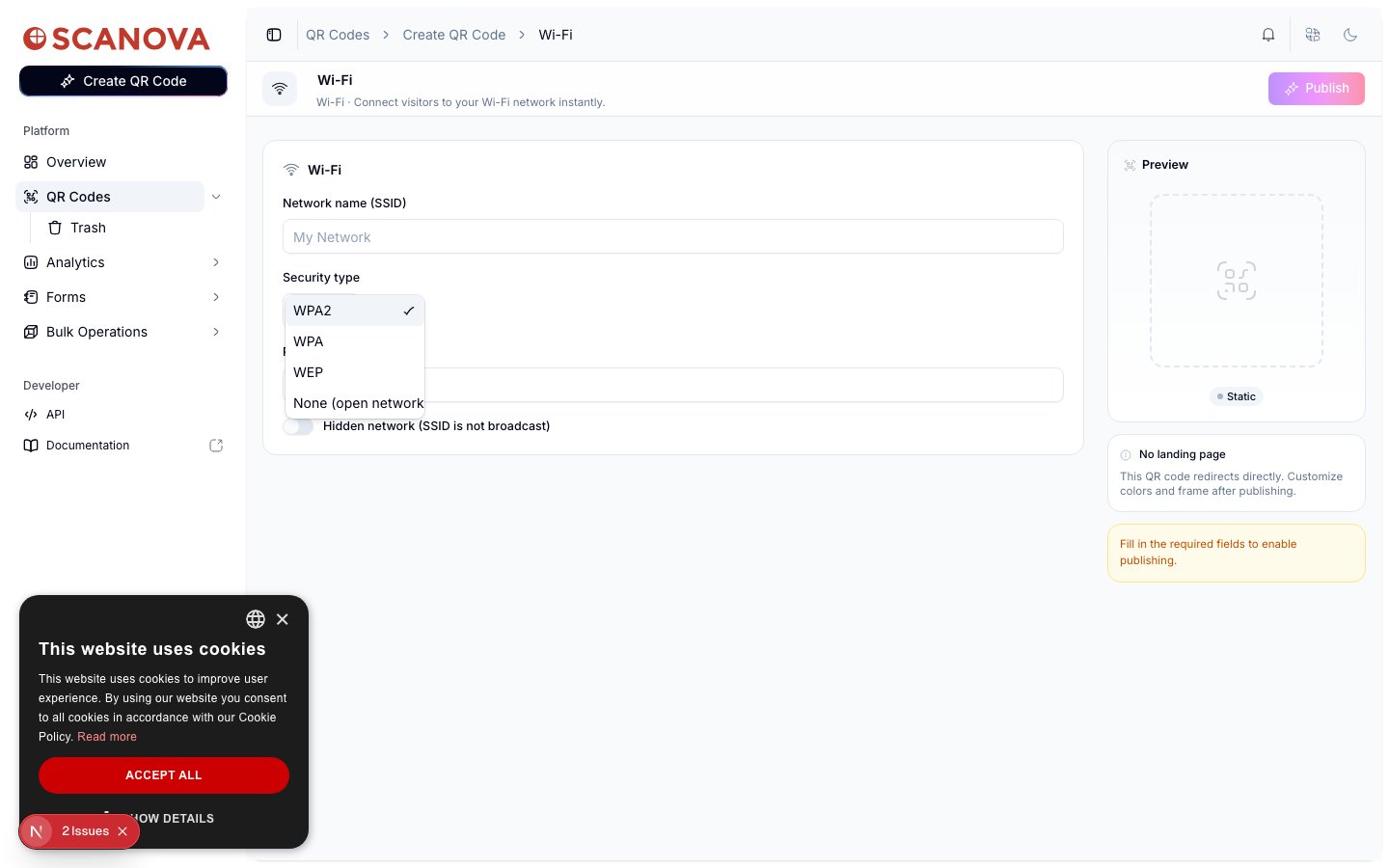 For any security type other than None, enter the network's password in the **Password** field. If the network doesn't broadcast its SSID, turn on **Hidden network (SSID is not broadcast)** so scanning devices know to join it by name instead of picking it from a visible list.
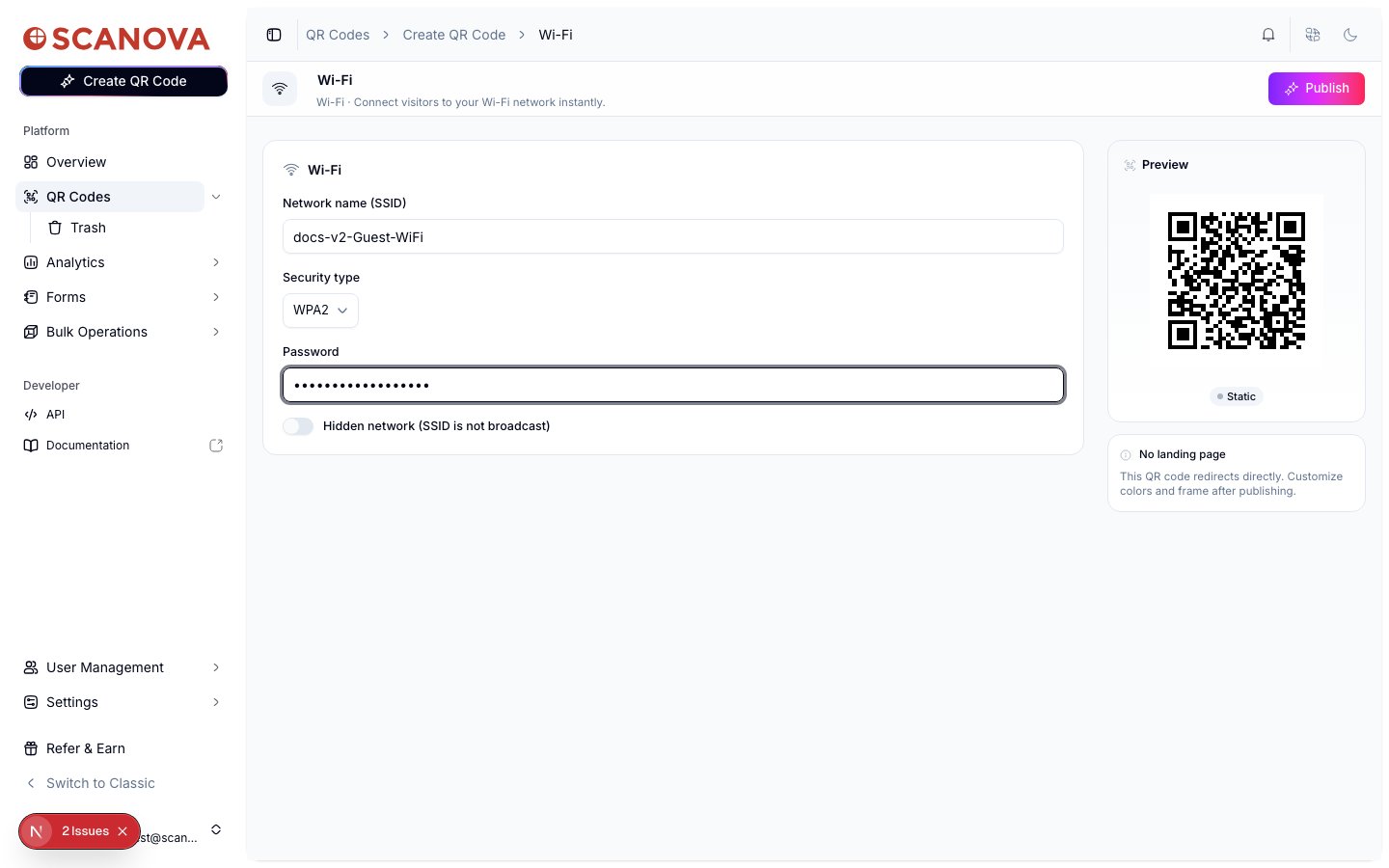 Click **Publish**. A panel opens to confirm or rename the QR code (it defaults to "Wi-Fi: \"), assign a folder or tags, and adjust QR design before confirming.
## Creating one via the API
To create a Wi-Fi QR code through the API rather than the UI, use category ID `6` (labeled **WiFi**, `allowed_qr_types: "st"` — only `"st"` is valid for `qr_type`), with an `info` payload shaped like:
```json theme={null}
{
"type": "wifi",
"data": {
"authentication": "WPA2",
"ssid": "Guest-WiFi",
"password": "SampleGuestPass123",
"hidden": false
}
}
```
`authentication` accepts `WPA`, `WPA2`, `WEP`, or `none`; `password` and `hidden` are optional (hidden defaults to `false`). See [Create QR Code](/v1/api-reference/endpoint/qr_manager/create) for the full request schema.
The [Category List](/v1/api-reference/references/category-list) reference table doesn't currently list WiFi (or the other Quick Code–only categories on this page) — the ID above was confirmed directly against the live `/qr/category/` endpoint.
## Related
* [Creating your first QR code](/getting-started/first-qr-code) — a full walkthrough of the Quick Code flow this type belongs to.
* [Quick Code vs. full Page](/qr-codes/create/quick-code-vs-page) — how Wi-Fi and the other Quick Code types compare to a full landing page.
* [Folders, tags & bulk operations](/qr-codes/manage/folders-tags-bulk-operations) — organize the QR code after publishing it.
Click **Publish**. A panel opens to confirm or rename the QR code (it defaults to "Wi-Fi: \"), assign a folder or tags, and adjust QR design before confirming.
## Creating one via the API
To create a Wi-Fi QR code through the API rather than the UI, use category ID `6` (labeled **WiFi**, `allowed_qr_types: "st"` — only `"st"` is valid for `qr_type`), with an `info` payload shaped like:
```json theme={null}
{
"type": "wifi",
"data": {
"authentication": "WPA2",
"ssid": "Guest-WiFi",
"password": "SampleGuestPass123",
"hidden": false
}
}
```
`authentication` accepts `WPA`, `WPA2`, `WEP`, or `none`; `password` and `hidden` are optional (hidden defaults to `false`). See [Create QR Code](/v1/api-reference/endpoint/qr_manager/create) for the full request schema.
The [Category List](/v1/api-reference/references/category-list) reference table doesn't currently list WiFi (or the other Quick Code–only categories on this page) — the ID above was confirmed directly against the live `/qr/category/` endpoint.
## Related
* [Creating your first QR code](/getting-started/first-qr-code) — a full walkthrough of the Quick Code flow this type belongs to.
* [Quick Code vs. full Page](/qr-codes/create/quick-code-vs-page) — how Wi-Fi and the other Quick Code types compare to a full landing page.
* [Folders, tags & bulk operations](/qr-codes/manage/folders-tags-bulk-operations) — organize the QR code after publishing it.