> ## Documentation Index
> Fetch the complete documentation index at: https://docs.scanova.io/llms.txt
> Use this file to discover all available pages before exploring further.
# Folders, tags & bulk operations
> Organize QR codes with folders and tags, and perform bulk actions.
The QR Codes list (`/qr/list`) is where you organize everything you've created. Three tools work together here: a collapsible **folder sidebar** for grouping codes, **tags** for cross-cutting labels, and **bulk actions** for operating on many QR codes at once.
## Organize with folders
Folders live in a collapsible sidebar on the left of the QR Codes list, not as filter chips in the toolbar. Toggle the sidebar open or closed with the folder icon next to the "QR Codes" page title — your preference is remembered in your browser (via `localStorage`) the next time you visit.
The folder sidebar itself is a plan-gated feature. If your plan doesn't include folder management, the sidebar and its toggle won't appear at all, and the "Move to Folder" bulk action is hidden too. Contact support if you expect folders on your plan but don't see them.
At the top of the sidebar, above your own folders, are three built-in virtual entries:
* **All QR Codes** — every QR code you own, regardless of folder.
* **Uncategorized** — QR codes not currently assigned to any folder.
* **Pages** — only shown once your account has at least one legacy "Page"-flagged QR code; this is a marker carried over from the classic app, not something you assign yourself.
### Creating and managing folders
Click the small **+** button next to the "Folders" section header in the sidebar.
Folder names are limited to 150 characters. Pick one of seven accent colors (or leave it Default) — the color tints the folder icon everywhere it appears, including in the drag-and-drop drop zone.
The new folder appears in the sidebar immediately and becomes the active selection.
Each folder in the list has a `···` menu (visible on hover) with:
* **Edit Folder** — rename it.
* **Change Color** — swap its accent color without opening the full edit dialog.
* **View Analytics** — jumps to `/analytics` filtered to this folder's QR codes.
* **Delete folder** — see below.
Deleting a folder asks what to do with the QR codes inside it: **Move to Uncategorized** (the QR codes stay active, just unassigned) or **Delete QR codes permanently** (the QR codes themselves stop working — this cannot be undone). Choose carefully; the second option is destructive to the QR codes, not just the folder.
A search box above the folder list filters folders by name (debounced, so it doesn't fire on every keystroke), and the list lazy-loads more folders as you scroll if you have a large number of them.
### Moving QR codes into folders
You can drag a QR code card or row directly onto a folder in the sidebar (or onto **Uncategorized** to clear its folder). Drop targets highlight as you drag over them. For moving several QR codes at once without dragging, use the **Move to Folder** bulk action described below.
Both drag-and-drop and the bulk "Move to Folder" action require a permission grant (`FOLDER_CAN_CREATE_AND_MANAGE`) in addition to the plan quota — a shared user without that grant won't see these controls, so they never hit a permission error after the fact.
## Tag QR codes
Tags are a lightweight, freeform way to label QR codes that cuts across folders — a QR code can carry multiple tags and still live in one folder (or none).
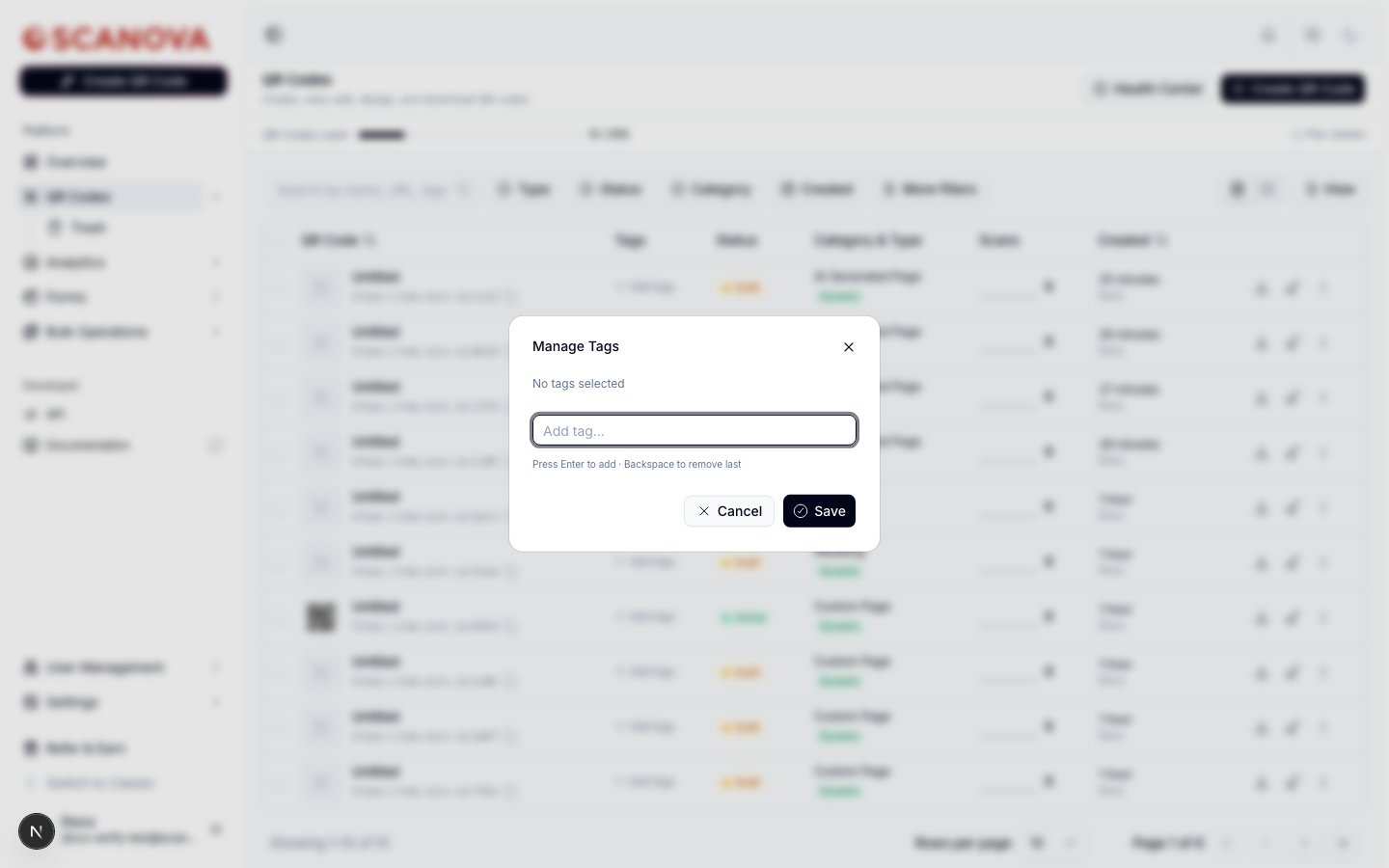 To tag a single QR code, click **+ Add tags** in its row (or the existing tag chip, once it has one) to open the tag manager:
Start typing in the input. Existing tags that match what you've typed appear as suggestions below — click one to add it, or press **Enter** to create a new tag from what you typed.
Click the **×** on a tag chip to remove it, or press **Backspace** in an empty input to remove the last one added.
Saving replaces this QR code's tag list with your current selection.
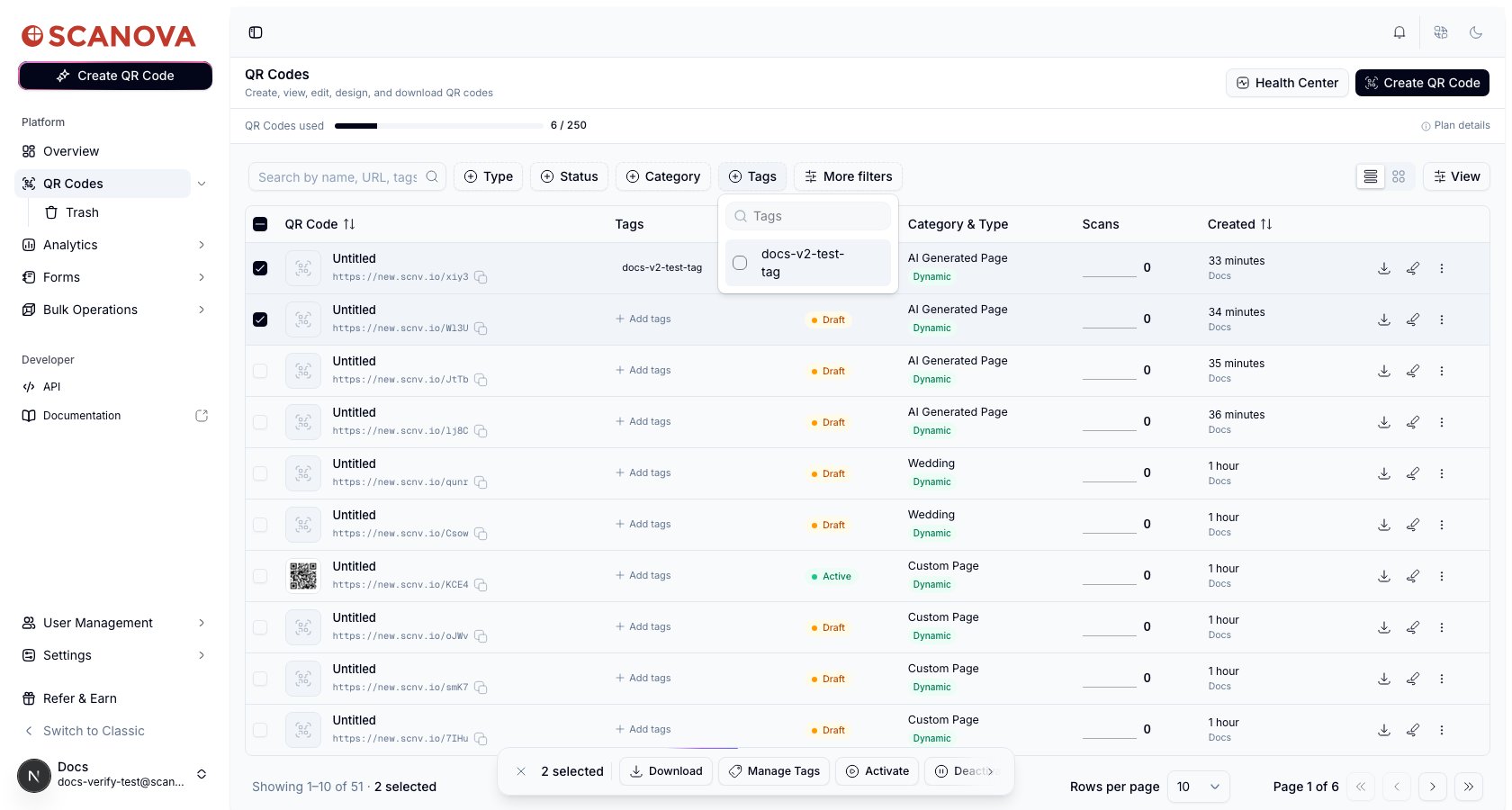
Once at least one tag exists on your account, a **Tags** filter appears in the toolbar next to Type, Status, and Category — pick one or more tags to filter the list down to matching QR codes.
To tag a single QR code, click **+ Add tags** in its row (or the existing tag chip, once it has one) to open the tag manager:
Start typing in the input. Existing tags that match what you've typed appear as suggestions below — click one to add it, or press **Enter** to create a new tag from what you typed.
Click the **×** on a tag chip to remove it, or press **Backspace** in an empty input to remove the last one added.
Saving replaces this QR code's tag list with your current selection.
Once at least one tag exists on your account, a **Tags** filter appears in the toolbar next to Type, Status, and Category — pick one or more tags to filter the list down to matching QR codes.
 ## Bulk actions
Select two or more QR codes using the checkboxes in the leftmost column to bring up a floating action bar at the bottom of the list.
## Bulk actions
Select two or more QR codes using the checkboxes in the leftmost column to bring up a floating action bar at the bottom of the list.
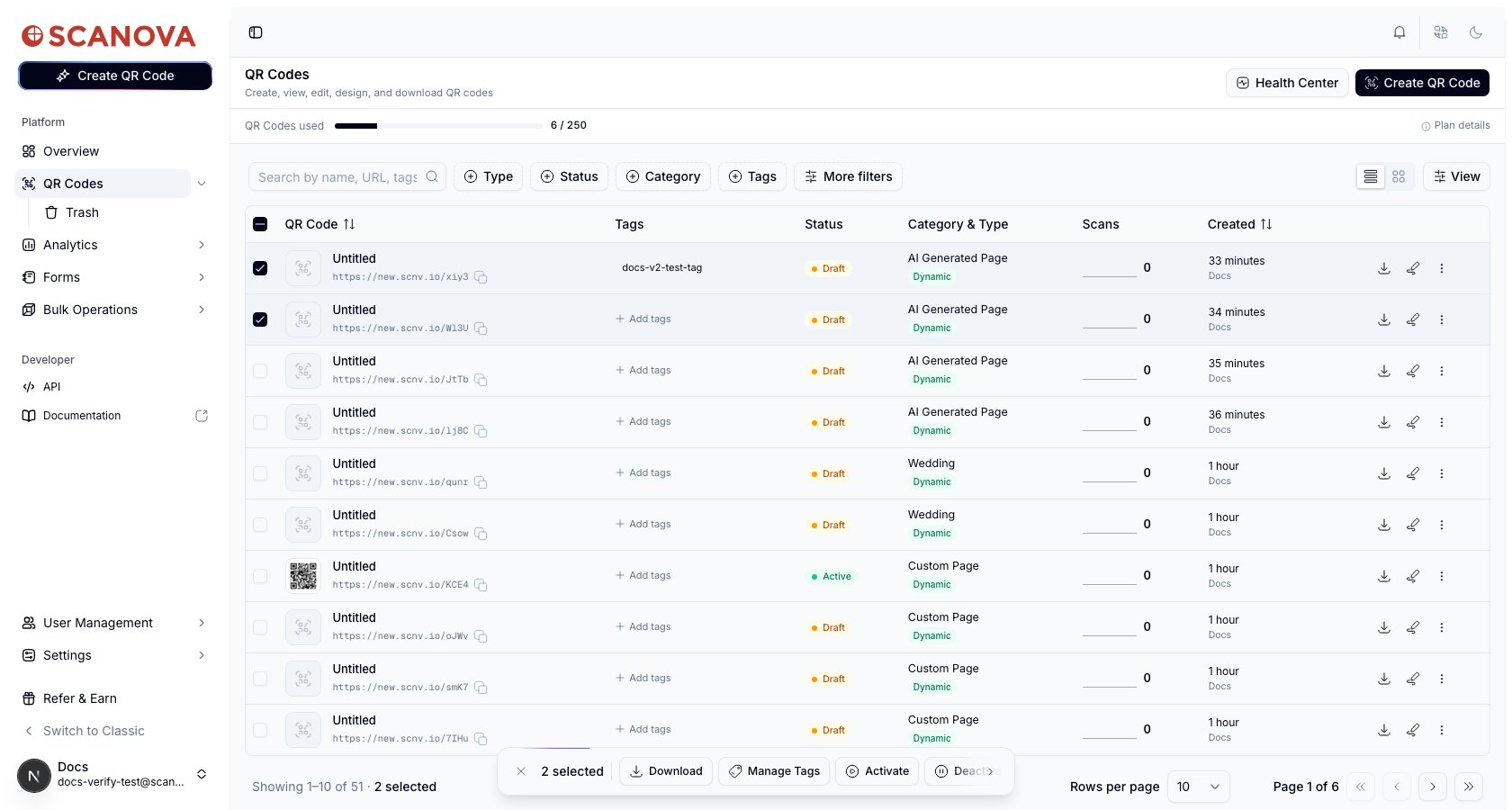 Depending on your plan and permissions, the bar can include:
* **Download** — opens the download panel for all selected QR codes at once.
* **Manage Tags** — opens the same tag manager as above, but scoped to every selected QR code. Saving **replaces** the tags on all of them with whatever you set — it isn't additive.
* **Move to Folder** — only shown if your plan and permissions allow folder management (see the folder note above).
* **Activate** / **Deactivate** — flips `is_active` on the selected QR codes. Static QR codes are skipped automatically (a static code's payload is baked into the image itself, so activation state means nothing for it) — the confirmation dialog tells you how many rows were skipped for this reason.
* **Migrate to new theme schema** — re-applies each selected QR code's detected design settings under the newer theme system; QR codes not built in the previous editor are skipped and reported separately.
* **Delete** — moves the selected QR codes to Trash (see [Trash, restore & permanent delete](/qr-codes/manage/trash-restore)).
Depending on your plan and permissions, the bar can include:
* **Download** — opens the download panel for all selected QR codes at once.
* **Manage Tags** — opens the same tag manager as above, but scoped to every selected QR code. Saving **replaces** the tags on all of them with whatever you set — it isn't additive.
* **Move to Folder** — only shown if your plan and permissions allow folder management (see the folder note above).
* **Activate** / **Deactivate** — flips `is_active` on the selected QR codes. Static QR codes are skipped automatically (a static code's payload is baked into the image itself, so activation state means nothing for it) — the confirmation dialog tells you how many rows were skipped for this reason.
* **Migrate to new theme schema** — re-applies each selected QR code's detected design settings under the newer theme system; QR codes not built in the previous editor are skipped and reported separately.
* **Delete** — moves the selected QR codes to Trash (see [Trash, restore & permanent delete](/qr-codes/manage/trash-restore)).
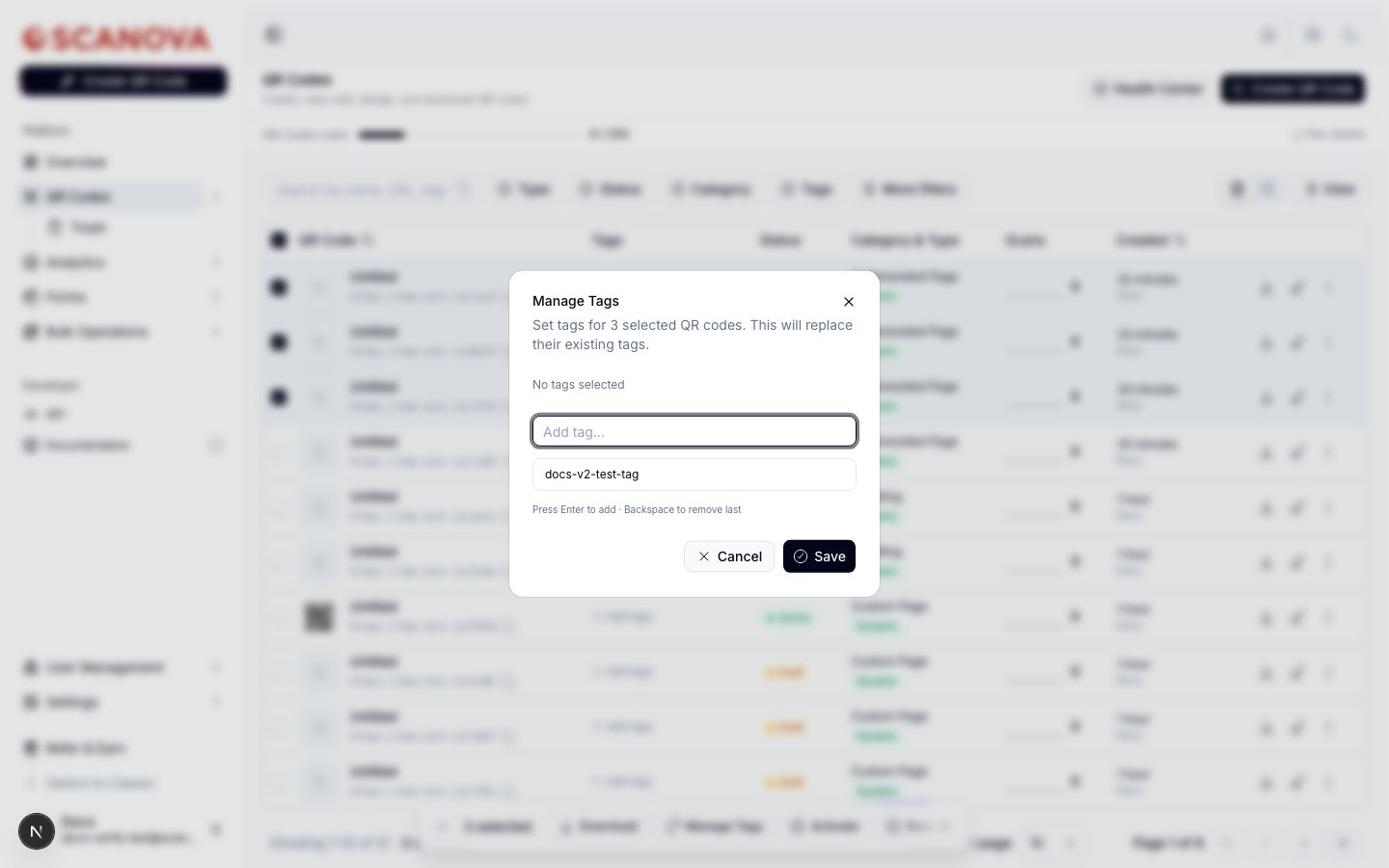 Every bulk action shows exactly how many rows it will affect in its confirmation dialog title (for example, "Delete Permanently (3)"), so you can double-check your selection before confirming anything destructive.
## Related
* [Your first QR code](/getting-started/first-qr-code) — where a QR code comes from before you're organizing it with folders and tags.
* [Trash, restore & permanent delete](/qr-codes/manage/trash-restore) — what happens after the bulk Delete action here moves codes out of the main list.
* [Shared users](/team/shared-users) — folder management and the bulk "Move to Folder" action both require the `FOLDER_CAN_CREATE_AND_MANAGE` permission grant covered there.
Every bulk action shows exactly how many rows it will affect in its confirmation dialog title (for example, "Delete Permanently (3)"), so you can double-check your selection before confirming anything destructive.
## Related
* [Your first QR code](/getting-started/first-qr-code) — where a QR code comes from before you're organizing it with folders and tags.
* [Trash, restore & permanent delete](/qr-codes/manage/trash-restore) — what happens after the bulk Delete action here moves codes out of the main list.
* [Shared users](/team/shared-users) — folder management and the bulk "Move to Folder" action both require the `FOLDER_CAN_CREATE_AND_MANAGE` permission grant covered there.