> ## Documentation Index
> Fetch the complete documentation index at: https://docs.scanova.io/llms.txt
> Use this file to discover all available pages before exploring further.
# Trash, restore & permanent delete
> Recover or permanently delete QR codes from the trash.
Deleting a QR code from the main list never removes it immediately — it's a soft delete. The QR code moves to Trash, where you have 30 days to restore it before it's gone for good.
## Deleting from the QR list
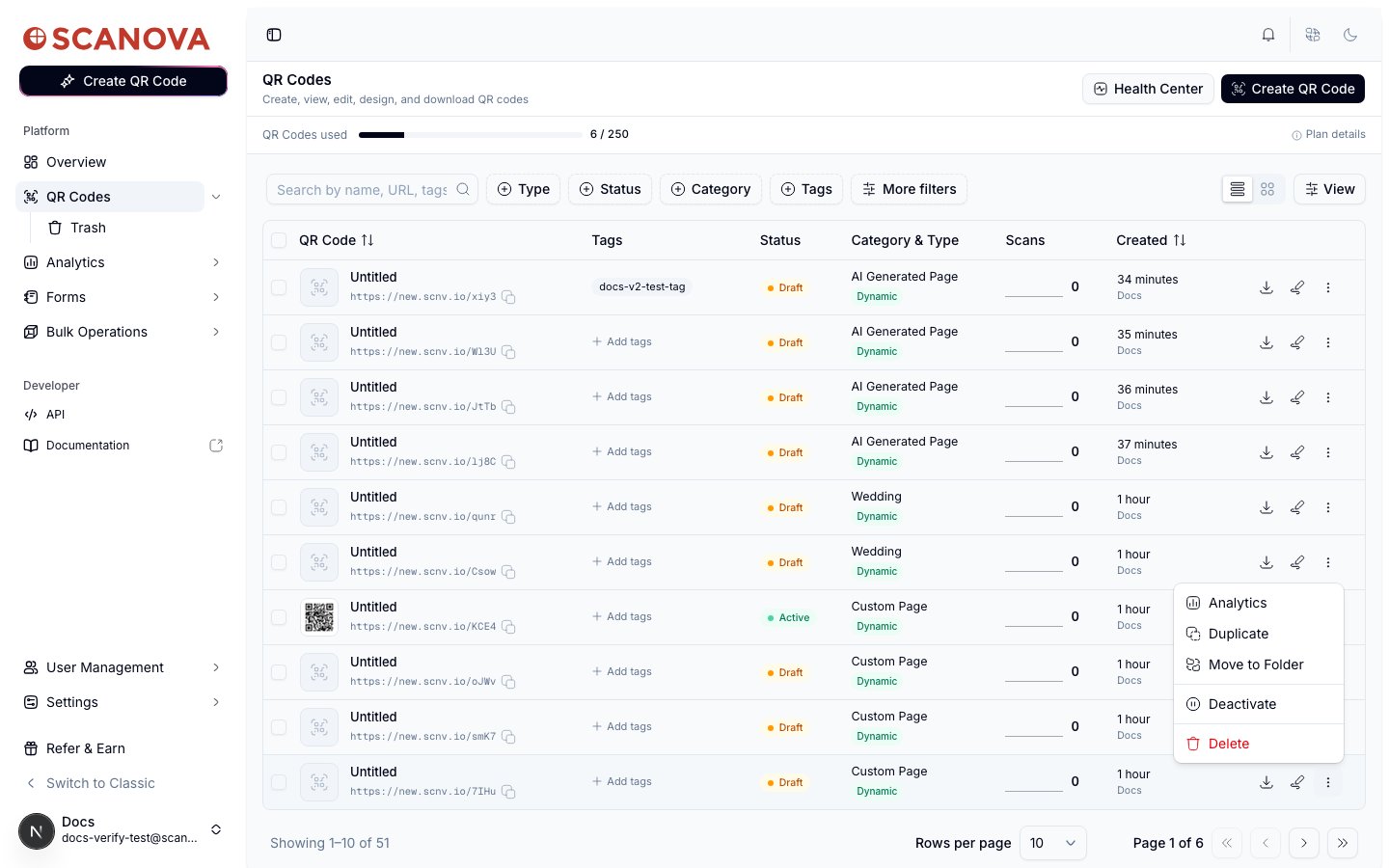
From `/qr/list`, click the **···** menu at the end of a QR code's row and choose **Delete**.
A confirmation dialog names the QR code and reads: *"Are you sure you want to move it to Trash? It will be permanently deleted after 30 days."* Confirm with **Move to Trash**.
A toast appears immediately, naming the QR code and confirming it was moved to Trash, with an **Undo** button right in the toast. Clicking it restores the QR code on the spot — no need to visit the Trash page at all.
 Selecting multiple QR codes and using the bulk **Delete** action works the same way — one confirmation, one toast, one **Undo** covering the whole batch. See [Folders, tags & bulk operations](/qr-codes/manage/folders-tags-bulk-operations) for more on bulk actions.
The Undo toast is the fastest way to recover a QR code you just deleted by mistake. Once it disappears (or you dismiss it), you can still recover the QR code from the Trash page — it just takes a couple more clicks.
## The Trash page
Visit **Trash** under QR Codes in the sidebar, or go directly to `/qr/trash`, to see every QR code you've deleted.
Selecting multiple QR codes and using the bulk **Delete** action works the same way — one confirmation, one toast, one **Undo** covering the whole batch. See [Folders, tags & bulk operations](/qr-codes/manage/folders-tags-bulk-operations) for more on bulk actions.
The Undo toast is the fastest way to recover a QR code you just deleted by mistake. Once it disappears (or you dismiss it), you can still recover the QR code from the Trash page — it just takes a couple more clicks.
## The Trash page
Visit **Trash** under QR Codes in the sidebar, or go directly to `/qr/trash`, to see every QR code you've deleted.
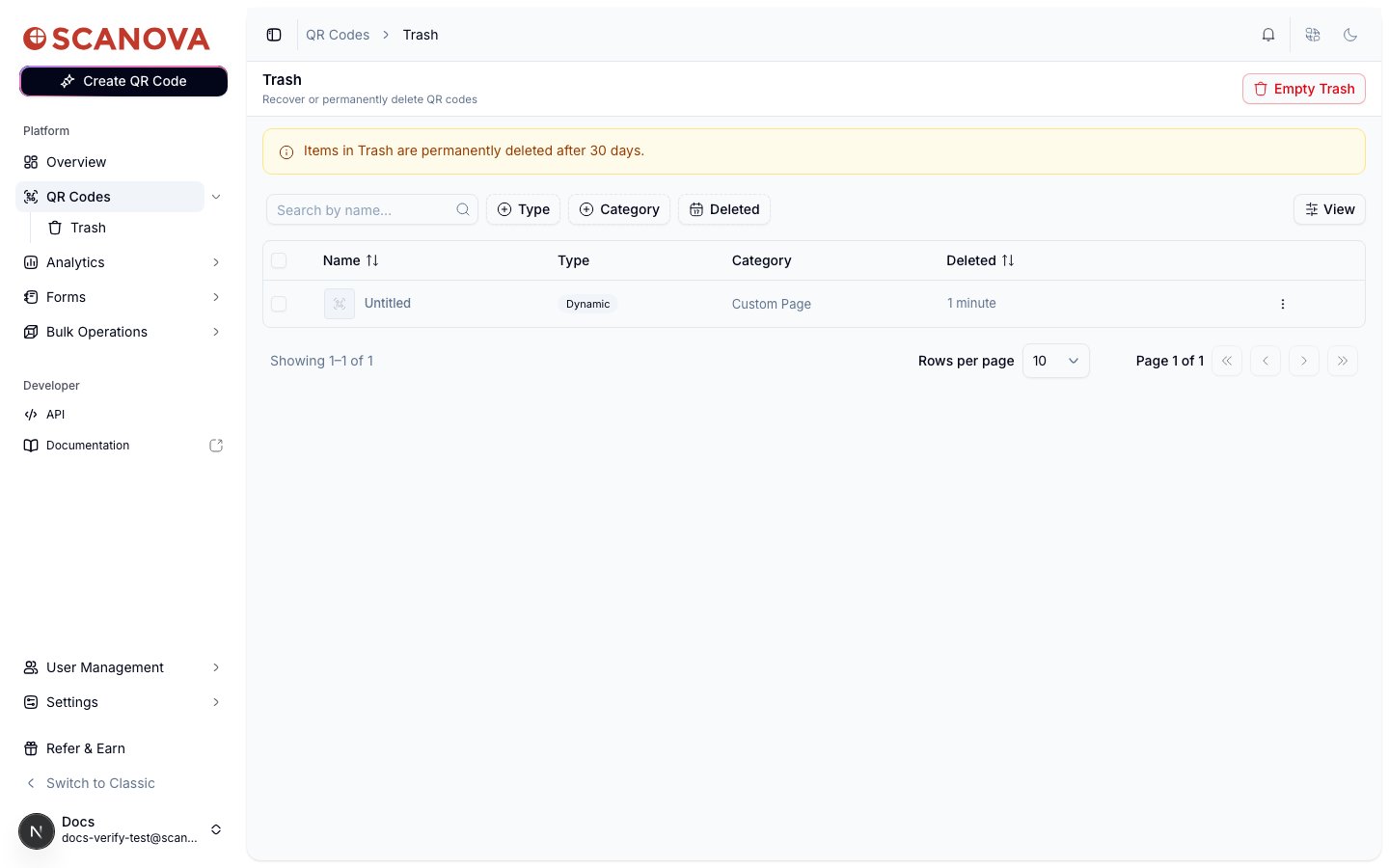 A banner at the top states the retention policy plainly: **"Items in Trash are permanently deleted after 30 days."** This is a real, enforced limit — once an item passes 30 days in Trash, it's gone automatically, whether or not you visit this page again.
The list supports the same **Type**, **Category**, and a **Deleted** date filter as the main QR list, plus search by name, so you can find a specific deleted QR code in a large trash.
### Restoring or permanently deleting a single QR code
Open the **···** menu on a Trash row for two options:
A banner at the top states the retention policy plainly: **"Items in Trash are permanently deleted after 30 days."** This is a real, enforced limit — once an item passes 30 days in Trash, it's gone automatically, whether or not you visit this page again.
The list supports the same **Type**, **Category**, and a **Deleted** date filter as the main QR list, plus search by name, so you can find a specific deleted QR code in a large trash.
### Restoring or permanently deleting a single QR code
Open the **···** menu on a Trash row for two options:
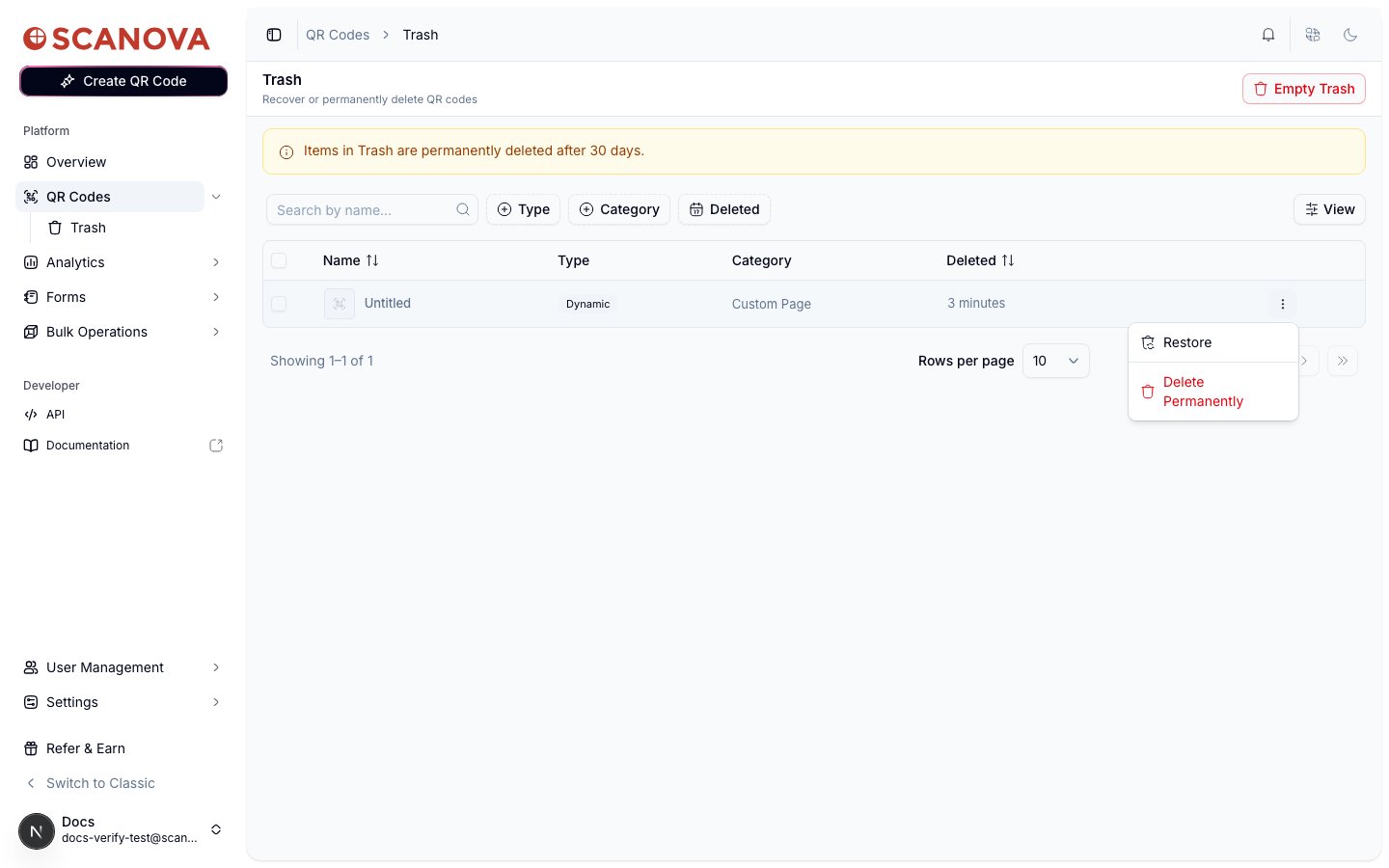 * **Restore** — brings the QR code back to the main list, active again, with a confirmation dialog first, naming the QR code and confirming: *"…from Trash? It will become active again."*
* **Delete Permanently** — immediately and irreversibly deletes the QR code. The confirmation dialog is explicit about this:
* **Restore** — brings the QR code back to the main list, active again, with a confirmation dialog first, naming the QR code and confirming: *"…from Trash? It will become active again."*
* **Delete Permanently** — immediately and irreversibly deletes the QR code. The confirmation dialog is explicit about this:
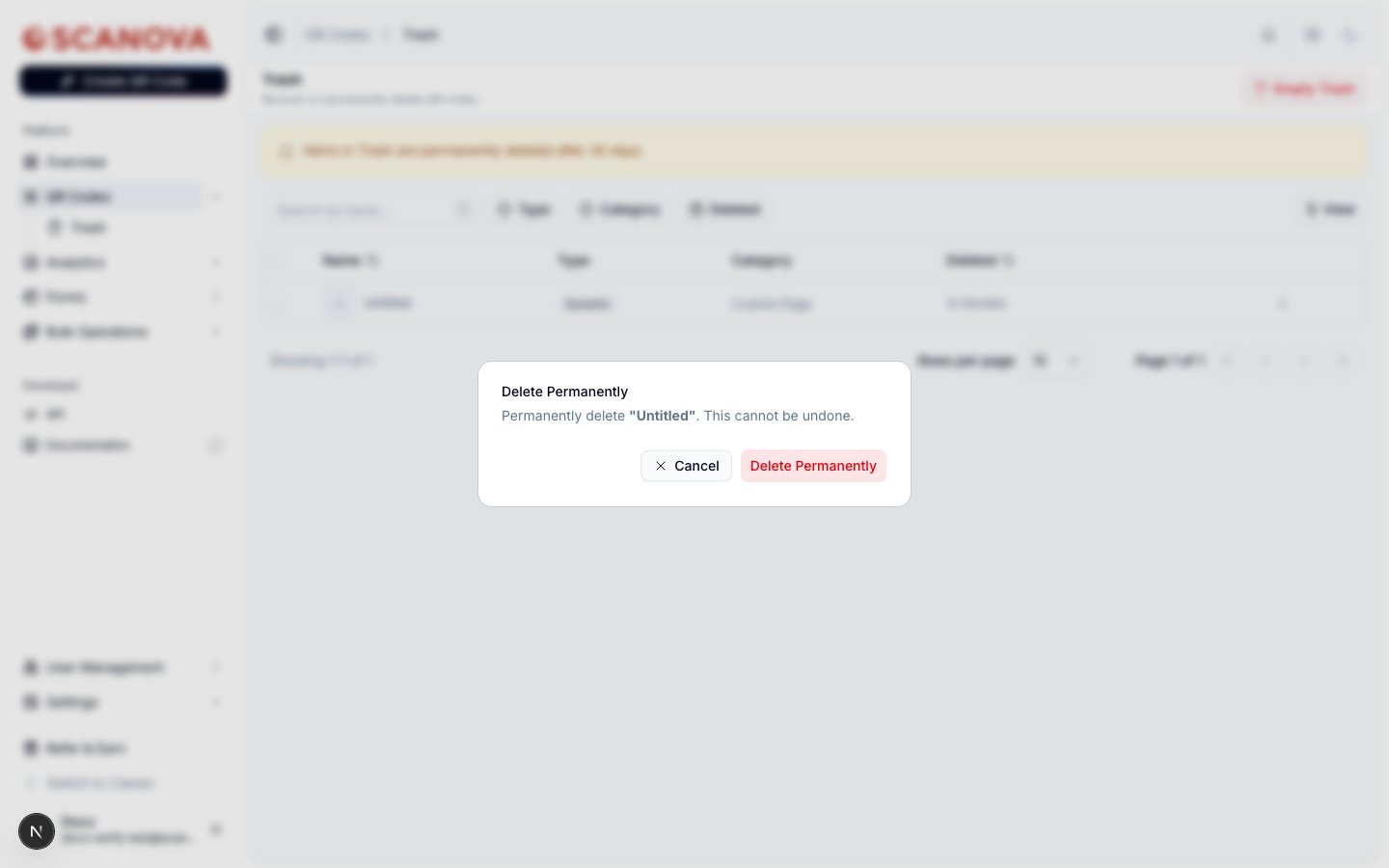 There is no undo for **Delete Permanently** — unlike the soft delete from the main list, this confirmation dialog means exactly what it says.
### Bulk restore and bulk delete
Select multiple rows in Trash with the row checkboxes to bring up the same kind of floating bulk-action bar used on the main QR list, with **Restore** and **Delete Permanently** as the two available bulk actions. Each shows the affected count in its dialog title (for example, "Delete Permanently (3)").
### Emptying the entire trash
The **Empty Trash** button in the page header (only shown when Trash isn't empty) permanently deletes every QR code currently in Trash in one action, after a confirmation dialog. Use this only when you're certain nothing in Trash is worth keeping — it bypasses the 30-day grace period for everything at once.
## Related
* [Folders, tags & bulk operations](/qr-codes/manage/folders-tags-bulk-operations) — the bulk Delete action that sends multiple QR codes to Trash in one step.
* [QR Health Center](/qr-codes/manage/qr-health-center) — surfaces issues across your active QR codes, so you know what's worth keeping before you empty Trash.
* [Your first QR code](/getting-started/first-qr-code) — the basics of creating a QR code, for context on what ends up in Trash.
There is no undo for **Delete Permanently** — unlike the soft delete from the main list, this confirmation dialog means exactly what it says.
### Bulk restore and bulk delete
Select multiple rows in Trash with the row checkboxes to bring up the same kind of floating bulk-action bar used on the main QR list, with **Restore** and **Delete Permanently** as the two available bulk actions. Each shows the affected count in its dialog title (for example, "Delete Permanently (3)").
### Emptying the entire trash
The **Empty Trash** button in the page header (only shown when Trash isn't empty) permanently deletes every QR code currently in Trash in one action, after a confirmation dialog. Use this only when you're certain nothing in Trash is worth keeping — it bypasses the 30-day grace period for everything at once.
## Related
* [Folders, tags & bulk operations](/qr-codes/manage/folders-tags-bulk-operations) — the bulk Delete action that sends multiple QR codes to Trash in one step.
* [QR Health Center](/qr-codes/manage/qr-health-center) — surfaces issues across your active QR codes, so you know what's worth keeping before you empty Trash.
* [Your first QR code](/getting-started/first-qr-code) — the basics of creating a QR code, for context on what ends up in Trash.