> ## Documentation Index
> Fetch the complete documentation index at: https://docs.scanova.io/llms.txt
> Use this file to discover all available pages before exploring further.
# Logs export
> Export a CSV of everything your team has done over a period you choose, for audits, for compliance reviews, or simply to see who changed what, and when.
**Logs Export** (`/users/user-logs`) generates a downloadable CSV of your team's activity for a time period you choose, emailed to you once it's ready. It sits alongside [Roles](/team/roles-and-permissions) and [Activity](/team/activity) under **User Management** in the sidebar — all three only appear for accounts with the right plan and permissions.
 ## Requesting an export
Select **Export User Logs** in the page header.
Under **Select Time Period**, choose **Last 7 Days**, **Last 30 Days**, **Last 90 Days**, **Last 180 Days**, or **Custom** for a specific date range.
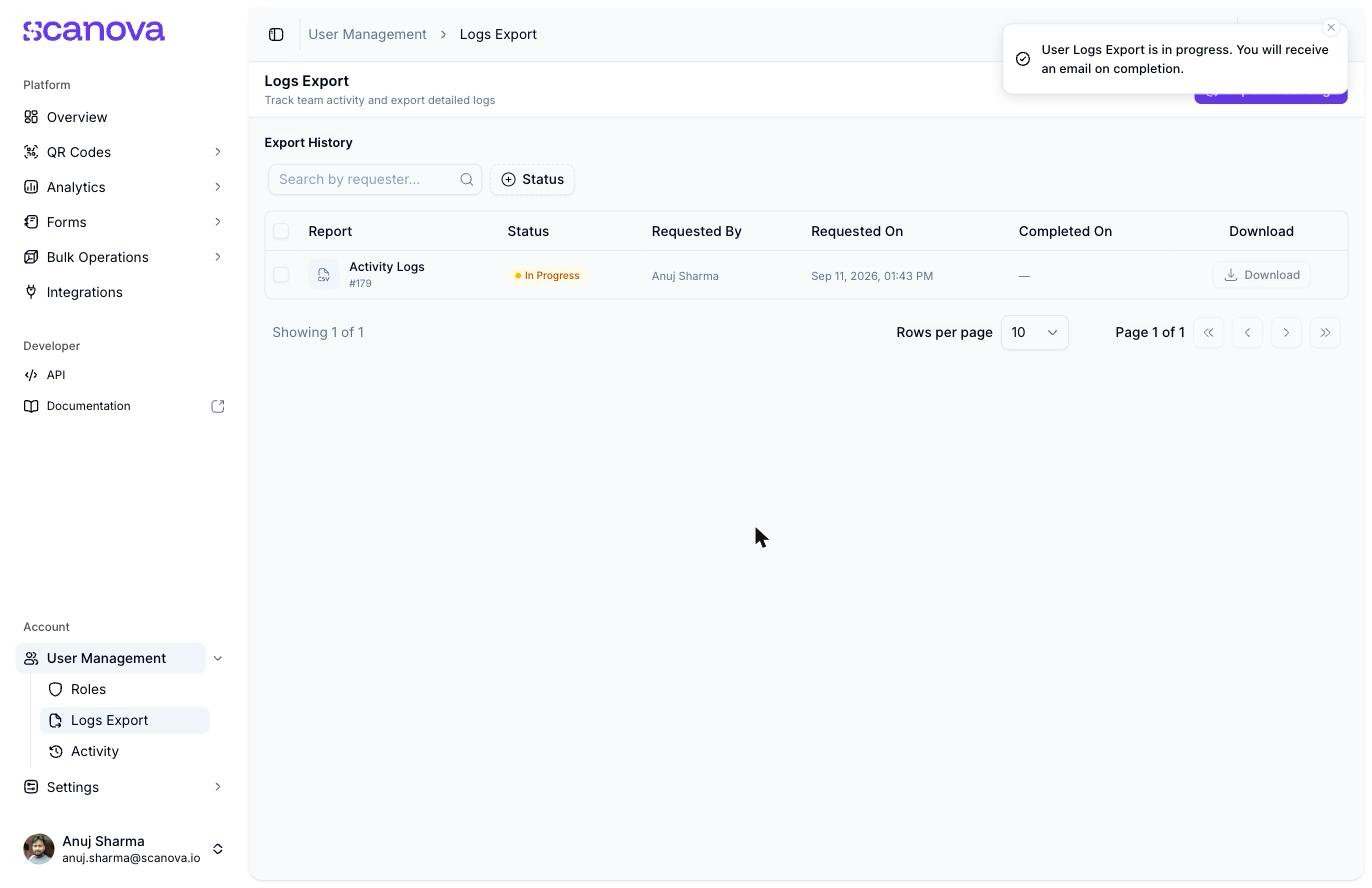
Select **Export Logs**. A toast confirms: "User Logs Export is in progress. You will receive an email on completion." The request appears immediately in **Export History** below, named **Activity Logs**, with a status of **In Progress**.
The **Select Time Period** dropdown's options exist in the page but don't render visibly when you click it — a rendering issue this docs pass also found on several other pages' popups (dropdowns, date pickers). If the list doesn't appear, try a different browser or zoom level, or reload and try again.
## Export History
Every requested export is tracked in a table:
| Column | What it shows |
| ---------------- | --------------------------------------------------------------------------- |
| **Report** | The export's name (e.g. "Activity Logs") and an ID number. |
| **Status** | **In Progress**, **Completed**, or **Failed**. |
| **Requested By** | The teammate who started the export. |
| **Requested On** | When the export was requested. |
| **Completed On** | When it finished — shown as `—` while still in progress. |
| **Download** | A button to download the finished CSV, disabled until the export completes. |
Filter the table with the **Search by requester** box or the **Status** filter (Completed / In Progress / Failed).
## Related
* [Activity](/team/activity) — the live feed and trends this export's underlying data is drawn from
* [Shared users](/team/shared-users) — inviting the teammates whose activity shows up here
* [Roles & permissions](/team/roles-and-permissions) — what each role can see and do, including whether they can request an export
## Requesting an export
Select **Export User Logs** in the page header.
Under **Select Time Period**, choose **Last 7 Days**, **Last 30 Days**, **Last 90 Days**, **Last 180 Days**, or **Custom** for a specific date range.
Select **Export Logs**. A toast confirms: "User Logs Export is in progress. You will receive an email on completion." The request appears immediately in **Export History** below, named **Activity Logs**, with a status of **In Progress**.
The **Select Time Period** dropdown's options exist in the page but don't render visibly when you click it — a rendering issue this docs pass also found on several other pages' popups (dropdowns, date pickers). If the list doesn't appear, try a different browser or zoom level, or reload and try again.
## Export History
Every requested export is tracked in a table:
| Column | What it shows |
| ---------------- | --------------------------------------------------------------------------- |
| **Report** | The export's name (e.g. "Activity Logs") and an ID number. |
| **Status** | **In Progress**, **Completed**, or **Failed**. |
| **Requested By** | The teammate who started the export. |
| **Requested On** | When the export was requested. |
| **Completed On** | When it finished — shown as `—` while still in progress. |
| **Download** | A button to download the finished CSV, disabled until the export completes. |
Filter the table with the **Search by requester** box or the **Status** filter (Completed / In Progress / Failed).
## Related
* [Activity](/team/activity) — the live feed and trends this export's underlying data is drawn from
* [Shared users](/team/shared-users) — inviting the teammates whose activity shows up here
* [Roles & permissions](/team/roles-and-permissions) — what each role can see and do, including whether they can request an export