> ## Documentation Index
> Fetch the complete documentation index at: https://docs.scanova.io/llms.txt
> Use this file to discover all available pages before exploring further.
# Roles & permissions
> Managing team member roles and permissions.
Every teammate you invite is assigned a **role** that determines exactly what they can see and do in your account. Roles live under **User Management > Roles** in the left sidebar (`/users/user-roles`), and the same role list drives the **Choose Role** dropdown in the [Invite Users drawer](/team/shared-users).
The **Roles** and **Activity** items under **User Management** only appear in the sidebar for accounts with the right plan and permissions — see [Custom roles are plan-gated](#custom-roles-are-plan-gated) below for what that looks like when they're hidden.
## Default system roles
Every account starts with five built-in roles, plus **Full Access** — six in total in the role picker:
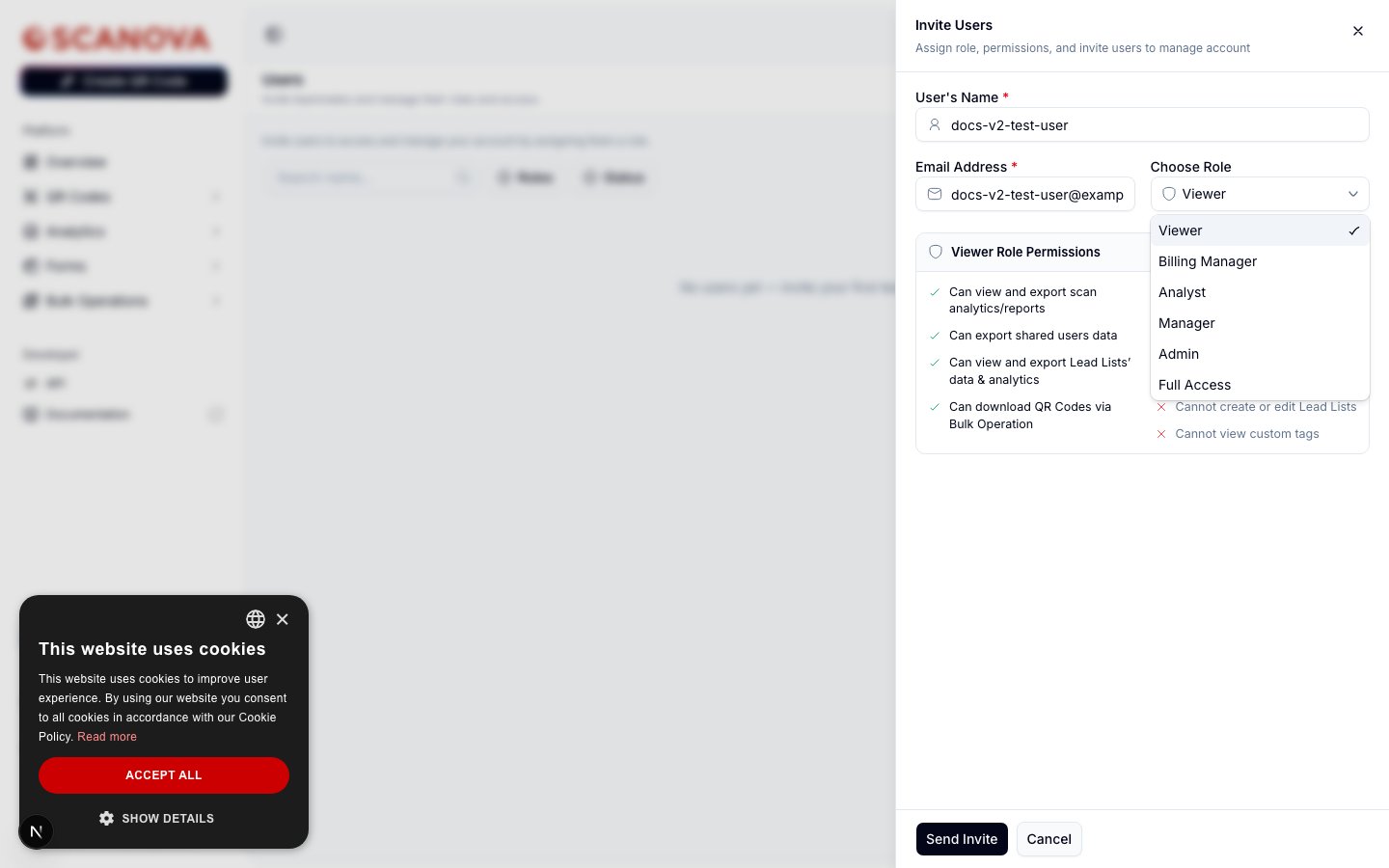 Selecting a role in the invite drawer shows a live **Can / Cannot** permission preview for that role. Here's what each one grants:
| Role | Can | Cannot |
| ------------------- | ------------------------------------------------------------------------------------------------------------------------------------------------------------------------------------------------------------------------------------------------------------------------- | ------------------------------------------------------------------------------------------------------------------------------------------------------------------------------------------------------------ |
| **Admin** | Create, design, edit, and delete QR Codes; view and export analytics; create, update, and delete Lead Lists; set up or remove Custom Domains; generate/update/download QR Codes via Bulk Operation; export shared users data; view custom tags; create and manage folders | View or edit billing information; add or remove users; create or remove custom tags |
| **Manager** | Create, design, and edit QR Codes; view and export analytics; set up new Custom Domains; export shared users data; generate/update/download QR Codes via Bulk Operation; create and manage folders | Delete QR Codes, Lead Lists, and Custom Domains; view or edit billing information; add or remove users; view custom tags |
| **Billing Manager** | View or edit billing information; upgrade or downgrade the subscription plan; add, update, or remove payment methods; view payment history; download invoices | View, create, and update QR Codes or Lead Lists; add or remove users; export shared users data; generate/update/download QR Codes via Bulk Operation; view, set up, or remove custom domains and custom tags |
| **Analyst** | View, download, and export QR Codes data; view and export analytics; view Lead Lists' data & analytics; view the Custom Domain list; view and export shared users data; download QR Codes via Bulk Operation; view custom tags | View or edit billing information; create, design, or edit QR Codes and lead lists; add or remove users; generate or update QR Codes via Bulk Operation; create or remove custom tags |
| **Viewer** | View and export scan analytics/reports; export shared users data; view and export Lead Lists' data & analytics; download QR Codes via Bulk Operation | Edit or download QR Codes; view or edit billing information; add or remove users; create or edit Lead Lists; view custom tags |
Selecting a role in the invite drawer shows a live **Can / Cannot** permission preview for that role. Here's what each one grants:
| Role | Can | Cannot |
| ------------------- | ------------------------------------------------------------------------------------------------------------------------------------------------------------------------------------------------------------------------------------------------------------------------- | ------------------------------------------------------------------------------------------------------------------------------------------------------------------------------------------------------------ |
| **Admin** | Create, design, edit, and delete QR Codes; view and export analytics; create, update, and delete Lead Lists; set up or remove Custom Domains; generate/update/download QR Codes via Bulk Operation; export shared users data; view custom tags; create and manage folders | View or edit billing information; add or remove users; create or remove custom tags |
| **Manager** | Create, design, and edit QR Codes; view and export analytics; set up new Custom Domains; export shared users data; generate/update/download QR Codes via Bulk Operation; create and manage folders | Delete QR Codes, Lead Lists, and Custom Domains; view or edit billing information; add or remove users; view custom tags |
| **Billing Manager** | View or edit billing information; upgrade or downgrade the subscription plan; add, update, or remove payment methods; view payment history; download invoices | View, create, and update QR Codes or Lead Lists; add or remove users; export shared users data; generate/update/download QR Codes via Bulk Operation; view, set up, or remove custom domains and custom tags |
| **Analyst** | View, download, and export QR Codes data; view and export analytics; view Lead Lists' data & analytics; view the Custom Domain list; view and export shared users data; download QR Codes via Bulk Operation; view custom tags | View or edit billing information; create, design, or edit QR Codes and lead lists; add or remove users; generate or update QR Codes via Bulk Operation; create or remove custom tags |
| **Viewer** | View and export scan analytics/reports; export shared users data; view and export Lead Lists' data & analytics; download QR Codes via Bulk Operation | Edit or download QR Codes; view or edit billing information; add or remove users; create or edit Lead Lists; view custom tags |
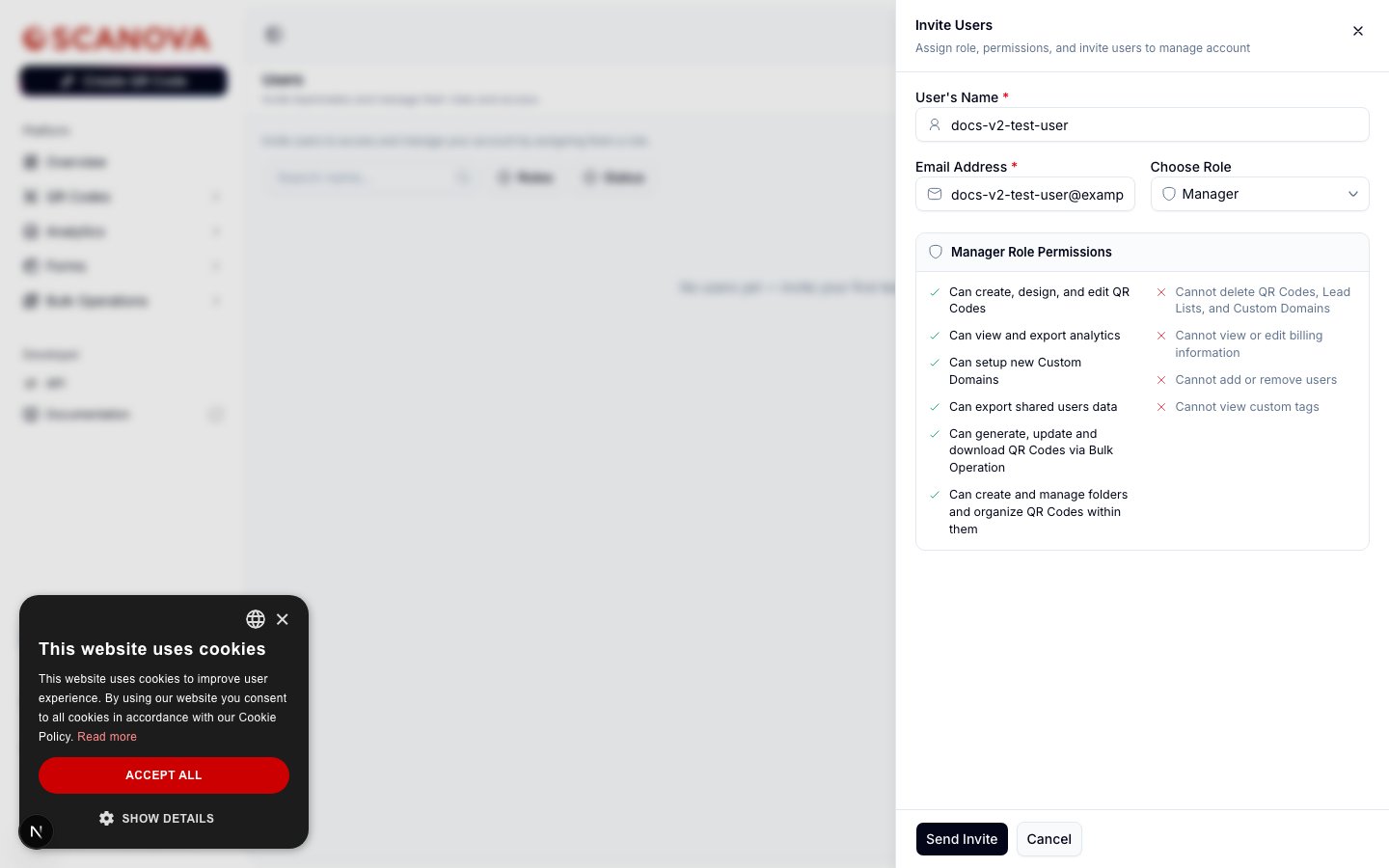 **Full Access** doesn't show a Can/Cannot preview — selecting it in the invite drawer leaves the permissions panel empty. It's a separate, unrestricted role distinct from the account **Owner** (the account you signed up with, which isn't invited or assigned a role at all).
## Viewing a role's permissions
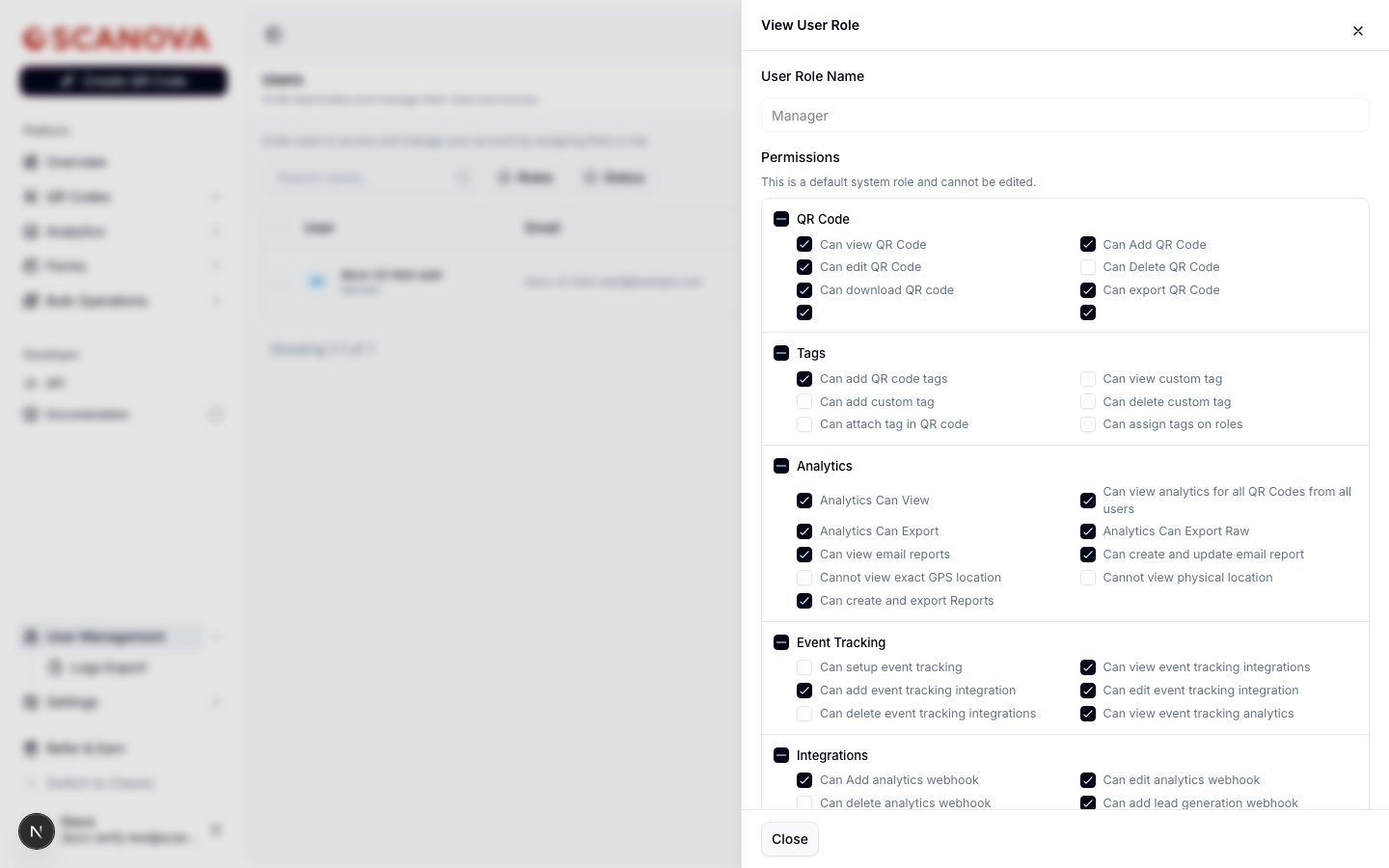
From the Users table, click the eye icon next to any teammate's role to open a read-only **View User Role** drawer. For a default system role, every permission is grouped by category — QR Code, Tags, Analytics, Event Tracking, Integrations, and more — with each individual permission shown as a checked or unchecked checkbox, and a banner confirming the role can't be edited:
**Full Access** doesn't show a Can/Cannot preview — selecting it in the invite drawer leaves the permissions panel empty. It's a separate, unrestricted role distinct from the account **Owner** (the account you signed up with, which isn't invited or assigned a role at all).
## Viewing a role's permissions
From the Users table, click the eye icon next to any teammate's role to open a read-only **View User Role** drawer. For a default system role, every permission is grouped by category — QR Code, Tags, Analytics, Event Tracking, Integrations, and more — with each individual permission shown as a checked or unchecked checkbox, and a banner confirming the role can't be edited:
 ## Custom roles are plan-gated
Beyond the five default roles, an account can create fully **custom roles** with its own checkbox-per-permission selection, grouped by the same categories shown above. This is managed from the **Roles** tab (`/users/user-roles`), which lists every role — default and custom — with a **Create Role** button for accounts that have access.
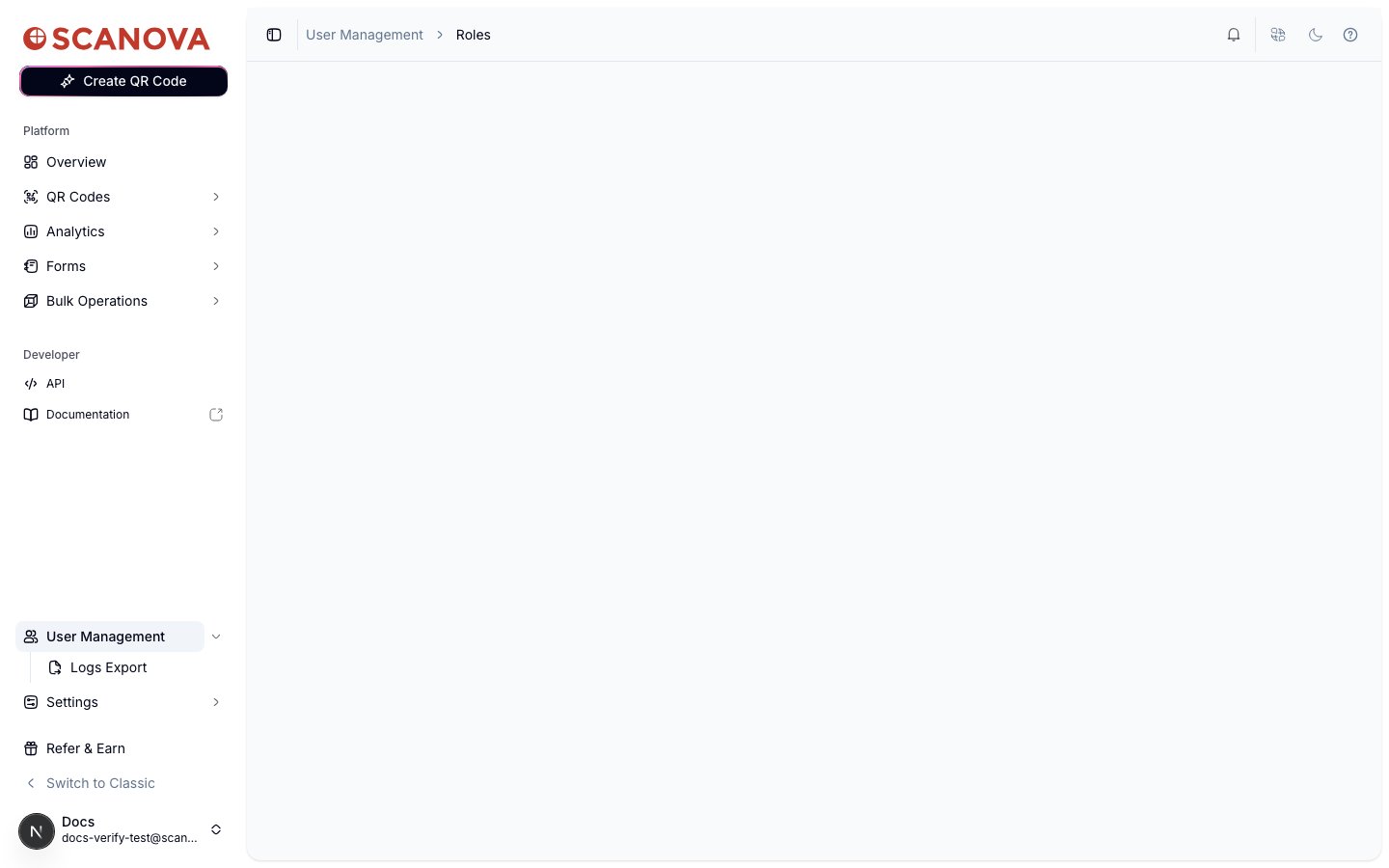
Creating and managing custom roles requires a dedicated quota on your plan. On a test Pro-plan account, the **Roles** tab is hidden from the sidebar entirely, and navigating directly to `/users/user-roles` loads an empty page — the component intentionally renders nothing rather than showing a broken table or a 403 error:
## Custom roles are plan-gated
Beyond the five default roles, an account can create fully **custom roles** with its own checkbox-per-permission selection, grouped by the same categories shown above. This is managed from the **Roles** tab (`/users/user-roles`), which lists every role — default and custom — with a **Create Role** button for accounts that have access.
Creating and managing custom roles requires a dedicated quota on your plan. On a test Pro-plan account, the **Roles** tab is hidden from the sidebar entirely, and navigating directly to `/users/user-roles` loads an empty page — the component intentionally renders nothing rather than showing a broken table or a 403 error:
 If your plan includes custom roles, expect the **Create Role** button to open a modal with a name field and the same category-grouped permission checkboxes shown in the read-only view above — just editable instead of disabled. Contact support if you believe your plan should include this and the Roles tab isn't showing up for you.
## Related
* [Shared users](/team/shared-users) — inviting teammates, assigning roles, and managing the Users table.
* [Upgrading your plan](/billing/upgrading) — custom roles are plan-gated; upgrading is how you unlock the quota that reveals the Roles tab.
If your plan includes custom roles, expect the **Create Role** button to open a modal with a name field and the same category-grouped permission checkboxes shown in the read-only view above — just editable instead of disabled. Contact support if you believe your plan should include this and the Roles tab isn't showing up for you.
## Related
* [Shared users](/team/shared-users) — inviting teammates, assigning roles, and managing the Users table.
* [Upgrading your plan](/billing/upgrading) — custom roles are plan-gated; upgrading is how you unlock the quota that reveals the Roles tab.