> ## Documentation Index
> Fetch the complete documentation index at: https://docs.scanova.io/llms.txt
> Use this file to discover all available pages before exploring further.
# Shared users
> Adding and managing shared users on your account.
The **Users** page (`/users`) is where you invite teammates to your account and manage everyone who already has access. Every invited teammate is a **shared user** — a separate login tied to a role that controls what they can see and do, distinct from your own account (the **Owner**).
## Inviting a user
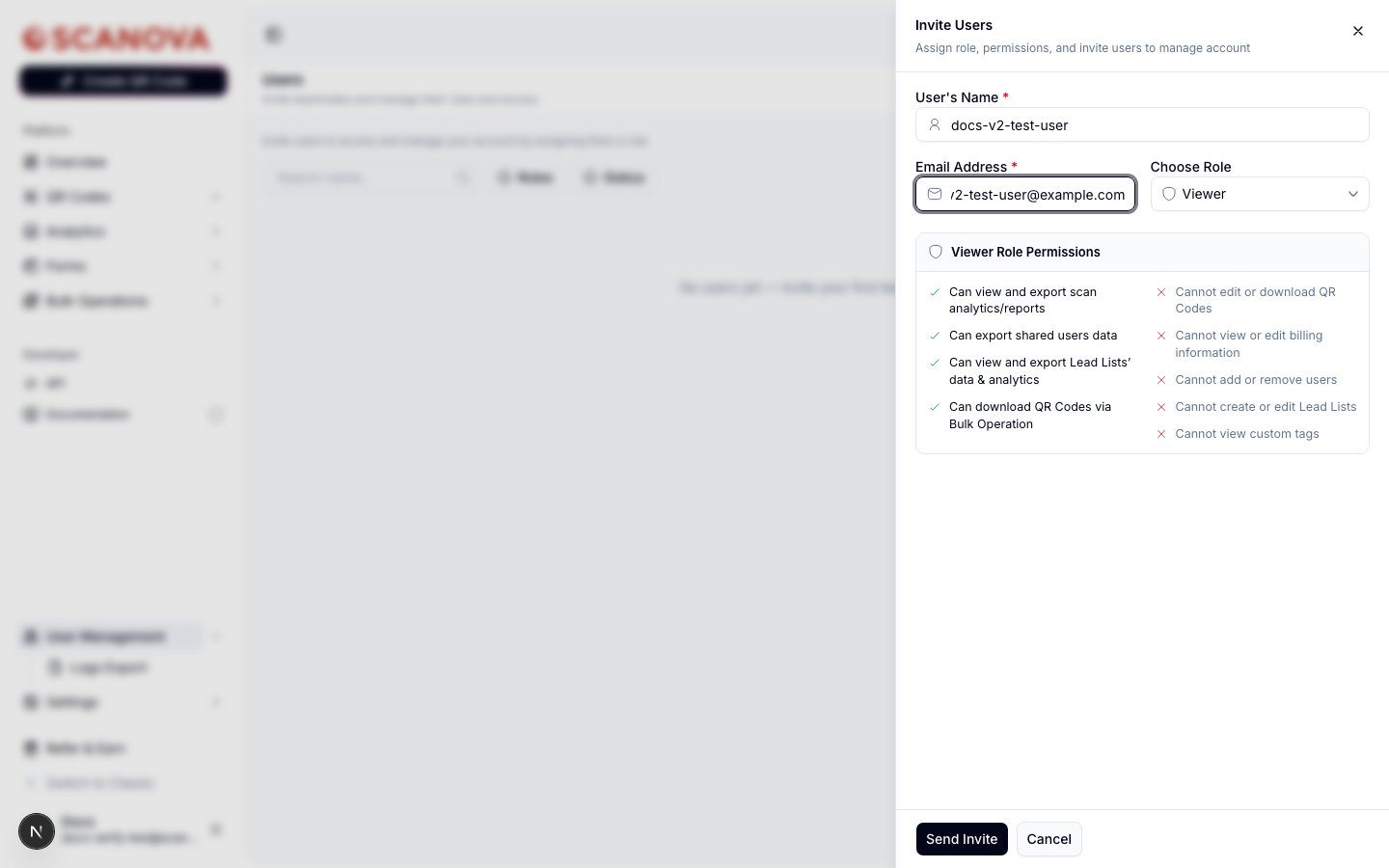
From the Users page, click **Invite User** in the top right.
Fill in **User's Name** and **Email Address**. Both are required before you can send the invite.
Pick a role from the **Choose Role** dropdown. The panel below it updates immediately with a live **Can / Cannot** breakdown for whichever role is selected — see [Roles & permissions](/team/roles-and-permissions) for what each of the six roles grants.
 This toggle only appears for accounts on a plan with the tag-based permissions feature. It wasn't available on the Pro-plan test account used to verify this page, so the description below is based on the drawer's source rather than a live screenshot.
By default, an invited user can see every QR code in the account. If your plan includes this feature, a **Tag-based Permission** switch appears below the role picker — turning it on reveals an **Assign Tags** multi-select plus an **Include access to untagged QR codes** checkbox, so you can scope a shared user down to only the QR codes carrying specific tags.
Click **Send Invite**. The invitation link is valid for **7 days** — a success toast confirms this, and the invite date shows up in the Users table.
An invited user starts in **Pending** status until they accept the invite. Click **Resend invite** on their row at any time if the original email didn't arrive or has expired.
## The Users table
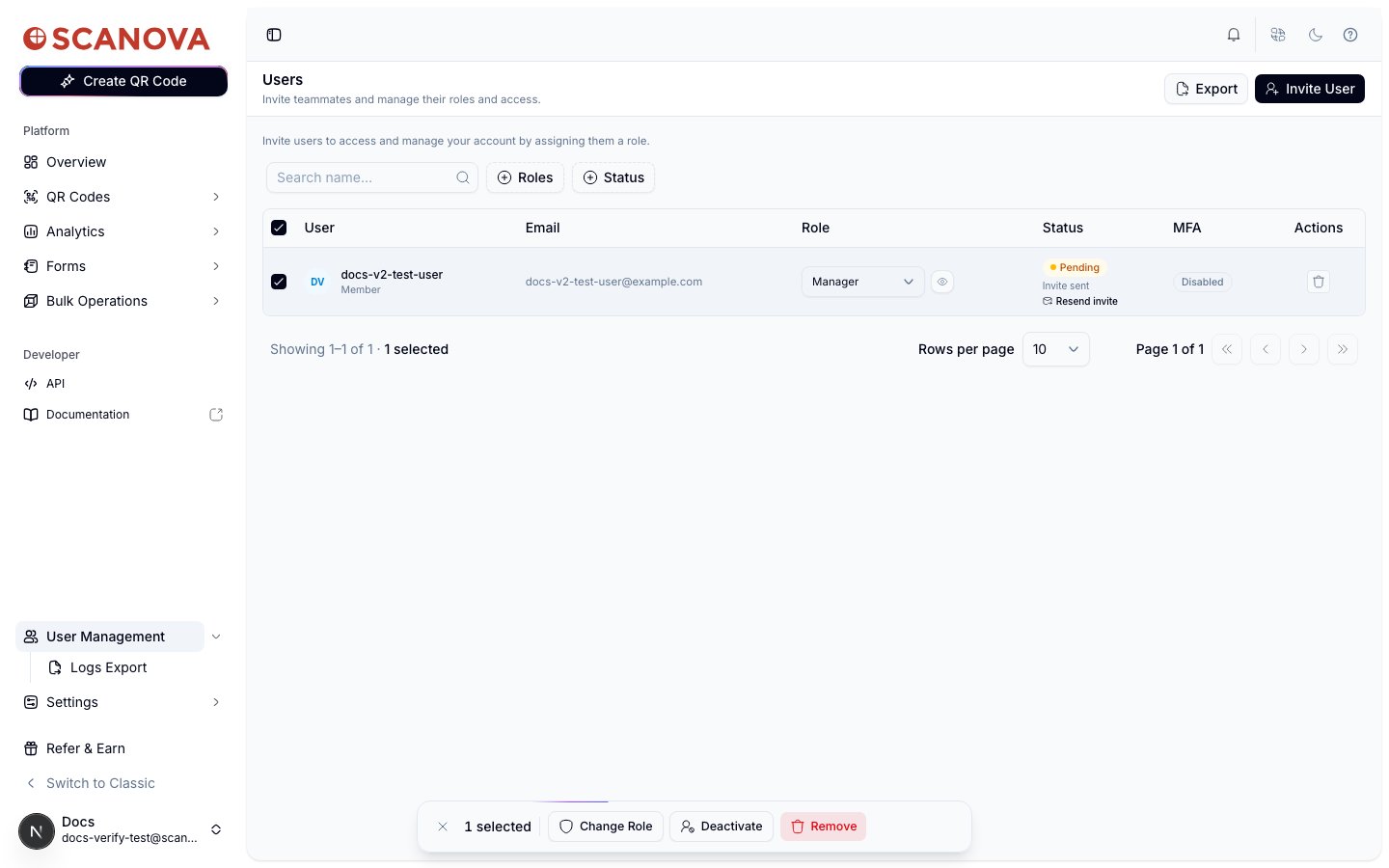
Every teammate you've invited shows up in a table with these columns:
| Column | What it shows |
| ----------- | -------------------------------------------------------------------------------------------------------------------------------------------- |
| **User** | Name and account type (e.g. Member) |
| **Email** | The invited email address |
| **Role** | An inline dropdown — change a user's role directly from the table, plus an eye icon to open a read-only view of that role's full permissions |
| **Status** | **Pending** (with a **Resend invite** link) or **Active** |
| **MFA** | Whether that user has multi-factor authentication enabled (hidden entirely for SSO-login accounts) |
| **Actions** | A remove (trash) icon for that single user |
Filter the table by **Roles** or **Status** using the two filter buttons above it, or search by name.
This toggle only appears for accounts on a plan with the tag-based permissions feature. It wasn't available on the Pro-plan test account used to verify this page, so the description below is based on the drawer's source rather than a live screenshot.
By default, an invited user can see every QR code in the account. If your plan includes this feature, a **Tag-based Permission** switch appears below the role picker — turning it on reveals an **Assign Tags** multi-select plus an **Include access to untagged QR codes** checkbox, so you can scope a shared user down to only the QR codes carrying specific tags.
Click **Send Invite**. The invitation link is valid for **7 days** — a success toast confirms this, and the invite date shows up in the Users table.
An invited user starts in **Pending** status until they accept the invite. Click **Resend invite** on their row at any time if the original email didn't arrive or has expired.
## The Users table
Every teammate you've invited shows up in a table with these columns:
| Column | What it shows |
| ----------- | -------------------------------------------------------------------------------------------------------------------------------------------- |
| **User** | Name and account type (e.g. Member) |
| **Email** | The invited email address |
| **Role** | An inline dropdown — change a user's role directly from the table, plus an eye icon to open a read-only view of that role's full permissions |
| **Status** | **Pending** (with a **Resend invite** link) or **Active** |
| **MFA** | Whether that user has multi-factor authentication enabled (hidden entirely for SSO-login accounts) |
| **Actions** | A remove (trash) icon for that single user |
Filter the table by **Roles** or **Status** using the two filter buttons above it, or search by name.
 ### Bulk actions
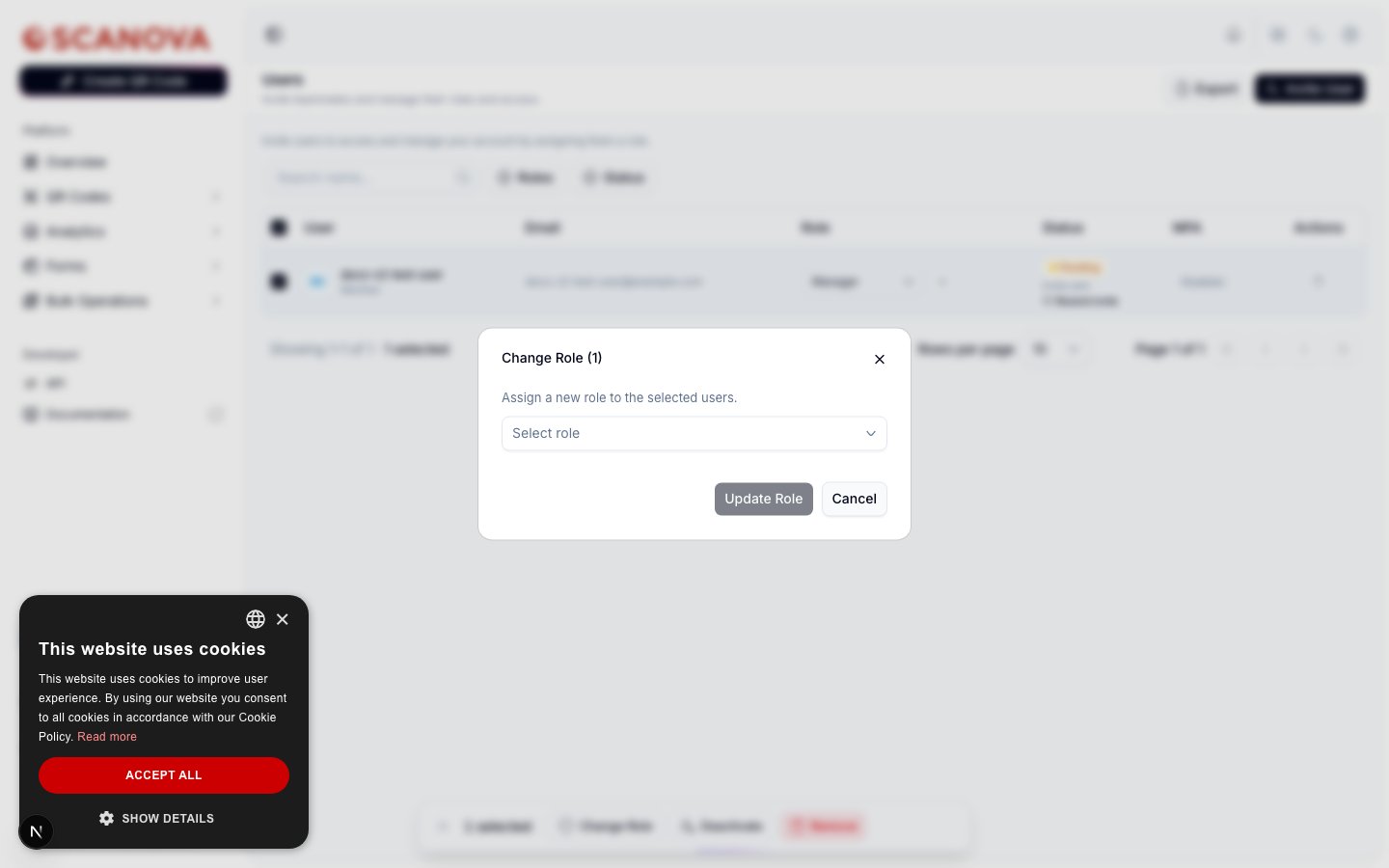
Select one or more rows with their checkboxes to reveal a floating toolbar with three bulk actions:
* **Change Role** — opens a small dialog to assign a new role to every selected user at once.
### Bulk actions
Select one or more rows with their checkboxes to reveal a floating toolbar with three bulk actions:
* **Change Role** — opens a small dialog to assign a new role to every selected user at once.
 * **Deactivate** — only affects users with **Active** status; pending invitations are excluded from a bulk deactivate even if their row is selected.
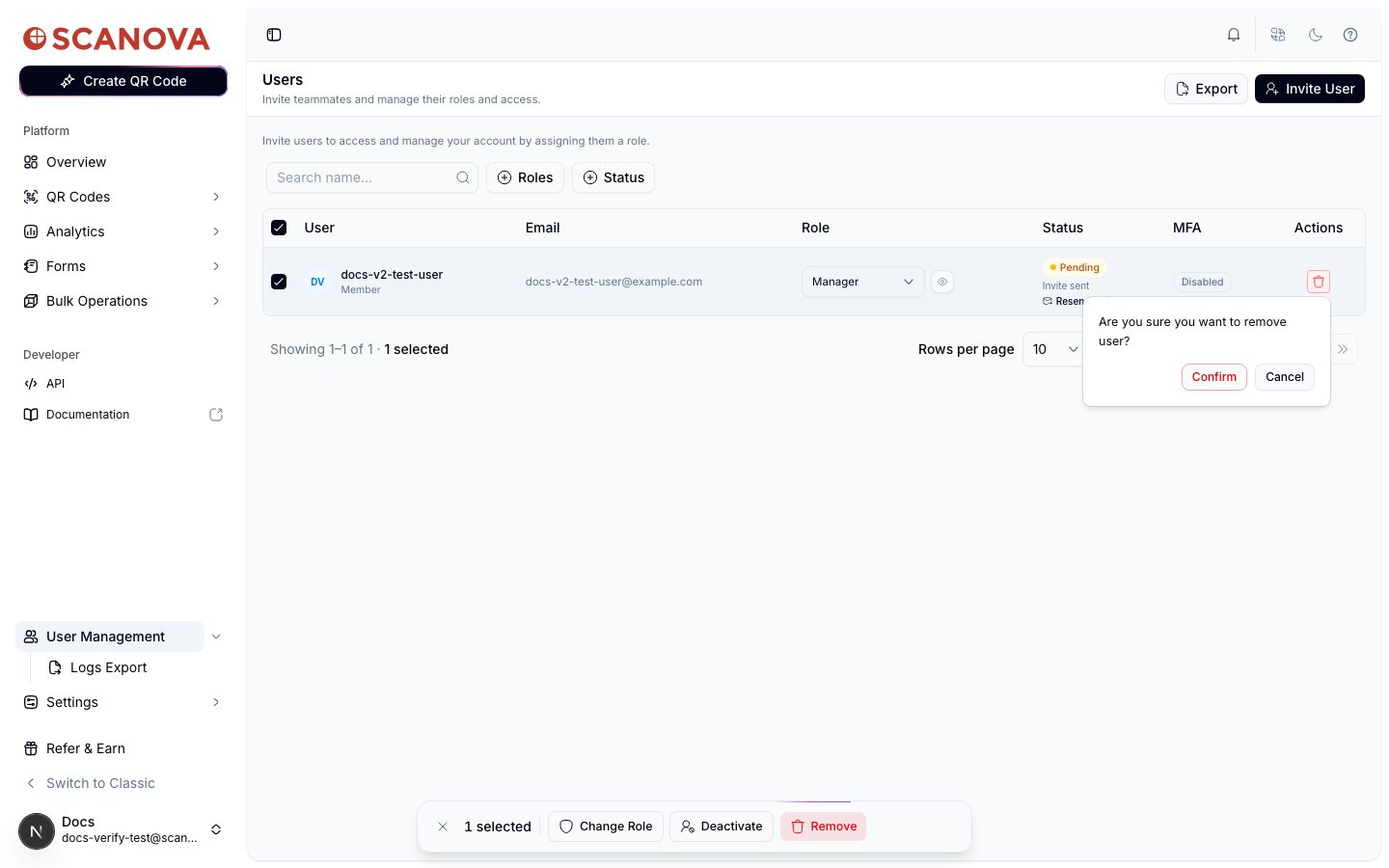
* **Remove** — permanently removes the selected shared user(s) from your account, after a confirmation.
* **Deactivate** — only affects users with **Active** status; pending invitations are excluded from a bulk deactivate even if their row is selected.
* **Remove** — permanently removes the selected shared user(s) from your account, after a confirmation.
 ### Per-user tag permissions
On accounts with the tag-based permissions feature enabled, each row gets an additional edit control for that user's tag scope — the same **Assign Tags** and **include untagged** options available at invite time, editable after the fact. As with the invite-time toggle, this control didn't appear on the Pro-plan test account used to verify this page (its `Tag Permissions` column in the CSV export, described below, showed `-` for every row).
### Exporting the list
Click **Export** in the page header to download a CSV of every shared user on the account — including the account Owner — with columns for role, invite/acceptance timestamps, status, tag permissions, MFA status, QR codes created, and last login.
## Related
* [Roles & permissions](/team/roles-and-permissions) — what each default role grants, and how custom roles work.
* [Single Sign-On](/authentication/sso) — on SSO-login accounts, the MFA column above is hidden entirely since the identity provider handles authentication.
### Per-user tag permissions
On accounts with the tag-based permissions feature enabled, each row gets an additional edit control for that user's tag scope — the same **Assign Tags** and **include untagged** options available at invite time, editable after the fact. As with the invite-time toggle, this control didn't appear on the Pro-plan test account used to verify this page (its `Tag Permissions` column in the CSV export, described below, showed `-` for every row).
### Exporting the list
Click **Export** in the page header to download a CSV of every shared user on the account — including the account Owner — with columns for role, invite/acceptance timestamps, status, tag permissions, MFA status, QR codes created, and last login.
## Related
* [Roles & permissions](/team/roles-and-permissions) — what each default role grants, and how custom roles work.
* [Single Sign-On](/authentication/sso) — on SSO-login accounts, the MFA column above is hidden entirely since the identity provider handles authentication.