> ## Documentation Index
> Fetch the complete documentation index at: https://docs.scanova.io/llms.txt
> Use this file to discover all available pages before exploring further.
# 个人资料与外观
> 管理您的个人资料、登录安全、企业信息、本地化设置和主题。
您的个人资料、登录安全、企业信息和本地化设置都位于 `/account` 下的 **Account** 选项卡中。另有一个独立的 **Appearance** 选项卡用于控制控制台的主题。两者都可以从侧边栏底部的账户菜单进入。
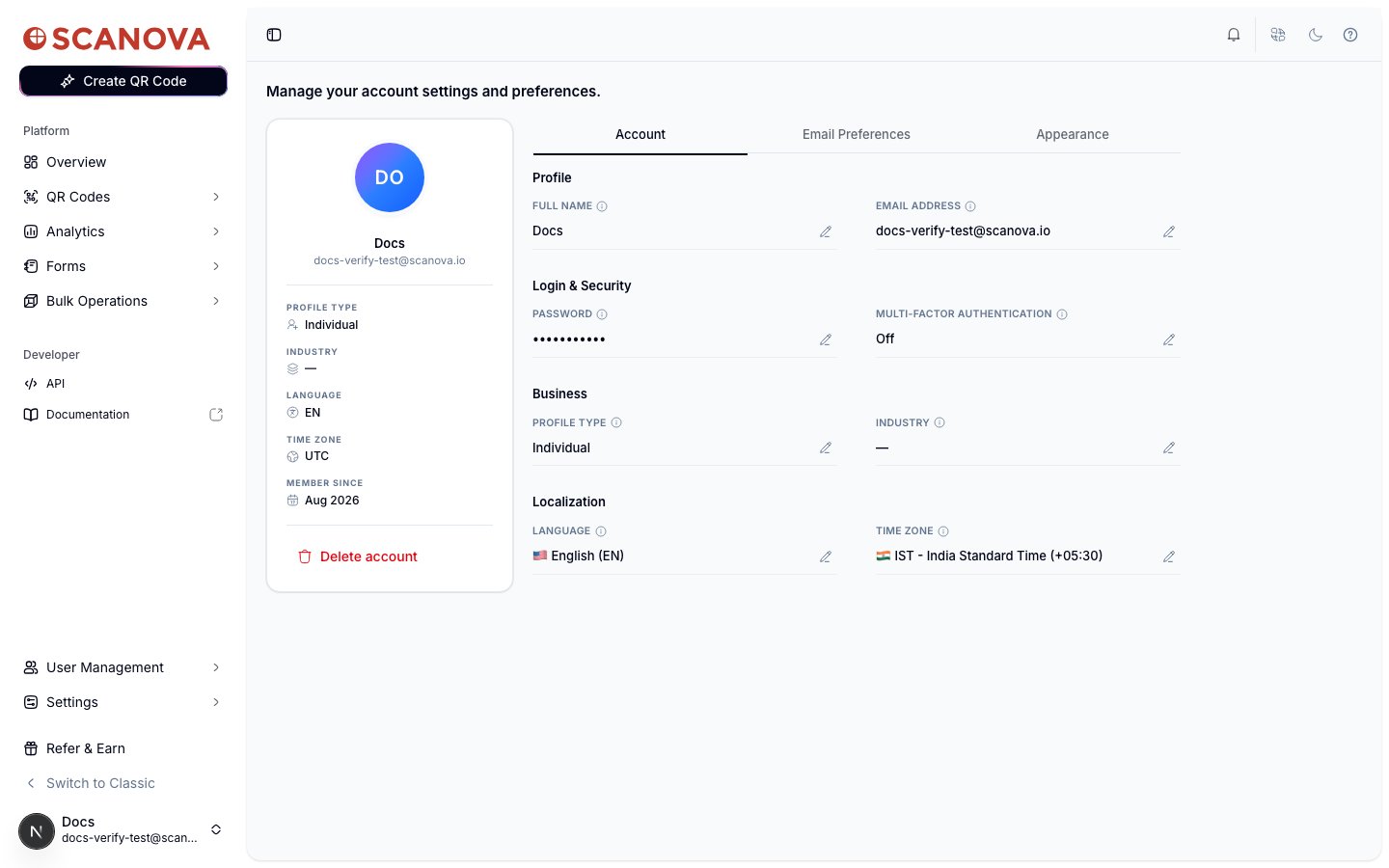 左侧卡片汇总了您的个人资料类型、行业、语言、时区以及您的加入日期("Member since"),另有一个 **Delete account** 链接。右侧面板用于进行修改。
您的头像会在一个彩色圆圈中显示您的姓名首字母(例如用户名为 "Docs" 时显示 "DO")——目前没有上传照片的选项。
## 修改您的姓名
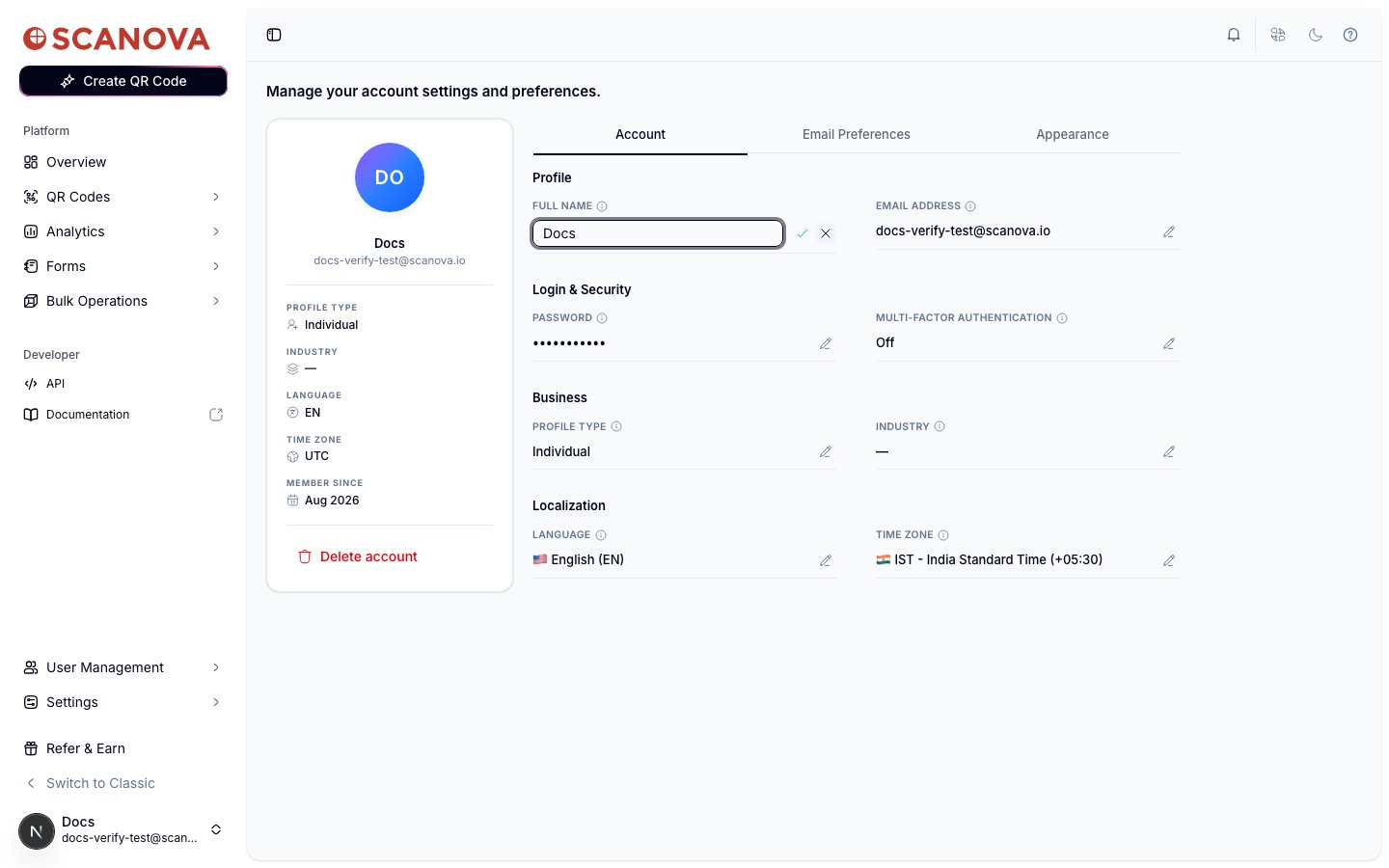
点击 **Full Name** 旁边的铅笔图标即可进行内联编辑。该字段会变为可编辑状态,并附有用于保存的对勾和用于取消的 X。
左侧卡片汇总了您的个人资料类型、行业、语言、时区以及您的加入日期("Member since"),另有一个 **Delete account** 链接。右侧面板用于进行修改。
您的头像会在一个彩色圆圈中显示您的姓名首字母(例如用户名为 "Docs" 时显示 "DO")——目前没有上传照片的选项。
## 修改您的姓名
点击 **Full Name** 旁边的铅笔图标即可进行内联编辑。该字段会变为可编辑状态,并附有用于保存的对勾和用于取消的 X。
 ## 更改您的邮箱
点击 **Email Address** 旁边的铅笔图标以打开 **Change Email** 面板。
该面板会显示您当前的邮箱(只读)以及一个 **New email** 字段。输入您想要切换到的地址。
## 更改您的邮箱
点击 **Email Address** 旁边的铅笔图标以打开 **Change Email** 面板。
该面板会显示您当前的邮箱(只读)以及一个 **New email** 字段。输入您想要切换到的地址。
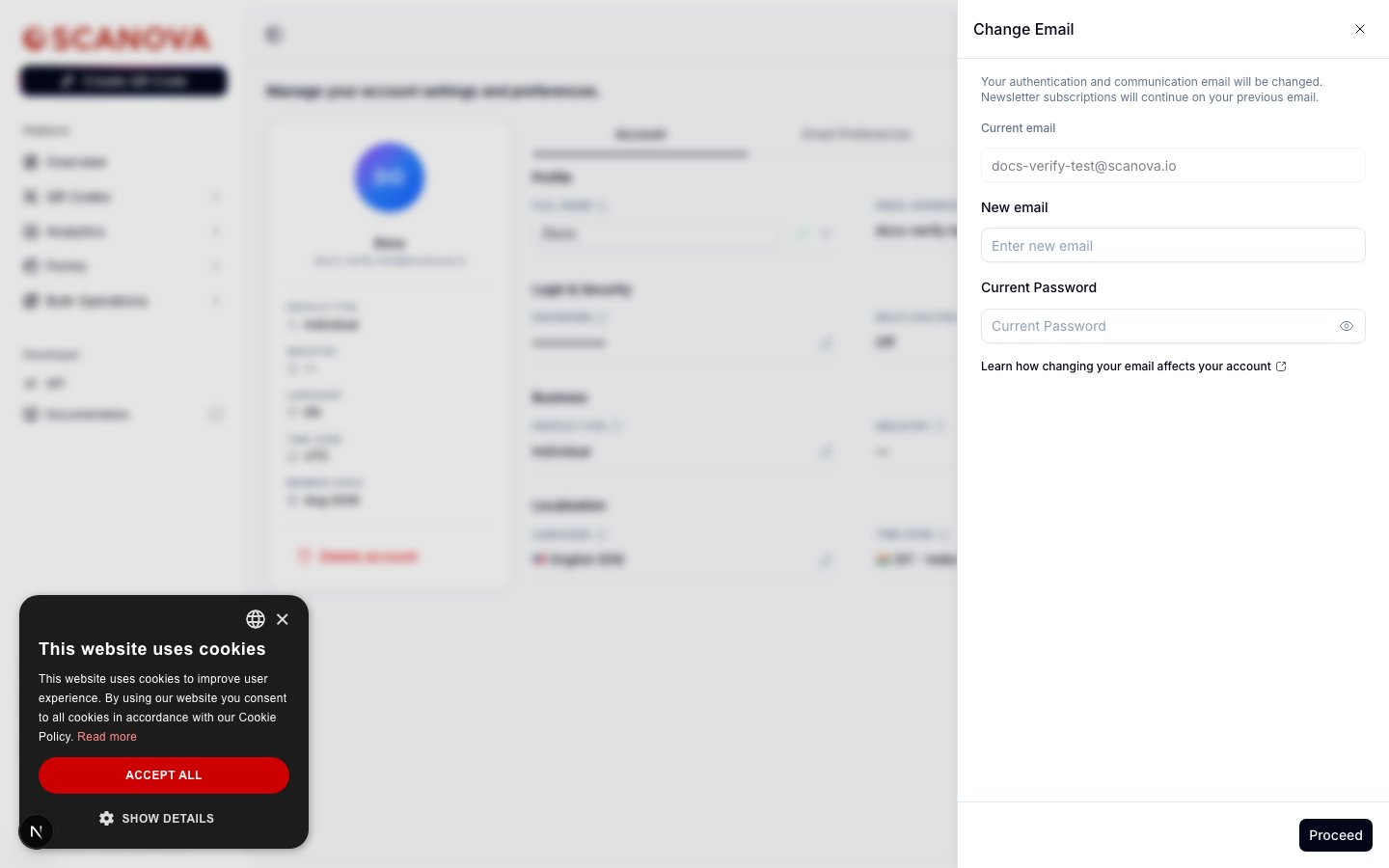 在 **Current Password** 字段中输入您当前的密码,然后点击 **Proceed**。
Scanova 会向您的新邮箱发送一个 6 位数验证码。输入该验证码以完成更改。
更改邮箱会将您登出——您需要使用新地址重新登录。正如面板中所提示的,新闻订阅仍会继续发送到您之前的邮箱。
如果您是通过 Google 或其他 SSO 提供商注册的,邮箱字段将不可编辑——您的邮箱由该身份提供商管理。
## 密码与多因素身份验证
**Login & Security** 部分会以掩码形式显示您的密码,并以 **Off** 或 **On · \{method}** 显示您的 MFA 状态。点击任一铅笔图标即可打开对应的面板:
* **Password** 会打开 **Change Password**,要求输入您当前的密码以及新密码(8–200 个字符)并进行确认。
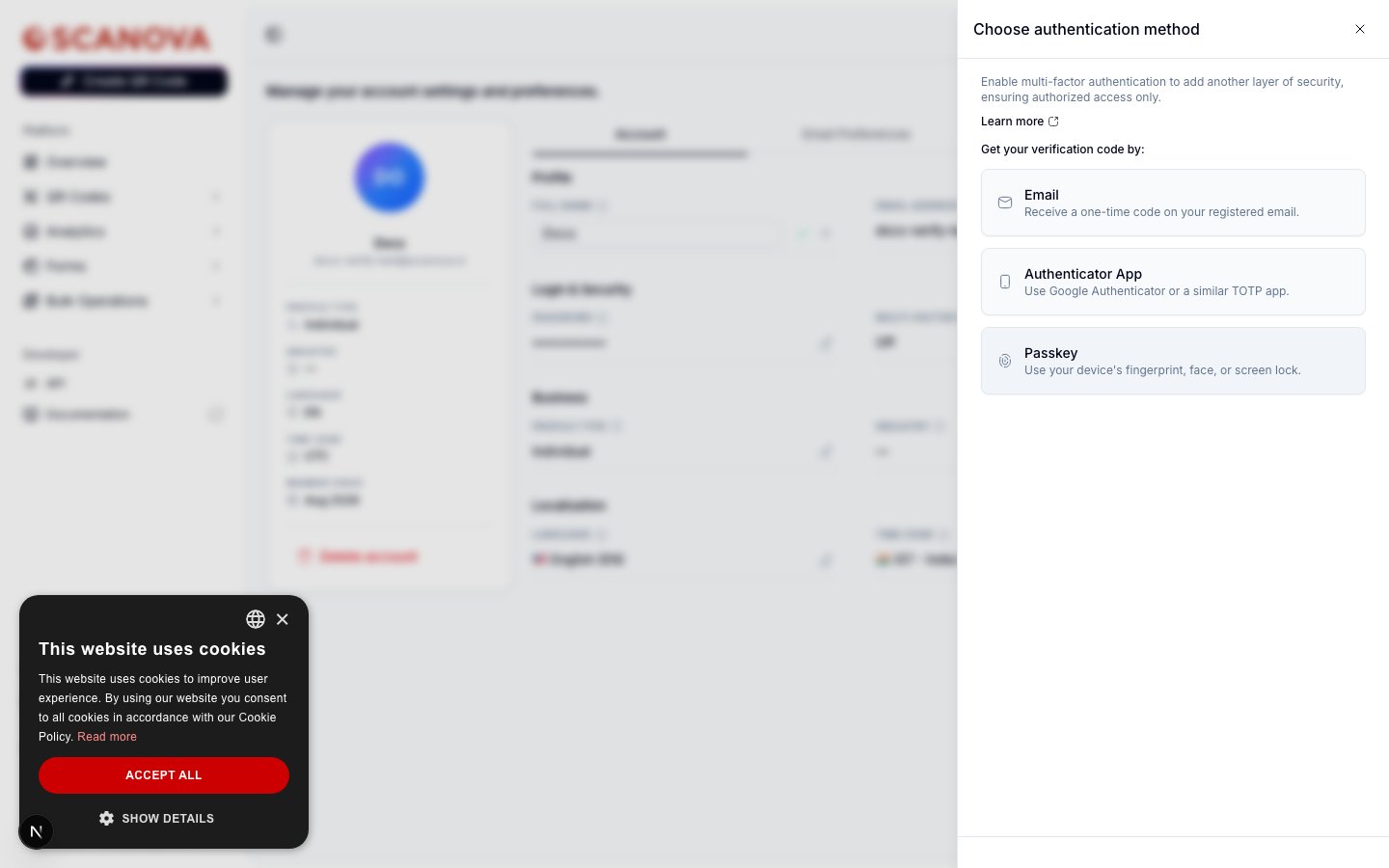
* **Multi-factor authentication** 会打开一个方法选择器,可选择 **Email**、**Authenticator App** 或 **Passkey**。
在 **Current Password** 字段中输入您当前的密码,然后点击 **Proceed**。
Scanova 会向您的新邮箱发送一个 6 位数验证码。输入该验证码以完成更改。
更改邮箱会将您登出——您需要使用新地址重新登录。正如面板中所提示的,新闻订阅仍会继续发送到您之前的邮箱。
如果您是通过 Google 或其他 SSO 提供商注册的,邮箱字段将不可编辑——您的邮箱由该身份提供商管理。
## 密码与多因素身份验证
**Login & Security** 部分会以掩码形式显示您的密码,并以 **Off** 或 **On · \{method}** 显示您的 MFA 状态。点击任一铅笔图标即可打开对应的面板:
* **Password** 会打开 **Change Password**,要求输入您当前的密码以及新密码(8–200 个字符)并进行确认。
* **Multi-factor authentication** 会打开一个方法选择器,可选择 **Email**、**Authenticator App** 或 **Passkey**。
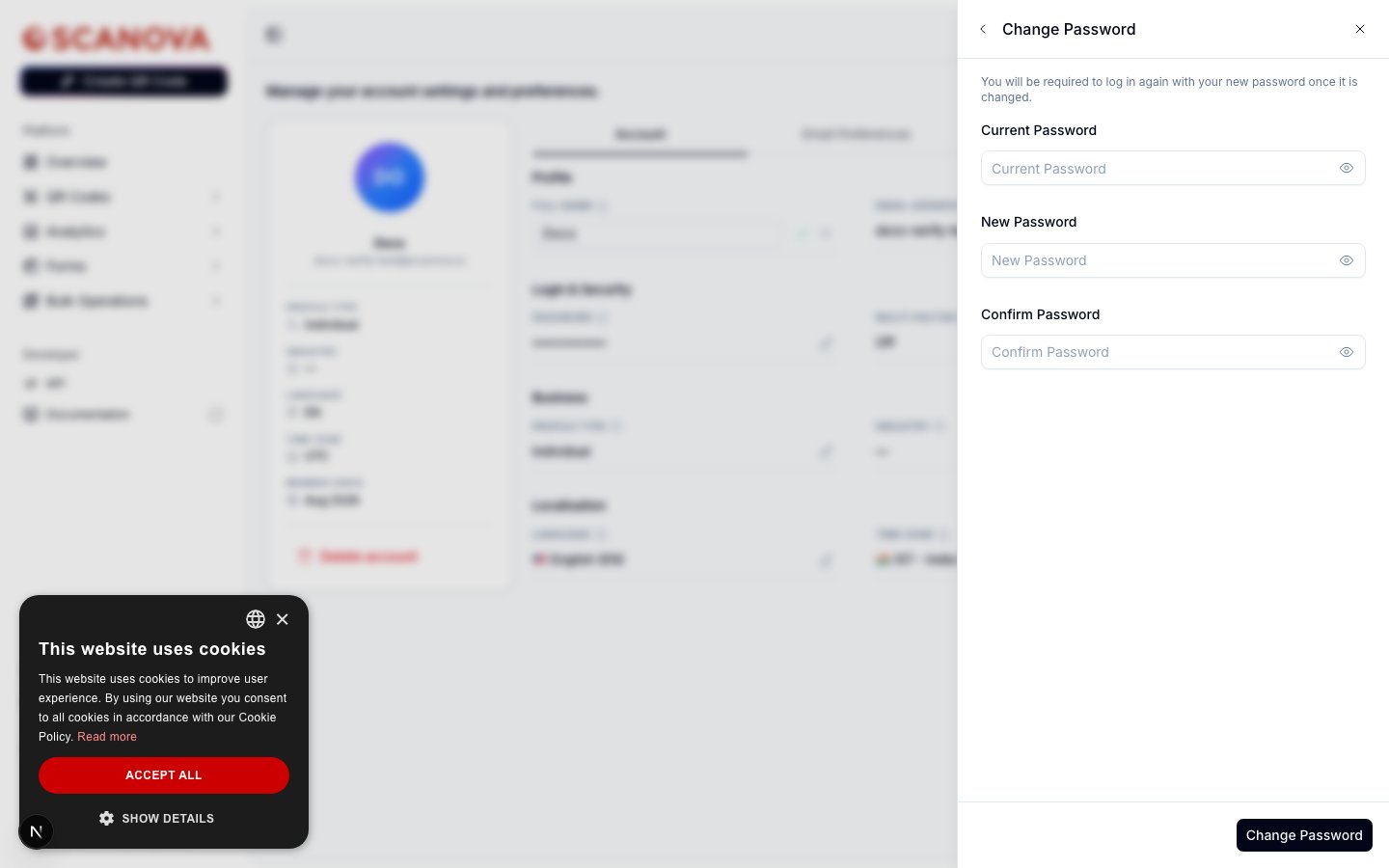
 有关每种方法的完整设置说明,请参阅[多因素身份验证](/zh/authentication/multi-factor-authentication)。如需重置忘记的密码,请参阅[密码重置](/zh/authentication/password-reset)。
## 企业信息
**Business** 部分记录您的个人资料类型和行业——用于定制推荐内容,而非用于限制功能。点击任一铅笔图标即可打开 **Edit profile** 面板。
有关每种方法的完整设置说明,请参阅[多因素身份验证](/zh/authentication/multi-factor-authentication)。如需重置忘记的密码,请参阅[密码重置](/zh/authentication/password-reset)。
## 企业信息
**Business** 部分记录您的个人资料类型和行业——用于定制推荐内容,而非用于限制功能。点击任一铅笔图标即可打开 **Edit profile** 面板。
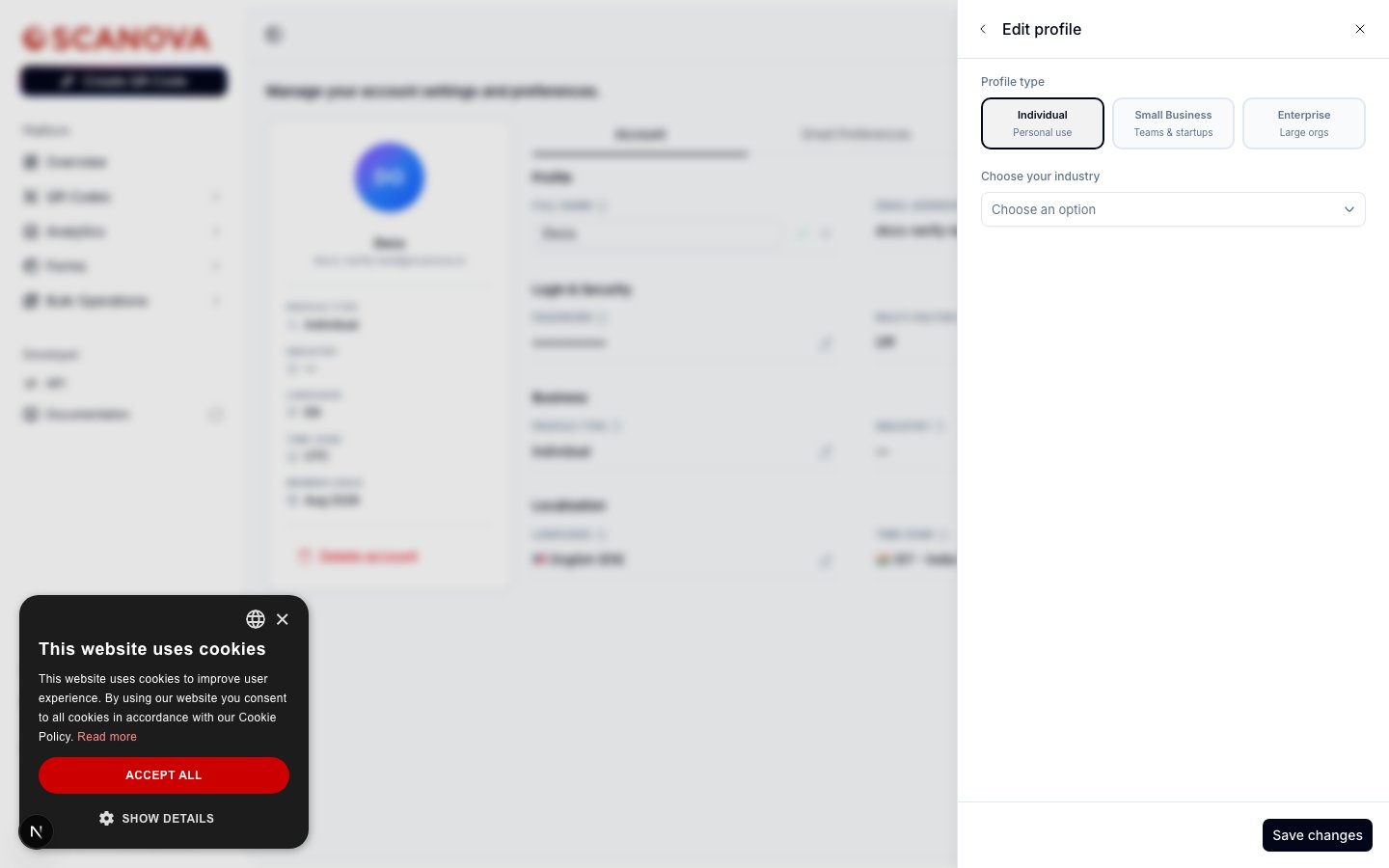 **Profile type** 为以下之一:
* **Individual** —— 个人使用
* **Small Business** —— 团队与初创企业
* **Enterprise** —— 大型组织
**Industry** 是一个下拉菜单,其选项取决于您所选的个人资料类型——对于 **Individual**,可选项为 **Consultant**、**Freelance**、**Student** 和 **Other**。
**Profile type** 为以下之一:
* **Individual** —— 个人使用
* **Small Business** —— 团队与初创企业
* **Enterprise** —— 大型组织
**Industry** 是一个下拉菜单,其选项取决于您所选的个人资料类型——对于 **Individual**,可选项为 **Consultant**、**Freelance**、**Student** 和 **Other**。
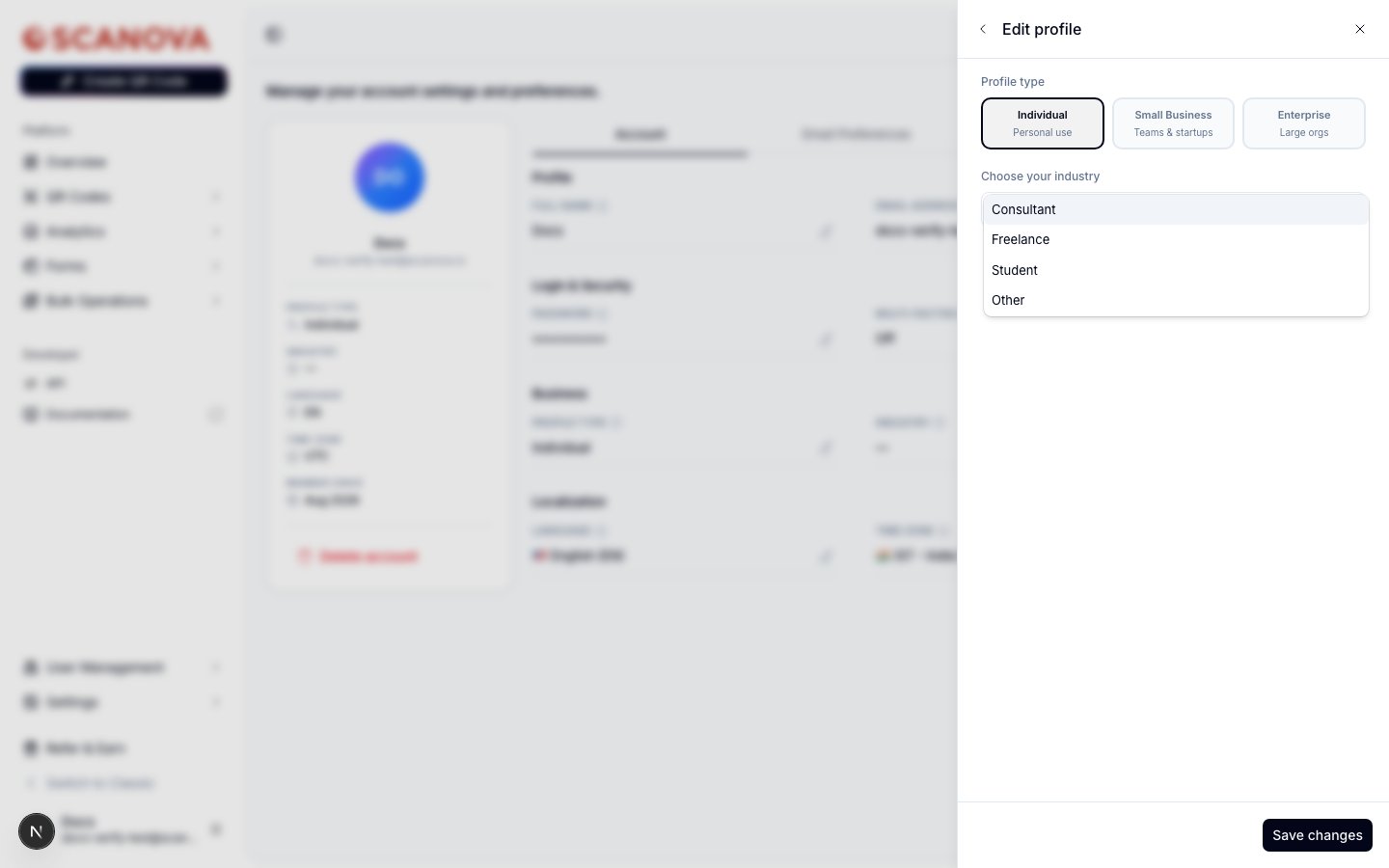 点击 **Save changes** 以应用更改。
## 本地化
**Localization** 部分控制 Scanova 为您使用的语言和时区。点击 **Language** 或 **Time Zone** 下的任一铅笔图标即可打开 **Edit localization** 面板。
点击 **Save changes** 以应用更改。
## 本地化
**Localization** 部分控制 Scanova 为您使用的语言和时区。点击 **Language** 或 **Time Zone** 下的任一铅笔图标即可打开 **Edit localization** 面板。
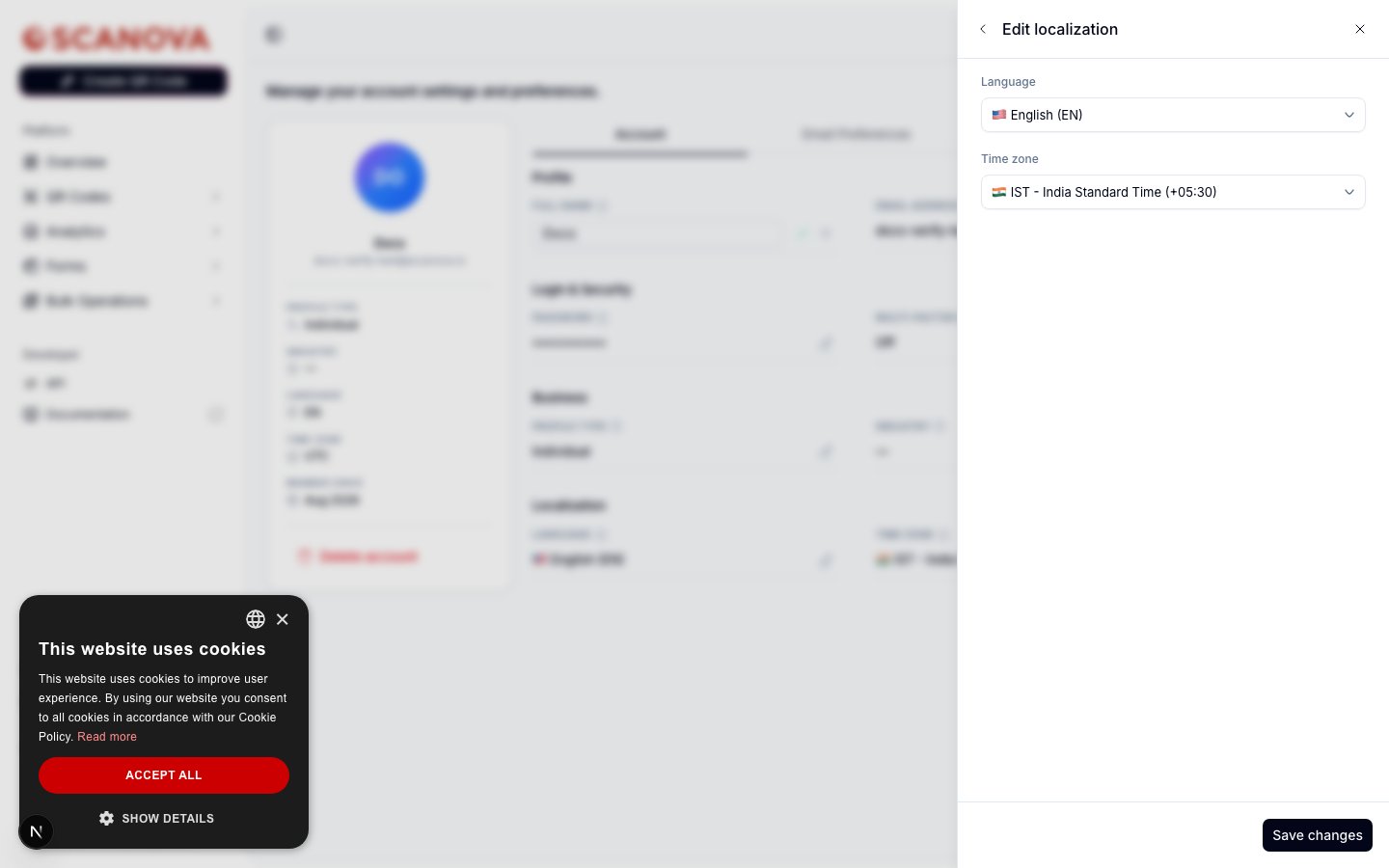 * **Language** —— English、Español、Français 或 Deutsch。
* **Time zone** —— 一份固定的约二十多个时区的列表(从萨摩亚到新西兰),每个时区都标注了其 UTC 偏移量,例如 **IST - India Standard Time (+05:30)**。
点击 **Save changes** 以应用更改——该更改会立即在整个控制台中生效。
## Appearance 选项卡
**Appearance** 选项卡(`/account/appearance`)与 Account 选项卡是分开的,仅控制控制台的视觉主题。
* **Language** —— English、Español、Français 或 Deutsch。
* **Time zone** —— 一份固定的约二十多个时区的列表(从萨摩亚到新西兰),每个时区都标注了其 UTC 偏移量,例如 **IST - India Standard Time (+05:30)**。
点击 **Save changes** 以应用更改——该更改会立即在整个控制台中生效。
## Appearance 选项卡
**Appearance** 选项卡(`/account/appearance`)与 Account 选项卡是分开的,仅控制控制台的视觉主题。
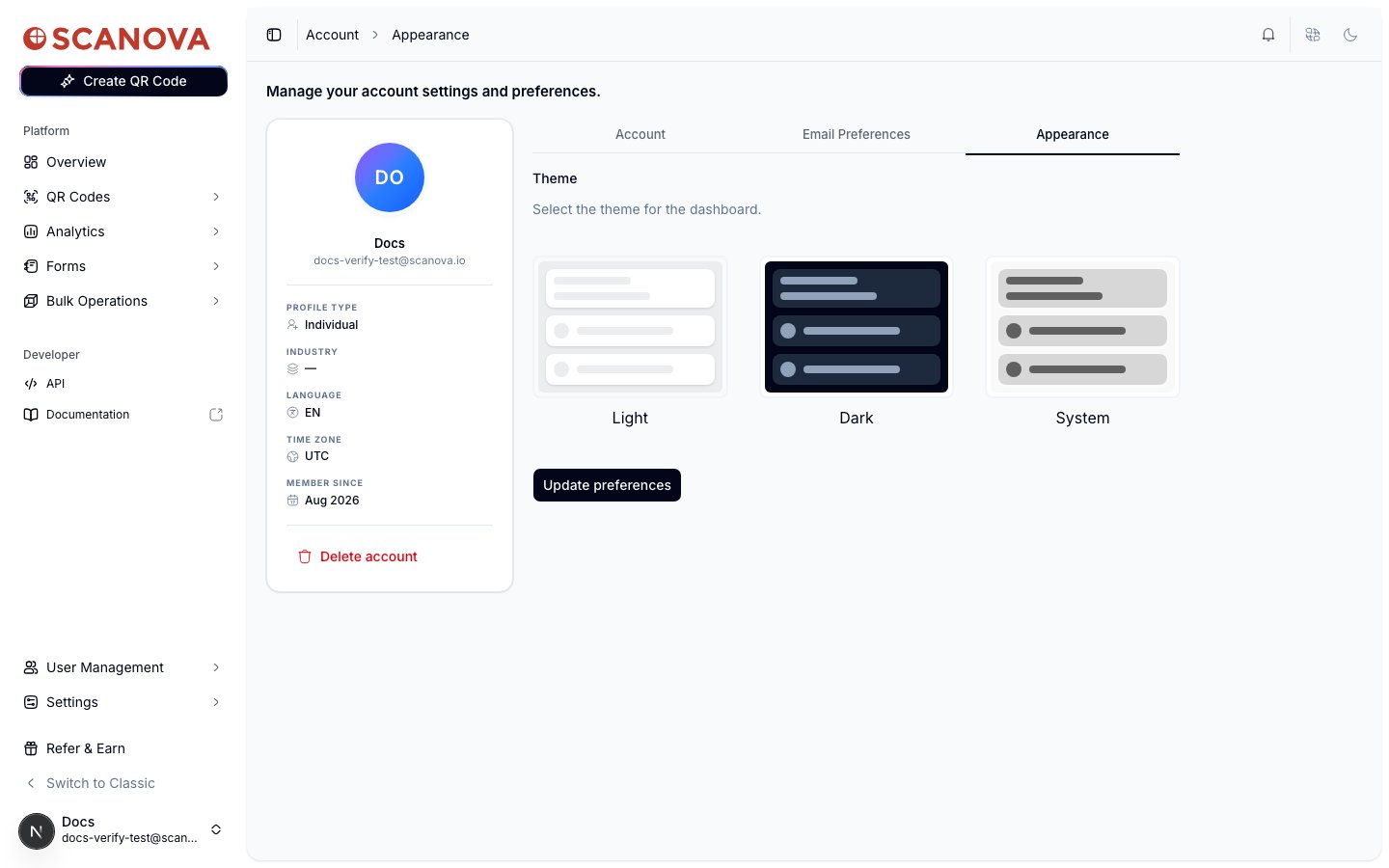 选择 **Light**、**Dark** 或 **System**(跟随您的操作系统设置)——更改会立即预览生效。点击 **Update preferences** 可将您的选择持久保存到账户,使其在各设备和会话之间保持一致。
顶部栏中的月亮/太阳图标可以在当前会话中即时切换浅色和深色模式,而无需打开此选项卡——当您希望将选择保存到账户,或想选择 **System** 时,请使用 Appearance 选项卡。
## 删除您的账户
个人资料卡片底部红色的 **Delete account** 会启动一个多步骤流程:需要填写离开原因,随后是根据该原因定制的挽留页面(折扣、支持联系方式或功能提醒),最后是一个需要输入密码(或通过 Google 重新认证)并勾选确认框的最终确认步骤。一旦确认,删除会立即生效且无法撤销。
## 相关内容
* [多因素身份验证](/zh/authentication/multi-factor-authentication) —— 从本页 Login & Security 部分打开的 Manage MFA 面板的完整设置说明。
* [邮件偏好设置](/zh/account/email-preferences) —— 同属 Account 下的另一个选项卡,用于控制您接收哪些事务性和营销邮件。
* [密码重置](/zh/authentication/password-reset) —— 如果您忘记了 Login & Security 中管理的密码,可通过此方式恢复访问权限。
选择 **Light**、**Dark** 或 **System**(跟随您的操作系统设置)——更改会立即预览生效。点击 **Update preferences** 可将您的选择持久保存到账户,使其在各设备和会话之间保持一致。
顶部栏中的月亮/太阳图标可以在当前会话中即时切换浅色和深色模式,而无需打开此选项卡——当您希望将选择保存到账户,或想选择 **System** 时,请使用 Appearance 选项卡。
## 删除您的账户
个人资料卡片底部红色的 **Delete account** 会启动一个多步骤流程:需要填写离开原因,随后是根据该原因定制的挽留页面(折扣、支持联系方式或功能提醒),最后是一个需要输入密码(或通过 Google 重新认证)并勾选确认框的最终确认步骤。一旦确认,删除会立即生效且无法撤销。
## 相关内容
* [多因素身份验证](/zh/authentication/multi-factor-authentication) —— 从本页 Login & Security 部分打开的 Manage MFA 面板的完整设置说明。
* [邮件偏好设置](/zh/account/email-preferences) —— 同属 Account 下的另一个选项卡,用于控制您接收哪些事务性和营销邮件。
* [密码重置](/zh/authentication/password-reset) —— 如果您忘记了 Login & Security 中管理的密码,可通过此方式恢复访问权限。