> ## Documentation Index
> Fetch the complete documentation index at: https://docs.scanova.io/llms.txt
> Use this file to discover all available pages before exploring further.
# 回收站、恢复与永久删除
> 从回收站恢复或永久删除二维码。
从主列表中删除二维码不会立即移除它——这是一次软删除。该二维码会被移动到回收站,您有 30 天时间可以恢复它,之后才会永久消失。
## 从二维码列表中删除
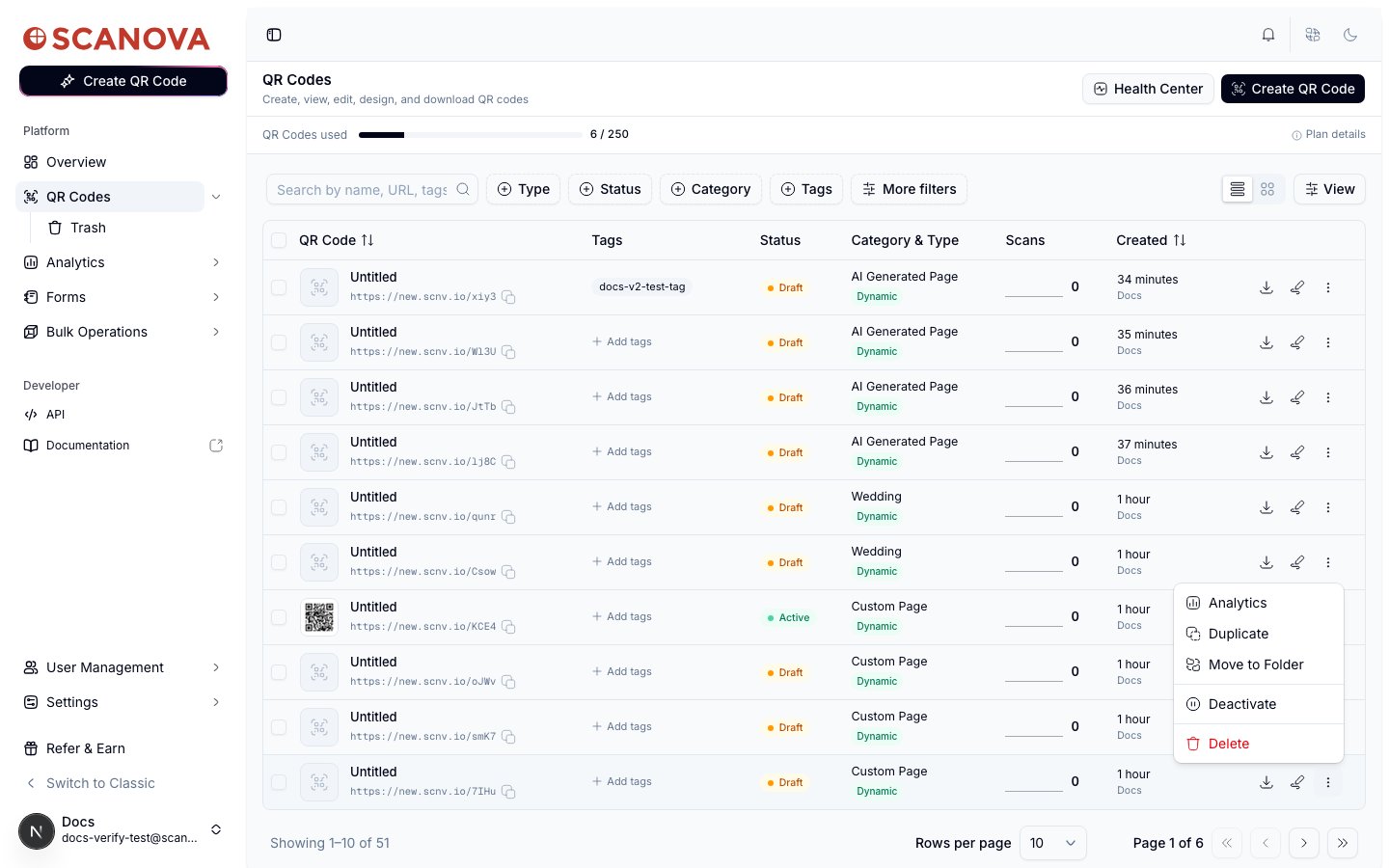
在 `/qr/list` 中,点击某个二维码所在行末尾的 **···** 菜单,选择 **Delete**。
确认对话框会指明该二维码的名称,并显示:"Are you sure you want to move it to Trash? It will be permanently deleted after 30 days."。点击 **Move to Trash** 确认。
一条提示会立即出现,指明该二维码的名称并确认它已被移入回收站,提示中直接带有一个 **Undo** 按钮。点击它即可立即恢复该二维码——完全无需前往回收站页面。
 选中多个二维码并使用批量 **Delete** 操作的工作方式相同——一次确认、一条提示、一个 **Undo** 覆盖整批操作。更多批量操作内容参见[文件夹、标签与批量操作](/zh/qr-codes/manage/folders-tags-bulk-operations)。
Undo 提示是恢复刚刚误删二维码的最快方式。一旦它消失(或您将其关闭),您仍然可以从回收站页面恢复该二维码——只是需要多点几次。
## 回收站页面
在侧边栏的二维码分类下访问 **Trash**,或直接前往 `/qr/trash`,即可查看您删除过的所有二维码。
选中多个二维码并使用批量 **Delete** 操作的工作方式相同——一次确认、一条提示、一个 **Undo** 覆盖整批操作。更多批量操作内容参见[文件夹、标签与批量操作](/zh/qr-codes/manage/folders-tags-bulk-operations)。
Undo 提示是恢复刚刚误删二维码的最快方式。一旦它消失(或您将其关闭),您仍然可以从回收站页面恢复该二维码——只是需要多点几次。
## 回收站页面
在侧边栏的二维码分类下访问 **Trash**,或直接前往 `/qr/trash`,即可查看您删除过的所有二维码。
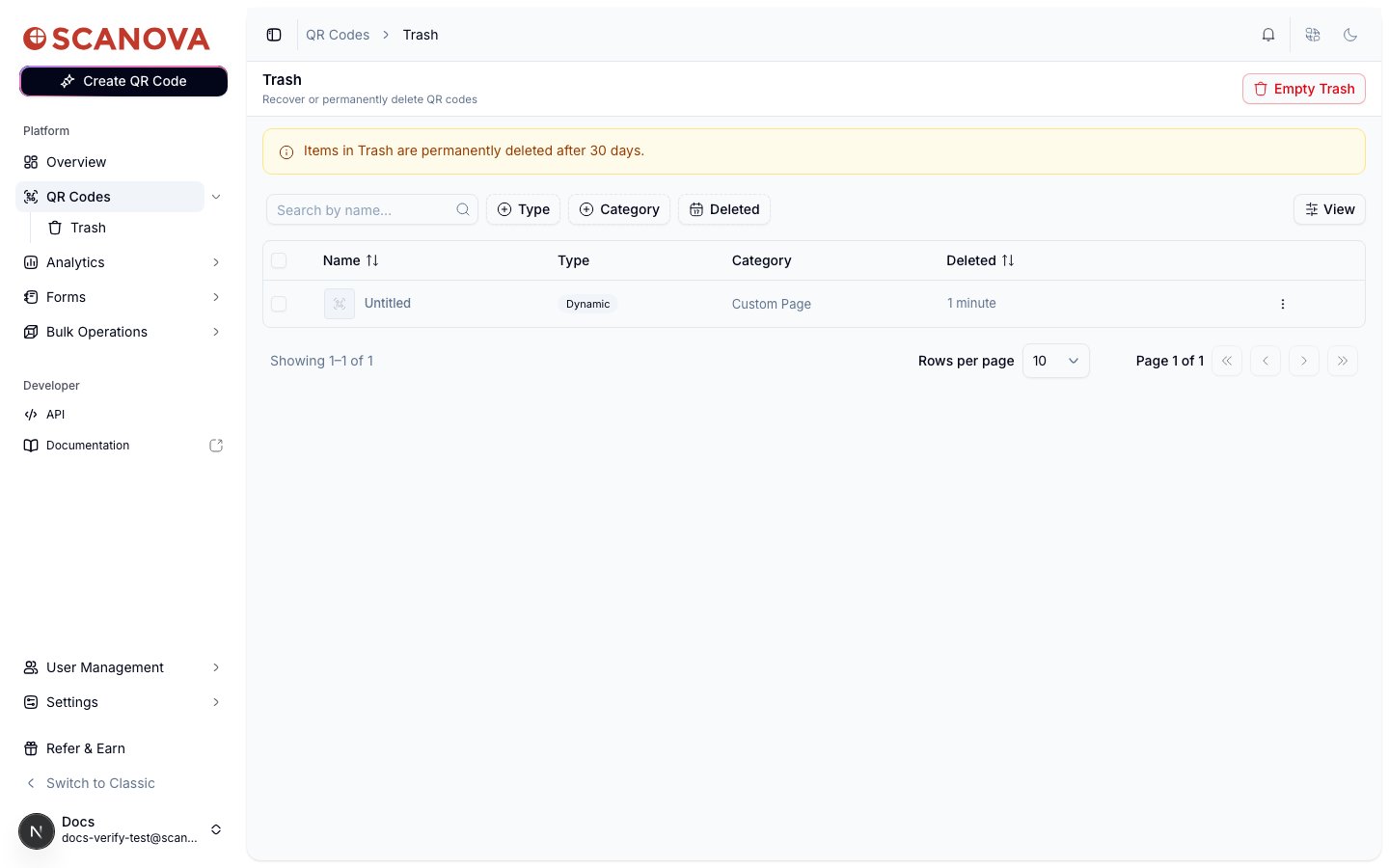 顶部的横幅明确说明了保留策略:"Items in Trash are permanently deleted after 30 days."。这是一条真实、强制执行的限制——一旦某个条目在回收站中超过 30 天,无论您是否再次访问此页面,它都会被自动清除。
该列表支持与主二维码列表相同的 **Type**、**Category** 筛选,以及一个 **Deleted** 日期筛选,另外还支持按名称搜索,方便您在大量回收内容中找到特定的已删除二维码。
### 恢复或永久删除单个二维码
打开回收站中某一行的 **···** 菜单,可看到两个选项:
顶部的横幅明确说明了保留策略:"Items in Trash are permanently deleted after 30 days."。这是一条真实、强制执行的限制——一旦某个条目在回收站中超过 30 天,无论您是否再次访问此页面,它都会被自动清除。
该列表支持与主二维码列表相同的 **Type**、**Category** 筛选,以及一个 **Deleted** 日期筛选,另外还支持按名称搜索,方便您在大量回收内容中找到特定的已删除二维码。
### 恢复或永久删除单个二维码
打开回收站中某一行的 **···** 菜单,可看到两个选项:
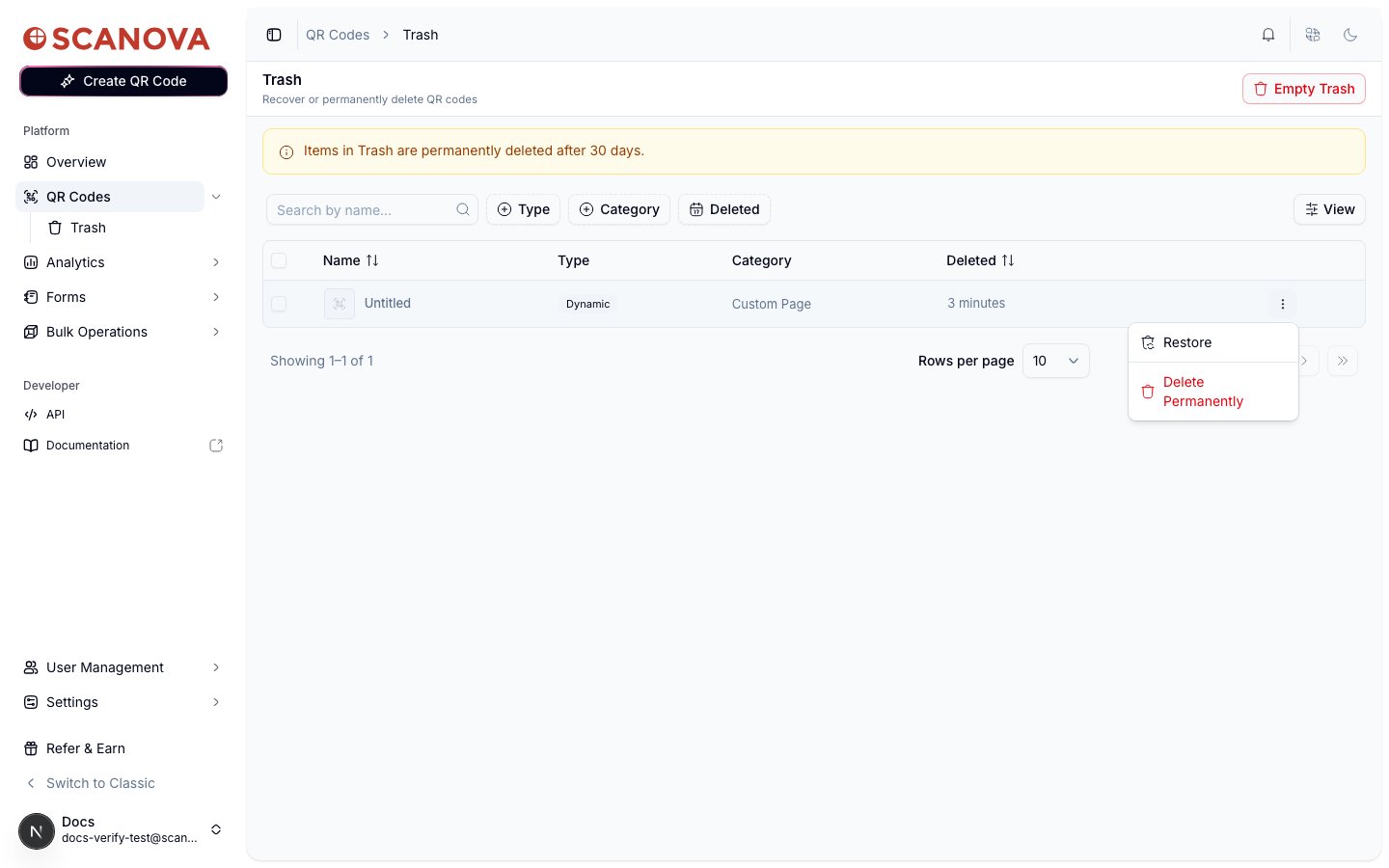 * **Restore** — 将二维码恢复到主列表中,重新变为激活状态,会先弹出确认对话框,指明该二维码并确认:"…from Trash? It will become active again."。
* **Delete Permanently** — 立即且不可逆地删除该二维码。确认对话框对此说得很明确:
* **Restore** — 将二维码恢复到主列表中,重新变为激活状态,会先弹出确认对话框,指明该二维码并确认:"…from Trash? It will become active again."。
* **Delete Permanently** — 立即且不可逆地删除该二维码。确认对话框对此说得很明确:
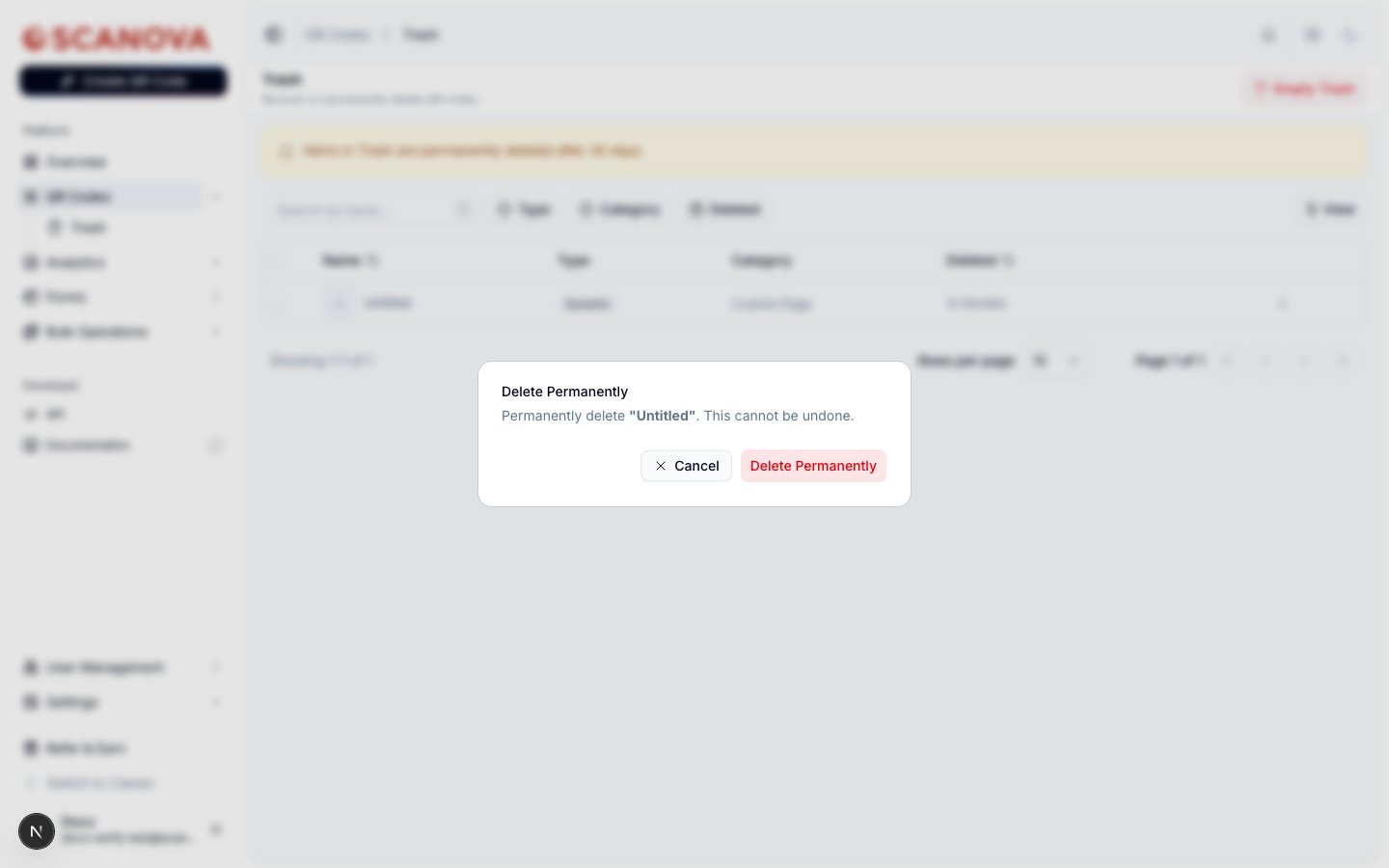 **Delete Permanently** 没有撤销选项——与主列表中的软删除不同,这个确认对话框的措辞就是字面意思。
### 批量恢复与批量删除
使用行复选框在回收站中选择多行,即可弹出与主二维码列表相同的悬浮批量操作栏,可用的两个批量操作是 **Restore** 和 **Delete Permanently**。每个操作都会在对话框标题中显示受影响的数量(例如 "Delete Permanently (3)")。
### 清空整个回收站
页头的 **Empty Trash** 按钮(仅在回收站非空时显示)会在一次确认对话框之后,一次性永久删除回收站中当前的所有二维码。请仅在您确定回收站中没有任何值得保留的内容时使用此功能——它会一次性跳过所有条目的 30 天宽限期。
## 相关内容
* [文件夹、标签与批量操作](/zh/qr-codes/manage/folders-tags-bulk-operations) — 一步将多个二维码移入回收站的批量 Delete 操作。
* [QR Health Center](/zh/qr-codes/manage/qr-health-center) — 汇总您活跃二维码中的问题,以便在清空回收站之前了解哪些内容值得保留。
* [您的第一个二维码](/zh/getting-started/first-qr-code) — 创建二维码的基础知识,帮助理解回收站中内容的来源背景。
**Delete Permanently** 没有撤销选项——与主列表中的软删除不同,这个确认对话框的措辞就是字面意思。
### 批量恢复与批量删除
使用行复选框在回收站中选择多行,即可弹出与主二维码列表相同的悬浮批量操作栏,可用的两个批量操作是 **Restore** 和 **Delete Permanently**。每个操作都会在对话框标题中显示受影响的数量(例如 "Delete Permanently (3)")。
### 清空整个回收站
页头的 **Empty Trash** 按钮(仅在回收站非空时显示)会在一次确认对话框之后,一次性永久删除回收站中当前的所有二维码。请仅在您确定回收站中没有任何值得保留的内容时使用此功能——它会一次性跳过所有条目的 30 天宽限期。
## 相关内容
* [文件夹、标签与批量操作](/zh/qr-codes/manage/folders-tags-bulk-operations) — 一步将多个二维码移入回收站的批量 Delete 操作。
* [QR Health Center](/zh/qr-codes/manage/qr-health-center) — 汇总您活跃二维码中的问题,以便在清空回收站之前了解哪些内容值得保留。
* [您的第一个二维码](/zh/getting-started/first-qr-code) — 创建二维码的基础知识,帮助理解回收站中内容的来源背景。