

Overview
Scanova is a QR Code platform for creating, managing, and tracking QR Codes at scale. Every QR Code you create is one of two kinds:- A Quick Code — a direct-action QR Code that does something the instant it’s scanned (opens a URL, dials a number, joins a Wi-Fi network) with no landing page involved
- A Page — a QR Code that points to a landing page you build block-by-block (or generate with AI), for cases where scanning should show branded content rather than trigger an immediate action
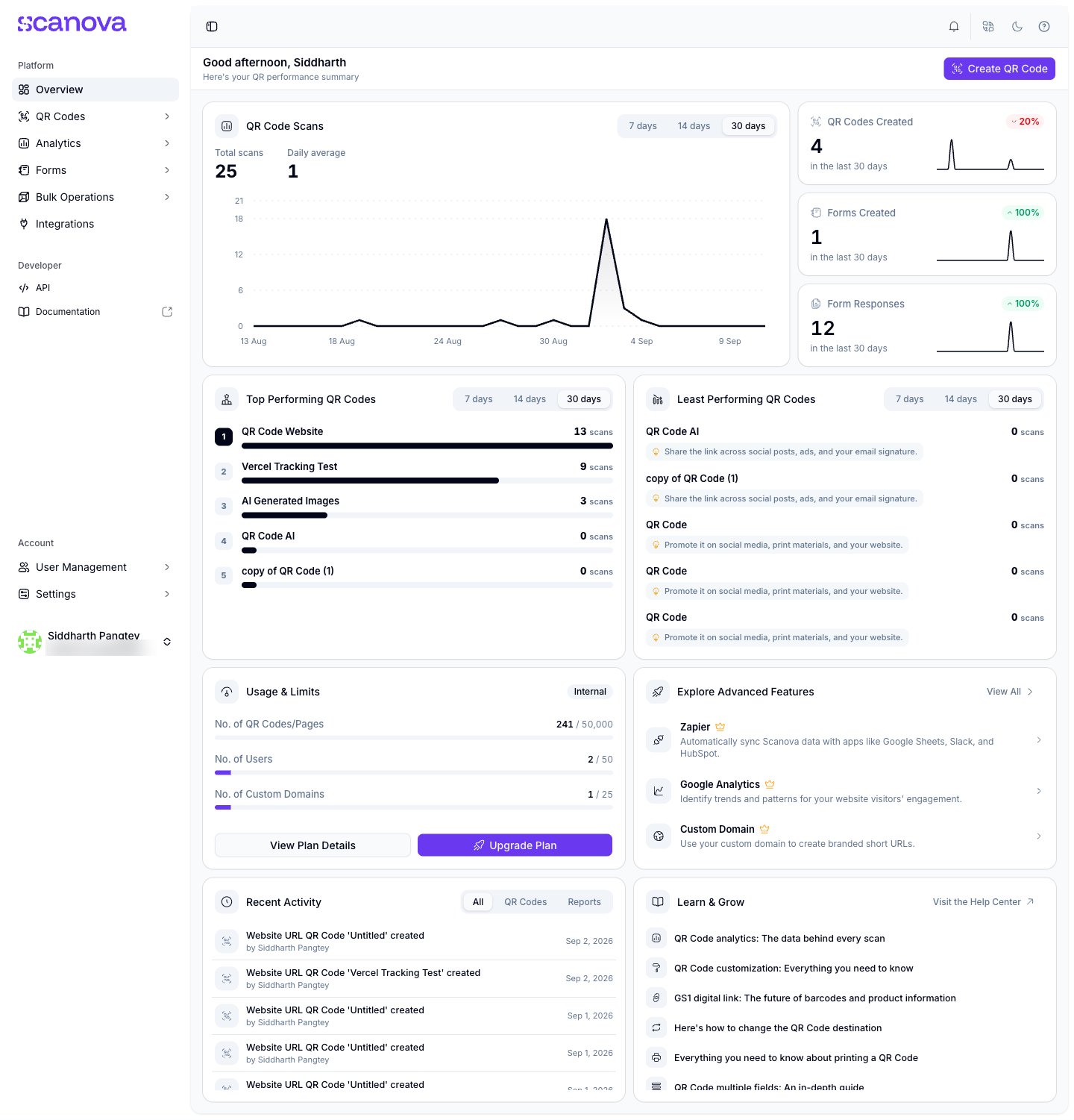
The Scanova dashboard at /overview
Who it’s for
Scanova’s own login page describes it as “the QR Code platform trusted by enterprise teams to power campaigns, packaging and payments — with analytics built in,” and lists logos including Walmart, Cisco, Nestlé, Toyota, AT&T, and PepsiCo. In practice the app serves both self-serve users on a Pro Plan and larger organizations that need multiple team members, custom domains, and API access — every plan tier uses the same dashboard and QR Code creation flow, with higher tiers adding AI Studio, more custom domains, and more team seats.The main sections
The dashboard’s left sidebar is grouped into Platform and Developer:- Overview — the landing dashboard shown above: scan trends, top/least performing QR Codes, usage against your plan’s limits, recent activity, and Learn & Grow links to help articles
- QR Codes — the list of every QR Code you’ve created (Quick Codes and Pages alike), with search, filters, and a Trash for recently deleted codes
- Analytics — scan-level reporting for your QR Codes
- Forms — standalone forms you can build and link to QR Codes, separate from the page builder’s own form blocks, plus a legacy Lead List view
- Bulk Operations — batch creation/management workflows
- Integrations — connect design, marketing, and automation tools such as Canva, Google Analytics, Zapier, and Slack to your QR Codes, and track the status of each connection
- API and Documentation — a link to your API keys/usage and to this documentation site, under the Developer group
Creating your first QR Code
To go from zero to a working QR Code, see Creating your first QR Code. If you’re integrating against the API instead of the dashboard, create QR Codes with the Create QR Code endpoint.Related
- Creating your first QR Code — a full walkthrough of publishing your first QR Code
- Dashboard overview — a closer look at the Overview page and sidebar described above
- Quick Code vs. full Page — the fundamental choice you make every time you create a QR Code
- Page Builder overview — the block-based editor behind every landing-page QR Code