

Shortcuts reference
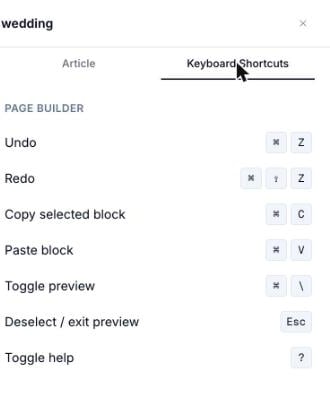
The Keyboard Shortcuts tab inside the Help drawer
Where to find this list in the app
Press ? anywhere in the builder (with focus outside a text field) to open the Help drawer, then switch to its Keyboard Shortcuts tab.”?” opens the Help drawer, not a dedicated shortcuts modal. The Help drawer normally shows a contextual help article for whatever’s currently selected — a block, or the current page type. Pressing ? toggles that same drawer open and closed; the shortcuts list above lives on its second tab, alongside the Article tab, rather than in a standalone popup.
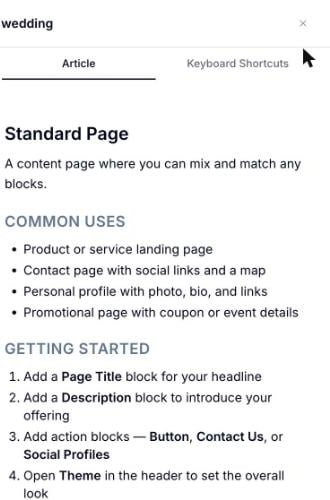
Pressing '?' opens the Help drawer's Article tab by default
Notes
- Undo and Redo step through your edit history one action at a time — adding, removing, moving, and editing blocks all count. Both are also available as buttons in the canvas’s floating toolbar (see Page Builder overview).
- Copy captures the selected block, including its content and design settings. Paste inserts it below the current selection (or at the bottom of the page if nothing is selected)
- Toggle preview switches the canvas into a preview-style view — for example, the “Add your first block…” onboarding helper disappears from an empty page. It does not hide the right-hand inspector panel; the Content/Design/Event Tracking (or Settings/Design/SEO) tabs stay visible and usable while preview is toggled on.
- Escape exits preview mode, or deselects the current block if you’re already in normal editing mode
Related
- Page Builder overview — the canvas toolbar where Undo/Redo also live as buttons
- Publishing — what Toggle preview does relative to the draft/published states