

What it’s for
A GS1 QR Code encodes a GS1 Digital Link — a URI built from GS1 Application Identifiers (AIs) that identifies a product, location, shipment, or other supply-chain object. In the app, the category is described as “GS1 Application Identifier codes for products, locations & logistics.” Unlike the other Quick Code types on this page, GS1 isn’t a single-screen form: it’s a dedicated 5-step wizard at/qr/quick/gs1, separate from the generic Quick Code shell, because a GS1 code’s data is structured (a primary identifier plus optional qualifiers, extra attributes, and resolution targets) rather than a handful of flat fields.
GS1 is the one Quick Code category that can be either Dynamic or Static — which one depends entirely on the resolver you pick in step 1, not on a separate type toggle. See Step 1: Resolver below.
The 5 steps
The wizard’s step indicator shows Resolver → Identify → Data Attributes → Resolution → Review. The Resolution step only appears when you choose a Scanova-hosted resolver (Scanova Resolver or Your Custom Domain) in step 1 — pick GS1 Global Resolver or Custom Resolver instead, and step 4 is skipped entirely, since Scanova has no destination to configure for a code it doesn’t resolve.1. Resolver — who resolves this code?
This decides which domain appears in the final digital link, and whether the resulting QR Code is Dynamic or Static: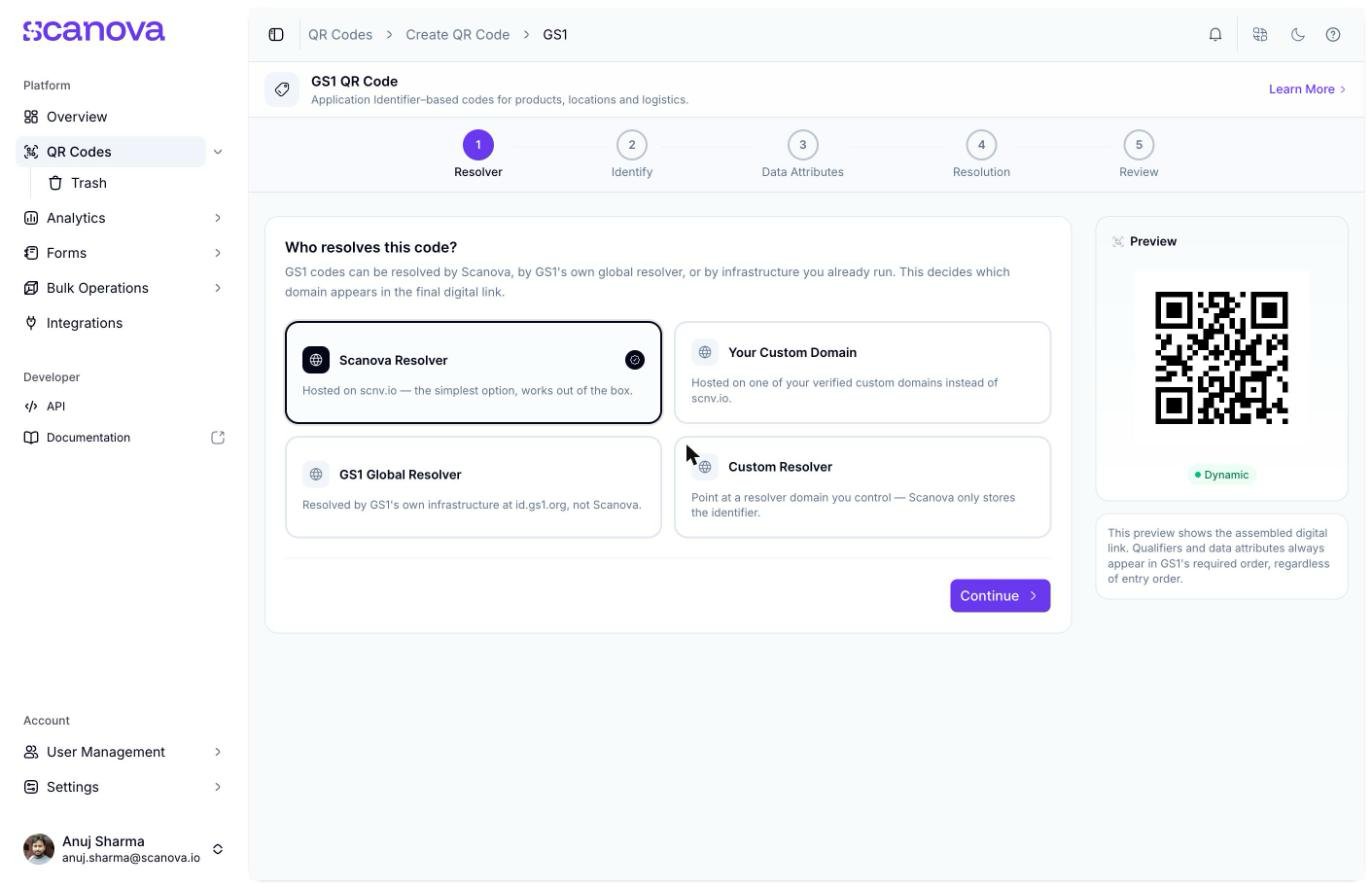
Step 1: Resolver, with Scanova Resolver selected as the default
2. Identify — what does this code identify?
Pick the Application Identifier that matches what you’re labeling (for example(01) Global Trade Item Number (GTIN), the default), then enter its Value. The value field enforces the AI’s real GS1 rules live — required length, digit-only vs. alphanumeric format, and, for AIs 00 and 01, a valid GS1 check digit.
Each Application Identifier can also expose Qualifiers — for GTIN these are Serial Number (AI 21), Consumer Product Variant (AI 22), and Batch or Lot Number (AI 10), all optional. Next to Serial Number there’s a “Need more than one? Bulk generate” link into Bulk Operations for generating a range of serialized codes at once.
3. Data Attributes
An optional step for attaching extra GS1 AI-keyed values to the same code — dates, measurements, and similar. Most GS1 codes don’t need this; the step starts collapsed with an “Add data attributes” toggle rather than empty fields.4. Resolution (Scanova-hosted resolvers only)
Configure what the code actually resolves to when scanned. A Product Page entry is always present and effectively required — it’s the destination a bare scan lands on. You can add further link types (Datasheet, Video, Custom) that GS1-aware apps can discover separately. For each entry, choose:- Simple URL — a bare destination URL, or
- Existing QR — reference one of your other dynamic, non-GS1 QR Codes (a Website URL, a page-builder QR, a Document, or an App Store QR, depending on the intent you pick)
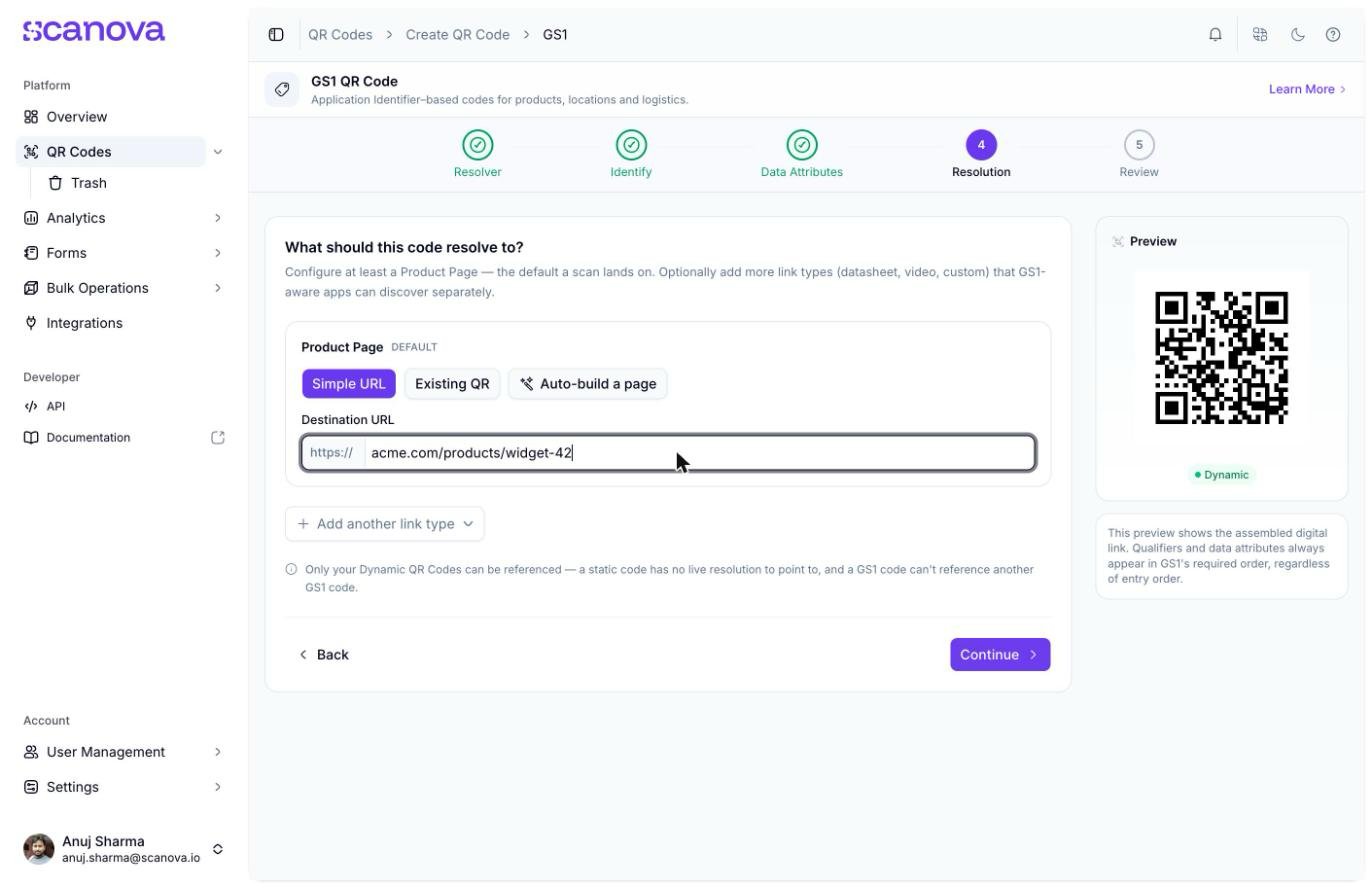
Step 4: Resolution, configuring the required Product Page destination
A GS1 code can never reference another GS1 code as a resolution target — this option is filtered out of the picker entirely, not just discouraged.
5. Review & publish
Shows the assembled Digital link preview (e.g.https://scnv.io/LpqE/01/04012345678901) and a plain-language summary of what the code identifies, who resolves it, and where a scan lands. You can also rename the QR Code here before publishing.
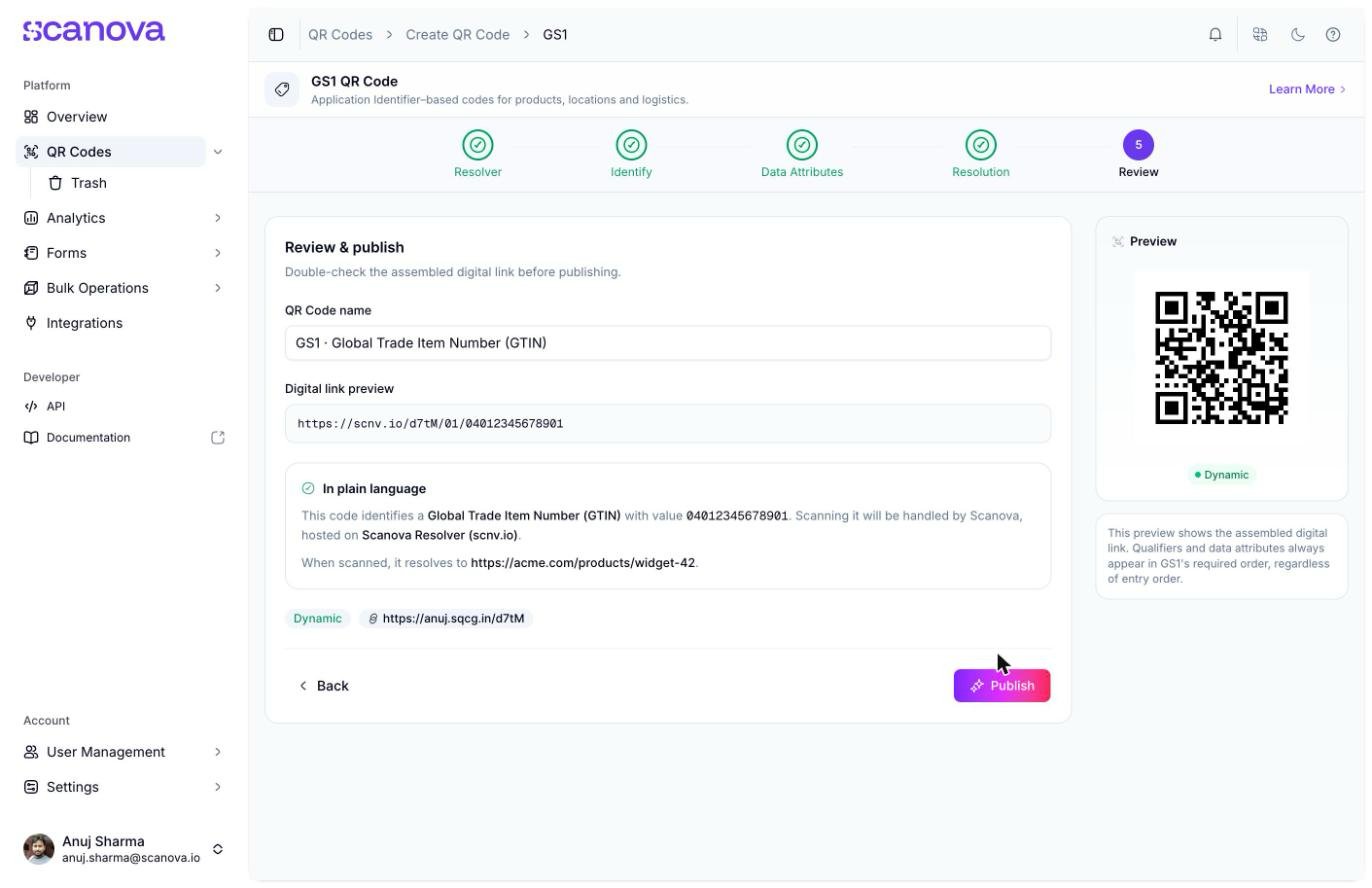
Step 5: Review and publish, with the assembled digital link and a plain-language summary
Create a GS1 QR Code
1
Open Create QR Code and choose Quick Code
From the sidebar, go to QR Codes, then click Create QR Code (or navigate to
/qr/create). Click the Quick Code card.2
Pick GS1
On the Quick Code type grid, click Configure under GS1, in the Dynamic section at the top. This opens the wizard at
/qr/quick/gs1.3
Choose a resolver
On the Resolver step, pick who resolves the code. Scanova Resolver is selected by default and requires no further setup — click Continue.
4
Identify what the code represents
On the Identify step, pick an Application Identifier and enter its value (for example, a 14-digit GTIN). Add any qualifiers you need, then Continue.
5
Add data attributes (optional)
Skip this step unless you need to attach extra GS1 attributes, then Continue.
6
Configure resolution
If you chose a Scanova-hosted resolver, set at least a Product Page destination — either a Simple URL, an existing QR Code, or an auto-built page — then Continue.
7
Review and publish
Check the assembled digital link and summary, adjust the QR Code’s name if needed, then click Publish. A panel opens to confirm the QR Code’s folder and tags, and adjust QR Code design, before confirming.
Creating one via the API
To create a GS1 QR Code through the API rather than the UI, use category ID31 (labeled GS1 in the Create QR Code Category dropdown reference table, allowed_qr_types: "bt" — both "dy" and "st" are valid for qr_type, matching whichever resolver you choose). The info payload is a bare array of typed blocks, one per wizard step that has data:
qualifier, dataAttributes, and resolution blocks are each optional and repeatable (one resolution block per configured link type); resolver and primaryKey are required. A resolution block’s target is either { "url": "..." } (when name is "simple_url") or { "qrid": "..." } (when name is "qr_reference") — resolution blocks are omitted entirely for gs1/custom_resolver resolvers, which have no Scanova-hosted destination to store.
See Create QR Code for the full request schema.
Related
- Product QR Code — a marketing landing page for a product, versus GS1’s structured supply-chain identifier
- Folders, tags & bulk operations — bulk-generate a range of serialized GS1 codes, and organize codes after publishing
- Quick Code vs. full Page — how GS1 fits among the other Quick Code types