Download the leads captured by your QR Codes as a spreadsheet, choosing the list and the time period, so the data can be worked with outside of Scanova.
Scanova has two separate export mechanisms for two different kinds of data. They look similar (both are labeled “Export CSV”) but behave differently and live in different places:
Lead List export — on a Lead List’s detail page, exports that list’s captured contacts.
Data Collected export — on a QR Code’s detail page, exports form/RSVP/feedback submissions collected through that QR’s landing page.
Don’t confuse the two — a Lead List and a QR Code’s linked Form are unrelated data sets, even if a QR Code happens to use both features.
On a Lead List’s detail page (/lead/[id], Entries tab), click Export CSV.
1
Open the Lead List
Go to Forms > Lead List in the sidebar, then click into the list you want to export.
2
Click Export CSV
On the Entries tab, click Export CSV in the top-right of the Responses table.
3
File downloads immediately
The browser downloads a .csv file right away — there’s no processing step. A Download started toast confirms it; if the request fails, you’ll see a Failed to export entries toast instead.
This is a direct, synchronous download: the button requests the file and saves it to your browser’s downloads as soon as the response comes back — no waiting, no email.
On free-plan accounts, Lead List entry export is capped at the first 25 responses.
The Analytics tab on the same page has its own Export Analytics button, which downloads the aggregated entry counts and top-sources breakdown (not the raw entries) the same way — immediately, no email involved.
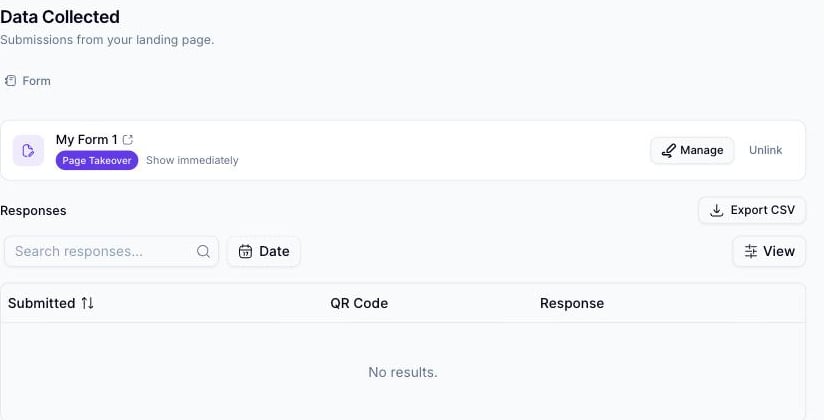
RSVP responses, custom form submissions, and restaurant feedback collected via a QR Code’s landing page live on that QR Code’s own detail page, under the Data Collected tab — a completely different screen from anything under Lead Lists.
1
Open the QR Code
Go to QR Codes, open the QR Code whose submissions you want, and click the Data Collected tab.
2
Pick the right sub-tab
Dynamic QR Codes always show a Form sub-tab. QR Codes whose landing page includes an RSVP, feedback, or lead-list block additionally show RSVP, Feedback, or Leads sub-tabs. Select the one with the data you want.
3
Click Export CSV
Click Export CSV above the responses table.
The Data Collected tab on a QR Code's detail page, with its own Export CSV button
4
Wait for the emailed link
Unlike the Lead List export, nothing downloads immediately. A toast reads “Your export is being prepared — you’ll receive the download link shortly,” and the file is generated in the background, then emailed to you as a download link once it’s ready.
This export is asynchronous by design — the file is built as a background job and the result is delivered by email, not streamed straight to your browser like the Lead List export above. If you click Export CSV and nothing appears in your downloads, that’s expected: check your email instead.