

/qr/create — where you choose one of three starting points before anything else. Picking correctly up front avoids rebuilding a QR Code later, since a Quick Code and a Page lead to different editors with different capabilities.
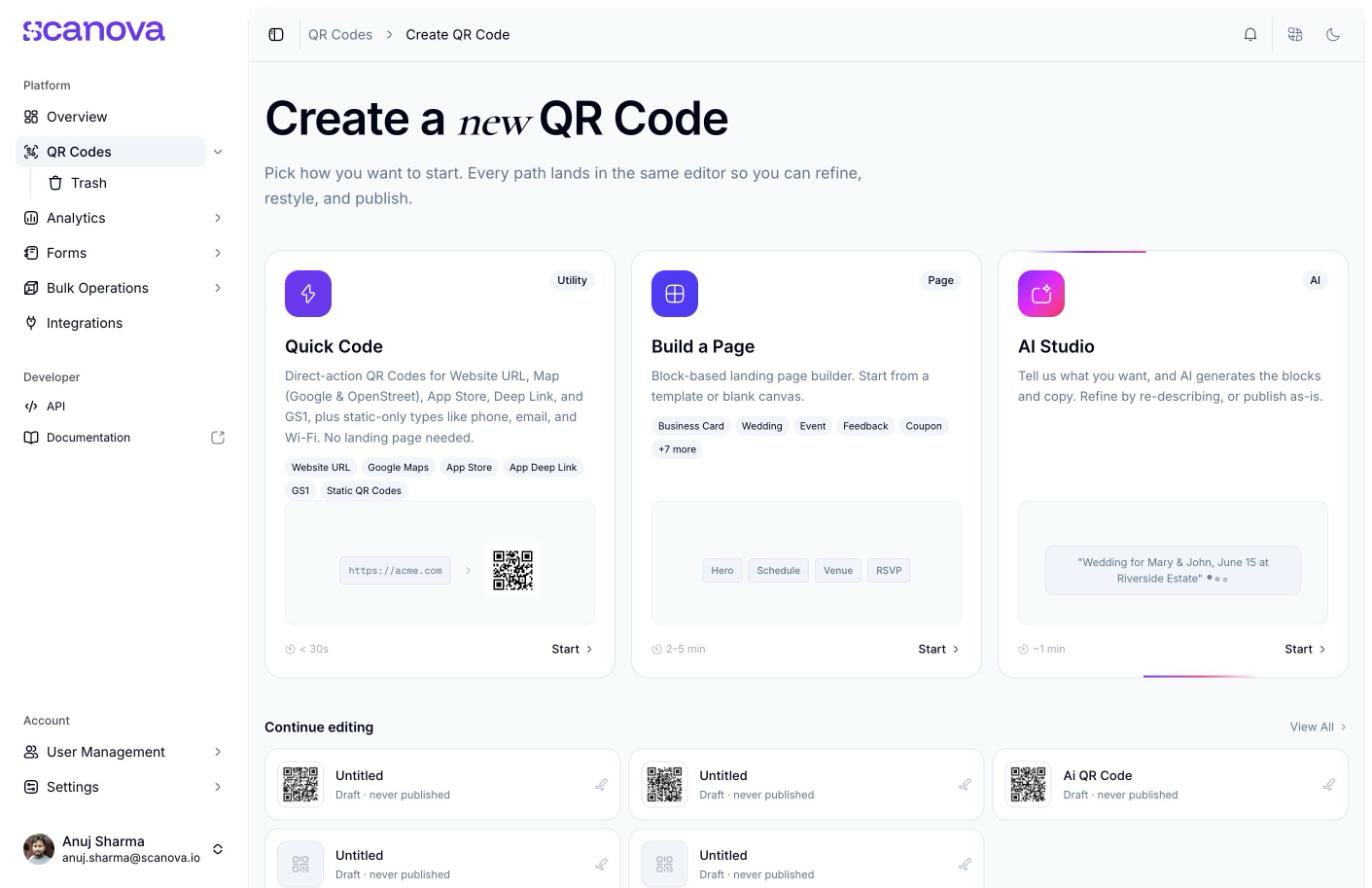
The Create QR Code hub, showing all three starting points
Quick Code — direct action, no landing page
A Quick Code does something the instant it’s scanned: it redirects to a URL, opens the dialer, drops in a Wi-Fi network, composes an email or text, or shows plain static text. Nothing is rendered in the browser first — there’s no landing page to design, host, or theme. Scanova’s own copy for this card: “Direct-action QR Codes for Website URL, Map (Google & OpenStreet), App Store, Deep Link, and GS1, plus static-only types like phone, email, and Wi-Fi. No landing page needed.” — estimated at under 30 seconds to create. Clicking Start on Quick Code opens a grid of types to choose from: Website URL, Google Maps, App Store, App Deep Link, and GS1 support Dynamic (editable, trackable) QR Codes, while Phone Call, Email, Text Message, Wi-Fi, Plain Text, Event Calendar, and Contact Card are Static only. Picking a type (e.g. Website URL) opens its configuration form directly — e.g./qr/quick/url — with no page-builder step in between.
Choose Quick Code when the scan should trigger an immediate action and you don’t need branded content, multiple sections, or analytics beyond scan counts.
Build a Page — the block-based landing page builder
Build a Page is Scanova’s copy: “Block-based landing page builder. Start from a template or blank canvas.” — estimated at 2–5 minutes. Clicking Start takes you to/qr/new, a Choose a template gallery filtered by category (Business Card, Restaurant, Wedding, Event, Product, Social Media, and more, or Start Blank):
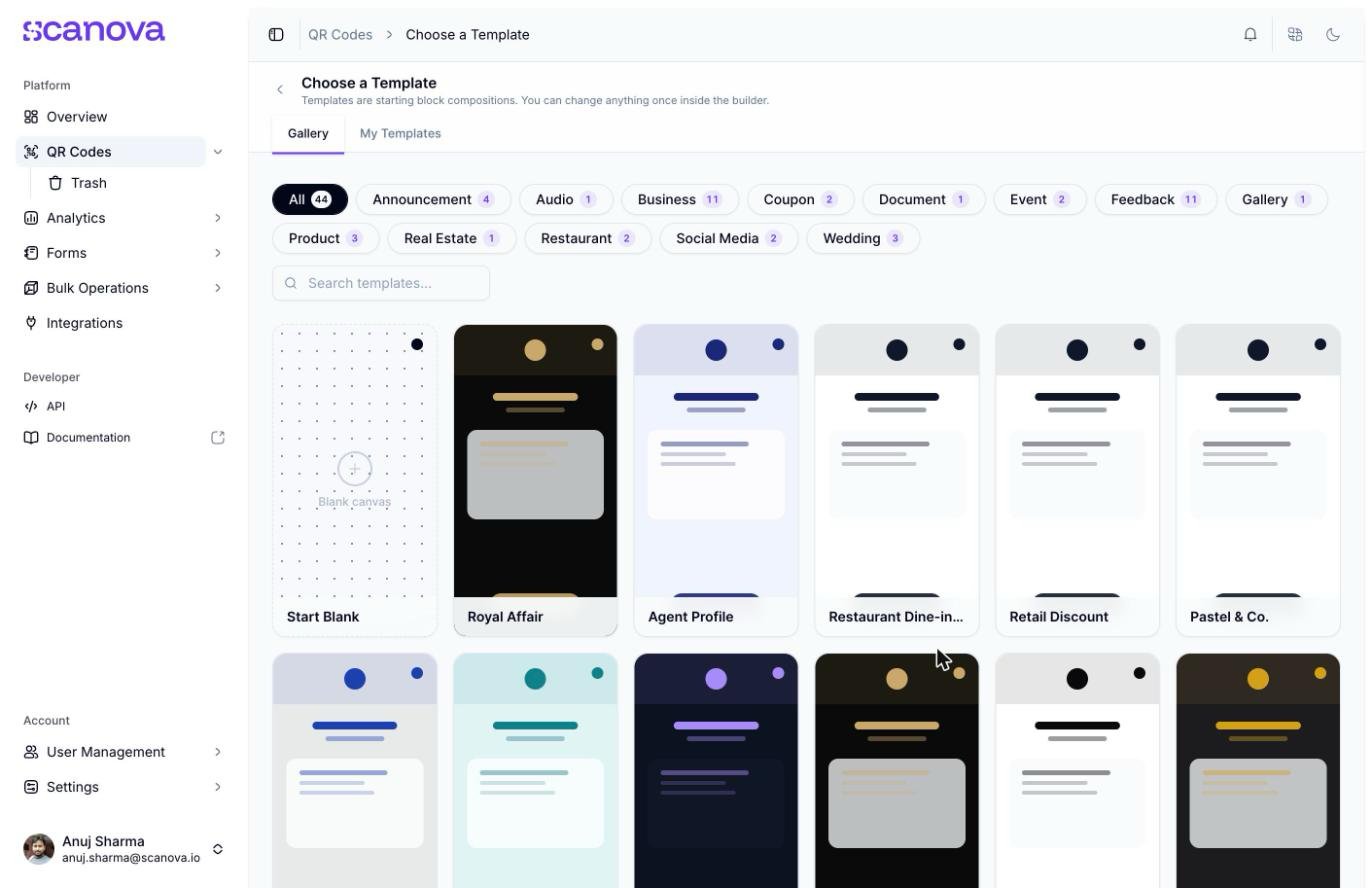
The template gallery at /qr/new
/qr/new/landing, where you assemble the page from content blocks (hero, schedule, gallery, forms, and more — see the Page Builder overview) before publishing.
Choose Build a Page when the QR Code should show a full landing page — multiple content blocks, your own branding, or something more than a single redirect.
AI Studio — AI-generated pages
AI Studio works like Build a Page but skips manual block assembly: you describe what you want (“Wedding for Mary & John, June 15 at Riverside Estate”) and AI generates the blocks and copy, which you can then refine by re-describing or publish as-is — estimated at ~1 minute.Access to AI Studio depends on your plan. If the card shows Upgrade rather than Start, your plan does not include AI landing-page generation — check your plan’s feature list, or contact support. See AI QR / AI Studio for the prompt screen as it appears once the feature is available.
Quick reference
Creating one via the API
Both paths ultimately create a QR Code through the same Create QR Code endpoint — thecategory field determines whether it behaves as a Quick Code (e.g. category 1 for Website URL) or a Page. See Category List for the full mapping.
Related
- Creating your first QR Code — a full walkthrough of the Quick Code path described above
- Page Builder overview — a closer look at the block-based editor behind Build a Page
- AI QR / AI Studio — a closer look at the AI-generated path summarized above
- Website URL QR Code — the simplest Quick Code type to start with