

Custom Design tab
The editor opens on Custom Design, with five sections under QR Code in the left sidebar, plus Shapes and Frames alongside it: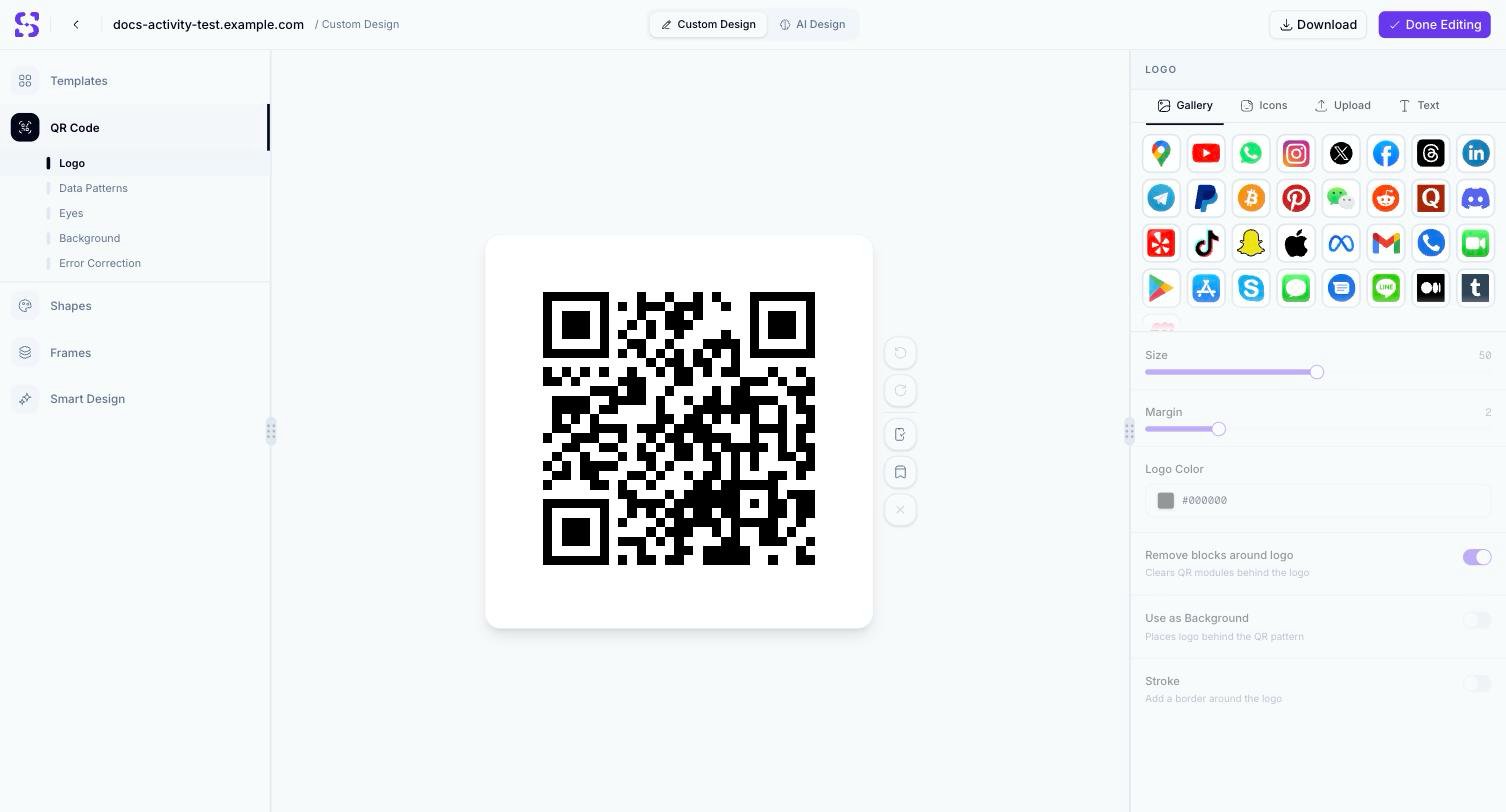
The Logo section of the Custom Design tab
- Logo — place a logo in the center of the QR Code, from a built-in icon gallery, your own icon set, an uploaded image, or plain text. Controls: Size, Margin, Logo Color, Remove blocks around logo (clears the QR Code modules directly behind it, on by default), Use as Background (places the logo behind the pattern instead), and Stroke (adds a border around it).
- Data Patterns — the shape of the QR Code’s data dots, picked from a gallery of styles (squares, dots, rounded, and more), with a Dot Size slider and a Single Color / Gradient fill choice
- Eyes — the shape and color of the three large corner squares (“eyes”). Choose a pattern from Choose Pattern or your own saved ones under My Patterns, and apply it to Both Eyes, just Inner Eyes, or just Outer Eyes, each with its own color.
- Background — a solid Color or Transparent background, plus a Quiet Zone slider (the blank margin around the pattern). The panel warns that reducing the quiet zone may hurt scannability, and to always test before finalizing.
- Error Correction — one of four levels, each trading a larger/denser pattern for more damage tolerance: L — Low (7%, smallest/cleanest), M — Medium (15%, good balance), Q — Quartile (25%, high recovery), H — High (30%, best recovery). QR Codes carrying a center logo need a higher level, since the logo itself covers part of the pattern.
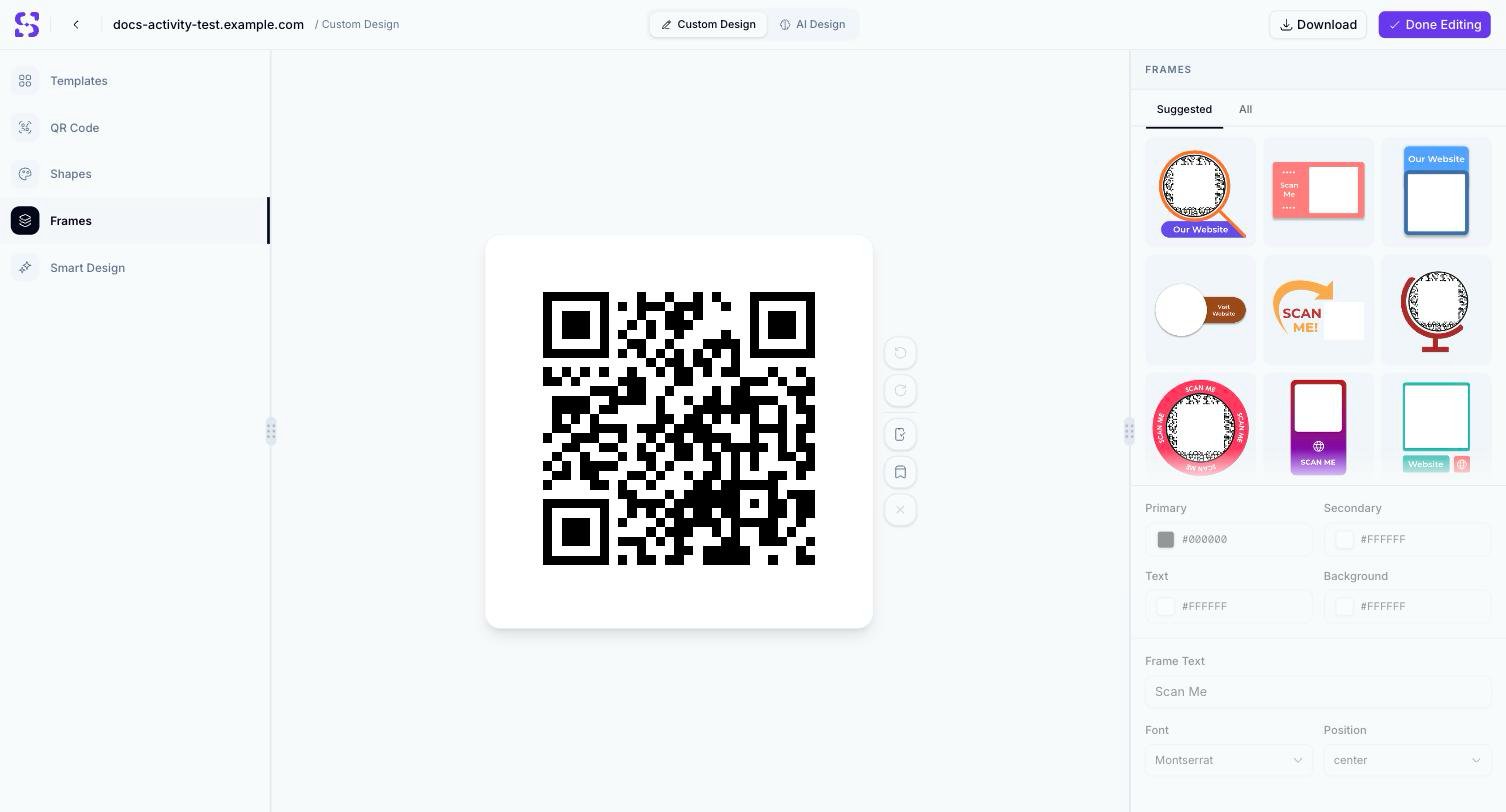
The Frames panel with a selected frame's color and text controls
Templates
The Templates section (top of the left sidebar) is a library of saved designs — your own previously-saved custom designs under Saved, or ready-made starting points under Recommended. Selecting one applies its full look (logo, patterns, colors, frame) to the current QR Code in one step.Smart Design
Smart Design generates a set of coordinated designs automatically from your branding, instead of styling each section by hand. Upload a logo image (PNG/JPG/SVG, up to 5 MB) — used both as the QR Code’s logo and as the source for a matching color palette — or skip the upload and set a Seed Color to use as a fallback. Click Generate Designs to produce a grid of auto-generated variants; click any one to apply it to the QR Code, or Regenerate for a fresh batch.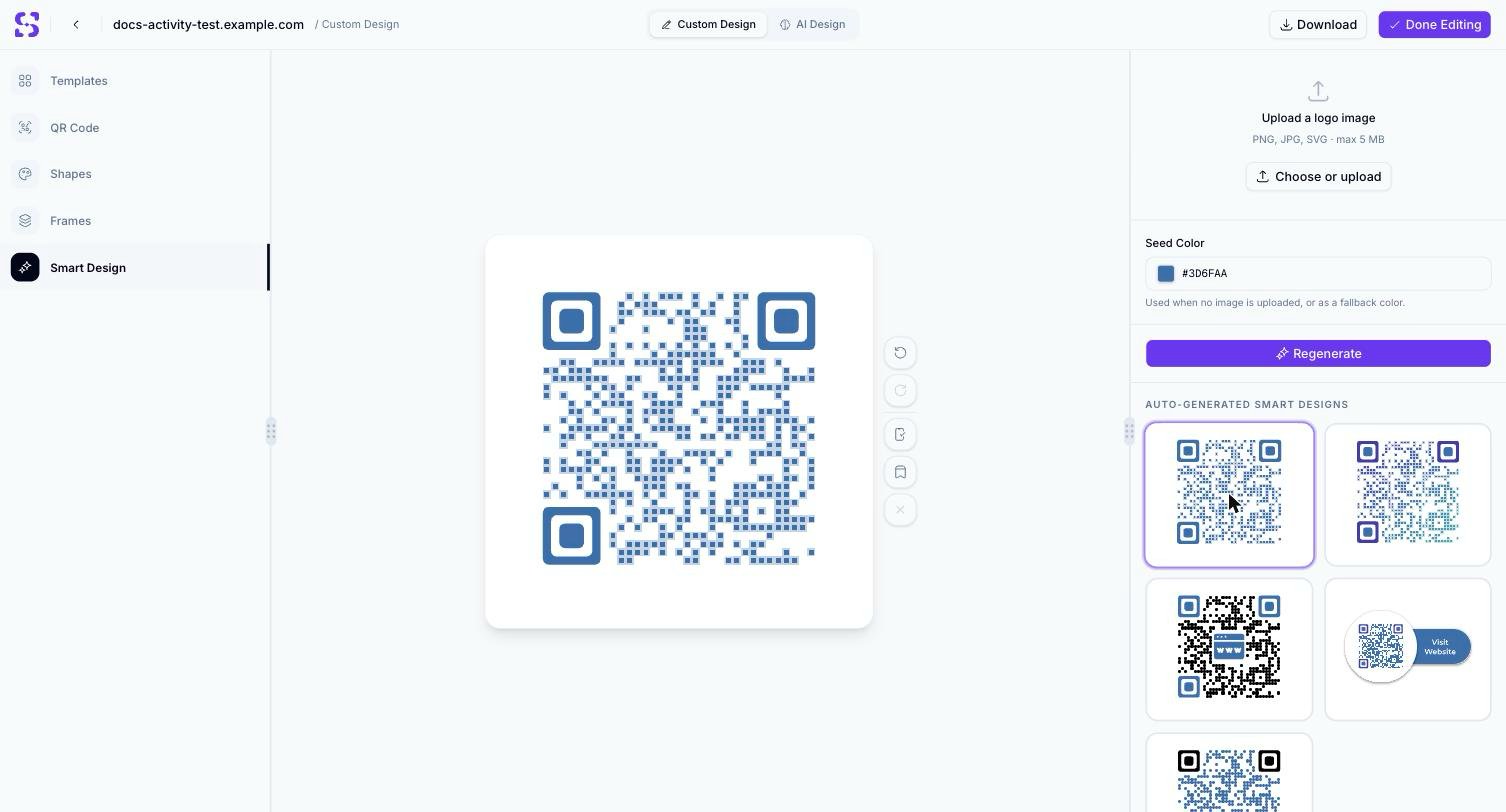
A Smart Design variant applied to the QR Code
Related
- AI Design — generate a full background image for the QR Code from a text prompt
- Test QR Code — scan-verify a design before printing or publishing it
- Download — export the finished design as PNG, JPG, or vector formats
- Page Builder design options — the separate editor for the destination page’s own look, not the QR Code pattern