

Opening a form’s responses
From the forms list, click a form’s name (or its response count) to open the form’s detail view. It has three tabs: Overview, Responses, and Linked QR Codes.Overview tab
The Overview tab is an analytics dashboard for the form, scoped to a selectable date range (7d / 30d / 90d / 1y):- Total Entries, Completed, Skipped, and Completion Rate stat cards, each with a period-over-period trend indicator
- A Responses over time chart — daily submission count for the selected period
- A Responses by Source breakdown
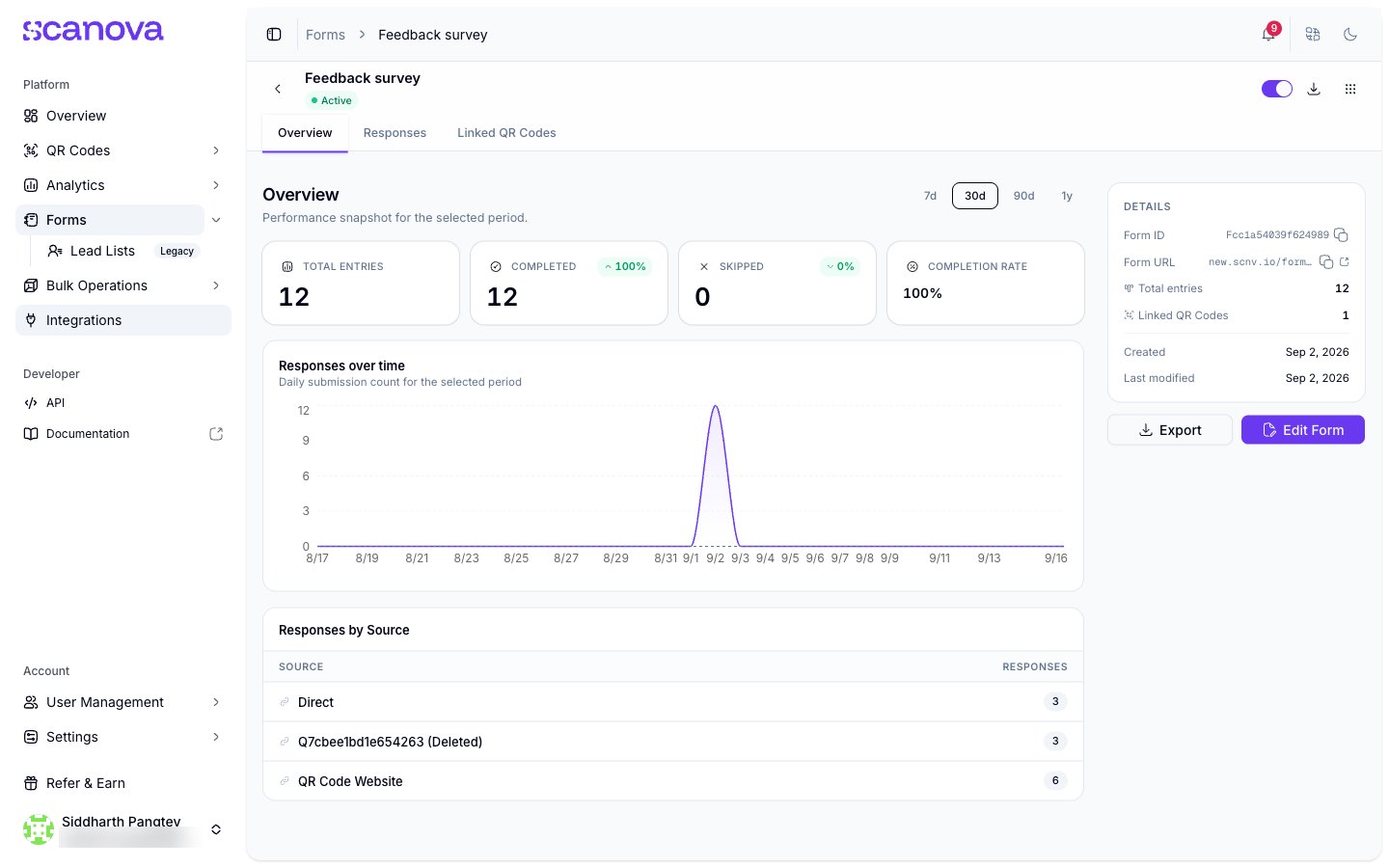
The Overview tab for a form with no responses yet
Responses tab
The Responses tab lists every submission for the form in a data table, with columns for:- Submitted — the response’s submission date/time
- QR Code — which linked QR Code the response came in through (or “Direct” if the form was filled without a QR Code in between)
- Response — a truncated preview of the answers, or a Skipped badge if the respondent used the Skip button instead of submitting
- Row actions — a button to view the full response in a detail sheet, and a dropdown to delete the response
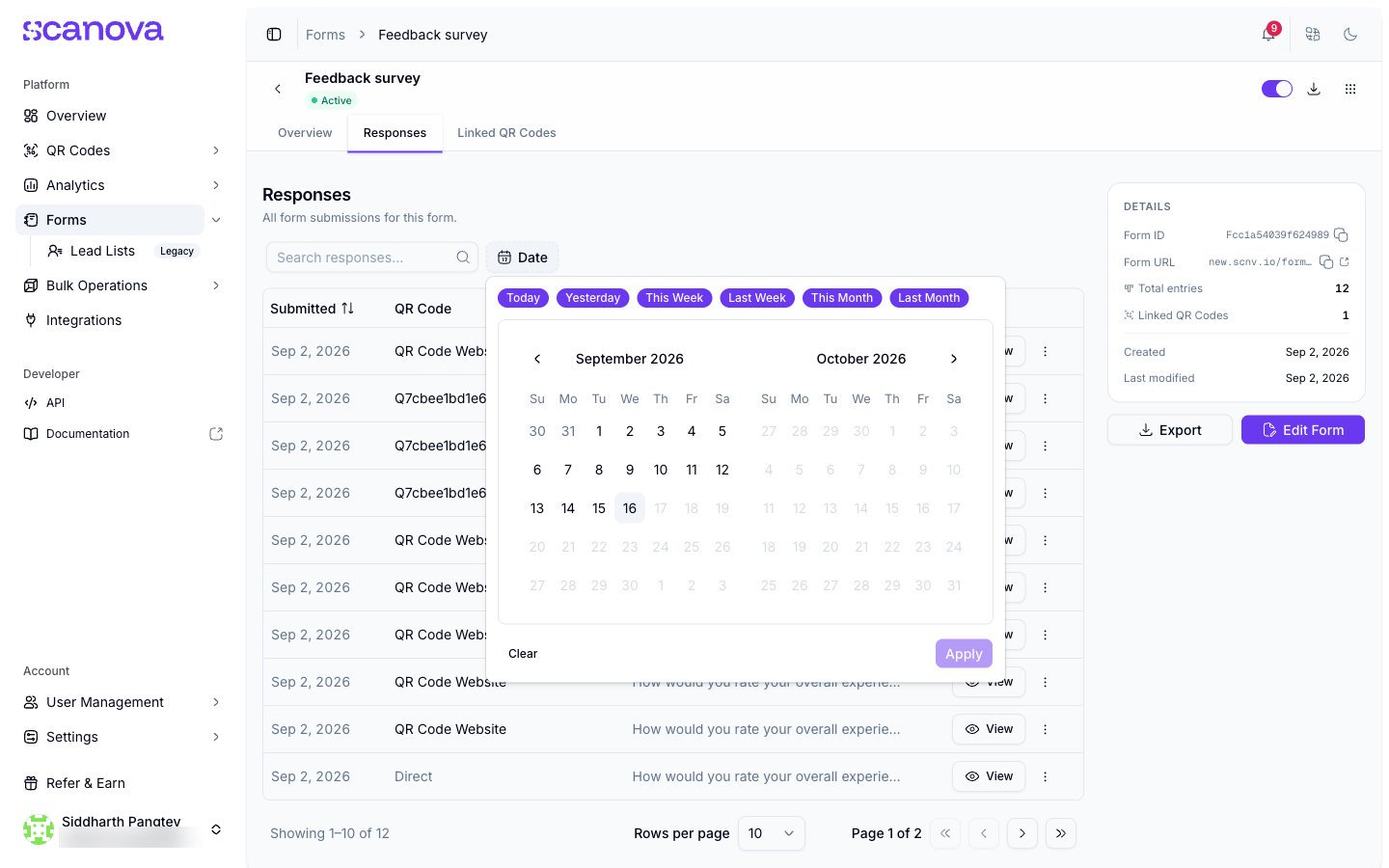
The Date range filter on the Responses tab
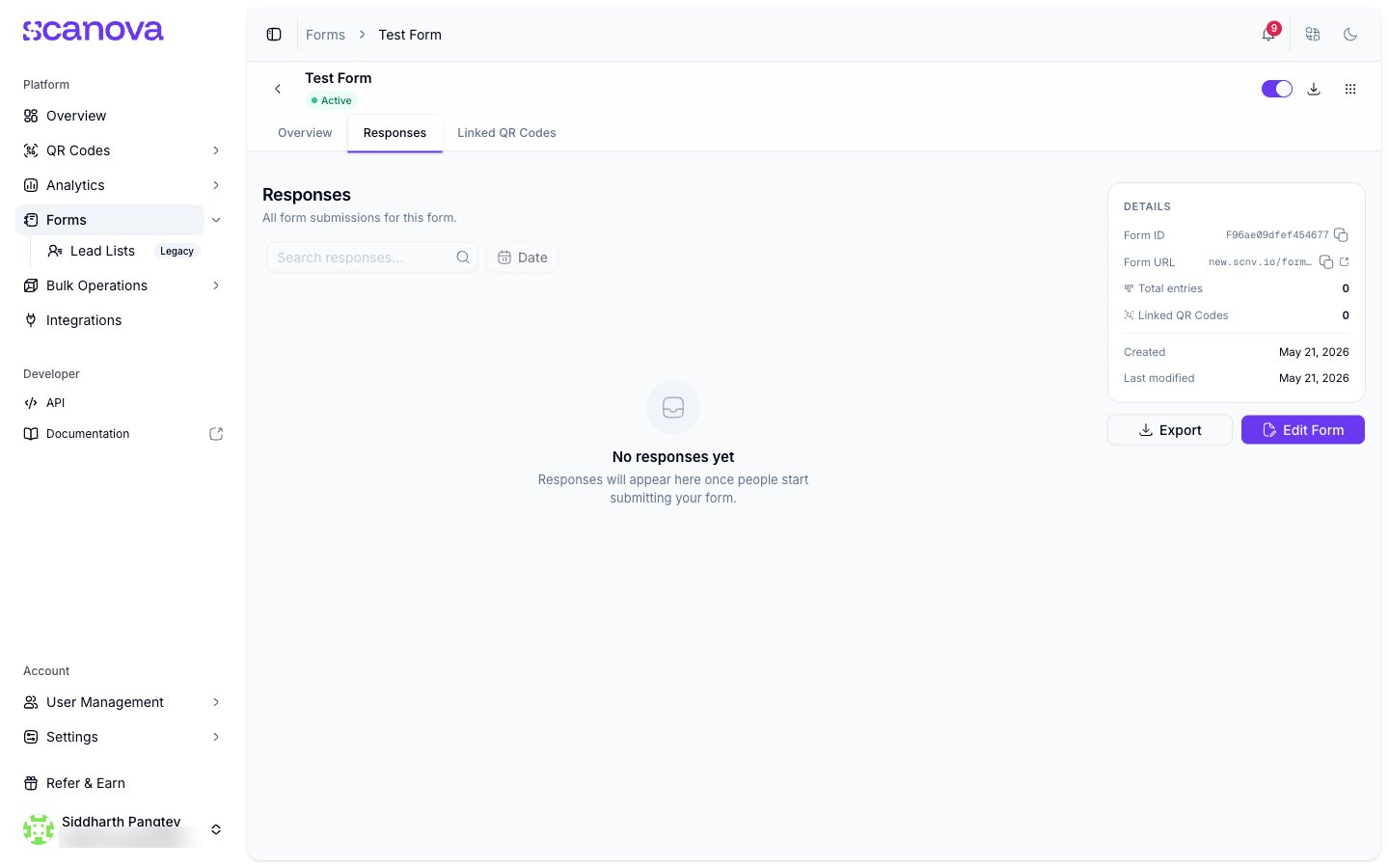
The Responses tab before any submissions have come in
Linked QR Codes tab
This tab lists every QR Code currently configured to use the form, with each row showing the QR Code’s name, ID, short URL, active/inactive status, and Manage / Unlink actions. A Link QR Code button lets you attach the form to another QR Code without leaving the responses view.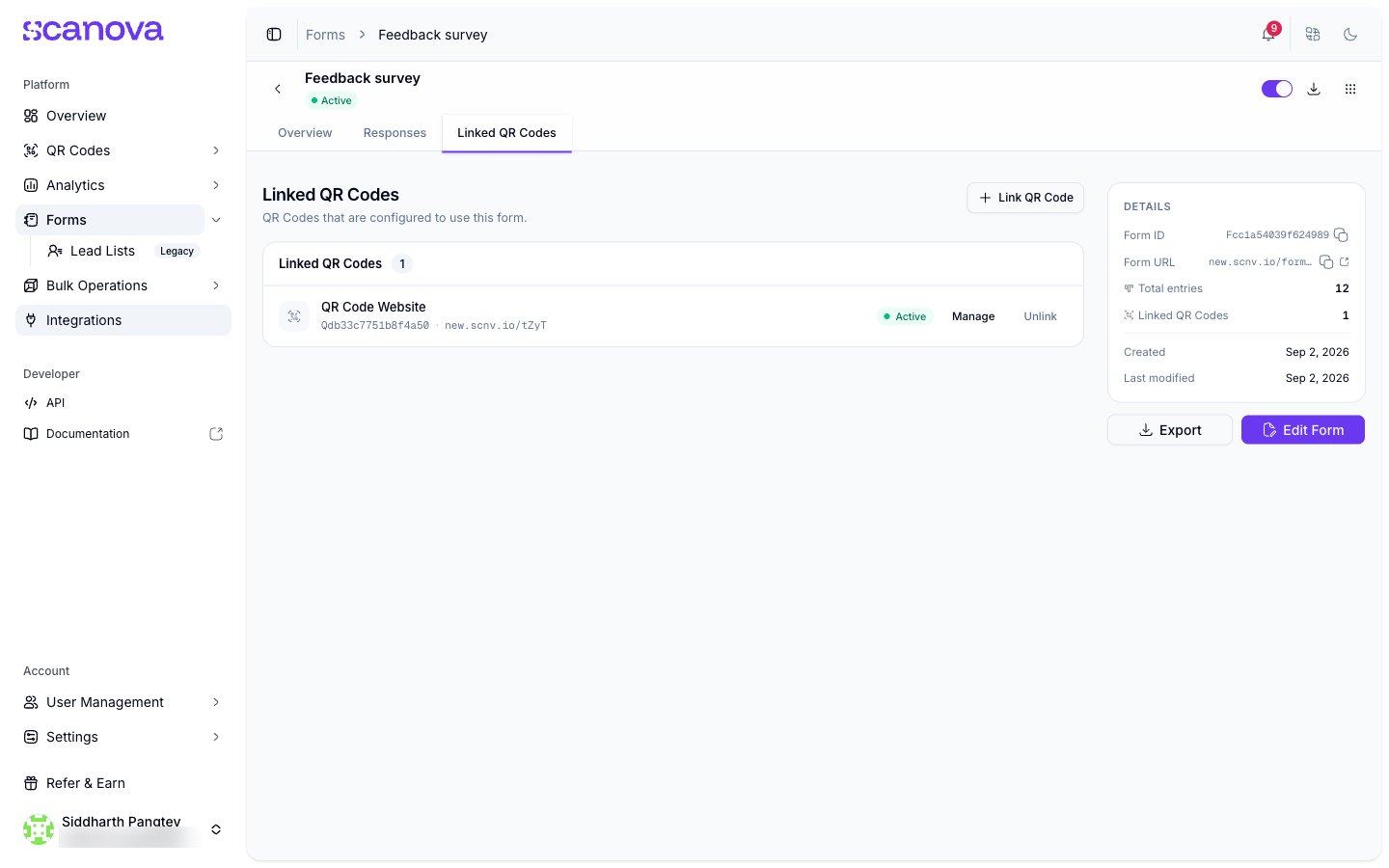
A form linked to one QR Code
Exporting responses
Click Export (available from any tab, in the side panel) to trigger an export of the form’s responses. The button shows an Exporting… state while the request is in flight.Where to go next
- Building a form — templates, question types, and form settings
- Skip button & form gates — linking a form to a QR Code and configuring how it’s gated
Related
- Building a form — templates, question types, and form settings
- Skip button & form gates — linking a form to a QR Code and configuring how it’s gated
- Analytics dashboard — scan-level analytics alongside this form-level Overview tab