

/settings/user-tracking) controls whether Scanova assigns a shared Tracking ID to link a single visitor’s activity — a QR Code scan, a form entry, and their GPS location — across your exports. It’s off by default: by default, the app doesn’t capture data at the end-user level, so a scan, a form entry, and a location are recorded as separate, unlinked events for privacy reasons.
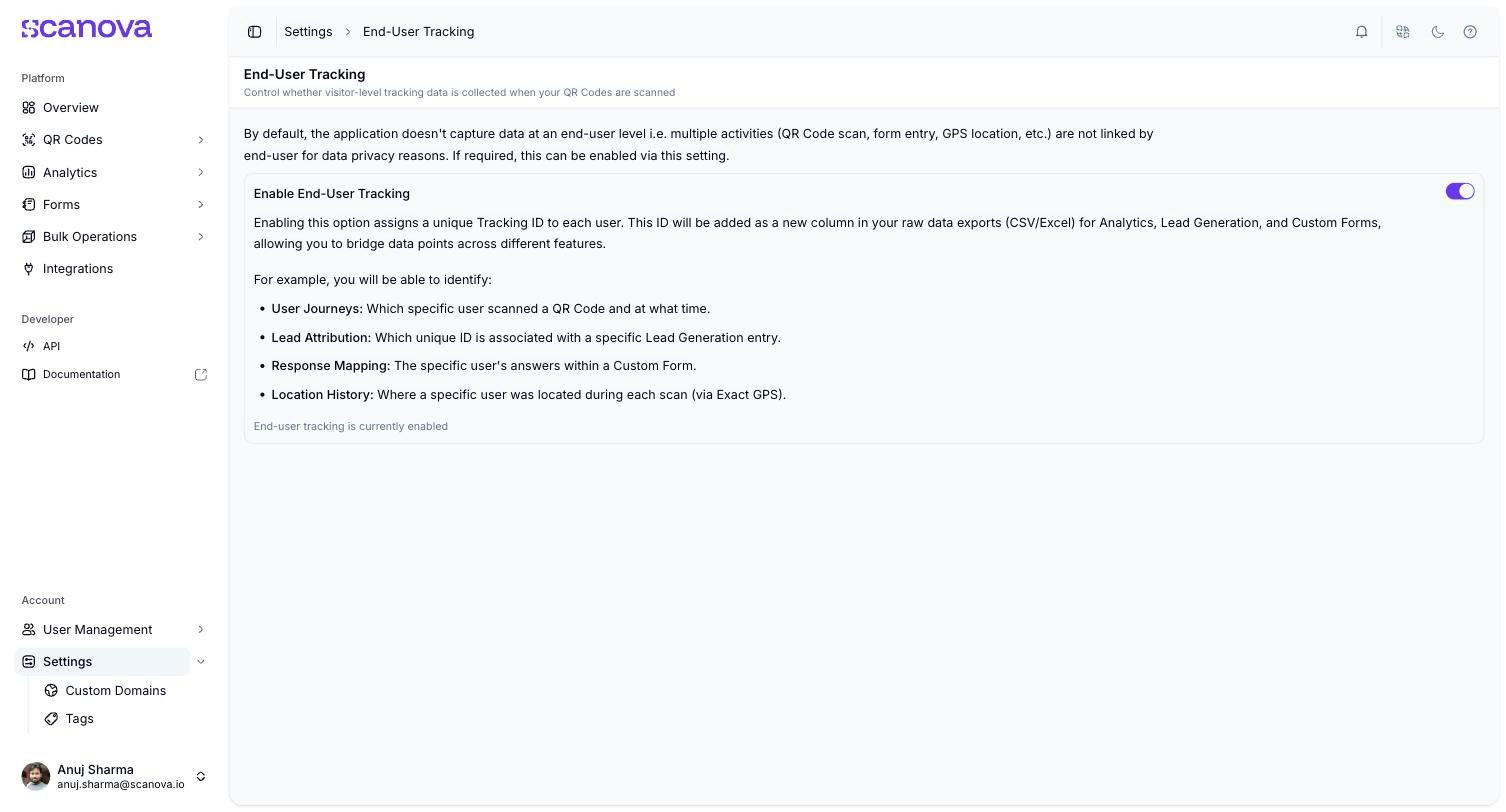
The End-User Tracking settings page, with the feature enabled
What enabling it does
Turning on Enable End-User Tracking assigns a unique Tracking ID to each visitor. That ID is added as a new column in your raw data exports (CSV/Excel) for Analytics, Lead Generation, and Custom Forms — letting you bridge data points across those features for the same person. With it enabled, you can identify:- User Journeys — which specific visitor scanned a QR Code, and when
- Lead Attribution — which Tracking ID is associated with a specific Lead Generation entry
- Response Mapping — a specific visitor’s answers within a Custom Form
- Location History — where a specific visitor was located during each scan (via Exact GPS)
Related
- Downloading lead data — one of the exports the Tracking ID column appears in
- Form responses — Custom Form response data that can be bridged via the same Tracking ID
- GPS tracking & geo-fencing — the location data End-User Tracking can link to a specific visitor