

/users/user-activity) is a dashboard for what your invited teammates have been doing on the account — a feed of individual events, trend charts, and an AI-generated weekly summary. It sits alongside Roles and Logs Export under User Management in the sidebar — all three only appear for accounts with the right plan and permissions.
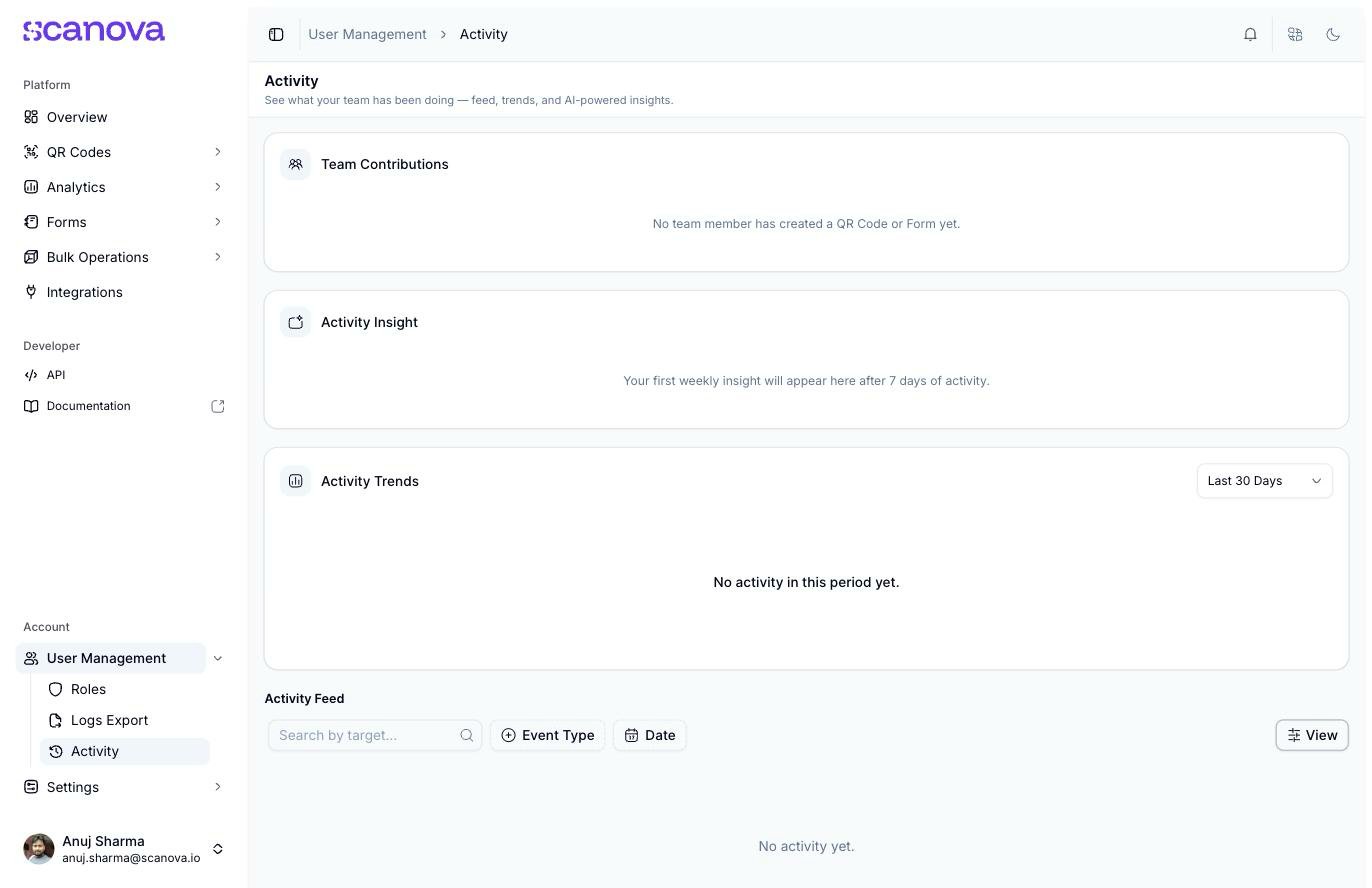
The Activity page on an account with no tracked team activity yet
This page tracks shared/invited-user activity, not the account owner’s own actions. Publishing a QR Code as the account owner does not appear in the feed, Team Contributions, or Activity Trends — that matches the page’s own framing (“see what your team has been doing”), but it does mean you won’t see your own activity here.
Team Contributions
A card summarizing which teammates have created QR Codes or forms, and how many. With no qualifying activity yet, it reads “No team member has created a QR Code or Form yet.”Activity Insight
An AI-generated weekly summary of team activity. It needs 7 days of activity to produce its first summary — until then it reads “Your first weekly insight will appear here after 7 days of activity.”Activity Trends
A chart of activity volume over time, with a period selector: Last 7 Days, Last 30 Days (the default), Last 90 Days, or Custom. With nothing to chart, it reads “No activity in this period yet.”Activity Feed
A table of individual events at the bottom of the page, with four columns you can show or hide via the View button’s Toggle columns menu: Event, Actor, Target, and Occurred At.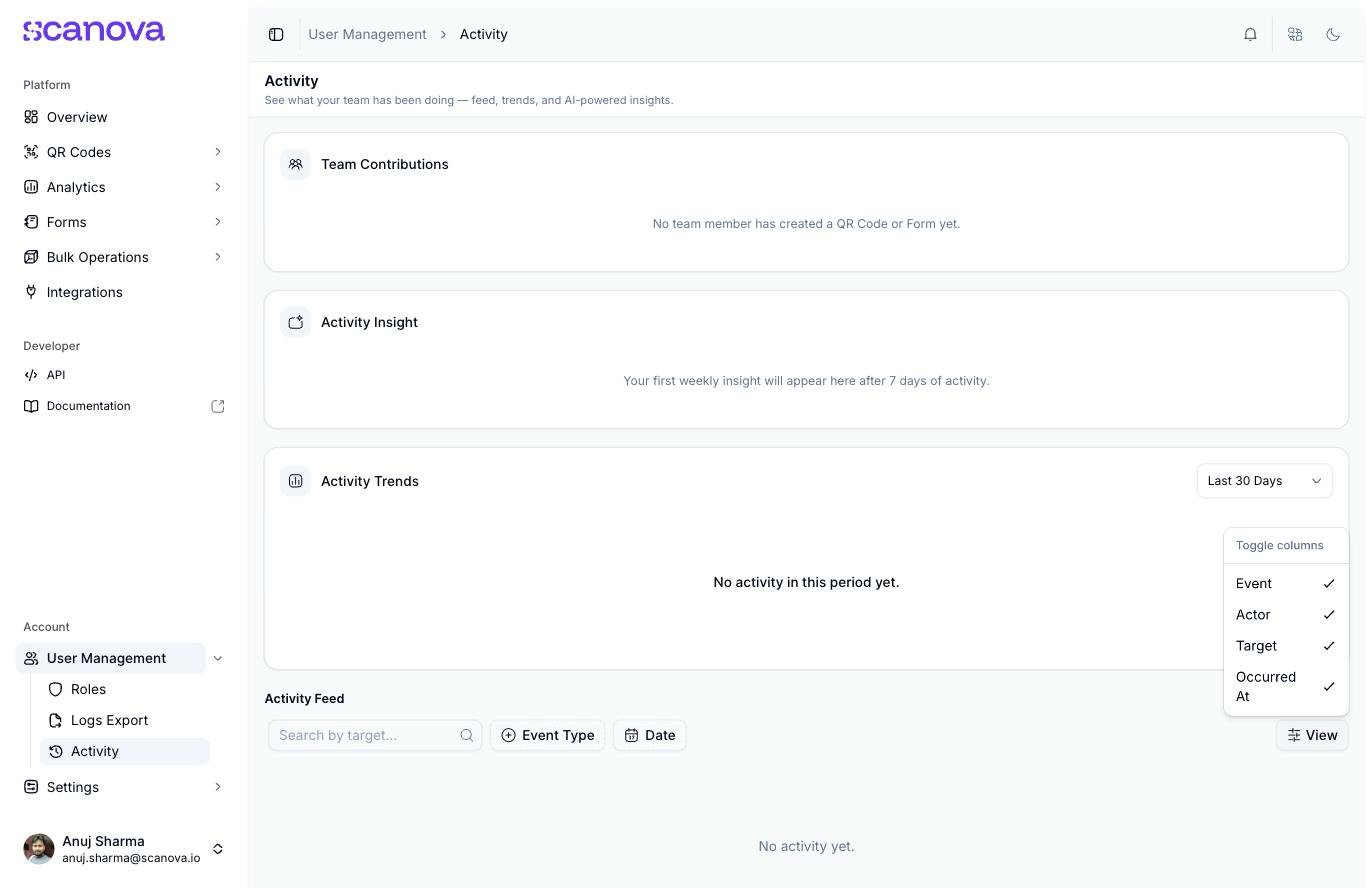
The View button's column-visibility toggle for the Activity Feed table
- Search by target — free-text search
- Event Type — a checklist of event types: QR Created, QR Updated, QR Deleted, Login, Shared User Login, Share Granted, Share Revoked
- Date — quick presets (Today, Yesterday, This Week, Last Week, This Month, Last Month) or a custom two-month calendar range, with Clear/Apply buttons
Several of this page’s dropdowns and the date-range calendar render their options invisibly — a rendering issue this docs pass also found on several other pages’ popups. The options are present and selectable in principle; if a menu doesn’t visibly respond to a click, try a different browser or zoom level, or reload and try again.
Related
- Logs Export — download this same underlying activity as a CSV instead of viewing it live
- Shared users — inviting the teammates whose activity shows up here
- Roles & permissions — what each role can see and do on the account