A product page showcases a single item — packaging, an artisan good, a tech launch — with an image gallery, a description, a call-to-action button (e.g. “Shop the Collection”), share buttons, and optionally a map for pickup locations. Shoppers scan it from packaging, a shelf-talker, or a print ad to land on a page with more detail than a barcode or a Website URL redirect can carry.
Like every category on this page, “Product QR Code” isn’t a separate creation route — it’s the Build a Page flow filtered to product-tagged templates.
From QR Codes → Create QR Code (/qr/create), click the Build a Page card to open the block-based page builder’s template gallery.
2
Filter the gallery by Product
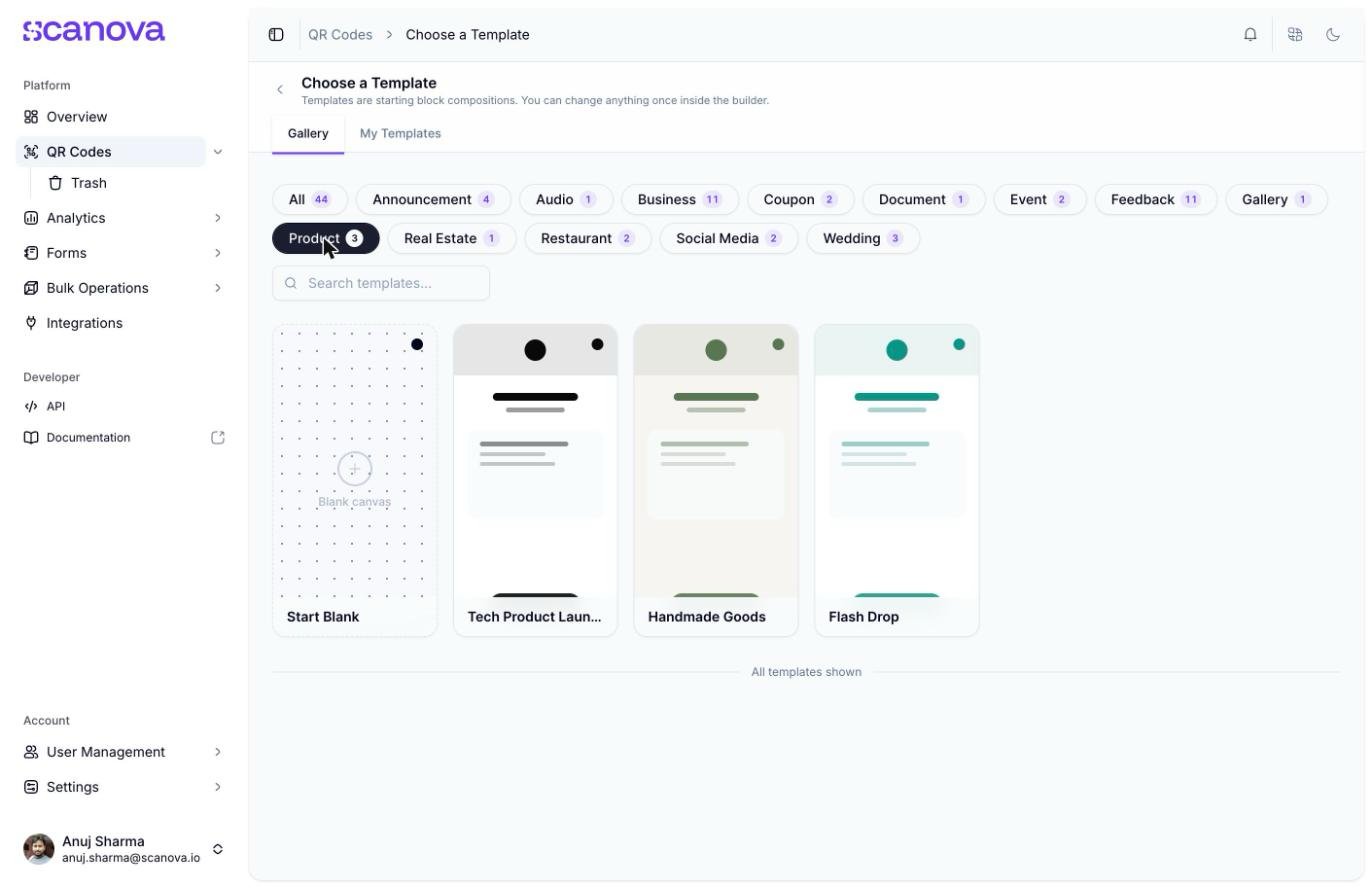
On Choose a template (/qr/new), click the Product tag. This tag filters to: Tech Product Launch, Handmade Goods, and Flash Drop.
The template gallery filtered to the Product tag
3
Preview and select a template
Clicking a card opens a preview panel with the template’s name, description, category tag, and a Use this template button. The Handmade Goods template was used for verification here — described as “Sage and cream — an organic shop page for small-batch artisan work” and tagged Product.
4
Land in the page builder
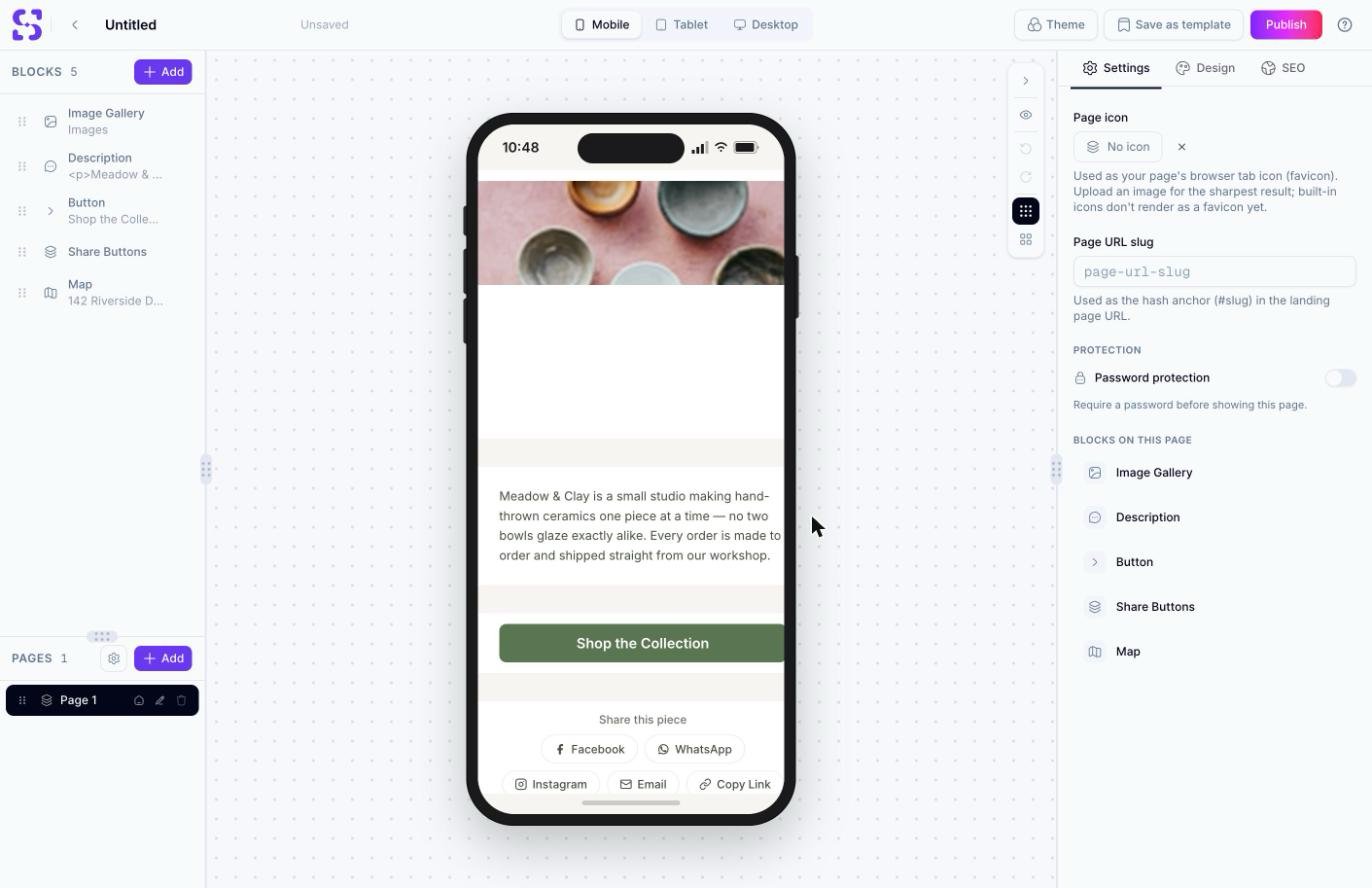
Selecting it opens the builder at /qr/new/landing?template=product-artisan-goods. This template ships with 5 blocks: Image Gallery, Description, Button, Share Buttons, and Map — all editable from the left-hand blocks panel, with page settings (URL slug, password protection) on the right.
The page builder canvas after opening the Handmade Goods product template
Reaching this canvas confirms the flow — you don’t need to publish to verify it works. Edit the gallery images, description copy, and button link, then use Publish from the top bar when the page is ready.
To create a product-style QR Code through the API rather than the UI, use category ID 18 (labeled Product) — see Create QR Code for the full request schema and Category List for the complete ID-to-label mapping.