

/subscription/upgrade) is where you compare and switch plans. Reach it from the Change Plan button on the Subscription overview, or the Plans tab directly.
The plan and pricing selector
A Monthly / Yearly toggle switches the billing period for every plan card at once; Yearly is the default and shows a “Save up to 40%” badge, with the discounted price and the original price struck through.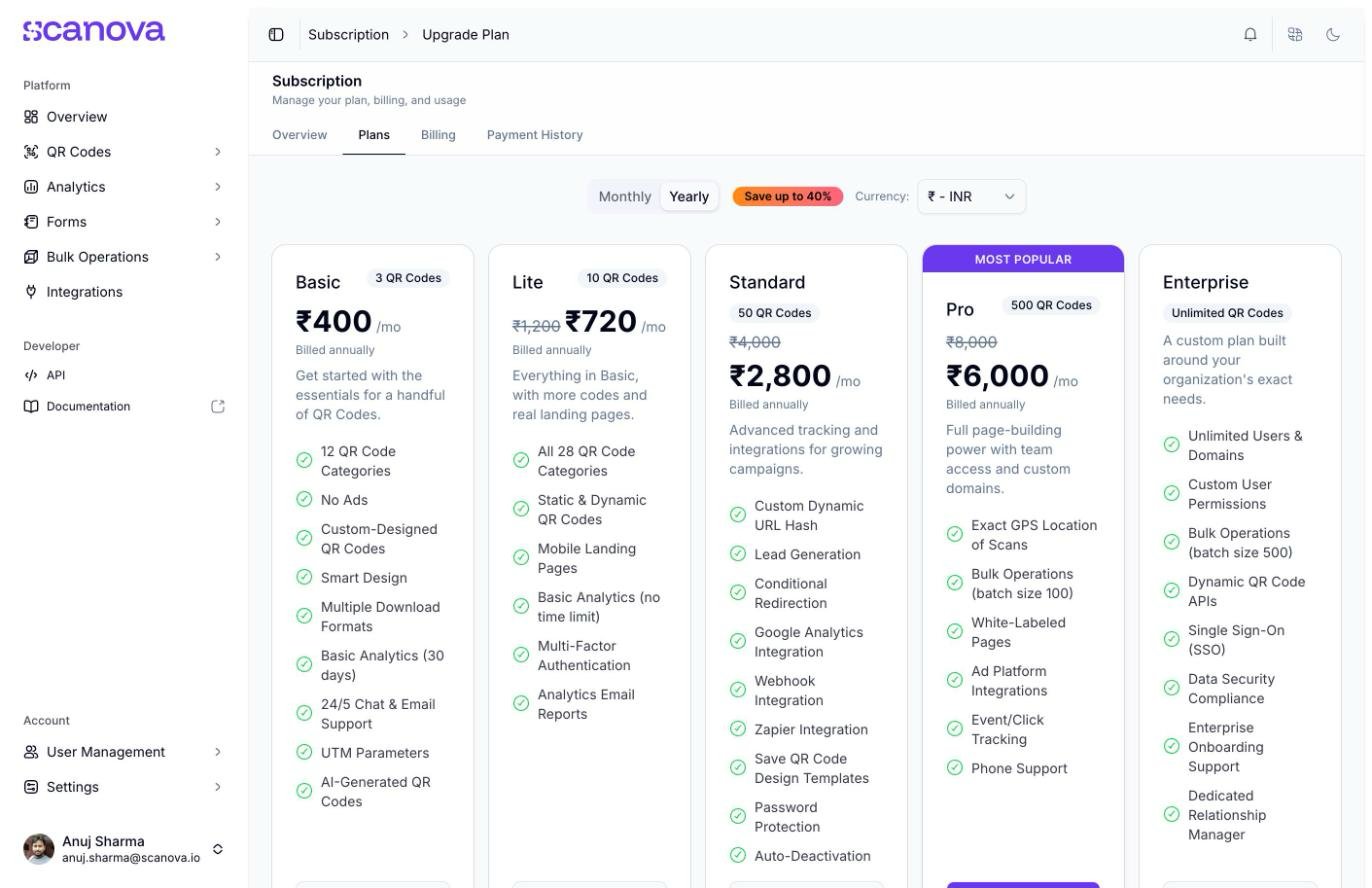
The Plans tab in Yearly billing mode
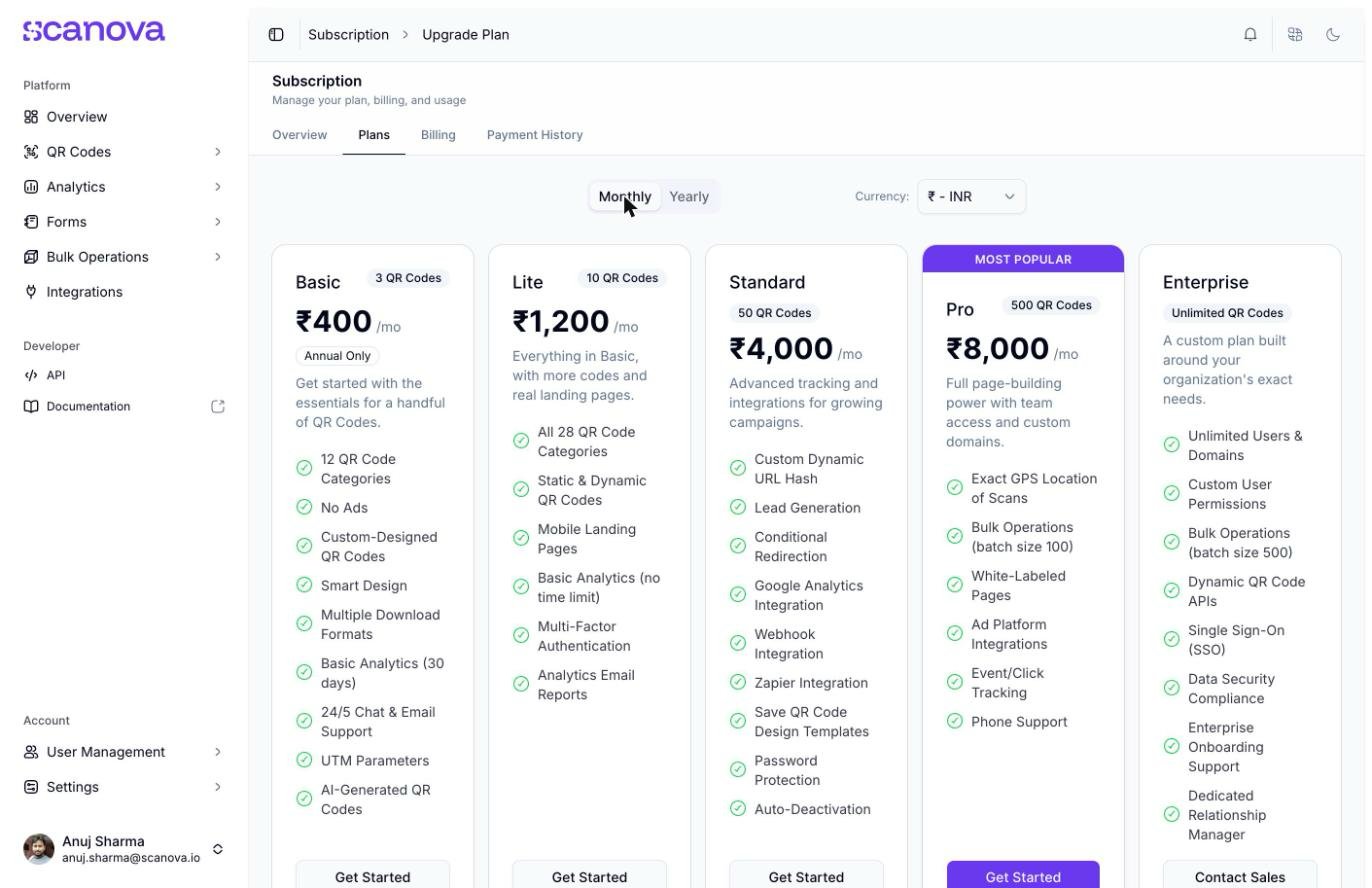
The Plans tab in Monthly billing mode
The Basic plan is annual-only — in Monthly mode it still shows a price, but with an Annual Only badge next to it, since billing for it is always yearly regardless of which toggle is selected.
Pro-plan add-ons
Plans that support add-ons (including Pro) show a “Customize your {plan} plan” dialog before checkout, with quantity steppers for extra Users and Custom Domains beyond the plan’s base allowance. Each increment shows its added cost for the billing period you selected. Confirm to carry those quantities into checkout, or cancel to proceed with the plan’s default allowance.Enterprise quotes
Click Contact Sales on the Enterprise card to open a short lead form.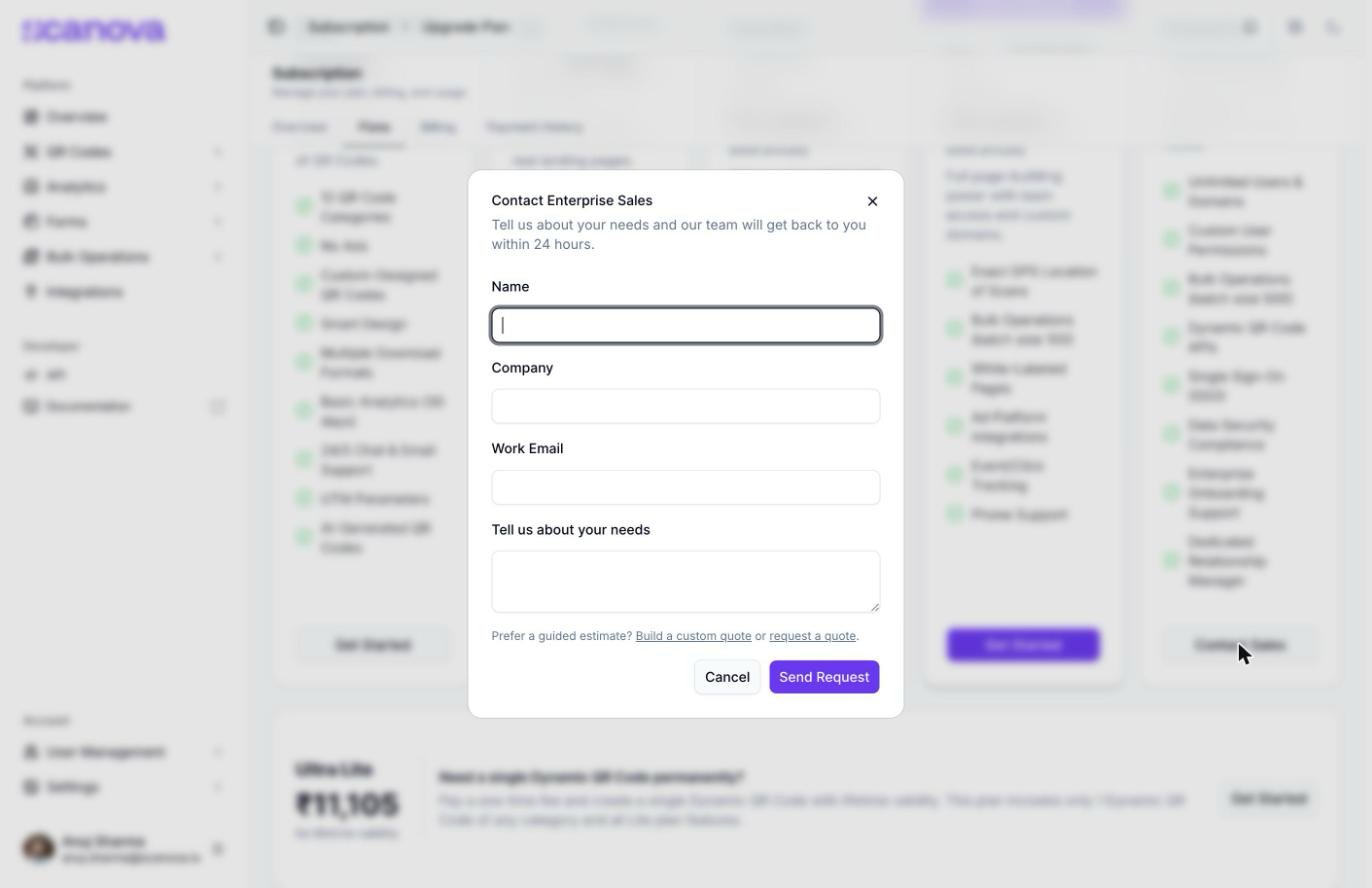
The Contact Enterprise Sales form
Downgrading
Choosing a lower-tier plan than your current one runs a pre-check against your actual usage before anything changes. If your usage fits within the lower plan’s limits, you’ll see a downgrade confirmation step summarizing your current plan’s remaining access, the new plan’s start date, and a checklist of what changes — you must check an acknowledgement box before Confirm Downgrade is enabled. If your usage exceeds what the target plan allows, the downgrade is blocked instead: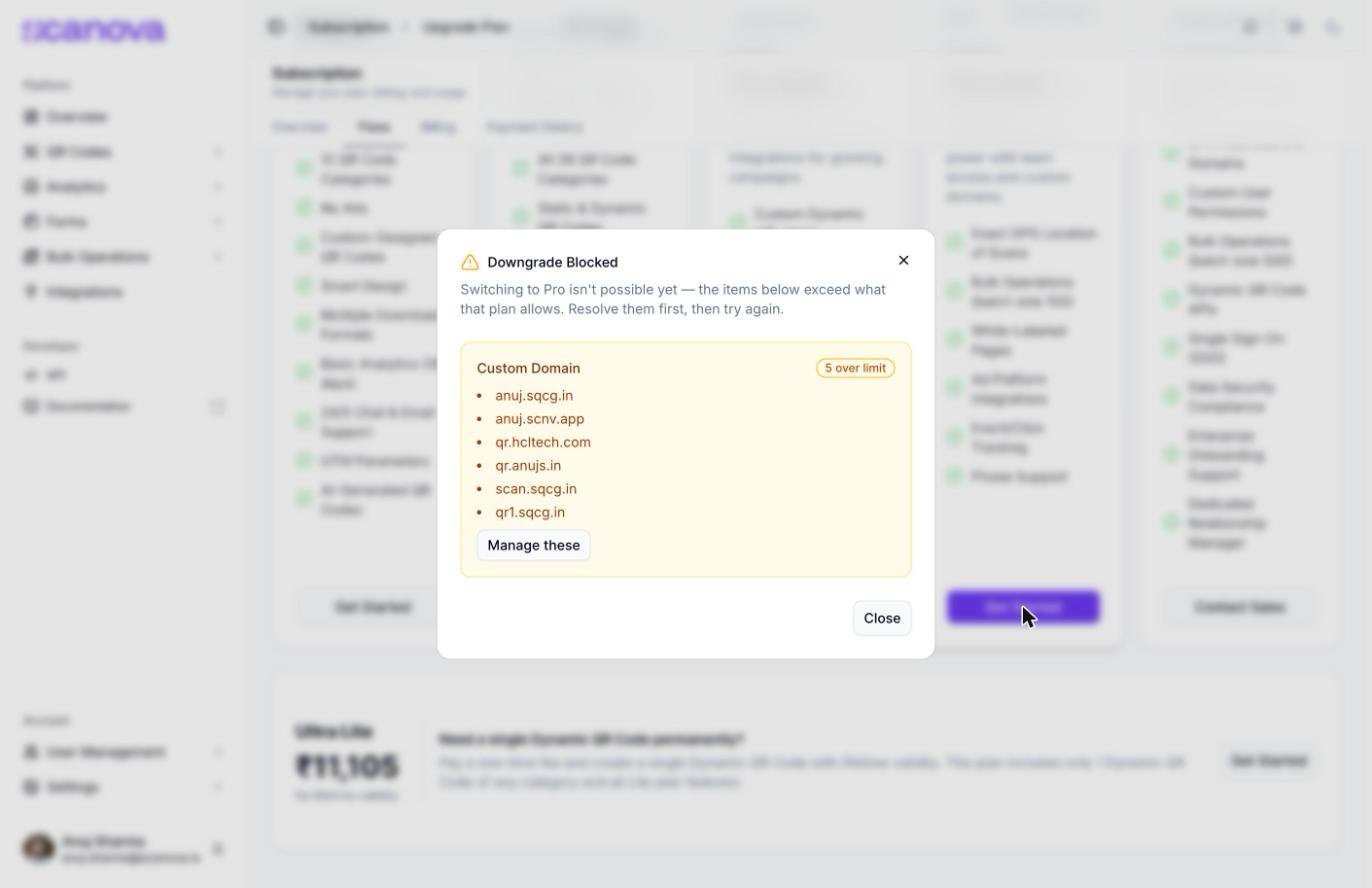
The Downgrade Blocked dialog, shown when current usage exceeds the target plan's limits
Related
- Subscription & billing — your current plan, renewal, payment method, and usage overview
- Shared users — managing the team members that count toward the Users add-on and downgrade checks above