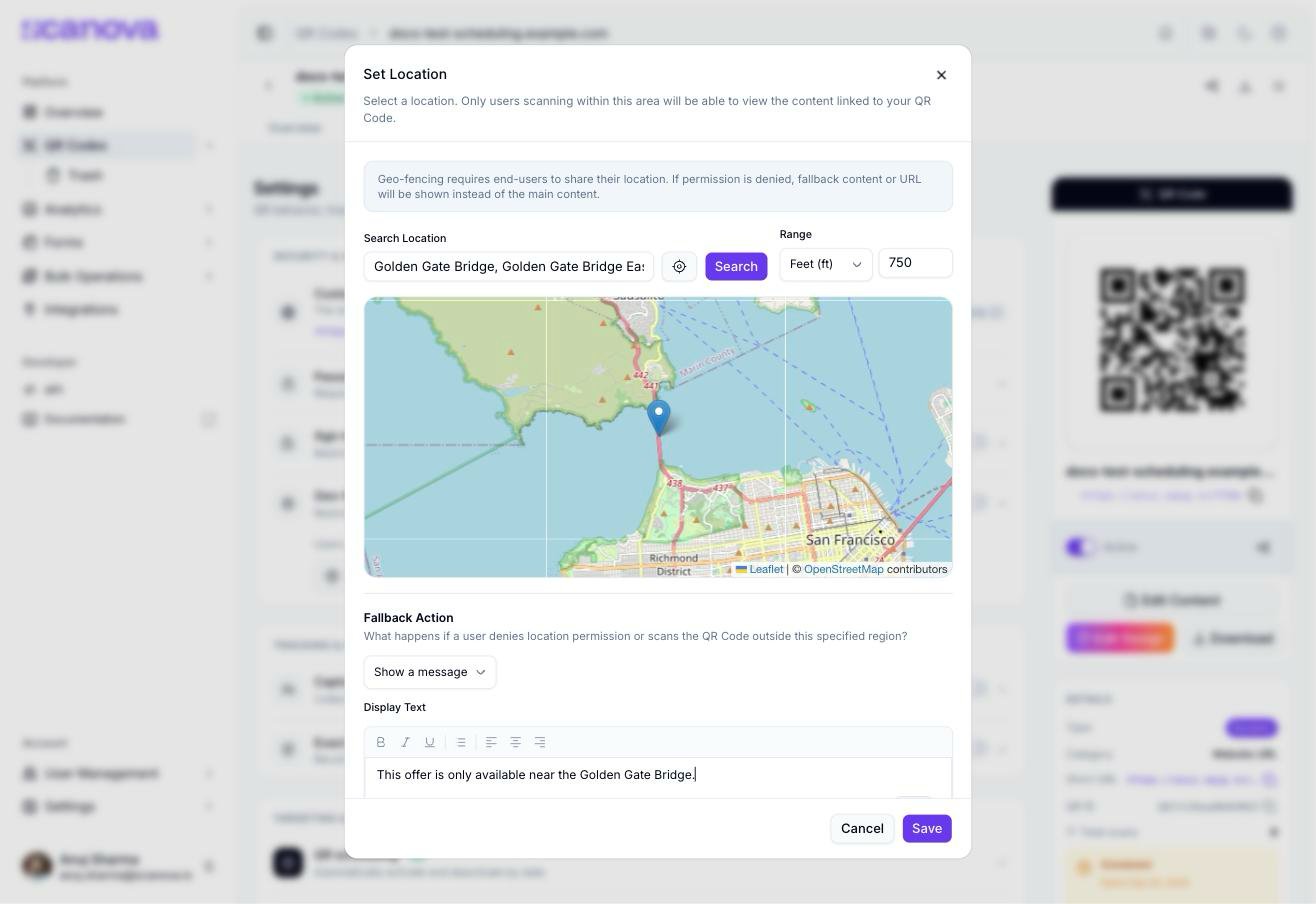
Geofencing restricts a QR Code’s content to visitors scanning from within a radius around a location you choose. Visitors outside that radius — or anyone who declines to share their location — see a fallback instead: either a custom message, or a redirect to a different URL.
Live UI wording: the row is labeled Geo-fencing, with helper text “Restrict content to users scanning within a specific location area.” It lives under the Security & Access section of a QR Code’s Settings tab, not Targeting & Lifecycle — it’s grouped with Password protection and Age restriction rather than with QR Code scheduling and Scan limit.
Geofencing requires the visitor’s browser to grant location permission. If permission is denied, the same fallback shown for out-of-range visitors is used.
Open the QR Code and go to Settings. Under Security & Access, select Geo-fencing to expand the section.
2
Open the location picker
Select Configure location to open the Set Location modal.
3
Search for a location
Type a place name into Search Location and select Search — or select the locate-me icon next to it to use your current location. The result repositions a pin on an embedded OpenStreetMap view.
Typing a place name alone doesn’t set the location — the map only updates once you select Search (or use the locate-me button). Filling the text field and closing the modal without searching won’t save a location.
4
Set the range
Enter a numeric value in Range and choose a unit: Feet (ft), Meters (m), Kilometers (km), or Miles (mi). This defines the radius around the pinned location that counts as “in range.”
5
Choose the fallback action
Under Fallback Action, choose what happens for visitors who deny location permission or scan from outside the range:
Show a message
Redirect to a fallback URL
The default option. Enter text in Display Text (up to 500 characters, with a live character counter) — this is shown to out-of-range visitors instead of the QR Code’s normal content. The built-in default is “This QR Code is location-restricted. The content linked to this QR Code is only accessible when scanned from a specific location.”
Selecting this swaps the Display Text field for a Fallback URL field. Out-of-range visitors are redirected there instead of seeing a message.
6
Save
Select Save. The Geo-fencing row switches to On, and the Configure location button updates to show the place name you set (for example, “Configure · Golden Gate Bridge”).
Set Location modal with a searched location, a 750-foot range, and a custom fallback message configured
Reopen Configure location at any time to search a new location, change the range or unit, or switch the fallback action between a message and a redirect URL.