Create a Wi-Fi QR Code that connects the scanner to your network automatically, with the network name, the security type, and the password encoded in it.
A Wi-Fi QR Code lets a phone camera join a wireless network automatically — no typing the SSID or password by hand. It’s a Quick Code: a direct-action QR Code with no landing page, built from a small form rather than the page builder. The tile for it in the app reads “Connect visitors to your Wi-Fi network instantly.”
Wi-Fi is Static only — there’s no Dynamic option for this type. Once published, the encoded network credentials can’t be edited or tracked; to change them, create a new QR Code.
From the sidebar, go to QR Codes, then click Create QR Code (or navigate to /qr/create). Click the Quick Code card.
2
Pick Wi-Fi
On the Quick Code type grid, click Configure under Wi-Fi, in the Static Only section. This opens the form at /qr/quick/wifi.
3
Enter the network name
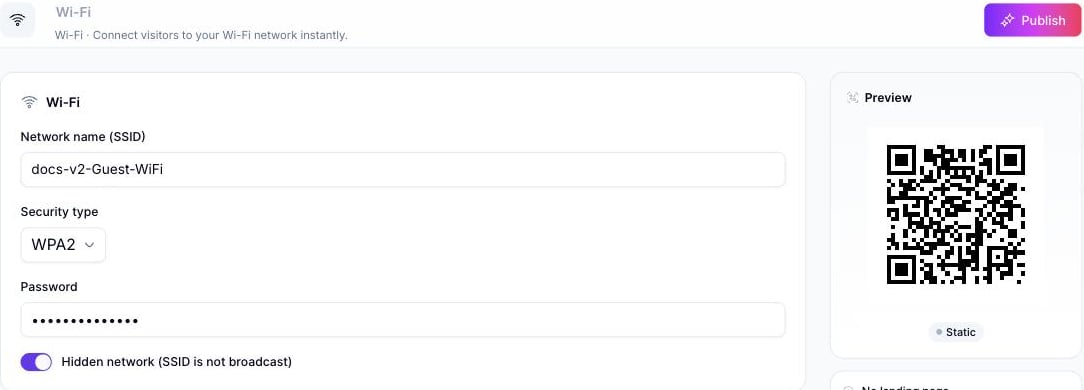
Type the network’s SSID into Network name (SSID) — this is the only required field. The placeholder shows “My Network”.
4
Choose a security type
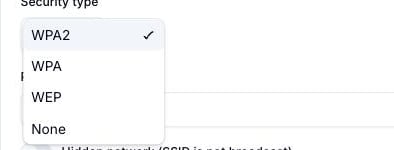
The Security type dropdown defaults to WPA2 and also offers WPA, WEP, and None (open network). Selecting None hides the Password field entirely, since an open network has no password to encode.
The Security type dropdown open, showing WPA2, WPA, WEP, and None (open network)
5
Enter the password and hidden-network setting
For any security type other than None, enter the network’s password in the Password field. If the network doesn’t broadcast its SSID, turn on Hidden network (SSID is not broadcast) so scanning devices know to join it by name instead of picking it from a visible list.
The Wi-Fi Quick Code form filled in, with a live QR Code preview and Publish enabled
6
Publish
Click Publish. A panel opens to confirm or rename the QR Code (it defaults to “Wi-Fi: <network name>”), assign a folder or tags, and adjust QR Code design before confirming.
To create a Wi-Fi QR Code through the API rather than the UI, use category ID 6 (labeled WiFi, allowed_qr_types: "st" — only "st" is valid for qr_type), with an info payload shaped like:
authentication accepts WPA, WPA2, WEP, or none; password and hidden are optional (hidden defaults to false). See Create QR Code for the full request schema.
The Category List reference table doesn’t currently list WiFi (or the other Quick Code–only categories on this page) — the ID above was confirmed directly against the live /qr/category/ endpoint.