Send scans to different destinations based on the country, the device, the operating system, or the browser language of whoever scanned your Dynamic code.
Conditional redirection sends scanners to different destination URLs based on Country, Device, Operating System, or Browser Language — all from a single dynamic QR Code. It’s a different feature from QR Code scheduling and GPS & geofencing: those live on a QR Code’s Settings tab and react to time or location, while conditional redirection is wired into the URL itself — the field where you set what a link or button points to — and reacts to who’s scanning.
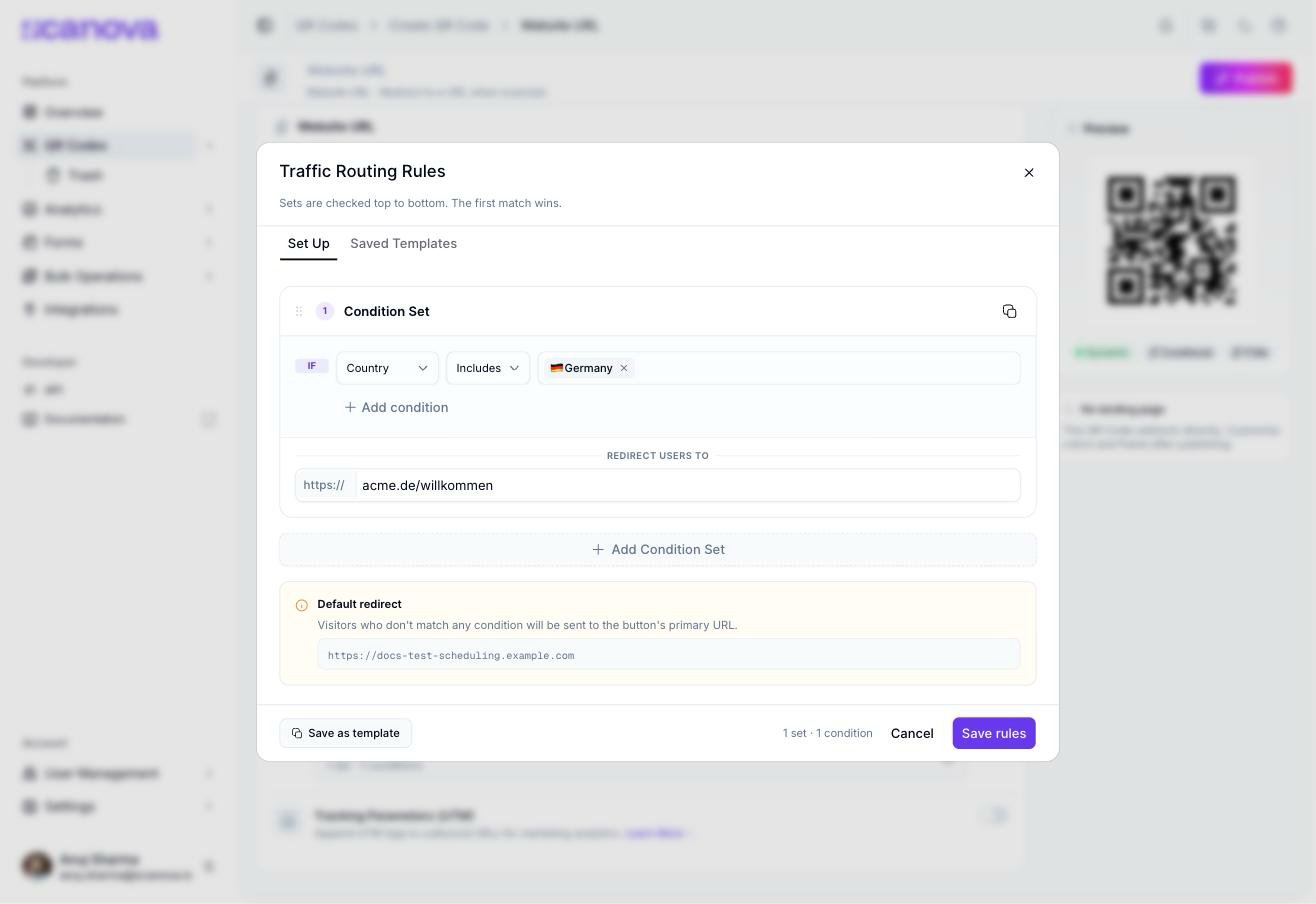
Live UI wording: the modal is titled Traffic Routing Rules, with the subtext “Sets are checked top to bottom. The first match wins.”
You’ll find it in two places that both open the same modal:
The URL field of a link or button block in the page builder
The Advanced settings of a Website URL Quick Code, under a Conditional Redirection toggle
While creating or editing a Website URL Quick Code, open Advanced settings and turn on the Conditional Redirection toggle. A Configure rules button appears.
Until at least one rule is added, the section shows “Add at least one rule, or turn this off — it won’t do anything until then.”
On a link or button block’s URL field in the page builder, open the conditional rules option next to it.
2
Select a condition field and operator
In Condition Set 1, the first row is prefixed IF. Choose a field — Country, Device, Operating System, or Browser Language — and an operator, Includes or Excludes.
3
Choose one or more values
Use the Search or select… box to pick one or more values for that field (for example, several countries). Selected values appear as removable chips. Select + Add condition to add another condition to the same set — additional conditions within one set are combined with AND.
4
Set the redirect URL for this condition set
Under Redirect Users To, enter the URL visitors matching this condition set should land on.
5
Add more condition sets if needed
Select + Add Condition Set to add another ordered set of conditions with its own redirect URL. Sets are evaluated top to bottom, and the first matching set wins — later sets are never checked once an earlier one matches.
6
Save
Select Save rules.
Traffic Routing Rules modal with one condition set configured: Country Includes Germany, redirecting to a localized URL
A Default redirect panel at the bottom of the modal shows the URL visitors are sent to when they don’t match any condition set — this is always the primary URL already set on the button or link, shown read-only for reference. There’s no separate field to configure it here; change the primary URL itself if you need to change this fallback.
The modal has two tabs: Set Up (the rule sets described above) and Saved Templates. Select Save as template to store a configured set of rules by name so you can re-apply the same routing logic to other links or buttons later, instead of rebuilding it from scratch.
Any redirect URL you leave blank is dropped when you save — condition sets need a redirect URL to take effect. If you enter a URL, it’s validated on save; an invalid URL blocks saving with a toast asking you to fix it.