

/overview) — a summary of your account’s QR Code activity plus quick links into the rest of the app.
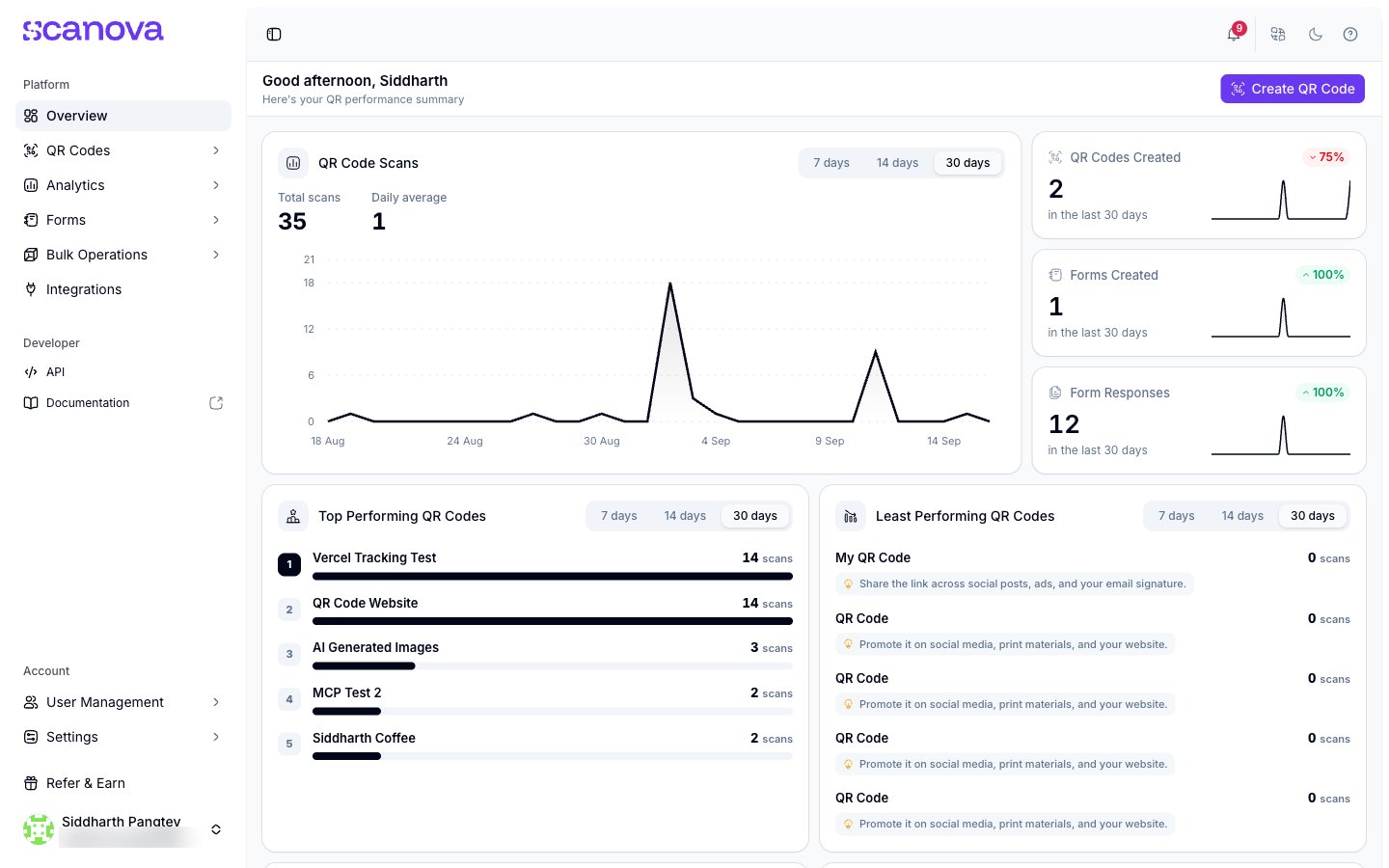
The Overview dashboard
What’s on the dashboard
The page greets you by name (“Good evening, {name}”) and is built from several panels:- QR Code Scans — a scan-trend chart with 7/14/30-day toggles, plus total scans and daily average
- QR Codes Created, Forms Created, Form Responses — stat cards for the same date range, each with a trend indicator (e.g. ”▲ 100% in the last 7 days”)
- Top Performing QR Codes / Least Performing QR Codes — your best- and worst-scanning codes for the selected period
- Usage & Limits — your plan tier (e.g. “Pro”) and consumption against its limits: number of QR Codes/pages, users, and custom domains — with View Plan Details and Upgrade Plan buttons
- Explore Advanced Features — short pointers to features you may not have used yet, such as Tracking Parameters, AI-generated QR Code Design, and Conditional Redirection, each linking out via View all
- Recent Activity — a running log of what’s changed (e.g. “Website URL QR Code ‘my-qr’ created — by {user}”), filterable by All / QR Codes / Reports
- Learn & Grow — links into the Help Center on topics like QR Code analytics, customization, and printing
The sidebar
The left sidebar is where you navigate the rest of the app. It’s split into two groups: Platform- Overview — this dashboard
- QR Codes — every QR Code you’ve created, with a Trash for recently deleted ones
- Analytics — scan-level reporting
- Forms — standalone forms, plus a legacy Lead List view
- Bulk Operations — batch workflows
- Integrations — connect design, marketing, and automation tools such as Canva, Google Analytics, Zapier, and Slack to your QR Codes
- API — API keys and usage
- Documentation — this documentation site, marked with an external-link icon
/qr/create directly.
Below the main navigation are account-level links: User Management and Settings, plus Refer & Earn when your billing address is outside India. Your account name and email are shown at the very bottom, with a menu holding Account, Subscription, Support, Book a Demo, and Log out.
The top bar
Above the page content, the top bar has a sidebar-toggle button on the left, and on the right: a notification bell, a grid-style icon, a dark/light theme toggle, and a help icon.Where to go next
- Creating your first QR Code — a full walkthrough of publishing your first QR Code
- Quick Code vs. full Page — how to choose between a direct-action code and a landing page
Related
- What is Scanova? — a platform-level overview of the sections summarized here
- Website URL QR Code — the simplest Quick Code type, a good next step from Overview
- Folders, tags & bulk operations — organizing the QR Codes that show up in Recent Activity and the QR Codes list