The kinds of page you can build behind a QR Code, from a single landing page through to a multi page site, and what each type is actually best suited to doing.
A landing page can contain one or more pages. Single-page QR Codes show one scrollable page; multi-page QR Codes add navigation so visitors can switch between pages (see Multi-page navigation). Each page has its own page type, which determines which blocks are available on it.
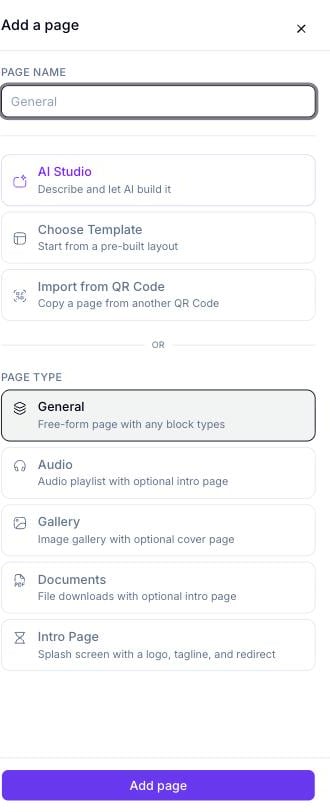
The Add a page sheet — creation methods above the divider, page types below it
2
Choose how to build it
Above the OR divider are three creation methods, not page types — pick one of these, or pick a page type below instead:
AI Studio — describe the page and let AI build it
Choose Template — start from a pre-built layout
Import from QR Code — copy a page from another QR Code
3
Or pick a page type directly
Below the divider, pick one of the five PAGE TYPE options (described below), then click Add page.
AI Studio is a creation method, not a page type. It sits alongside Choose Template and Import from QR Code, above the page-type list — it isn’t one of the five options you pick from below the divider.
Free-form page with any block types. The standard, general-purpose page — supports the full content-block set (text, images, video, maps, social profiles, buttons, forms, and more).
Audio playlist with an optional intro page. Built around the Audio Player block, which manages a playlist of tracks that visitors can play, pause, and (optionally) download.
Image gallery with an optional cover page. A full-screen, swipeable image gallery — good for photography portfolios, product galleries, or event photo albums.
File downloads with an optional intro page. Displays a PDF or other document for visitors to view or download — good for menus, brochures, instruction manuals, or price lists.
Splash screen with a logo, tagline, and redirect. A dedicated landing screen you can put in front of the rest of a multi-page site — for example, a branded splash page that then sends visitors on to your main content.
The page type and block content you configure here live inside the builder itself, not in a payload you construct through the API. To create the underlying QR Code for a page-builder site via the API, see Create QR Code and pick a landing-page category ID from the Category List — for example 9 (Custom Page) for a general-purpose site.