

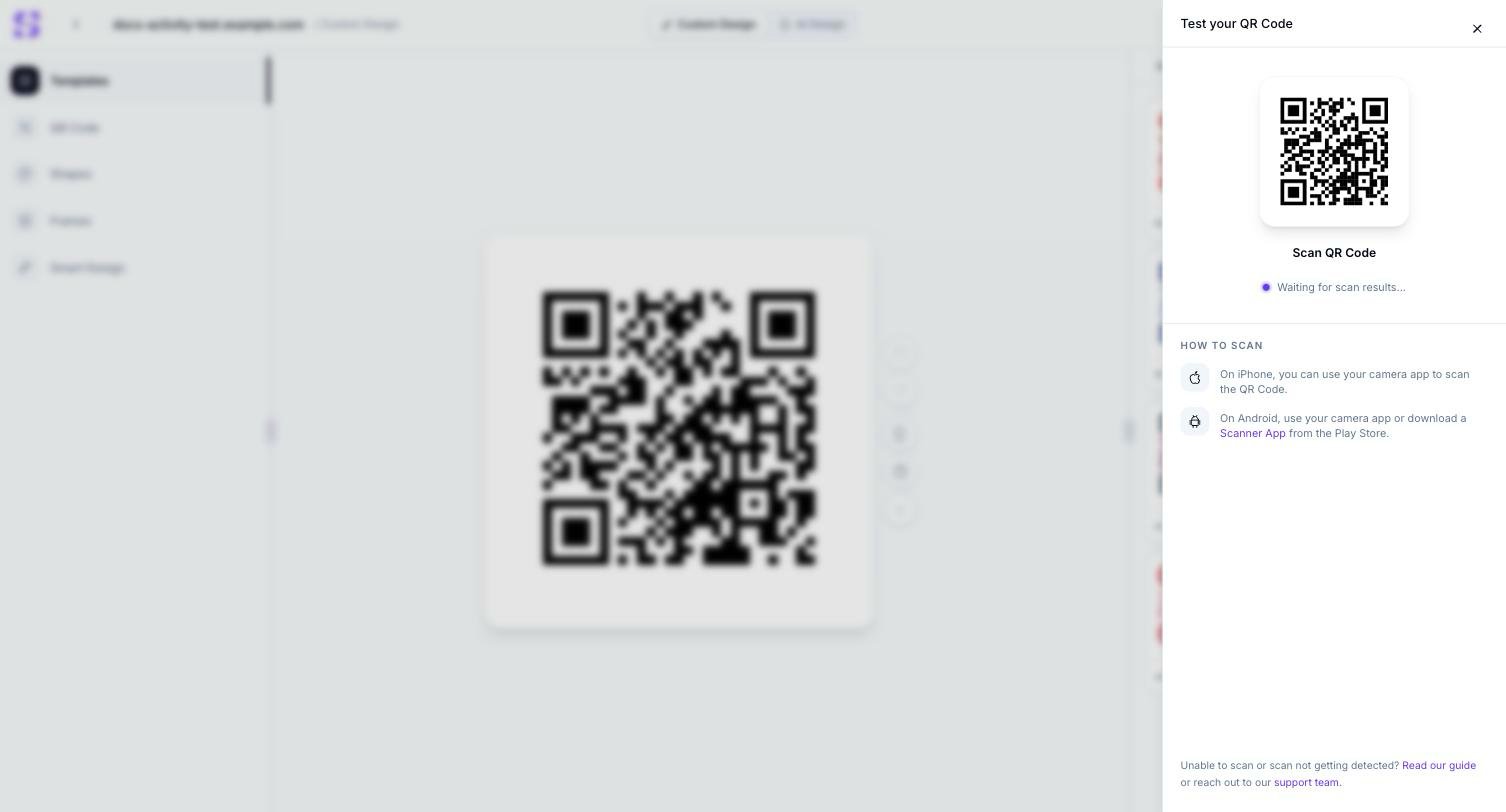
The Test QR Code drawer, waiting for a scan
How it works
1
Open Test QR Code
Click the Test QR Code icon in the canvas toolbar. A drawer opens showing your QR Code’s current design and a Waiting for scan results… status.
2
Scan it with your phone
Follow the How to Scan instructions: on iPhone, your camera app scans it directly; on Android, use your camera app or download a Scanner App from the Play Store.
Related
- Custom QR Code design — the editor this tool is opened from, and the settings most likely to need a scan test after changing them
- AI Design — an AI-generated background is exactly the kind of busy design worth testing here before publishing
- Support — the in-app help hub linked from this drawer’s footer