

How it works
Multi-page landing pages are available on the Standard Plan and above. On a lower plan a QR Code is limited to a single page.
Navigation style is a single, QR-wide setting — not a per-page choice. Every page on the QR Code uses the same style.
Navigation styles
The Page Settings dialog offers exactly three styles: Bottom, Top, and None.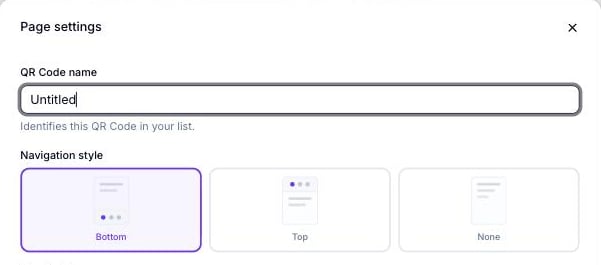
Page settings — Navigation style: Bottom, Top, or None
Bottom
A row of tabs anchored to the bottom of the screen — the default and most familiar pattern for mobile visitors, similar to the tab bar in most mobile apps.Top
A horizontal tab bar at the top of the page content. Works well when the page has a prominent header block and you want navigation to read as a section switcher.None
No navigation controls are shown. Visitors only move between pages through whatever links or buttons you build into the content itself.Configuring navigation
1
Open Page Settings
Click the gear icon next to the Pages list in the left sidebar, or click Settings in the header.
2
Choose a navigation style
Under Navigation style, pick Bottom, Top, or None.
3
Set each page's icon and label
Click a page in the Pages list to give it an icon; this shows in the Bottom and Top navigation styles.
4
Reorder pages if needed
Drag pages in the list — the order here matches the order visitors see in the navigation.
Related
- Page types — the page types you can add to a multi-page site
- Page Builder overview — where Page Settings and the Pages list live in the editor
- Page security — password-protecting an individual page that still appears in navigation