Create a QR Code that opens the scanner’s email app with the recipient, the subject, and the body already filled in, so all they have to do is press send.
An Email QR Code opens the device’s default mail app with the recipient, subject, and body already filled in, so scanning it is a one-tap way to start an email — a contact address, a support inbox, an RSVP reply. It’s a Quick Code — a direct-action QR Code with no landing page. In the app, the tile for it reads “Opens the mail app with subject and body pre-filled.”
Email is Static only — there’s no Dynamic option for this type. Once published, the encoded address and message can’t be edited or tracked; to change them, create a new QR Code.
From the sidebar, go to QR Codes, then click Create QR Code (or navigate to /qr/create). Click the Quick Code card.
2
Pick Email
On the Quick Code type grid, click Configure under Email, in the Static Only section. This opens the form at /qr/quick/email.
3
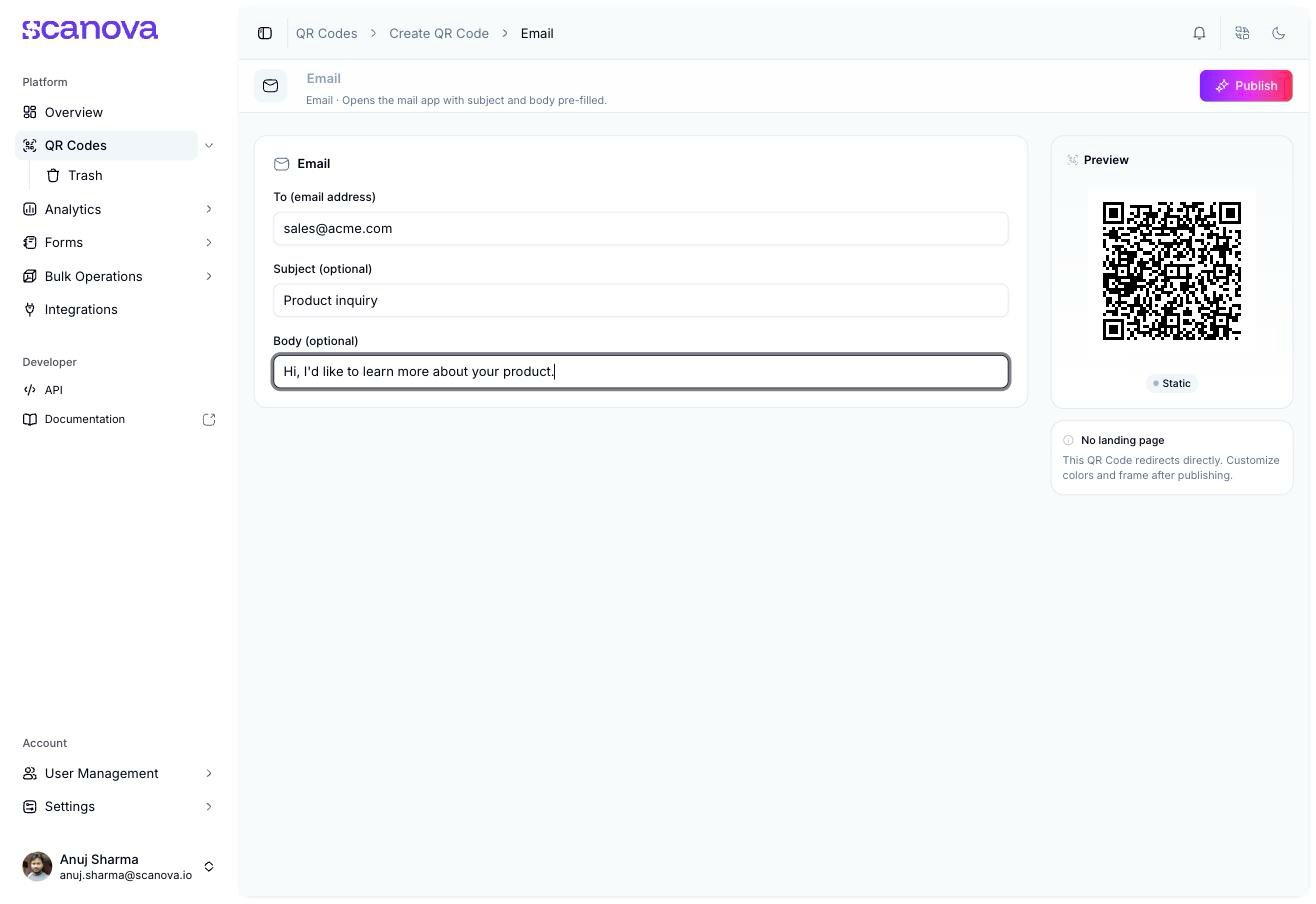
Enter the email details
Fill in the fields:
To (email address) (placeholder hello@example.com) — required, validated as a proper email address
Subject (placeholder “Hi there!”) — optional
Body (placeholder “Your message…”) — optional
The Email Quick Code form with a recipient, subject, and body entered
4
Publish
Click Publish. A panel opens to confirm or rename the QR Code (it defaults to the recipient address), assign a folder or tags, and adjust QR Code design before confirming. Once published, you can revisit design (colors, frame) from Edit Design on the confirmation screen.
To create an Email QR Code through the API rather than the UI, use category ID 2 (labeled Email, allowed_qr_types: "st" — only "st" is valid for qr_type), with an info payload shaped like:
{ "type": "email", "data": { "to": "sales@acme.com", "subject": "Product inquiry", "body": "Hi, I'd like to learn more about your product." }}
Only to is required by the backend schema. The schema also accepts cc and bcc string fields — the dashboard’s Email Quick Code form doesn’t expose fields for either, but both are valid if you set them directly through the API.See Create QR Code for the full request schema.
The Category List reference table doesn’t currently list Email (or the other Quick Code–only categories on this page) — the ID above was confirmed directly against the live /qr/category/ endpoint.