Create a QR Code that opens a restaurant landing page, built from the Restaurant templates, with your menu, your opening hours, and your contact details.
A restaurant page is a landing page built for dine-in, takeout, or delivery businesses. Instead of a single menu image, you build a full page from blocks — brand info, a structured menu, a feedback form, an “About Us” section, review links, and social profiles — that guests reach by scanning a table tent, door sticker, or receipt.
There’s no separate “Restaurant QR Code” creation route. It’s reached through the same Build a Page flow used for every page-builder QR: pick a restaurant-tagged template from the gallery (or start from a blank canvas and add the same blocks yourself), then customize it in the page builder.
From the sidebar, go to QR Codes, then click Create QR Code (or navigate to /qr/create).
2
Choose Build a Page
On the create hub, click the Build a Page card. This is the block-based landing page builder — it’s distinct from Quick Code (a direct QR Code with no landing page) and AI Studio (AI-generated blocks from a text prompt).
3
Filter the gallery by Restaurant
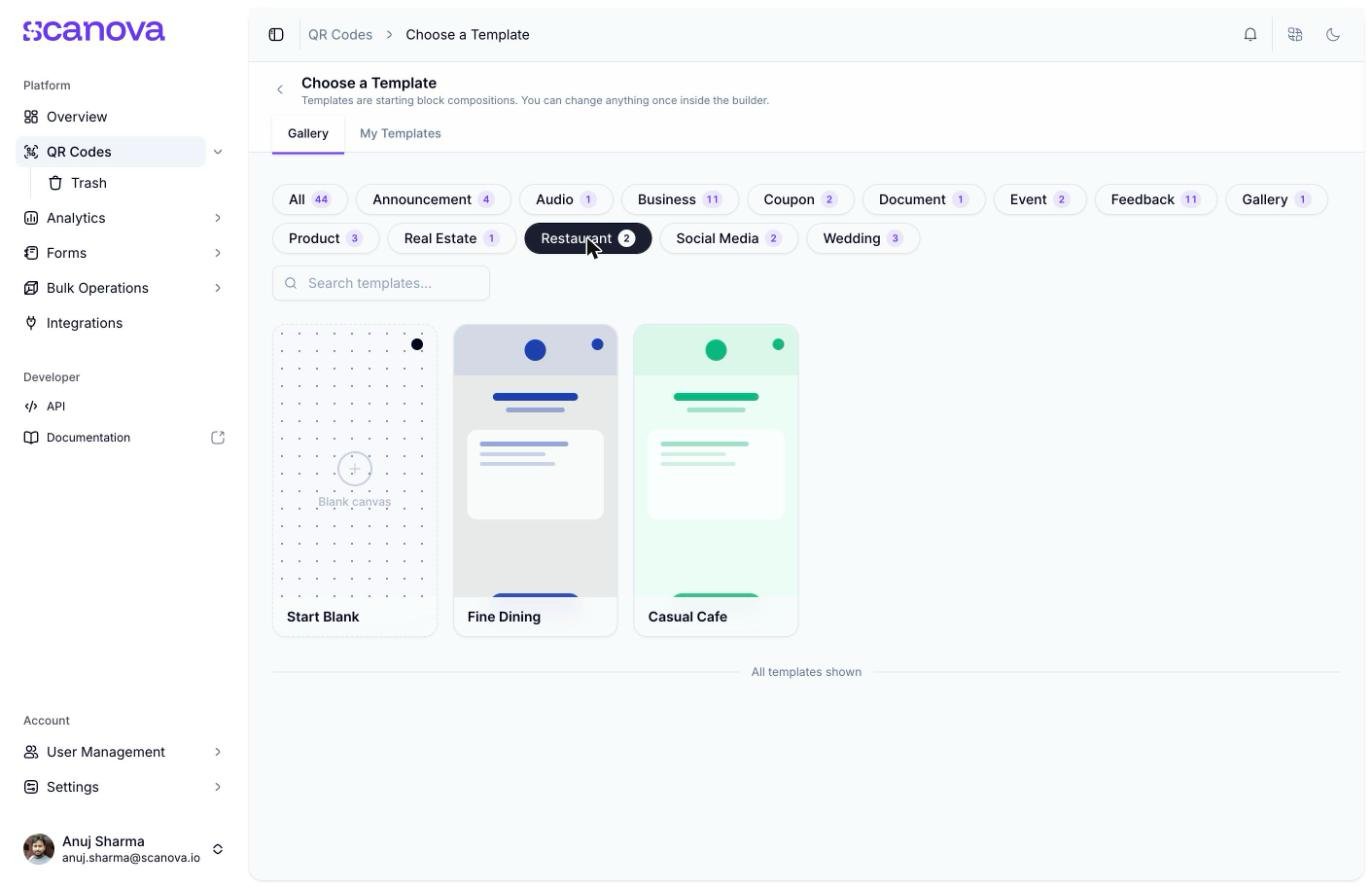
You land on Choose a template (/qr/new), a searchable, tag-filterable gallery. Click the Restaurant tag to filter to restaurant-tagged templates. The tag filters to Fine Dining and Casual Cafe.
The template gallery filtered to the Restaurant tag
Both templates open normally. Fine Dining is described as “Timeless blue and ivory — an elegant page for an upscale restaurant”; Casual Cafe as “Fresh greens — a bright, friendly page for a cafe or casual eatery.”
4
Preview and select a template
Click a template card to open its preview panel, which shows the template name, a one-line description, its category tag, and a Use this template button. Click Use this template to continue.
5
Land in the page builder
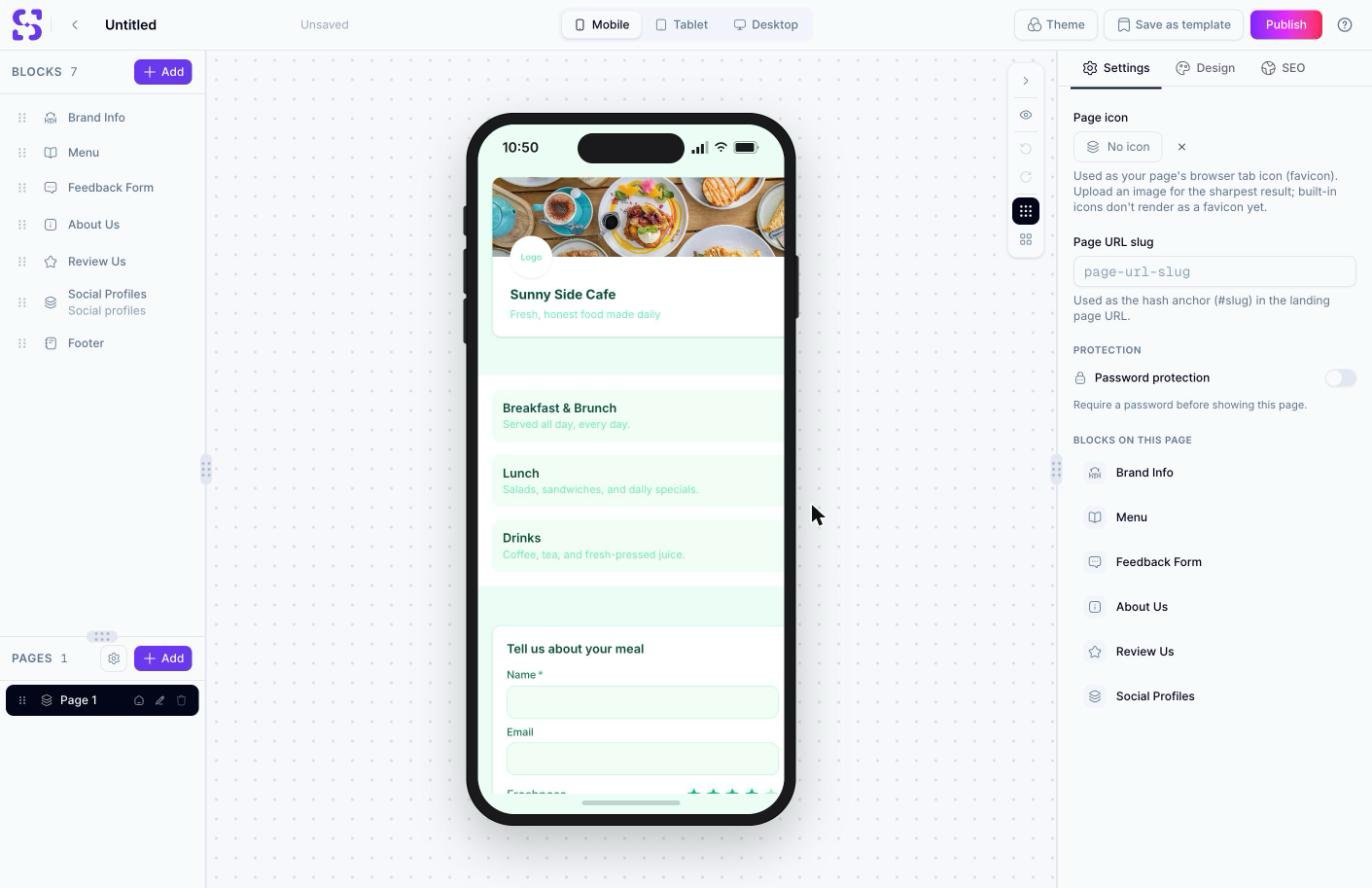
You’re dropped into the builder at /qr/new/landing?template=restaurant-casual-cafe (the query string encodes the template you picked). The Casual Cafe template ships with 7 blocks: Brand Info, Menu, Feedback Form, About Us, Review Us, Social Profiles, and Footer — all editable from the left-hand blocks panel.
The page builder canvas after opening the Casual Cafe restaurant template
You don’t need to fully publish to have a working page — the builder auto-manages a draft. Reaching this canvas is enough to confirm the flow works; edit content, theme, and SEO settings from the right-hand panel and click Publish when ready.
Page-builder pages are still QR Codes with a category. When creating a restaurant-style QR Code through the API (rather than the UI), use category ID 25 (labeled Restaurant). See Create QR Code for the full request schema, and Category List for how category IDs map to labels.
Use category ID 25 for Restaurant. Some older references list a second ID, 44; it is not a live category.