Start from a ready made template instead of a blank canvas, how the gallery is organised by category, and what happens to a template once you have picked it.
Every landing page starts from either a pre-built template or a blank canvas. Templates give you a starting set of blocks and a matching theme, which you can freely edit once you’re inside the builder — nothing about a template locks you in.
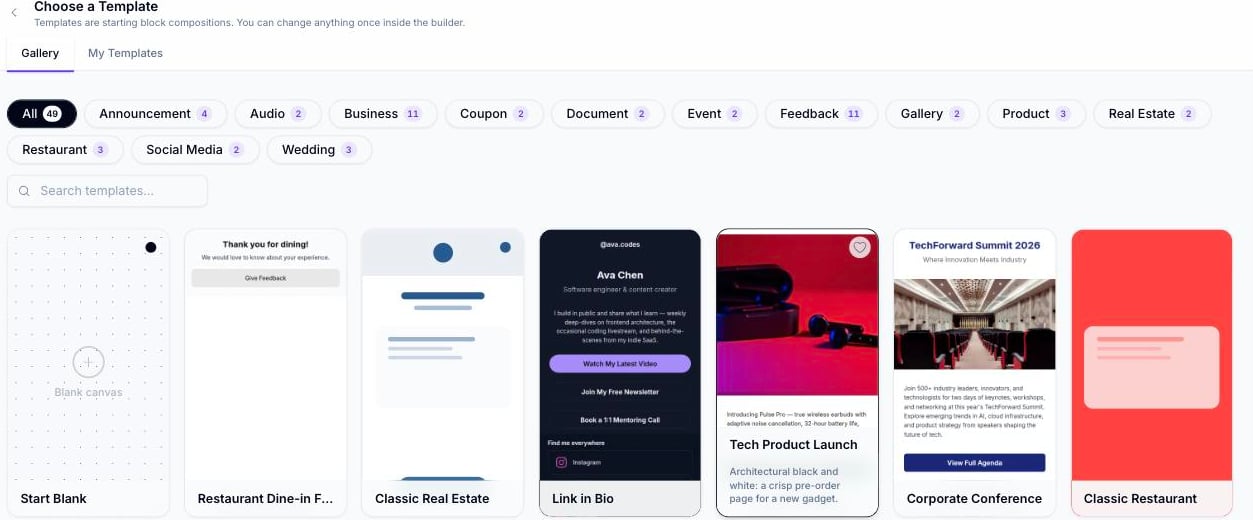
The Gallery tab shows every available template as a card with a live-style preview, grouped under category tags along the top — All, Announcement, Audio, Business Card, Coupon, Document, Event, Feedback, Gallery, Product, Real Estate, Restaurant, Social Media, and Wedding — each with a count of templates in that category.
The template gallery, showing category tags and a grid of template cards
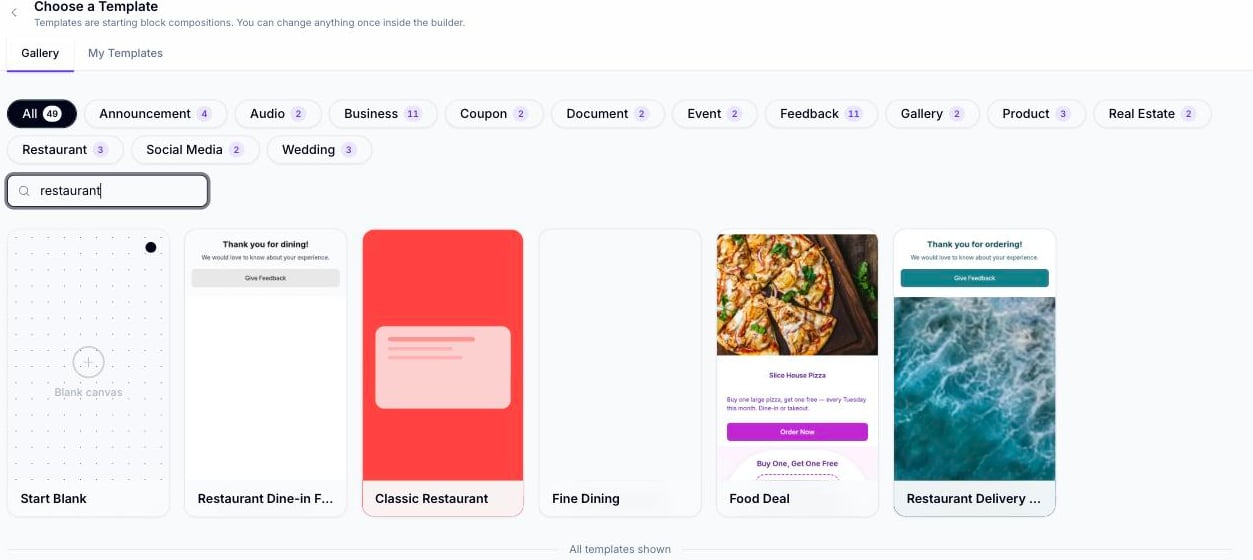
Click a category tag to narrow the grid to just that category, or use the Search templates box to filter by name — search and category filtering can be used together.
Search results for “restaurant”, showing only restaurant-category templates plus Start Blank
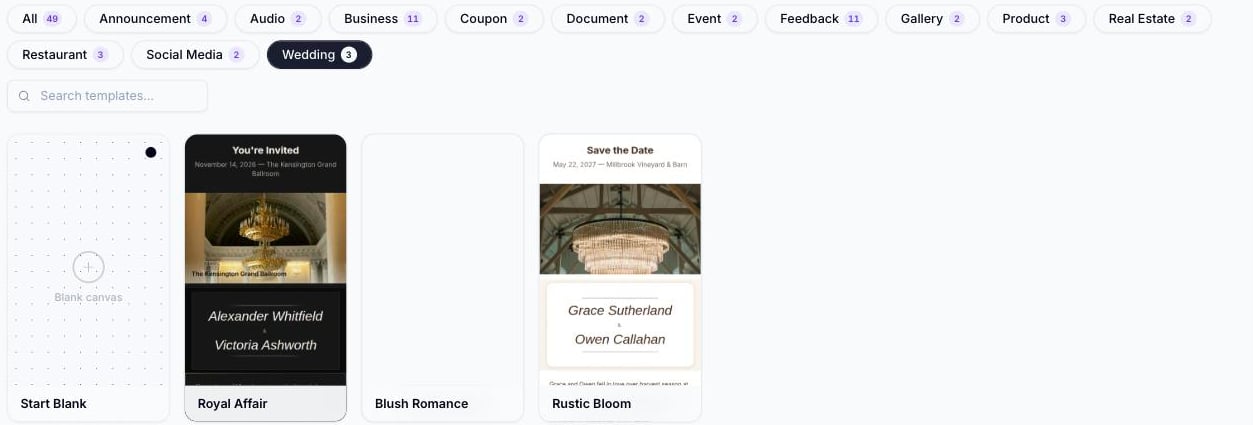
The gallery filtered to the Wedding category tag
Hover over a template’s preview to scroll through its full mobile layout before picking it. Clicking a card opens the builder with that template’s blocks and theme already applied.
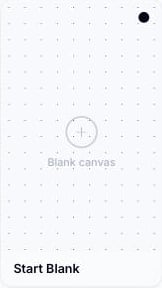
The first card in every view of the gallery is Start Blank — it skips template selection entirely and opens the builder with an empty canvas (no blocks, default theme), letting you build a page from scratch.
The Start Blank card, always shown first in the gallery
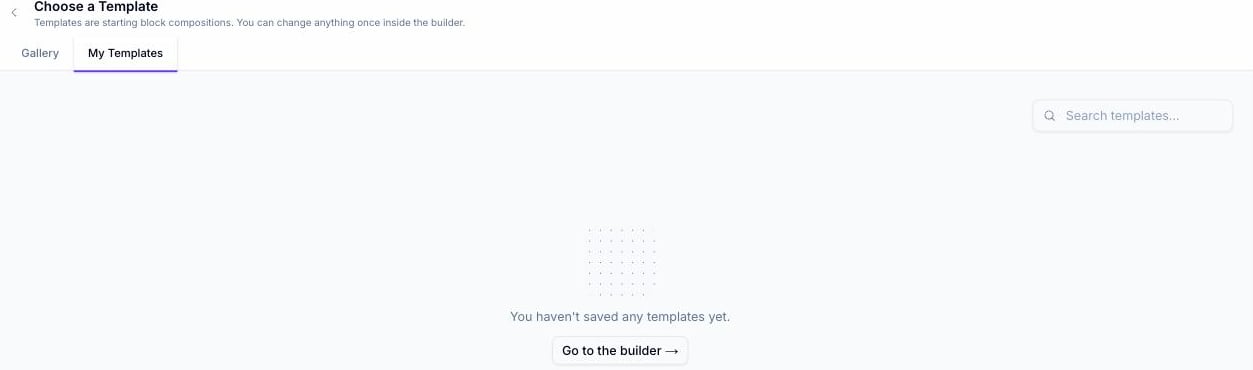
The My Templates tab shows templates you’ve saved yourself (see below) — it’s separate from the shared Gallery and is empty until you save your first one.
The My Templates tab on a fresh account, before any templates have been saved
On a new account, My Templates shows this empty state with a Go to the builder → shortcut back to a blank canvas. It fills in with your saved templates as soon as you use Save as template (below).
Yes — the builder has a Save as template action that captures your current page (blocks, theme, and any per-block design overrides) as a reusable template under My Templates.
1
Build your page
Open a page in the builder (from a template or from Start Blank) and add or edit blocks as usual.
2
Click Save as template
In the builder header, click Save as template.
This button only appears for standard landing pages. It’s hidden for AI Studio pages, since those are single raw-HTML pages without the multi-page/theme structure a template needs.
3
Name the template
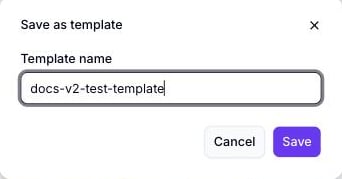
A dialog opens with a Template name field, pre-filled with your page’s current name. Edit it if you want a different name, then click Save.
The Save as template dialog, with the template named
4
Confirm it saved
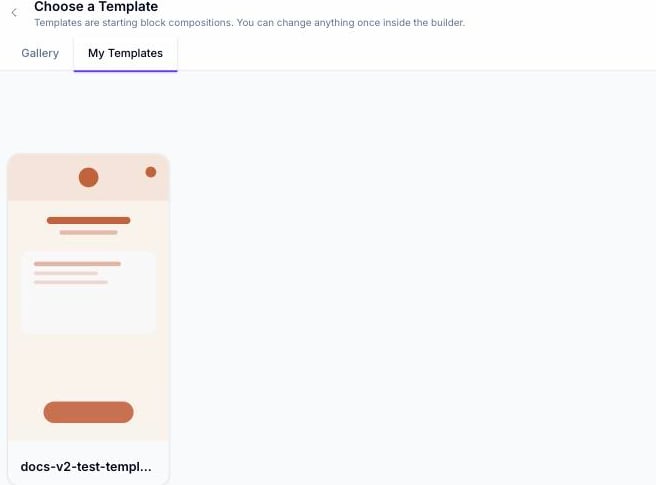
A confirmation toast appears, and the template is immediately available from the My Templates tab the next time you create a QR Code.
My Templates after saving — the new template appears as a card
Saved templates capture the full page — including multi-page structure and theme overrides — so applying one later reproduces the exact design you saved, not just a default look.