Manage your Scanova profile, your password and security settings, business details, localization, and whether the interface renders in light or dark mode.
Your profile, login security, business info, and localization settings all live on the Account tab at /account. A separate Appearance tab controls the dashboard’s theme. Both are reachable from the account menu at the bottom of the sidebar.
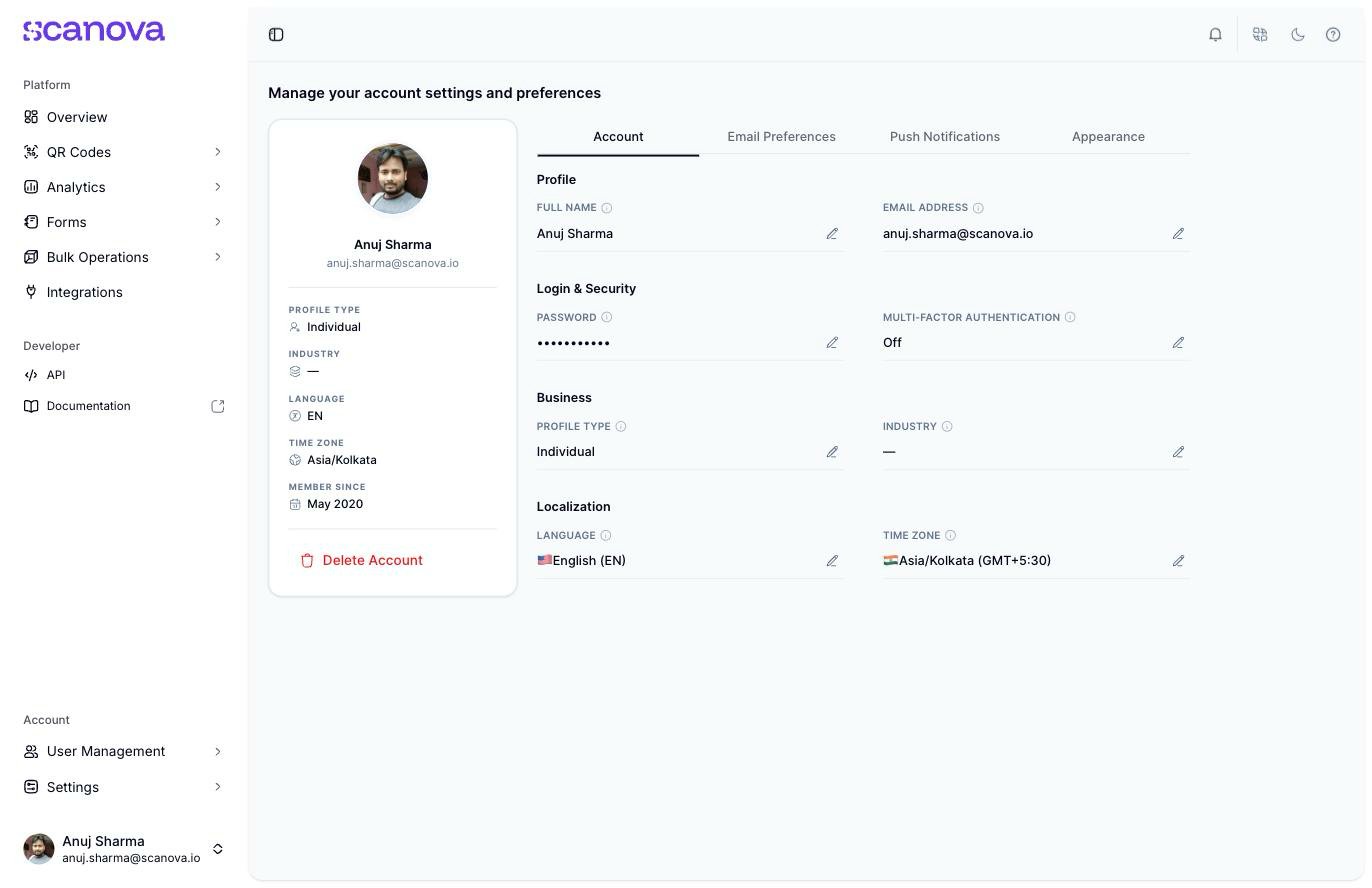
The Account tab, showing Profile, Login & Security, Business, and Localization sections
The card on the left summarizes your profile type, industry, language, time zone, and the date you joined (“Member since”), plus a Delete account link. The panel on the right is where you make changes.
Hovering the avatar shows a Change Photo overlay — you can upload a profile photo. Without one, it shows your initials in a colored circle instead (for example “DO” for a user named “Docs”).
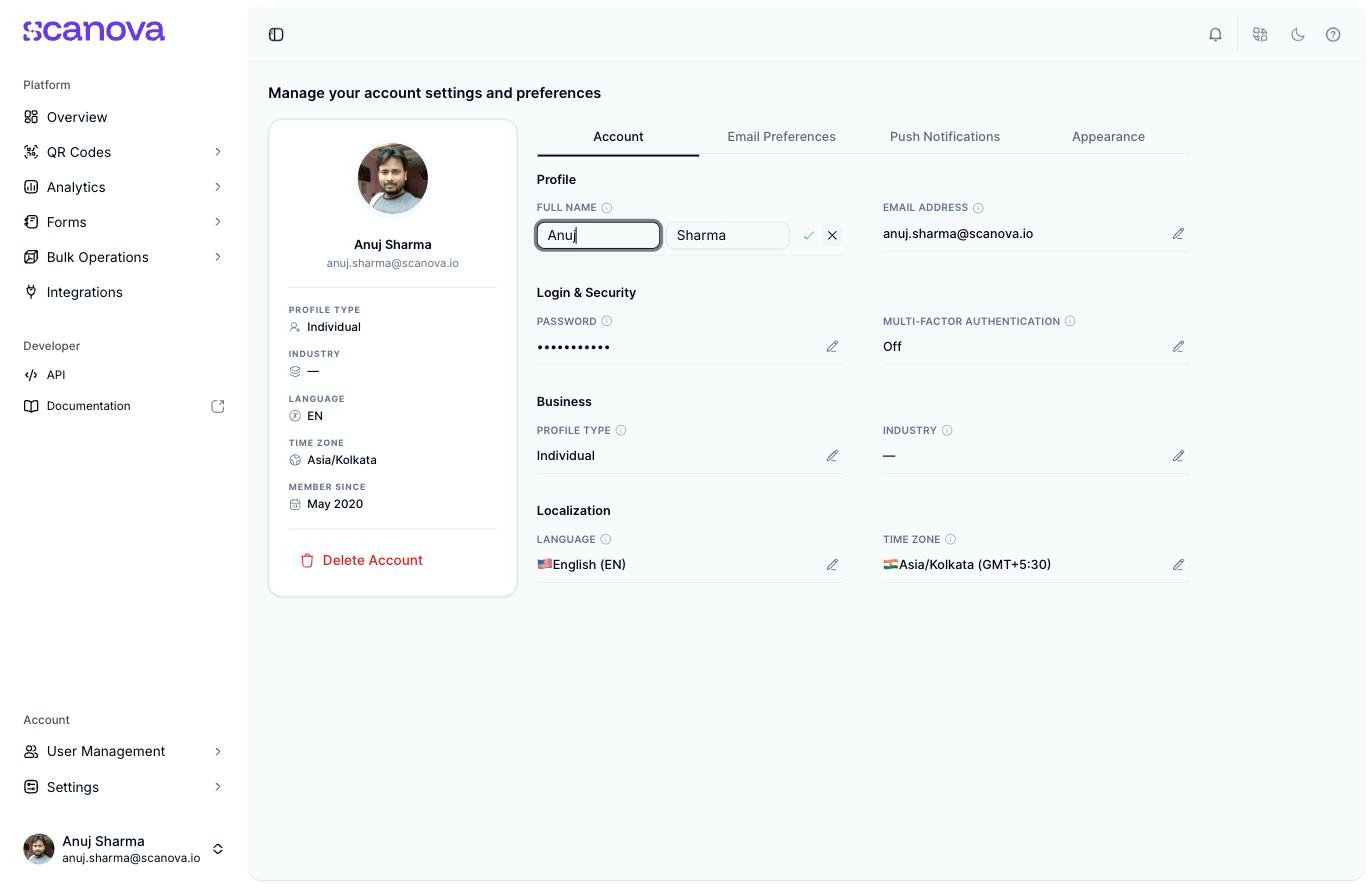
Click the pencil icon next to Full Name to edit it inline. This splits into two separate fields — First name and Last name — each with its own text input, plus a shared checkmark to save and an X to cancel.
Click the pencil icon next to Email Address to open the Change Email drawer.
1
Enter your new email
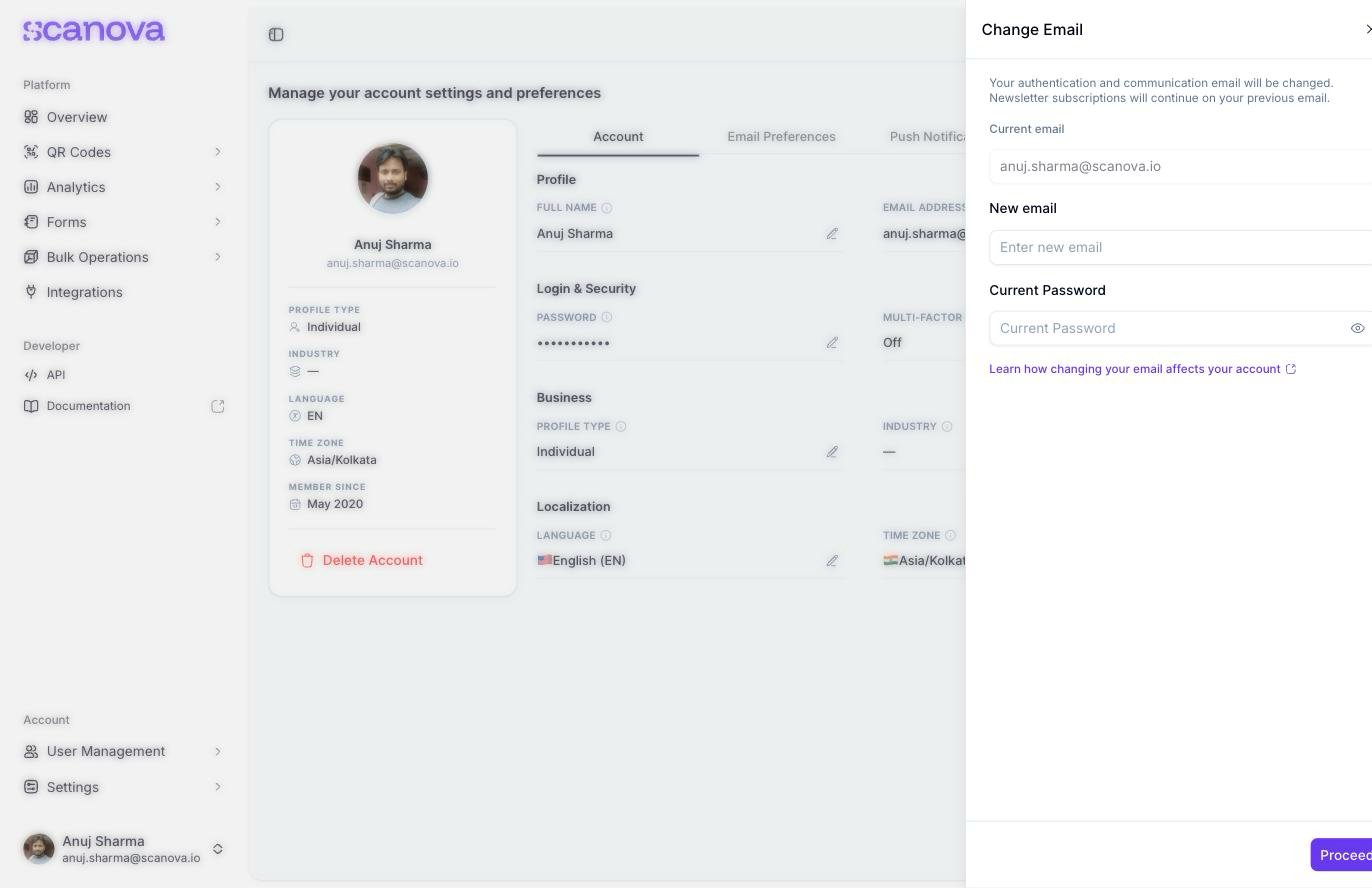
The drawer shows your current email (read-only) and a New email field. Enter the address you want to switch to.
The Change Email drawer
2
Confirm your current password
Enter your current password in the Current Password field, then click Proceed.
3
Verify with a one-time code
Scanova sends a 6-digit verification code to your new email address. Enter it to complete the change.
Changing your email signs you out — you’ll need to log back in with the new address. Newsletter subscriptions continue on your previous email, as the drawer notes.
If you signed up with Google or another SSO provider, the email field isn’t editable — your email is managed by that identity provider instead.
The Login & Security section shows your password as a masked value and your MFA status as Off or On · {method}. Click either pencil icon to open the corresponding drawer:
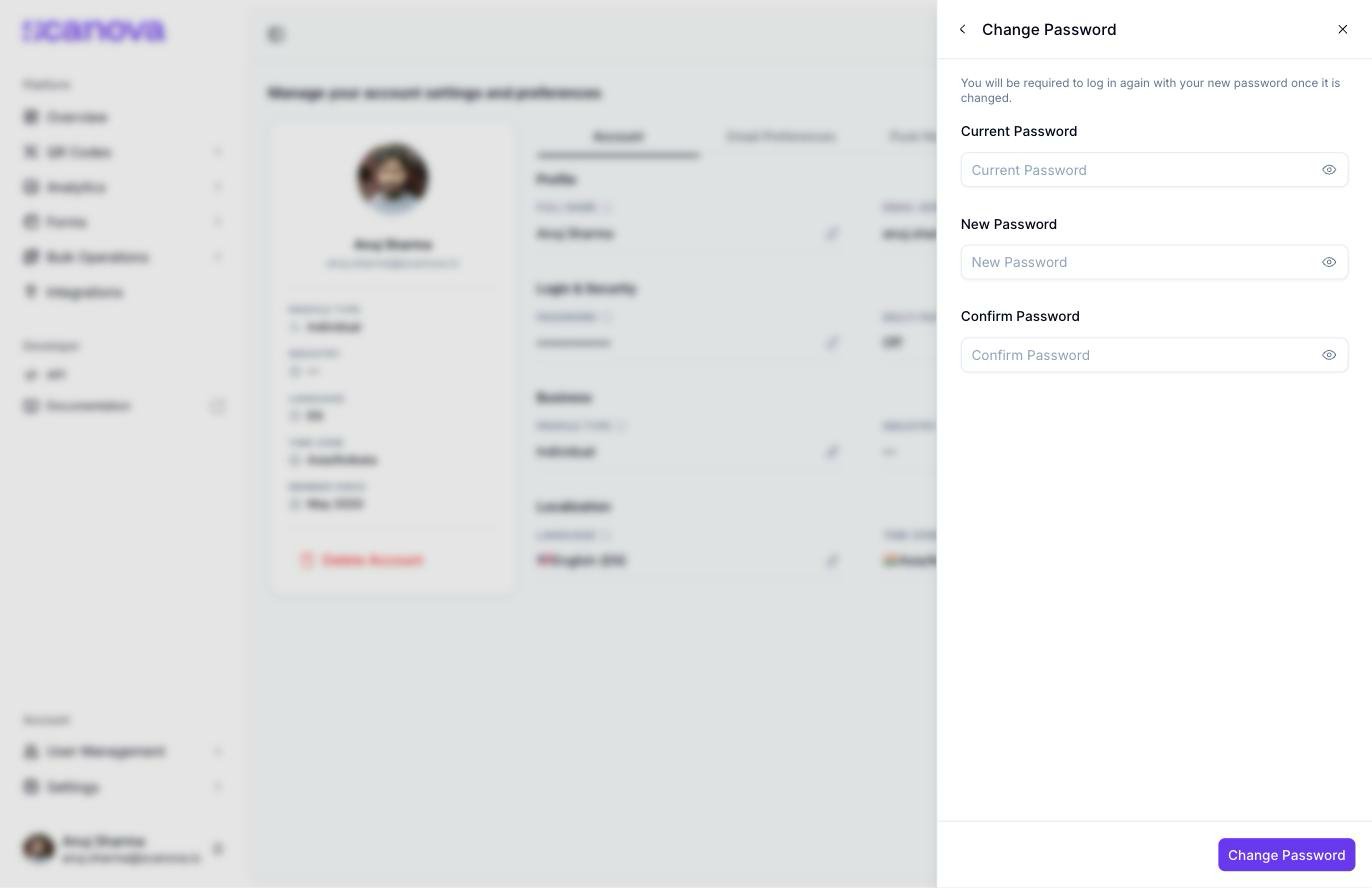
Password opens Change Password, which asks for your current password plus a new password (8–200 characters) and confirmation
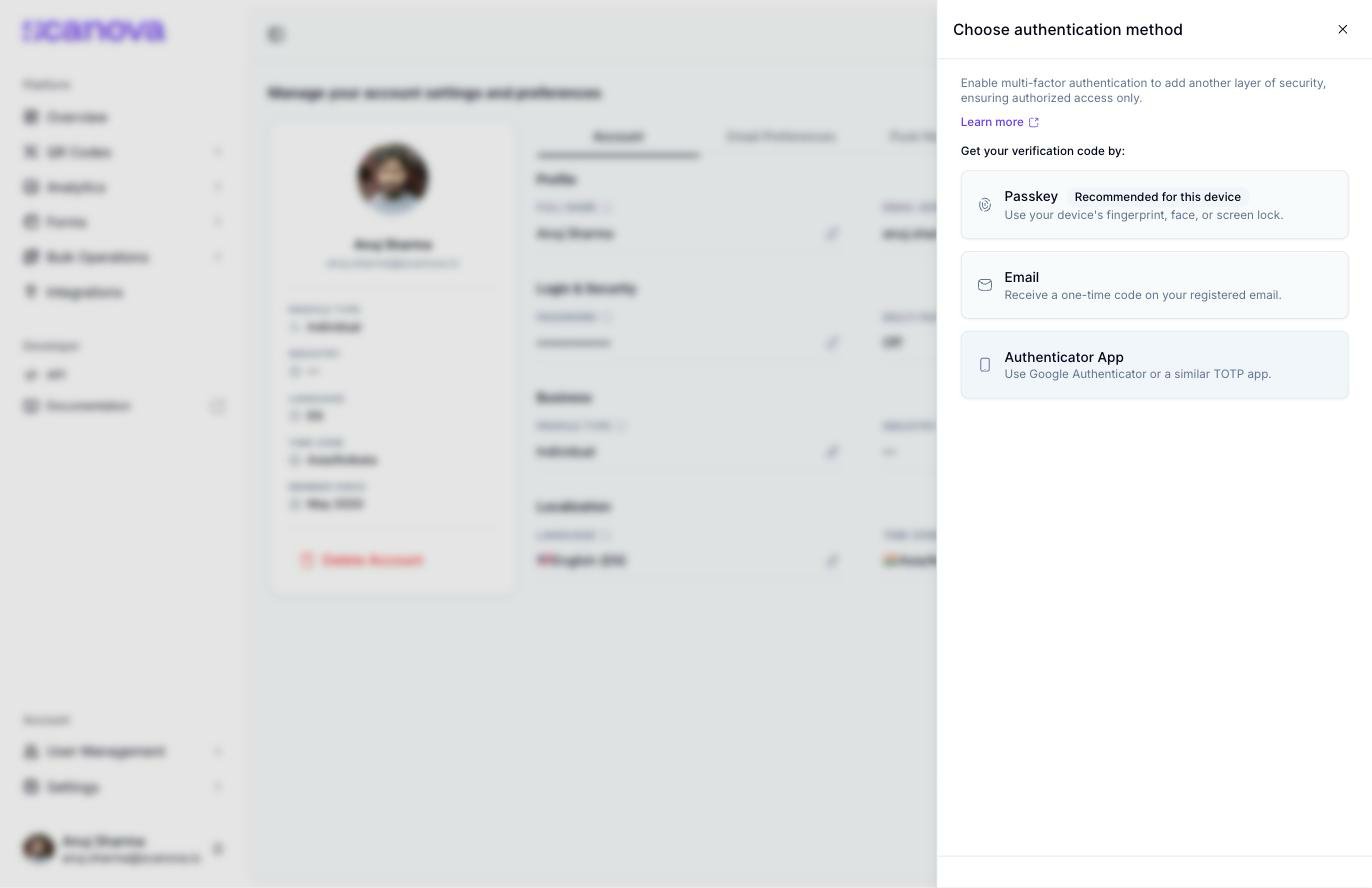
Multi-factor authentication opens a method picker for Passkey (labeled “Recommended for this device” when your browser supports it), Email, or Authenticator App
The Change Password drawer
The Choose authentication method panel for enabling MFA
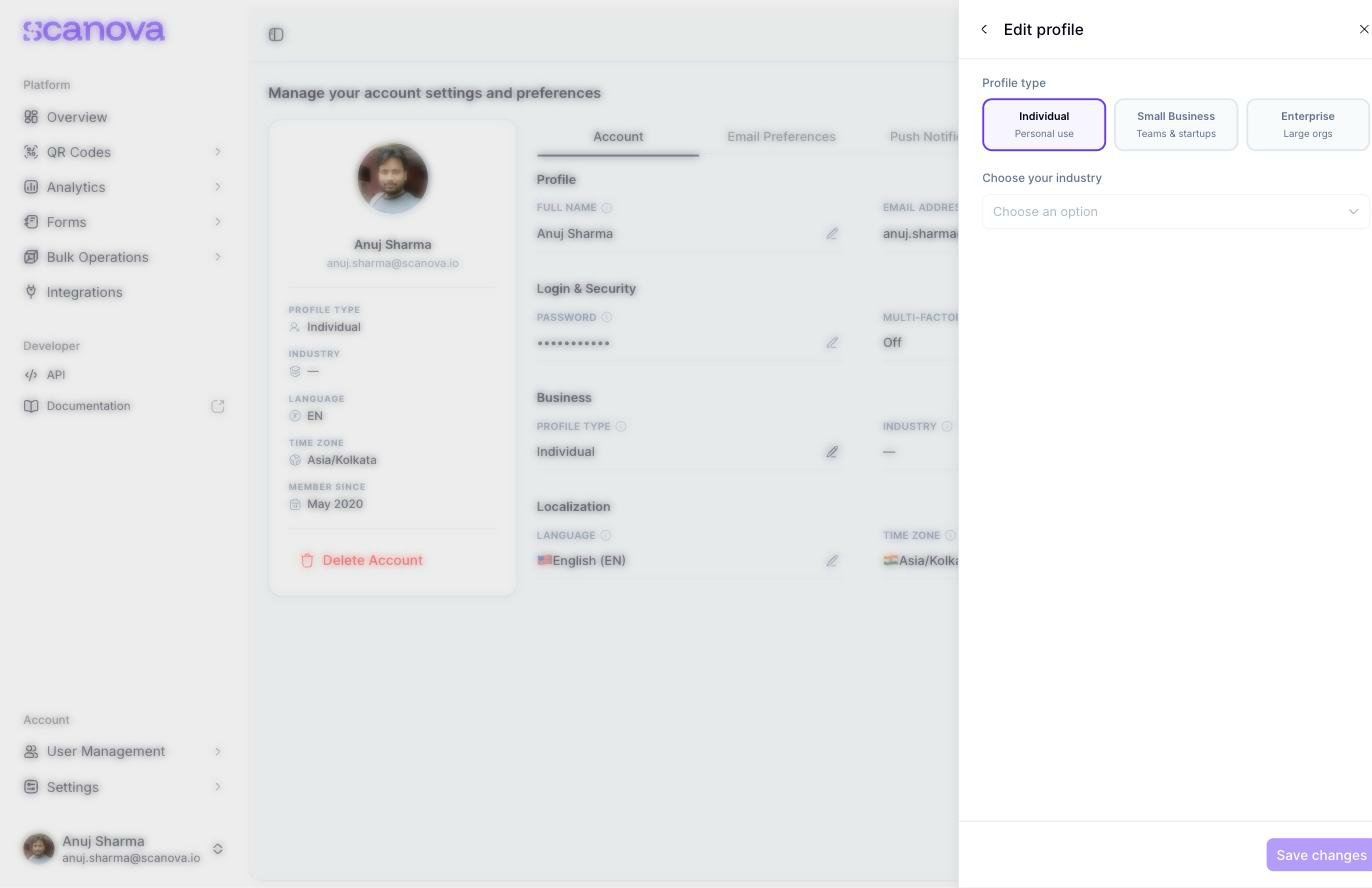
The Business section records your profile type and industry — used to tailor recommendations, not to gate features. Click either pencil icon to open the Edit profile drawer.
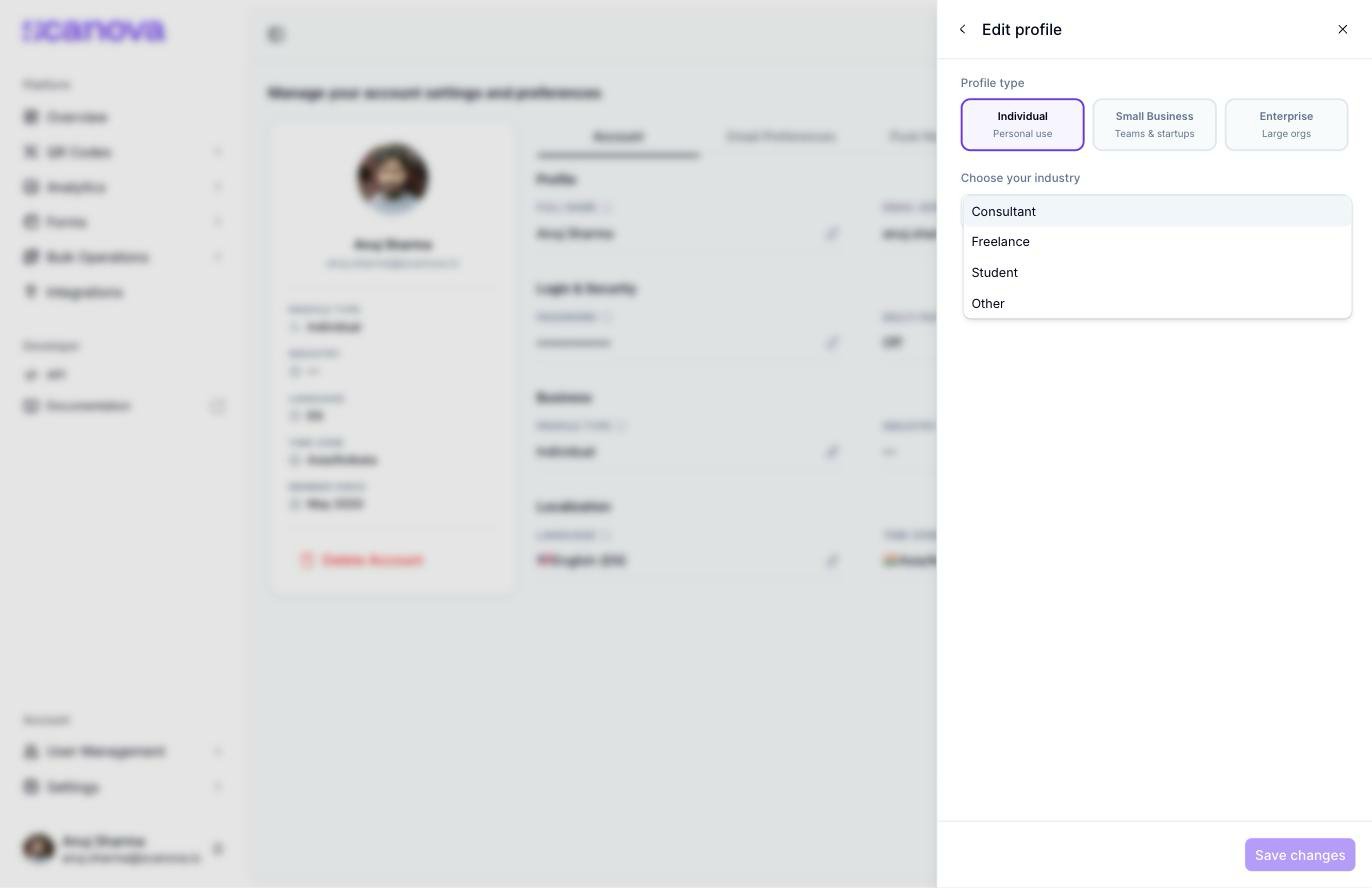
The Edit profile drawer with Profile type and Industry fields
Profile type is one of:
Individual — personal use
Small Business — teams & startups
Enterprise — large orgs
Industry is a dropdown that depends on the profile type you pick — for Individual, the options are Consultant, Freelance, Student, and Other.
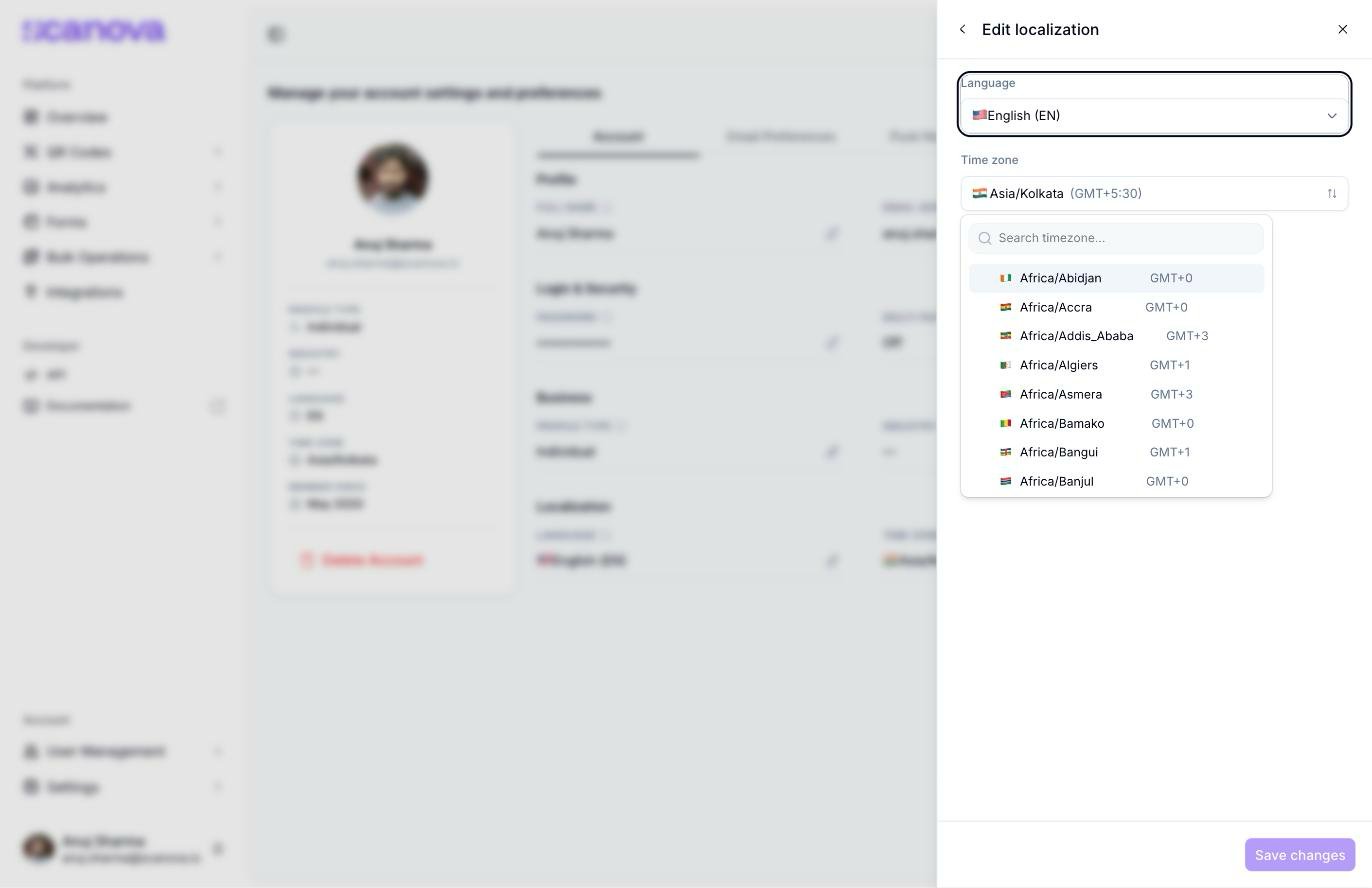
The Localization section controls the language and time zone Scanova uses for you. Click either pencil icon under Language or Time Zone to open the Edit localization drawer.
The Time zone dropdown, open on the full searchable IANA zone list
Language — English, Español, Français, or Deutsch
Time zone — a searchable dropdown listing every IANA time zone (for example Africa/Abidjan), each labeled with its GMT offset — your current zone shows as, e.g., Asia/Kolkata (GMT+5:30)
Click Save changes to apply — the change takes effect immediately across the dashboard.
The Push Notifications tab (/account/push-notifications) sits between Email Preferences and Appearance. As of this writing it shows a single disabled Browser Push Notifications toggle labeled “Push notifications aren’t available yet. Check back soon.” — the feature is visible in the UI but not yet functional.
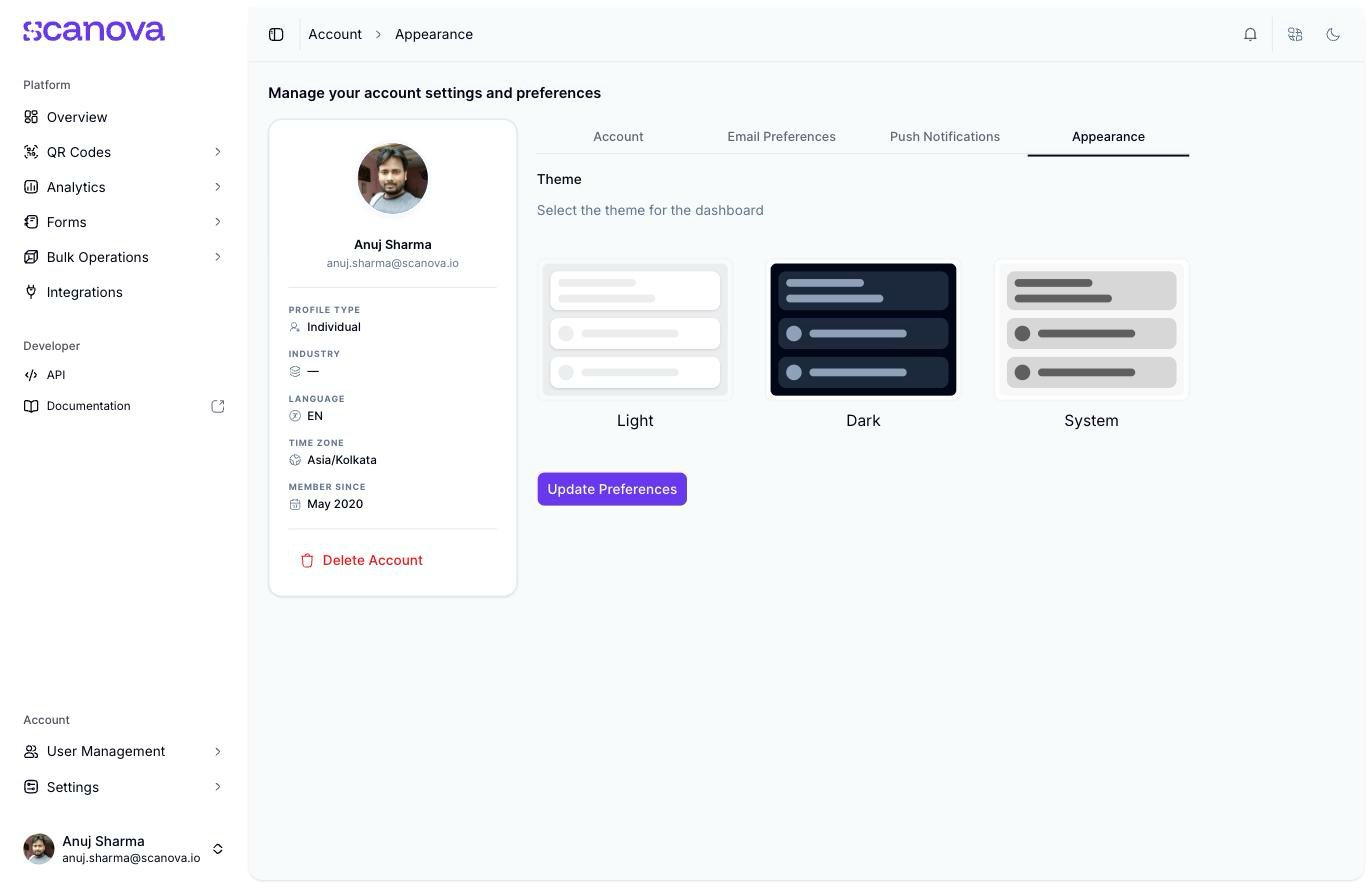
The Appearance tab (/account/appearance) is separate from the Account tab and controls only the dashboard’s visual theme.
The Appearance tab with Light, Dark, and System theme options
Pick Light, Dark, or System (which follows your OS setting) — the change previews immediately. Click Update preferences to persist your choice to your account, so it carries across devices and sessions.
The moon/sun icon in the top bar toggles between light and dark instantly for the current session, without opening this tab — use the Appearance tab when you want the choice saved to your account, or to pick System.
Delete account, in red at the bottom of the profile card, starts a multi-step flow: a required reason for leaving, a retention screen tailored to that reason, and a final password-confirmed step. Deletion is immediate once confirmed and can’t be undone — see Deleting your account for the full walkthrough.