Restrict who can open a published page, with a password, an age gate, or any of the other access controls available on a landing page that you have built.
On a multi-page site, you can require a password to view an individual page — without password-protecting the whole QR Code. Visitors can still see that the page exists in navigation; they just can’t see its content until they enter the correct password.This is different from QR-level password protection, set in the QR Code’s own settings, which hides the entire destination — visitors don’t see anything, not even that other pages exist, until they enter the password. Page-level protection is more targeted: use it when most of your site should stay open but one or two pages need to stay private.
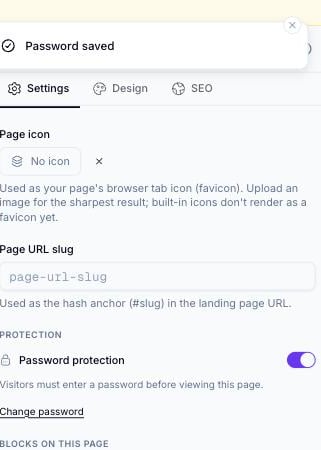
Live UI wording: the toggle is labeled Password protection, with helper text that reads “Require a password before showing this page” before you’ve set a password, and “Visitors must enter a password before viewing this page” once one is set.
A public event page with a members-only “Resources” page
A menu page that’s open to everyone, plus a staff-only “Internal” page on the same QR Code
A wedding site where the main details are public but a gift-registry or address page is shared only with close family
If you want to hide the entire site behind one password — including the fact that it has multiple pages — use QR-level password protection instead, from the QR Code’s settings.
Open the page in the page builder and select it from the Pages list in the left sidebar.
2
Open the page's Settings tab
In the right-hand inspector, make sure nothing is selected on the canvas so you’re viewing the page-level tabs, then open Settings.
3
Turn on Password protection
Under PROTECTION, turn on Password protection. A Set a password field and Set password button appear.
4
Set the password and save
Enter a password and click Set password. A “Password saved” confirmation appears, the helper text updates to confirm protection is active, and a Change password link takes its place for future edits.
Password protection enabled on a page, after setting a password
5
Publish
Publish your changes — the password takes effect for visitors once the QR Code is published.
Password protection is set per page. If you have three pages and want all three protected, turn on Password protection separately on each one.
To change the password: open the same Protection section and click Change password, enter a new one, and save. Visitors who already unlocked the page on their device will need to enter the new password the next time it’s checked.
To remove password protection: turn off the Password protection toggle and publish. The page becomes visible to everyone immediately.
Using both QR-level and page-level protection together
You can combine the two if needed — for example, a QR-level password that protects the whole site, plus an extra page-level password on one especially sensitive page inside it. This isn’t blocked, but if QR-level protection is already active, visitors already need a password just to reach any page at all, so double-check that layering both is really the setup you intend.